Installing passwordless Windows Login integration on client computers (UI)
You can install the integration for passwordless Windows Login on your users' computers with the UI-based installation described in this topic.
Steps
-
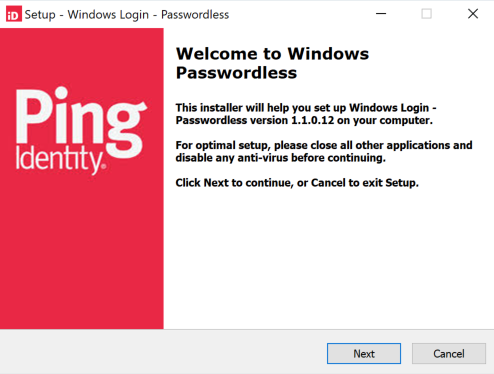
Run the provided executable, and when the welcome screen is displayed, click Next.
-
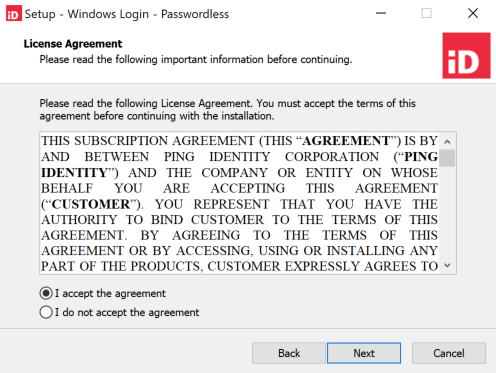
Accept the license agreement and click Next.
-
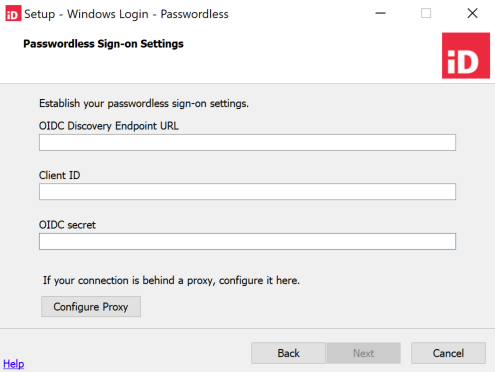
Enter the Passwordless Sign-on Settings:
-
Enter the OIDC Discovery Endpoint URL, Client ID, and the OIDC Secret.
-
You can get these values from the Configuration tab in the application you created for Windows Login - Passwordless. Learn more in Creating and configuring a passwordless Windows login application in PingOne
-
The OIDC Discovery Endpoint URL and Client ID can’t be edited during an upgrade.
-
-
If your organization uses a proxy, click Configure Proxy. Otherwise, click Next.
-
-
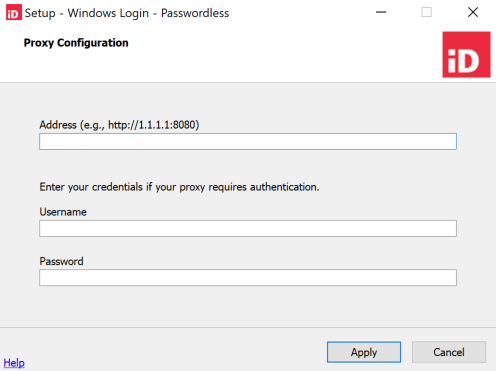
If you clicked Configure Proxy in the previous step, enter the proxy information, click Apply, and when you are returned to the Passwordless Sign-on Settings screen, click Next.
-
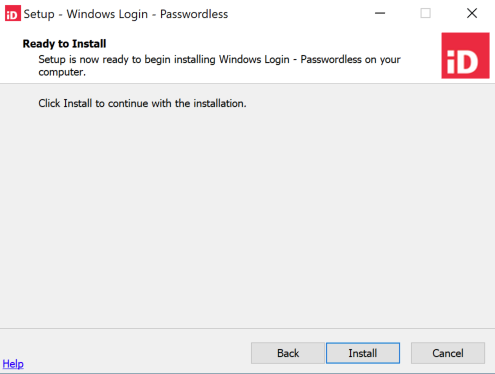
When the Ready to Install screen is displayed, click Install to start the installation.