Creating customized messages
About this task
The localization files in the .zip file that you downloaded have the naming convention Localization_<locale>.properties.__
The following example shows the content of the Localization_en.properties file.
pingid.enrollment.content.body=Your  company  is  …  so let’s get started.
pingid.enrollment.content.subject.line=Welcome to PingID
pingid.enrollment.content.description=Great news! … link to download PingID.
pingid.non.app.enrollment.text=I want to use a different authentication method.
The pingid.enrollment.content.body item is the Body text.
The pingid.enrollment.content.subject.line item is the Title text.
The remaining two lines refer to the legacy Enrollment page and are not relevant when using the New Enrollment Page.
To customize Title and Body messages offline:
Steps
-
Extract the downloaded
.zipfile. -
Edit the
Localization_<locale>.propertiesfiles to customize the message text.If there are errors in the field names
pingid.enrollment.content.bodyandpingid.enrollment.content.subject.linestrings, or those field names are not in the localization file, the affected message reverts to the default text for its locale. -
Create a new
.zipfile containing your customized properties files. You can use any file name for the.zipfile.The
.zipfile must be a flat structure containing only the desired files.-
Uploading a
.zipfile with an invalid structure returns the error messageFile doesn’t contain any valid localizations. -
Only files with file names complying with the
Localization_<locale>.propertiesnaming convention are uploaded. -
Files containing file names that do not comply with the
Localization_<locale>.propertiesnaming convention are ignored. This permits inclusion of instruction and maintenance files in the.zipfile, such asreadme.txt. -
Localization files for unsupported locales are ignored.
-
-
In the Upload Localization File section, click Choose File. In the file browser that opens, select the
.zipfile that you created in step 3.Result:
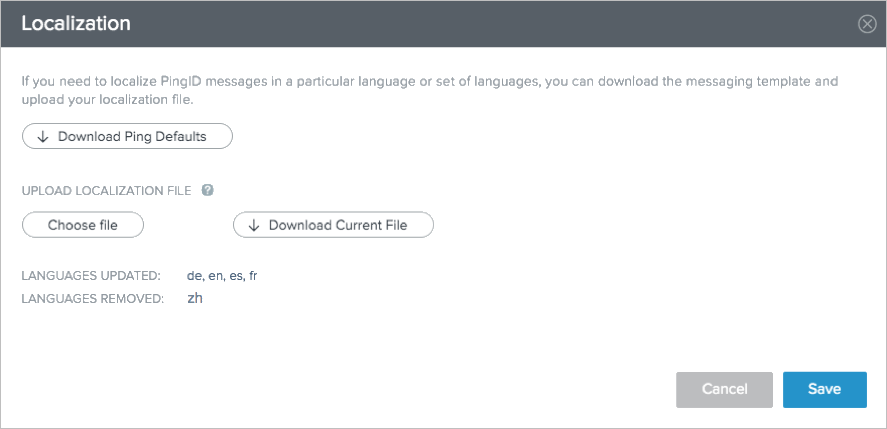
- Languages Updated
-
A list of the language locales whose messages change with this update.
- Languages Removed
-
A list of the language locales whose messages restore to the default messages with this update.
-
Click Save to accept and upload the changes, or Cancel to abandon the upload.
-
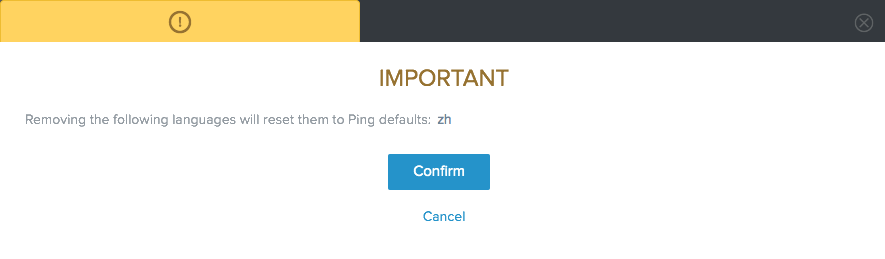
If you have removed languages, click Confirm to complete the upload.
Removed language messages are replaced by their defaults.
-
Uploading a
.zipfile of offline localization files resets online customizations for languages excluded from the.zipfile. For example, if you make an online customization of English messages and then upload a.zipfile that contains only a localization file for Spanish, only the Spanish messages update according to the uploaded customization. The English messages restore to the default message text. -
The system does not maintain a history of changes.
-