Restoring localization file message defaults
If you have customized the language for one or more locale by editing the localization file, you can restore the defaults by deleting the existing localization file for that language. Deleting the localization file restores the system defaults for all languages.
About this task
|
You can also restore defaults per language from the Enrollment page. Select a specific language and click Reset next to the text you want to restore. Use only one method consistently, either through the localization file or using the Admin portal. The system does not maintain a history of changes. |
Steps
-
Go to Setup → PingID → Branding → Enrollment.
-
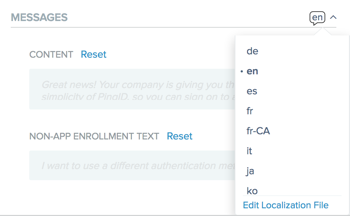
From the language selector list, select Edit Localization File.
Result:
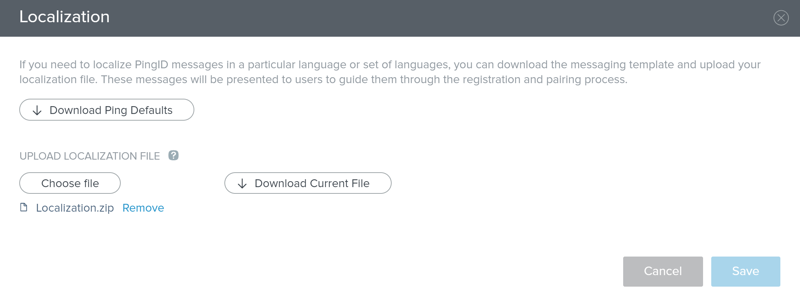
The Localization window opens.
-
To restore messages text:
Choose from:
-
To restore message text to the original for all locales, next to Localization.zip, click Remove.
-
To restore message text for one or more languages:
-
Click Download Current File and extract the current localization template
.zipfile. A separateLocalization_<locale>.propertiesfile is included for each locale. -
Delete the files for the locales that you want to reset to default and then compress the remaining files.
-
In the Localization window, next to Localization.zip, click Remove.
-
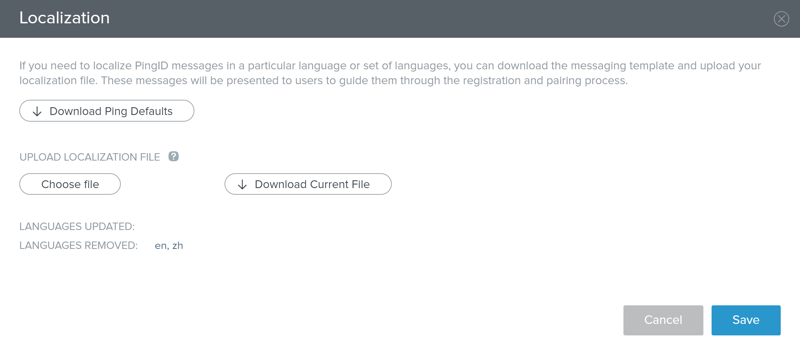
Click Choose file and upload the new localization
.zipfile.The languages to be removed display in the Languages Removed section.
-
-
-
Click Save.
-
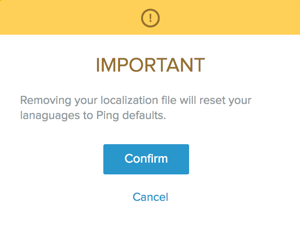
Click Confirm.
Result:
The following warning message displays.
Result
Your changes are applied and can be viewed in the relevant language selections in the Enrollment window.