Dynamic OAuth 2.0 authorization
AM can grant OAuth 2.0 scopes statically or dynamically:
- Static scopes (default)
-
OAuth 2.0 client configurations specify the allowed and, optionally, default scopes.
When the client requests allowed scopes and the resource owner consents to grant the client access, AM issues the token with the scopes requested.
When different users use the same client that requests scopes
AandB, the access token always includes scopesAandB. - Dynamic scopes
-
OAuth 2.0 client configurations specify the allowed and, optionally, default scopes.
-
You configure AM policies for OAuth 2.0 scope decisions.
-
You configure the client or the OAuth 2.0 provider service to use the AM policy engine for scope decisions.
AM checks each scope against the applicable OAuth 2.0 scope policies. AM grants or denies access to scopes dynamically at runtime.
When different users use the same client that requests scopes
AandB, the access token scopes can differ. -
Example use case
A company supports custom OAuth 2.0 clients for internal applications. The use of the internal applications is bound by the terms and conditions in the contracts of those who work for the company. The terms and conditions grant the internal applications access to profile information the company maintains. It would be redundant to prompt employees and contractors for consent to access their profile information.
The AM administrator creates policies to grant the profile scope for all internal client tokens.
How it works
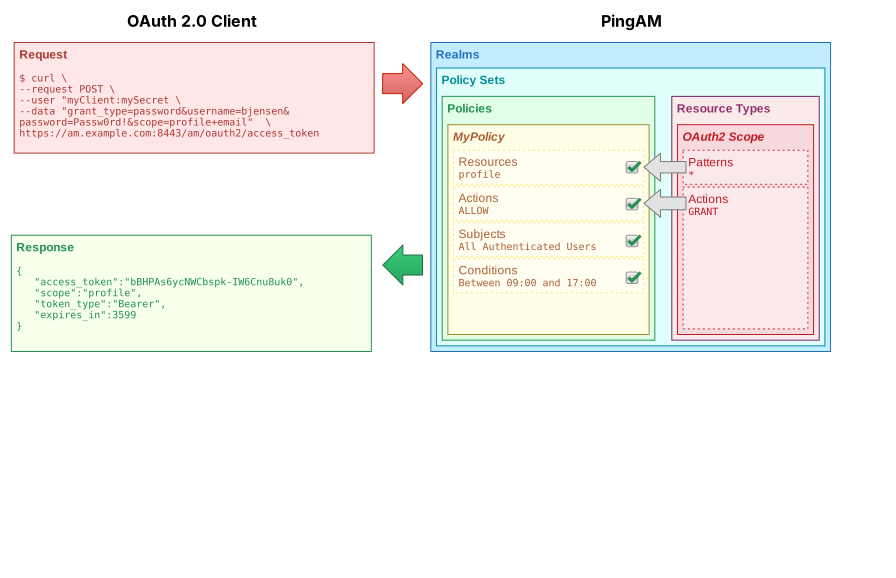
AM processes consent based on the policy decision:
-
If a policy grants access to a scope (
GRANT=true), consent is automatic.AM does not prompt the user to grant access.
-
If a policy denies access to a scope (
GRANT=false), AM omits the scope from any resulting token.AM does not prompt the user to grant access.
-
If no policy grants or denies access, then the result depends on the flow.
When the flow is interactive as in authorization or device code flows, AM prompts the user to grant access or uses the saved consent state if available.
If the flow is not interactive as in resource owner password or client credentials flows, AM omits the scope from any resulting token.
For details about which flows are interactive, refer to the examples in OAuth 2.0 grant flows and OpenID Connect grant flows.
The default scopes behavior doesn’t change for dynamic authorization. AM only evaluates default scopes from the OAuth 2.0 client profile when the client doesn’t request a scope. AM follows the same rules to deduce consent for both default and requested scopes.
When issuing refresh tokens, AM issues the same scopes as for the access token, unless a policy explicitly denies one of the scopes.
Validate OAuth 2.0 scope policies
Writing policies for OAuth 2.0 might not be straightforward if your environment requires complex conditions. The easiest way to validate OAuth 2.0 policies is to configure a client to use the policies and request some tokens.
Prepare a demonstration
Start by preparing the demonstration:
OAuth 2.0 provider
Configure the OAuth 2.0 provider service to use the AM policy engine for scope decisions: Configure the OAuth 2.0 provider service to use the AM policy engine for scope decisions: . In the AM admin UI, go to Realms > realm name > Services > OAuth2 Provider. . Enable Use Policy Engine for Scope decisions.
OAuth 2.0 scope policy
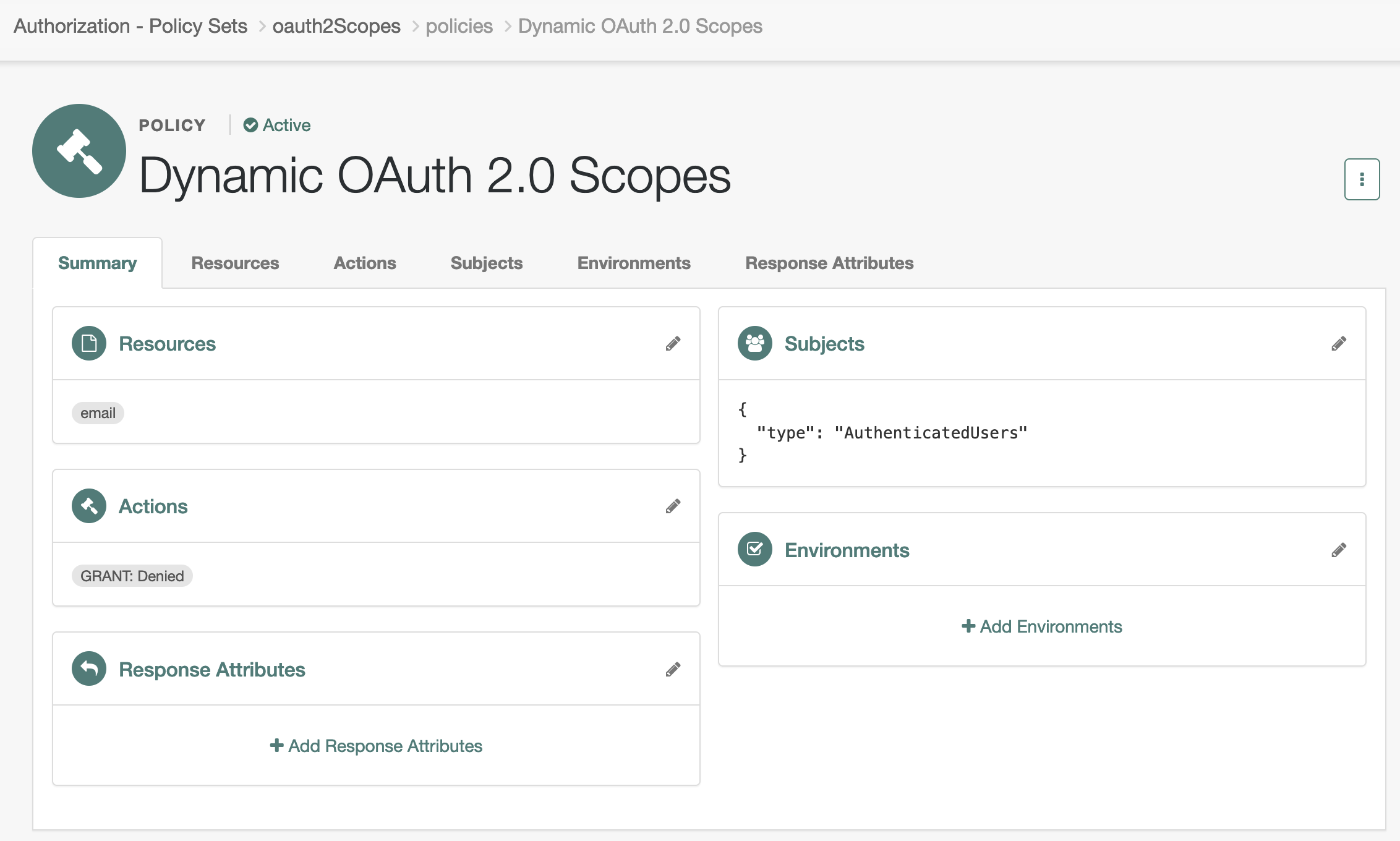
The sample scope policy denies access to the email scope.
-
In the AM admin UI, go to Realms > realm name > Authorization > Policy Sets and select Default OAuth2 Scopes Policy Set to edit the policy set.
This is the
oauth2Scopespolicy. -
Click + Add a Policy, use the following settings, and create the policy:
- Name
-
Dynamic OAuth 2.0 Scopes - Resource Type
-
OAuth2 Scope - Resources
-
Select
*as the pattern and addemailas the scope.
-
Click the Actions tab, set
GRANTtoDeny, and save your changes. -
Click the Subjects tab, set the subject type to
Authenticated Users, and save your changes.
The resulting policy reflects your work:
OAuth 2.0 client
The OAuth 2.0 client profile in this example overrides the AM OAuth 2.0 provider settings. This lets you test the scope policy without affecting other clients.
-
Create a confidential OAuth 2.0 client account.
In the AM admin UI, select Realms > realm name > Applications > OAuth 2.0 > Clients > + Add Client, and create a new confidential client with the following settings:
-
Client ID:
myClient -
Client Secret:
mySecret -
Redirection URIs:
https://www.example.com:443/callback -
Scopes:
openid
profile
email
-
-
Add the following settings in the client profile and save your work:
-
On the Core tab, set Client Name to
Dynamic scopes client. -
On the Advanced tab, add the following Grant Types:
Authorization Code
Client Credentials
Implicit
Refresh Token
Resource Owner Password Credentials
-
-
Override the OAuth 2.0 provider settings for this client.
On the OAuth2 Provider Overrides tab, update the following settings and save your work:
-
Enable OAuth2 Provider Overrides: Enabled
-
Use Policy Engine for Scope decisions: Enabled
-
Scopes Policy Set:
oauth2Scopes
-
Test the demonstration
Test the feature with non-interactive and interactive flows.
The sample policy denies the email scope for all authenticated users.
The profile scope has no policy — it’s a no-policy-match case.
The tests show how AM handles each case depending on the flow type.
Non-interactive
This test uses the resource owner password credentials (ROPC) flow:
-
The OAuth 2.0 client credentials are
myClient:mySecret. -
The resource owner credentials are the username and password you recorded:
bjensen:Ch4ng31t. -
The requested scopes are
openid,profile, andemail.
$ curl \
--request POST \
--user 'myClient:mySecret' \
--data 'scope=openid profile email' \
--data 'grant_type=password' \
--data 'username=bjensen' \
--data 'password=Ch4ng31t' \
"https://am.example.com:8443/am/oauth2/realms/root/realms/realm name/access_token"
{
"access_token": "…",
"refresh_token": "…",
"scope": "openid",
"id_token": "…",
"token_type": "Bearer",
"expires_in": 3599
}Notice the access token has "scope": "openid".
AM removed both email and profile from the scopes:
-
email: a policy explicitly denies it (GRANT=false), so AM omits it. -
profile: no policy matches this scope, so AM also omits it.
In non-interactive flows, AM treats no-policy-match scopes the same as explicitly denied scopes.
Interactive
This test uses the implicit flow. It stops after demonstrating the user consent phase of the process.
-
In a web browser, go to the
/authorizeendpoint to initiate the implicit flow.https://am.example.com:8443/am/authorize?scope=openid+profile+email&response_type=id_token&client_id=myClient&nonce=123&state=456&redirect_uri=https://www.example.com:443/callback -
Sign in with the resource owner’s credentials.
-
Observe the prompt for consent that doesn’t include the
emailscope: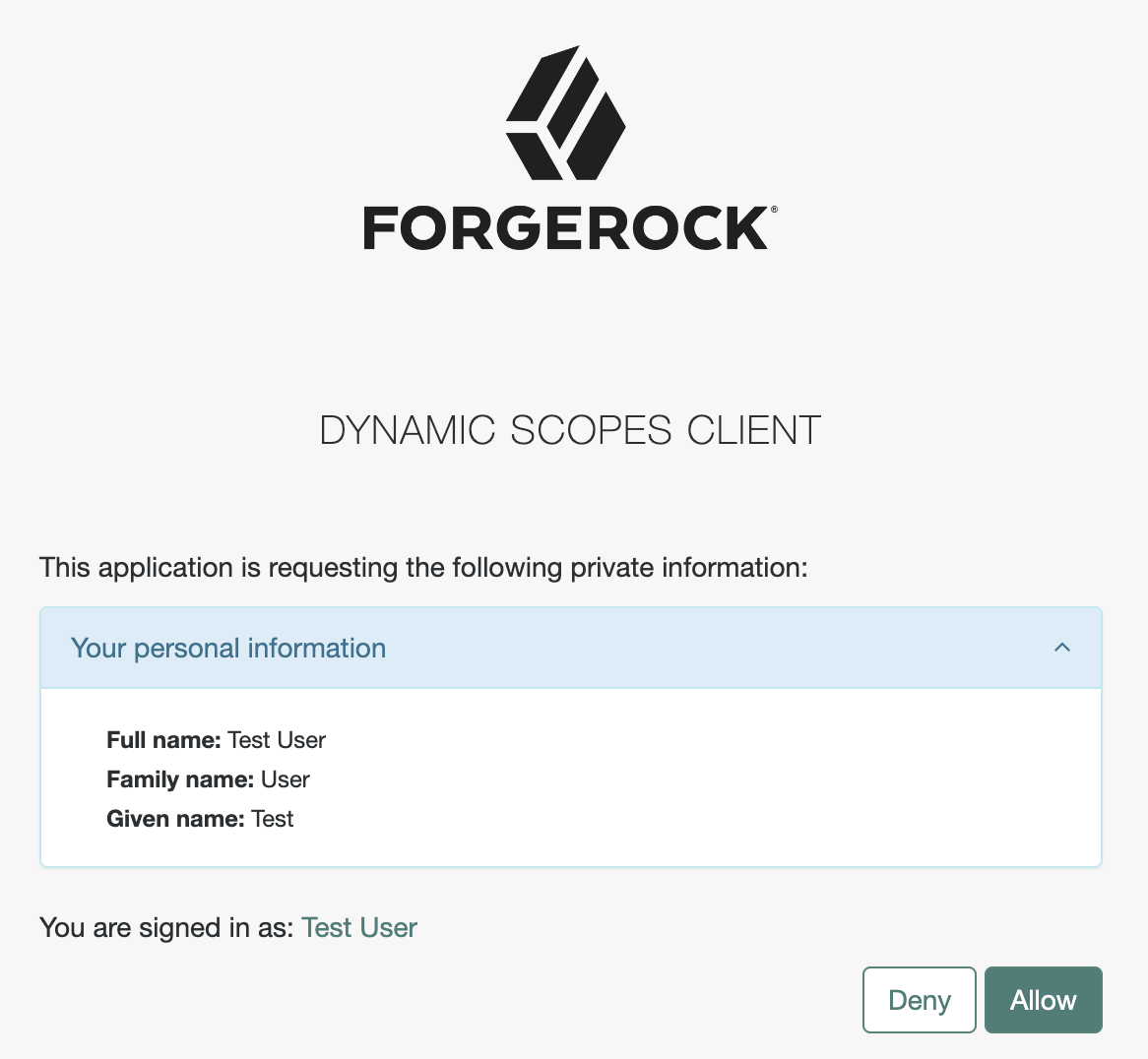 Figure 3. Consent for the profile scope
The consent page shows profile but not email:
-
email: the policy explicitly denies it (GRANT=false), so AM omits it from the consent page entirely. -
profile: no policy matches this scope, so AM presents it for the user to grant or deny.
In interactive flows, AM doesn’t treat no-policy-match scopes the same as explicitly denied scopes. Instead, it presents them for user consent.
To explicitly deny a scope in interactive flows, you must create a policy that sets GRANT to Deny for that scope and the relevant condition.
Without an explicit deny policy, a scope that fails a policy condition (for example, a user who doesn’t meet a group membership requirement) is still presented for consent rather than denied outright.
|