The AM admin UI
After you install AM, log in to the AM admin UI as AM administrator,
amAdmin with the password you set during installation.
Go to a URL, such as https://am.example.com:8443/am.
In this case, communications proceed over the HTTPS protocol to a FQDN (am.example.com),
over a standard Java web container port number (8443), to a specific deployment URI (/am).
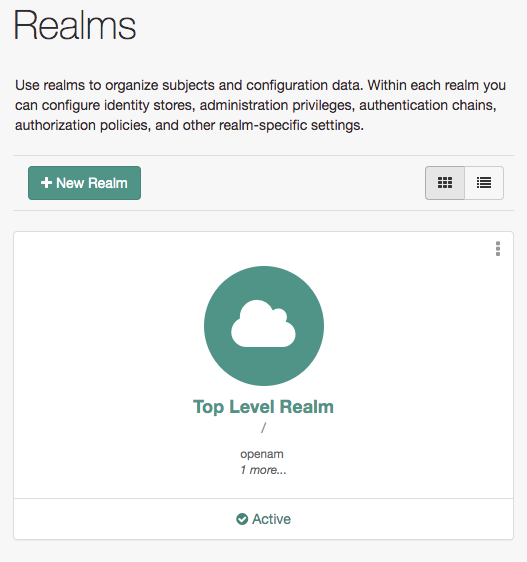
When you log in as the AM administrator, amAdmin, you have access to the complete AM admin UI.
In addition, AM has set a cookie in your browser that lasts until the session expires,
you logout, or you close your browser.
(Persistent cookies can remain valid when you close your browser.
This section reflects AM default behavior before you configure additional functionality.)
The amAdmin account is a special user built-in to AM.
The amAdmin account does not have a user profile and is not present in the configured identity store,
so cannot use functionality that requires a user profile, such as Device Match or Push notifications.
You should create users or groups, and delegate administrative privileges to them.
If you configure AM to grant administrative capabilities to users that do have a user profile and appear in the configured identity store, that user is able to access both the AM admin UI in the realms they can administer, and their self-service profile pages:
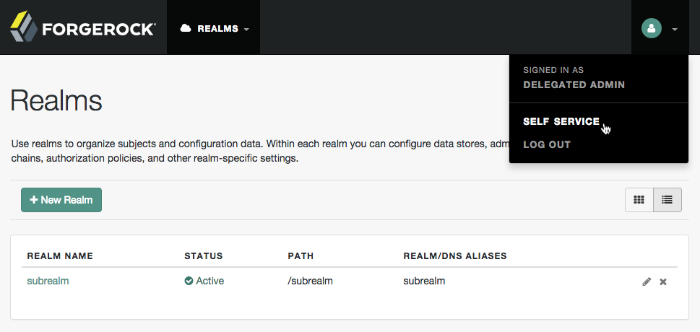
When you log in to the AM admin UI as a non-administrative end user, you do not have access to the administrative console. Your access is limited to self-service profile pages and the user dashboard.
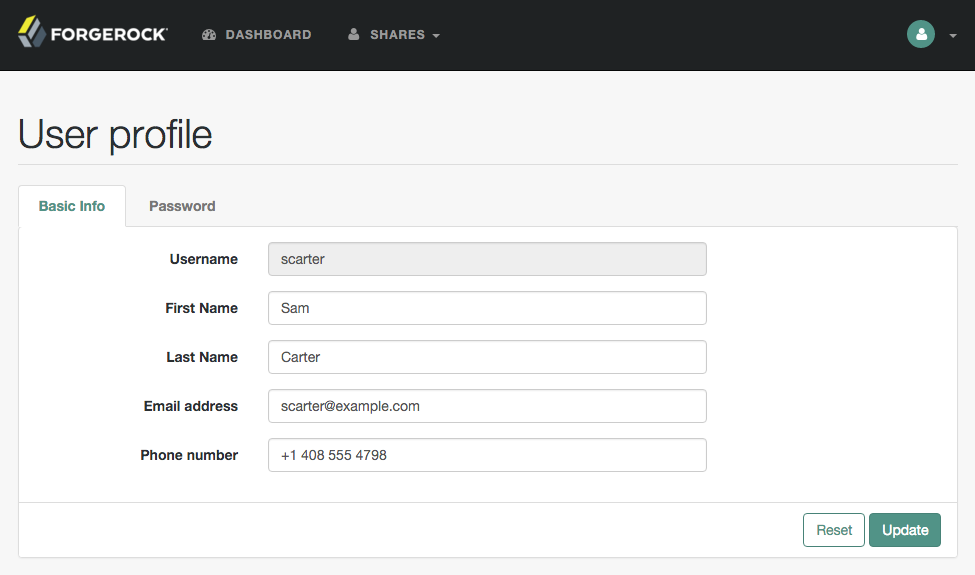
The profile attribute allowlist controls the information returned to non-administrative users when they access json/user
endpoints. For example, the allowlist controls the attributes shown in the user profile page.
Common profile attributes are allowlisted by default. You must add any custom attributes that you want non-administrative users to see.
The allowlist can be set globally, or per realm, in the user self-service service. To modify the list:
-
Globally: Go to Configure > Global Services > User Self-Service > Profile Management, and edit the Self readable attributes field.
-
By realm: Go to Realms > realm name > Services > User Self-Service > Profile Management, and edit the Self readable attributes field.
You must add the user self-service service to the realm if you’ve not done so already but you don’t need to configure anything other than the allowlist.
Responsiveness
The AM admin UI is a responsive website, which means it will resize some of its features to fit the size of your screen and the layout design.
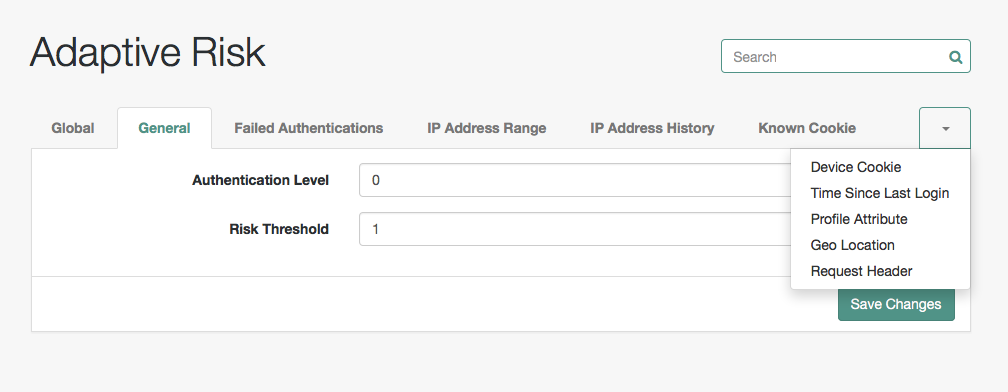
For example, the header menu will change into a dropdown menu, and pages with many tabs will shed most of them for a dropdown menu to the left-hand side.