Task 8: Apply basic branding to journey and account pages
A consistent and familiar user experience is key to building trust with your end users. When you integrate your applications with Advanced Identity Cloud, you can customize the user interface (UI) to match your organization’s look and feel.
Advanced Identity Cloud provides several UI customization options:
-
Hosted pages: Built-in sign-on and account management pages that you can brand using themes. Learn more in Hosted pages.
-
REST APIs: APIs that let you build a completely custom user interface for sign-on and account management. Learn more in Advanced Identity Cloud REST API.
-
Ping SDKs: Software Development Kits (SDKs) that simplify integration with your applications. Learn more in Ping SDKs.
-
Ping (ForgeRock) Login Widget A widget that allows you to embed authentication journeys directly into your application. Learn more in Ping (ForgeRock) Login Widget.
These UI customization options aren’t mutually exclusive, and you might need a combination of them to meet your requirements. Many companies build their own UIs with APIs or SDKs but also use the built-in hosted pages to quickly test use cases. You can find a comparison in Compare end-user UX options.
This task focuses on branding the built-in hosted pages to help you get started quickly. The Best practices and next steps section then offers guidance on how to enhance these experiences after you’ve mastered the basics.
Apply basic branding with a theme
Themes let you customize the look and feel of Advanced Identity Cloud hosted journey and account pages, including the information presented to end users and the actions they can take.
To create your own theme:
-
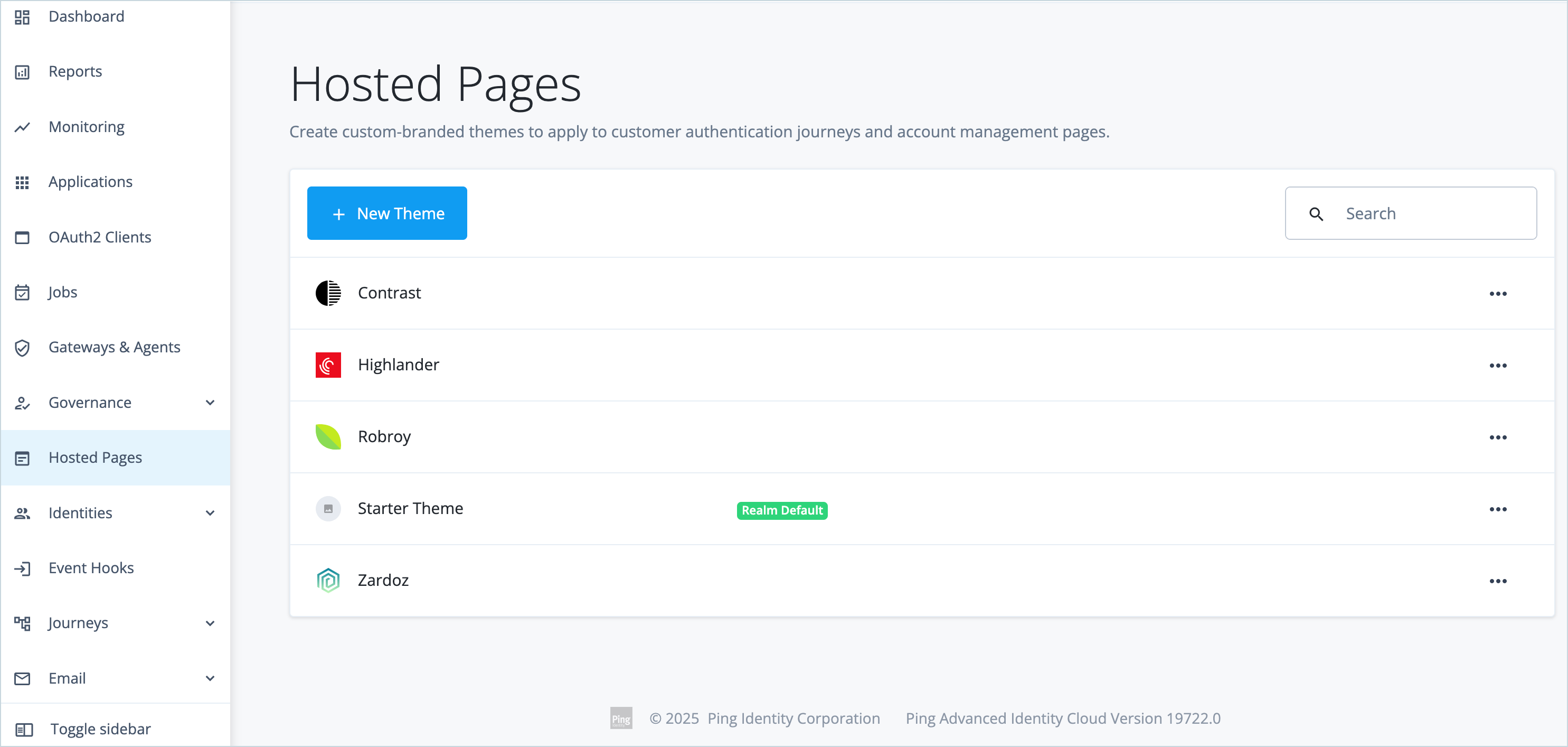
In the Advanced Identity Cloud admin console, go to User Experience > Hosted Pages.
-
Click New Theme.
-
In the New Theme modal, enter a name for the new theme (for example,
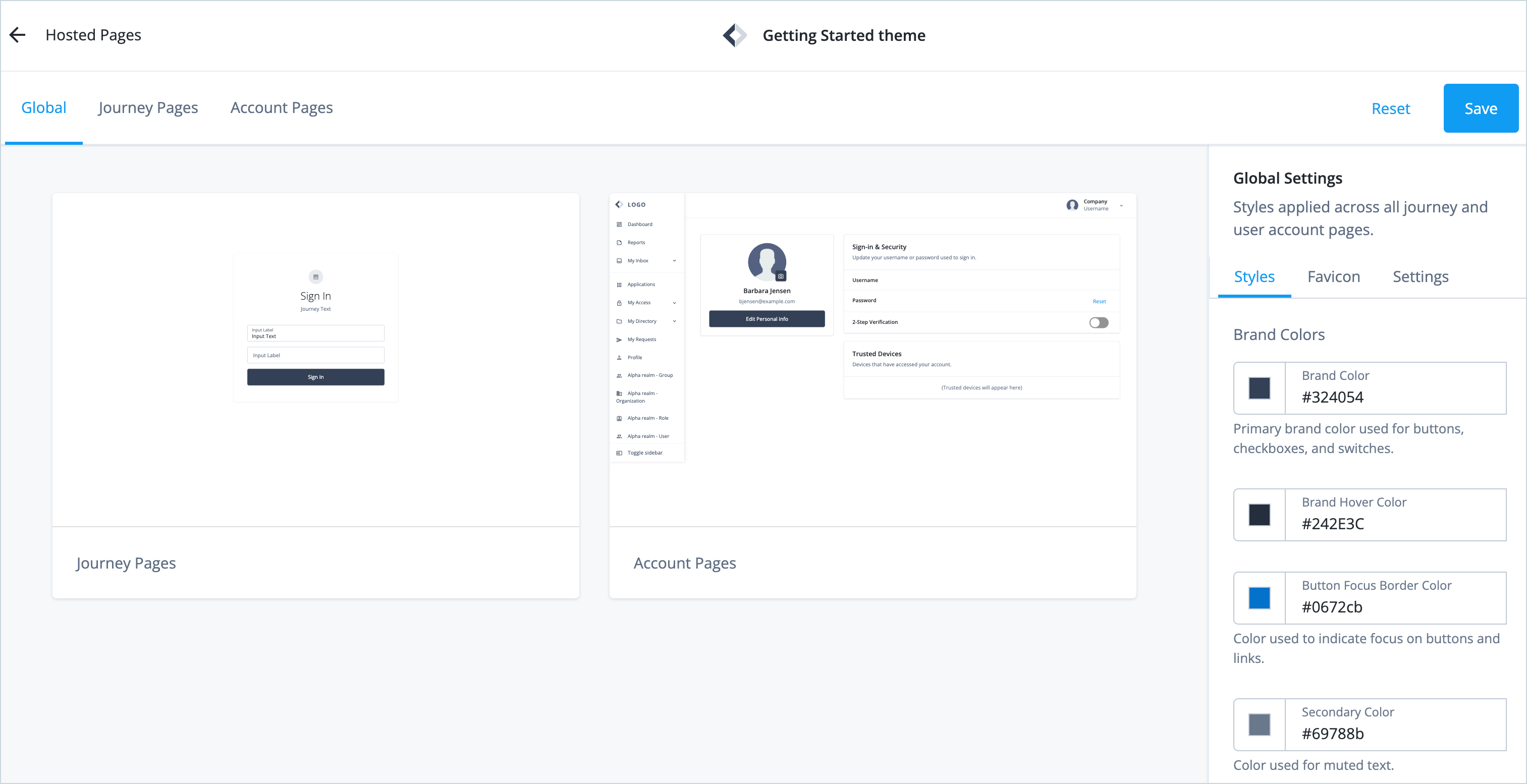
Getting Started theme) and click Save.The Hosted Pages editor opens.
-
On the Global Settings > Styles tab, change the brand colors, typography, buttons, and links to match your organization’s branding.
From Global Settings, you can also:
-
Set a custom favicon for all journey and account pages on the Favicon tab.
-
Rename the theme and apply it to specific journeys on the Settings tab.
-
-
Click Journey Pages and change the page background color to match your organization’s branding, and add your organization’s logo.
-
Click Account Pages and make the following changes:
-
Change the navigation and page styles to match your organization’s branding, and add your organization’s logo.
-
Under Profile Page, select and deselect the account controls you want your end users to access from their profile page.
End users can only view the information and take actions for the items you enable in the Profile Page. Learn more in Configure visible information and end-user actions.
-
-
Click Save.
-
Set the new theme as the default theme:
-
Go back to User Experience > Hosted Pages.
-
Click the ellipsis icon () for the Getting Started theme and select Set as Realm Default.
-
-
In an incognito browser window, sign on to the Advanced Identity Cloud as an end user.
The hosted sign-on page and account pages reflect the branding changes you made in the Getting Started theme.
Learn more in Add a custom theme.
Best practices and next steps
Now that you’ve explored basic branding, consider these enhancements to create a more polished and professional user experience:
-
Apply themes to specific journeys: This allows you to tailor the experience for different brands or applications within the same tenant. For example, you can apply distinct themes for each consumer brand while sharing the same underlying identity platform. Learn more in Custom journeys.
-
Use a custom domain: Using your own domain (like
login.mycompany.com) instead of the default Ping Identity domain is crucial for building user trust and reinforcing your brand identity. Replace the default Ping Identity domain with your own branded domain for hosted pages. Learn more in Configure customer-friendly domain names. -
Brand your email templates: Customize your email templates to match the branding of your hosted pages for a consistent and trustworthy user journey. Learn more in Email templates.
-
Localize the user interface: If you have users in different regions, you can provide a localized experience by creating language-specific versions of your hosted pages and themes. Learn more in Localize hosted pages.
-
Preview your changes: Before setting a theme as the default or assigning it to a production application, always preview it first. Remember to test different browsers, screen sizes, and user flows.
For greater control over the user experience:
-
Build custom UIs with REST APIs: If the hosted pages don’t meet your requirements, use the Advanced Identity Cloud REST APIs to build fully custom sign-on and account management experiences. Learn more in Authenticate to Advanced Identity Cloud REST API.
-
Integrate with SDKs: Use platform-specific SDKs (JavaScript, iOS, Android) to embed authentication directly in your applications. Learn more in Ping SDKs