Auth scripting
You can use authentication and authorization (auth) scripting to modify default Advanced Identity Cloud behavior in many situations: client-side authentication, policy conditions, handling OpenID Connect claims, and others.
Use JavaScript for auth scripting in Advanced Identity Cloud. Groovy scripts are deprecated and will eventually be completely replaced with JavaScript scripts.
For JavaScript examples of all auth script types, review the sample scripts. Each sample script includes a list of available variables.
|
Scripts can potentially emit the personally identifiable information (PII) of your end users into Advanced Identity Cloud logs, and then into external services that consume Advanced Identity Cloud logs. Ping Identity recommends that you establish a review and testing process for all scripts to prevent PII leaking out of your Advanced Identity Cloud tenant environments. |
Auth script types
The auth script types available in Advanced Identity Cloud include the following:
Journeys
| Script type | Description | Information |
|---|---|---|
Configuration Provider Node |
Runs in a Configuration Provider node as a step in an authentication journey. |
|
Device Match Node |
Runs in a Device Match node to compare device metadata with that stored in the user’s profile. |
|
Journey Decision Node |
Runs in a Scripted Decision node as a step in an authentication journey. |
|
OIDC Node |
Runs in an OIDC ID Token Validator node to transform the user profile from an OIDC identity provider. |
|
Social Provider Handler Node |
Runs in a Social Provider Handler node to transform the user profile from a social identity provider. |
OAuth2 / OIDC
| Script type | Description | Information |
|---|---|---|
OAuth2 Access Token Modification |
Modifies the key-value pairs contained within access tokens before they’re issued to a client. |
|
OAuth2 Authorize Endpoint Provider |
Provides additional data to the authorization endpoint for use in the authorization code flow. |
|
OAuth2 Evaluate Scope |
Retrieves and modifies scopes for OAuth 2.0 access token introspection. |
|
OAuth2 May Act |
Adds the |
|
OAuth2 Trusted JWT Issuer |
Dynamically retrieves the details of an issuer during the JWT profile for authorization grant. |
|
OAuth2 Validate Scope |
Modifies how Advanced Identity Cloud validates requested OAuth 2.0 scopes. |
|
OIDC Claims |
Modifies or overrides OIDC claims when issuing an ID token
or in the response from the |
SAML
| Script type | Description | Information |
|---|---|---|
SAML2 IDP Adapter |
Modifies the processing of the authentication request on the IDP. |
|
SAML2 IDP Attribute Mapper |
Maps user-configured attributes to SAML attributes in the assertion returned by the IDP. |
|
SAML2 NameID Mapper |
Customize the value of the NameID attribute in the SAML assertion on the remote SP. |
|
SAML2 SP Account Mapper |
Customize how SAML assertion attributes are mapped to user profiles on the SP. |
|
SAML2 SP Adapter |
Modifies the processing of the authentication request on the SP. |
Other
| Script type | Description | Information |
|---|---|---|
Client-side Authentication |
Runs on the client during authentication. |
|
Library |
Contains reusable functionality that can be imported into journey decision node scripts or other library scripts. |
|
Policy Condition |
Modifies authorization policy decisions. |
|
Social Identity Provider Profile Transformation |
Runs in a Social Provider Handler node. Adapts the fields received from a social identity provider to align with the fields expected by Advanced Identity Cloud. |
|
PingOne Verify Completion Decision Node |
Runs in a PingOne Verify Completion Decision node so that you can access information about the user’s PingOne Verify transactions. |
Manage auth scripts
To manage your auth scripts, go to Extensions > Scripts.
On the Scripts page, you can view a list of existing scripts. To edit, duplicate, or delete a script, click its More () menu.
The edit option in the More menu opens the script in a lightweight editor that features syntax highlighting and validation checking. You can maximize the editor to full screen to edit larger scripts:
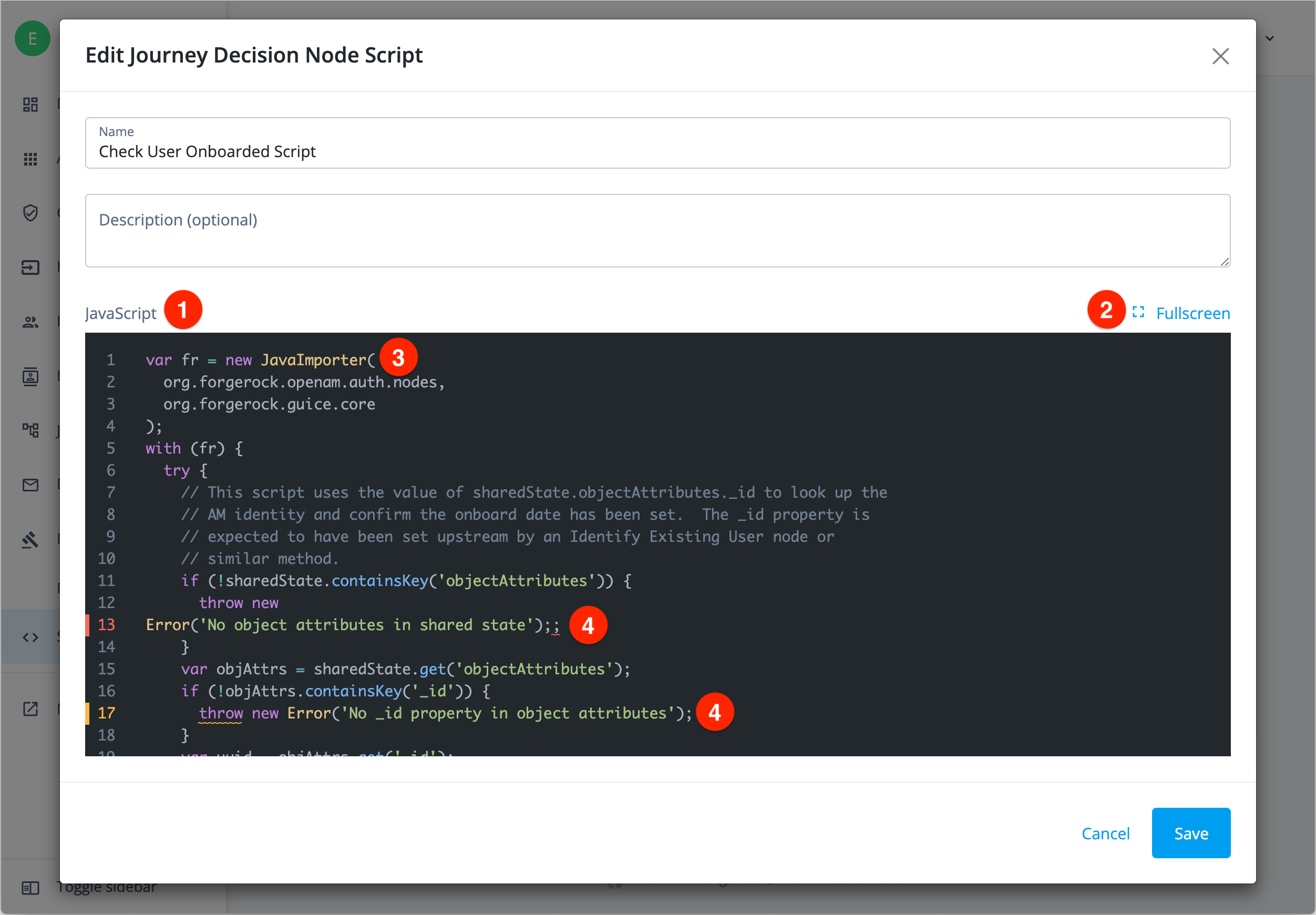
① JavaScript editor
② Fullscreen option
③ Syntax highlighting
④ Syntax error highlighting and validation checking
Create an auth script
-
In the Advanced Identity Cloud admin console, go to Extensions > Scripts and click + New Script.
-
Choose an auth script type.
-
If the script type supports both script engines, Advanced Identity Cloud displays the Choose Script Engine page. Script types that support only the next-generation engine skip this page.
- Next Generation
-
The recommended script engine type is preselected.
- Legacy
-
This script engine type is deprecated.
Find out how to migrate scripts to the next-generation engine in migrate scripts.
The editor opens.
For next-generation scripts, click Libraries on the left of the editor to display the following side panel:
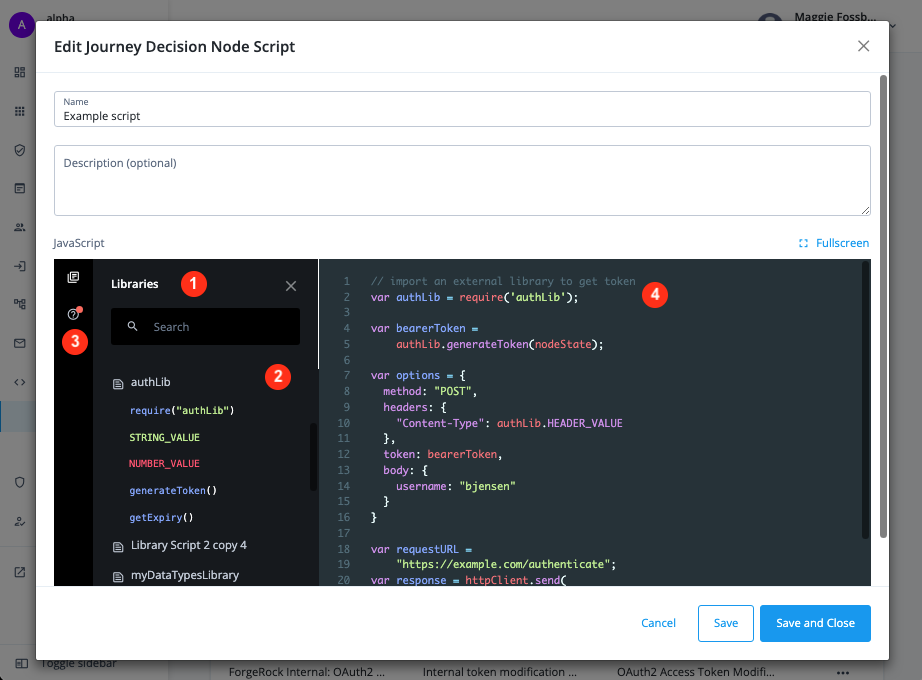
① View and search library scripts to import into your script.
② Click to expand a library script and view its exported methods and constants.
The font colors indicate the exported types:-
Blue for functions
-
Red for numbers
-
Green for strings
-
Orange for boolean types
-
Purple for objects / properties
③ Click Bindings to view the available bindings for this script type.
④ Click ESVs to reference variables and secrets from your script.
⑤ Click Docs to view links to context-related documentation.
A red dot denotes documentation updates.
⑥ Edit your script and import library scripts as necessary.If you selected the wrong script type, click Previous to select a different script type. -
Enter a unique Name and optional Description for the script, and click Save.
After you save a script, you can’t change its type.
Manage journey scripts in the journey editor
You can also create and edit journey scripts, for example, Scripted Decision node and Configuration Provider node scripts, directly from within the journey editor.
-
Go to Journeys > Journeys and open a journey in the journey editor.
-
Find or create a Scripted Decision or Configuration Provider node.
-
Select the node to open the context pane on the right side.
The following example shows where you can create a new script ④ or edit an existing one ⑤ for a Scripted Decision node:
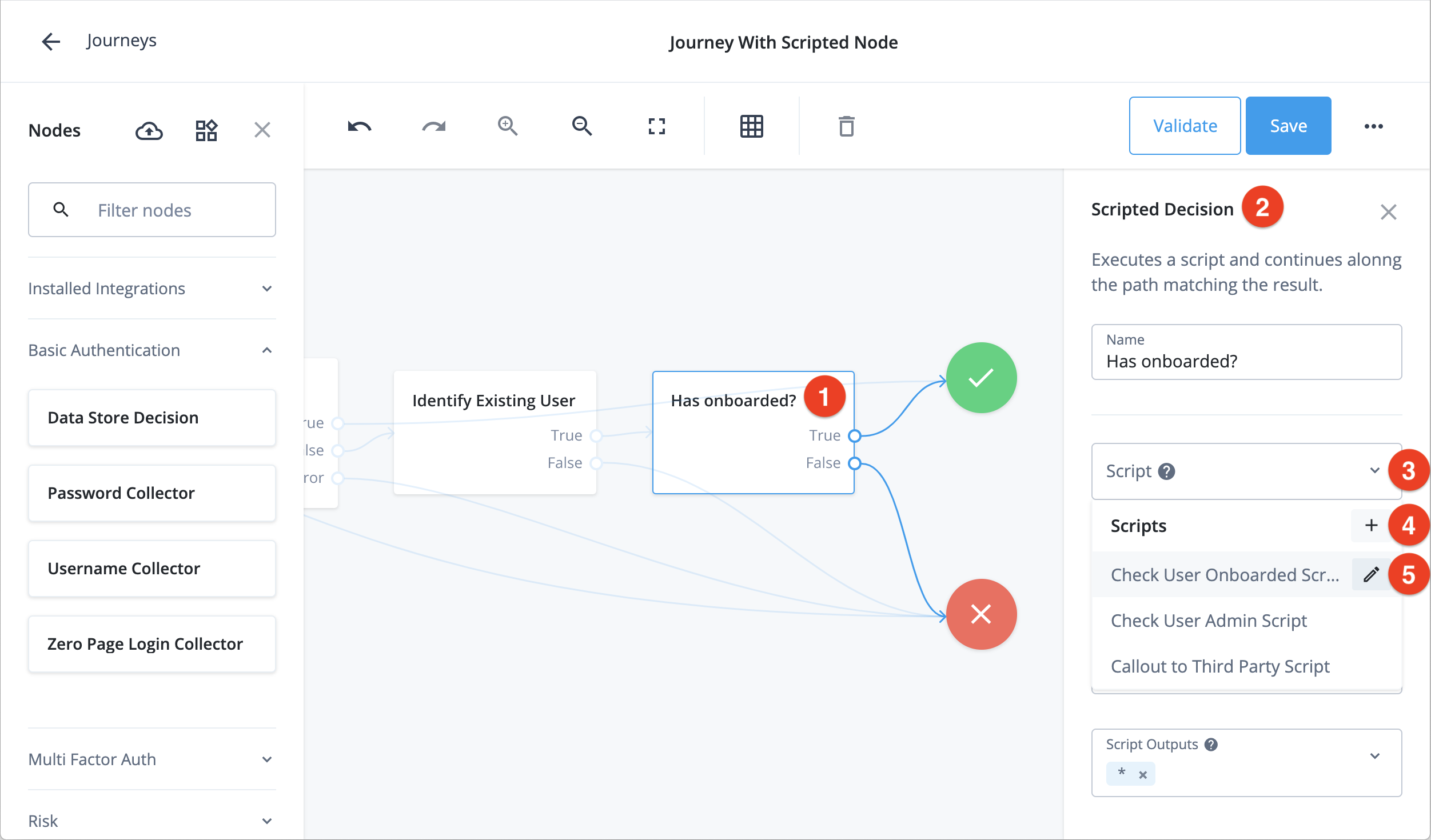
① Scripted Decision node
② Context pane
③ List of available scripts for the node
④ Add a new node script
⑤ Edit existing node script
Learn more about journeys in Journeys.