Configure a Microsoft Azure tenant for the Microsoft Graph email provider
The Microsoft Graph email provider requires a properly configured Microsoft Azure tenant. The steps for configuring an Azure tenant should be used as an outline, as the specific options, menus, and features may have changed.
-
Create the Advanced Identity Cloud client application:
-
From the menu bar, click + New Registration.
-
On the Register an application page, enter the application Name, such as
my-email-client. -
For Supported account types, select the applicable option for your organization.
-
Click Register.
-
On the my-email-client page, from the main Essentials area, record the Application (client) ID.
Use this value for the Client ID field in the admin console, or the clientIdproperty in the REST API. Learn more inoauth2properties. -
-
Create a client secret:
-
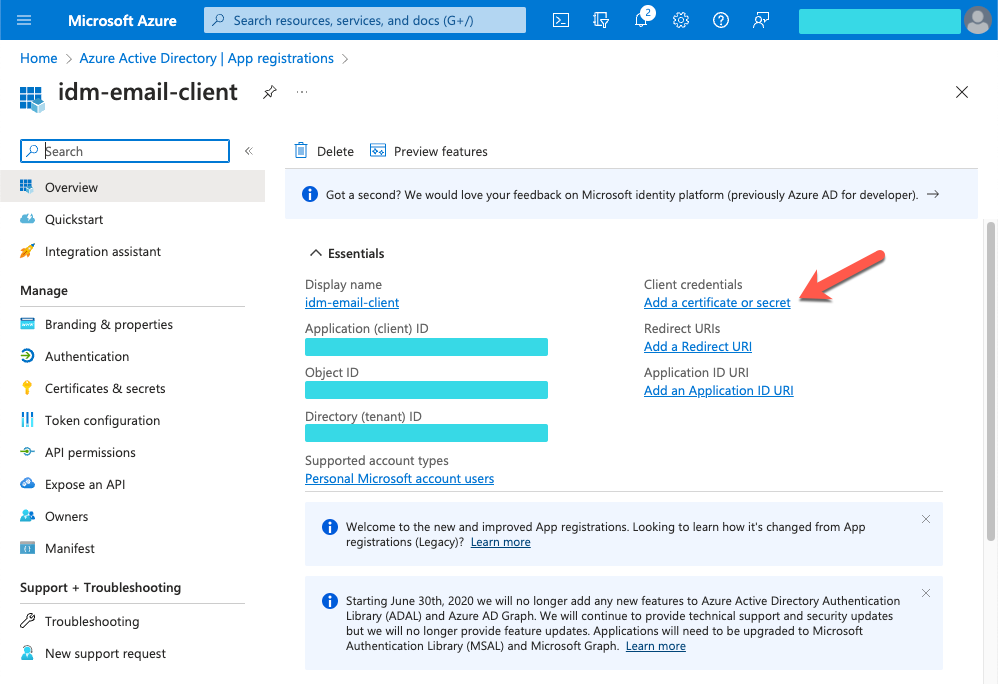
On the my-email-client page, in the main Essentials area, click Add a certificate or secret.
Show Me
-
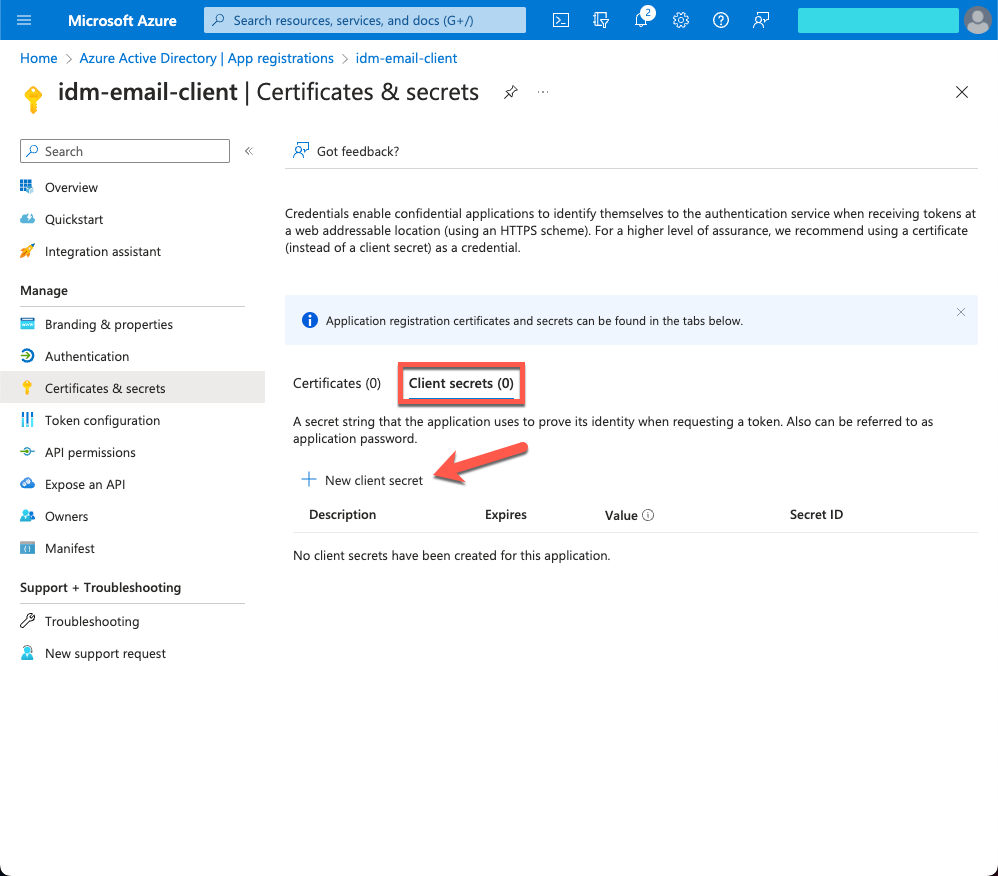
On the Certificates & secrets page, select the Client secrets tab, and click + New client secret.
Show Me
-
In the Add a client secret window, enter the details, and click Add.
-
Copy the Value and Secret ID to a secure place before leaving the Certificates & secrets page.
Use the secret Value (not the Secret ID) for the Client Secret Identifier field in the admin console, or the clientSecretproperty in the REST API. Learn more inoauth2properties. -
-
Request API permissions:
-
From the side menu, click API permissions.
-
On the API permissions page, click + Add a permission.
-
In the Request API permissions windows, select the Microsoft APIs tab, and click Microsoft Graph.
-
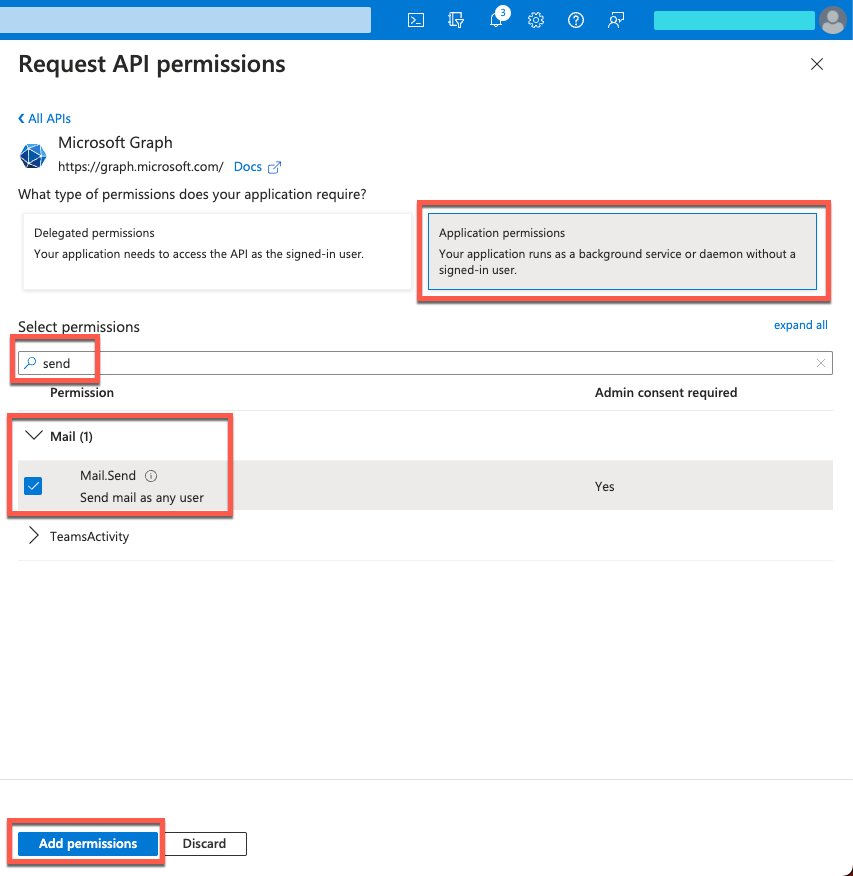
In the What type of permissions… area, click Application permissions.
-
In the Select permissions search bar, type
send. -
Expand the Mail node, and select Mail.Send.
-
Click Add permissions.
Show Me
-
-
Grant admin consent:
-
On the API permissions page, click Grant admin consent for <Your Tenant>.
-
Click Yes to confirm.
-
Verify that the Status column for
Mail.Senddisplays a green checkmark indicating consent is granted.
-