SSO in integrated mode
Integrated mode uses journeys to handle the SAML 2.0 authentication flow.
| Integrated mode supports SSO only. |
SP-initiated SSO in integrated mode
This flow uses a SAML2 Authentication node in a journey on the SP. The node handles the SAML 2.0 protocol details for you.
When an end user initiates a SAML SSO flow, for example, by clicking a link to a resource on the SP’s website, they’re redirected to the IdP for authentication. On successful authentication, the flow returns to the SP for completion of the authentication journey.
To enable an SP-initiated SSO flow in integrated mode:
-
Configure
AuthConsumeras the consumer service location -
Define a journey with a SAML2 Authentication node
Learn more about these prerequisites in Configure Advanced Identity Cloud for integrated mode.
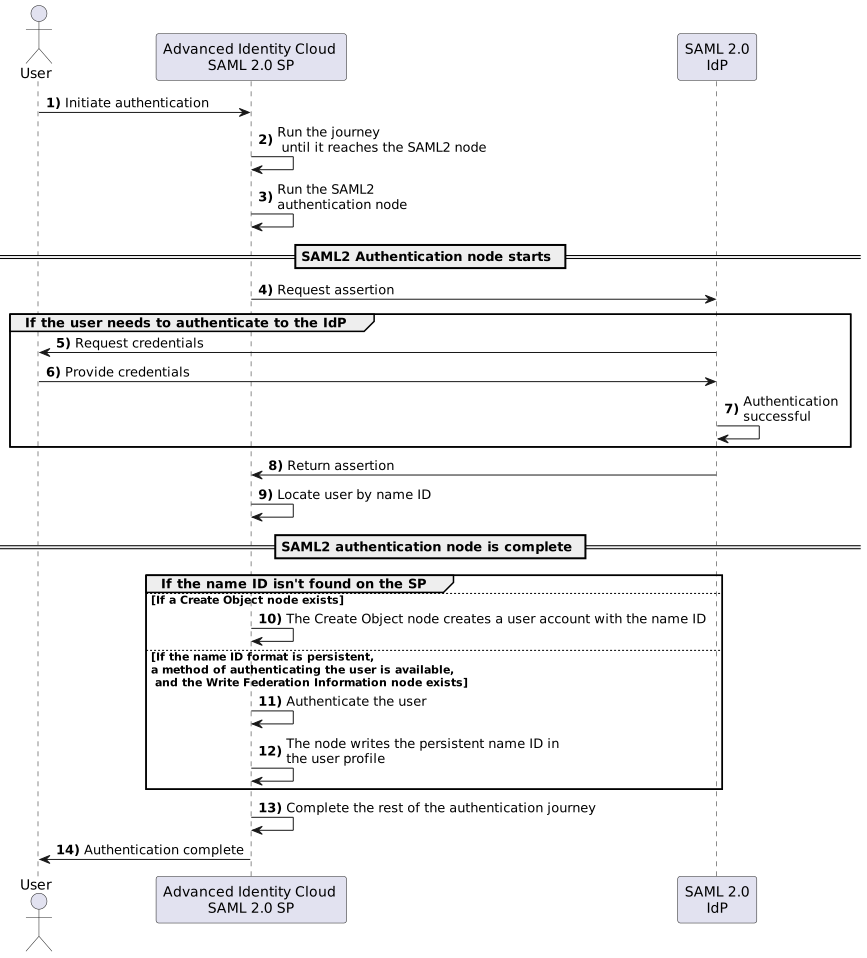
Example SP-initiated SSO flow in integrated mode
-
An end user initiates authentication to an Advanced Identity Cloud SAML 2.0 SP. The login URL references an authentication journey that includes a SAML2 Authentication node. For example,
https://<tenant-env-fqdn>/am/XUI/?service=mySAML2Tree. -
Advanced Identity Cloud runs any authentication nodes that precede the SAML2 Authentication node in the journey.
-
The SAML2 authentication node processing begins.
-
The node requests an assertion from the IdP. The configuration of the SAML2 Authentication node determines the details of the request.
-
The IdP requests the user to authenticate if they’ve not already done so.
-
The user provides their credentials.
-
The IdP authenticates the user successfully.
-
The IdP responds to the SP with a SAML assertion.
-
If the SAML assertion contains a non-transient name ID, Advanced Identity Cloud searches the identity store and attempts to locate a user with the same name ID.
If the name ID for the account exists, the journey continues.
If the name ID doesn’t exist...
-
... and the journey has a Create Object node, the node creates a new account in the SP using auto-federation that includes the name ID in the user profile.
-
... and a method of authenticating the user is available in the journey, Advanced Identity Cloud authenticates the user.
-
The Write Federation Information node writes the persistent name ID in the user profile.
Find more information about linking without auto-federation in Link identities for authentication.
-
The journey continues…
-
… and authentication is successful.
IdP-initiated SSO in integrated mode
In an IdP-initiated SSO flow using integrated mode, an end user authenticates with the IdP and is redirected to the SP. When the SP receives the SAML response, the flow continues to the journey configured on the hosted SP.
If no journey is set, the flow results in an error.
You still need to trigger IdP-initiated SSO using a URL.
To enable an IdP-initiated SSO flow in integrated mode:
-
Configure
AuthConsumeras the consumer service location -
Define a redirect journey
Learn more about these prerequisites in Configure Advanced Identity Cloud for integrated mode.
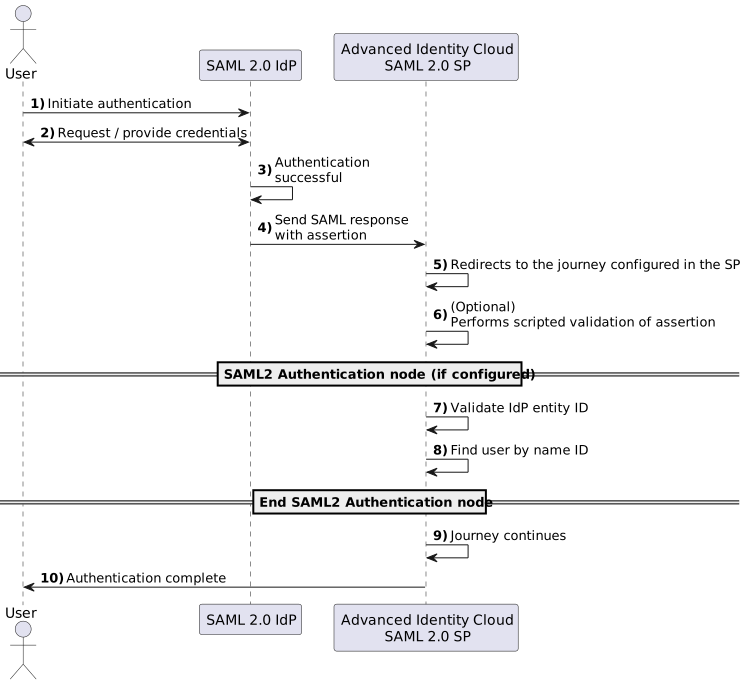
Example IdP-initiated SSO flow in integrated mode
-
An end user initiates authentication to a third-party SAML 2.0 remote IdP.
-
If the user isn’t authenticated in the IdP, the IdP requests their credentials.
The user provides their credentials for validation.
-
Authentication is successful.
-
The IdP creates a SAML response containing a signed SAML assertion and sends it to the SP’s assertion consumer service URL, typically using the HTTP POST binding.
-
The SP processes the assertion and redirects the SAML flow to the URL set as Redirect Tree Name or Local Authentication URL in the hosted SP configuration.
-
If the journey has a Scripted Decision node, Advanced Identity Cloud runs the script, including any logic to validate the assertion.
You can use the
getAssertionmethod of thesamlApplicationbinding to check details in the assertion. -
If the journey has a SAML2 Authentication node, it checks whether the IdP entity ID in the assertion matches the one set in configuration.
-
The SAML2 Authentication node can also use the nameID to locate a user in the identity store.
-
Advanced Identity Cloud continues to process the remaining nodes in the journey...
-
... and authentication is successful.
Implement SAML 2.0 SSO in integrated mode
Complete the following tasks to implement SAML 2.0 SSO in integrated mode:
-
Prepare entity providers and a circle of trust and update endpoints in the SP configuration.
Learn more in Configure Advanced Identity Cloud for integrated mode.
-
Configure a journey:
-
For SP-initiated SSO, make sure you include a SAML2 Authentication node.
-
For IdP-initiated SSO, configure a redirect journey. Learn more in configure a redirect journey.
-
Find an example of a SAML journey in Create accounts dynamically during federation.
Configure Advanced Identity Cloud for integrated mode
-
If you haven’t already done so, configure SAML 2.0 by performing the tasks listed in Deployment considerations.
-
Under Native Consoles > Access Management, create a hosted SP by following the steps in Create a hosted entity provider.
You must configure the attribute map (Assertion Processing > Attribute Mapper) first. This determines how Advanced Identity Cloud maps assertion attributes from the IdP to the user’s profile on the SP.
During the authentication process, the mapping is used to find existing users on the SP and to create or update user accounts on the SP.
For IdP-initiated SSO, you must configure a redirect journey for the hosted SP to run after validating the IdP response.
-
Configure a remote IdP by following the steps in Import and configure a remote entity provider.
When you specify the circle of trust for the IdP, use the Add to Existing option and specify the circle of trust you created when you created the hosted SP.
-
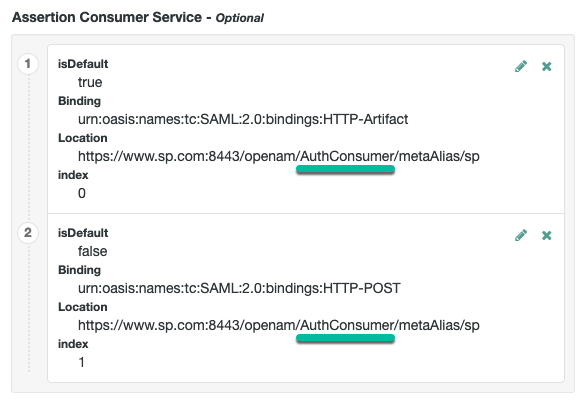
Change the Assertion Consumer Service locations in the hosted SP configuration.
The default locations support standalone mode only, so you must update them when implementing integrated mode:
-
Under Native Consoles > Access Management, go to Realms > Realm Name > Applications > Federation > Entity Providers > SP Name > Services > Assertion Consumer Service.
-
Change the location of the HTTP-Artifact consumer service to use
AuthConsumer, rather thanConsumer. For example, if the location ishttps://<tenant-env-sp-fqdn>/am/Consumer/metaAlias/sp, change it tohttps://<tenant-env-sp-fqdn>/am/AuthConsumer/metaAlias/sp. -
Similarly, change the location for the HTTP-POST consumer service to use
AuthConsumerrather thanConsumer.You don’t need to change the location for the PAOS service because integrated mode does not support the PAOS binding.
-
The results will resemble the following:
-
Save your changes.
-
You can now configure journey(s) for your SAML flow, for example, to dynamically create end-user accounts.
Create accounts dynamically during federation
In integrated mode, you can create complex journeys to tailor the authentication experience to the requirements of your organization.
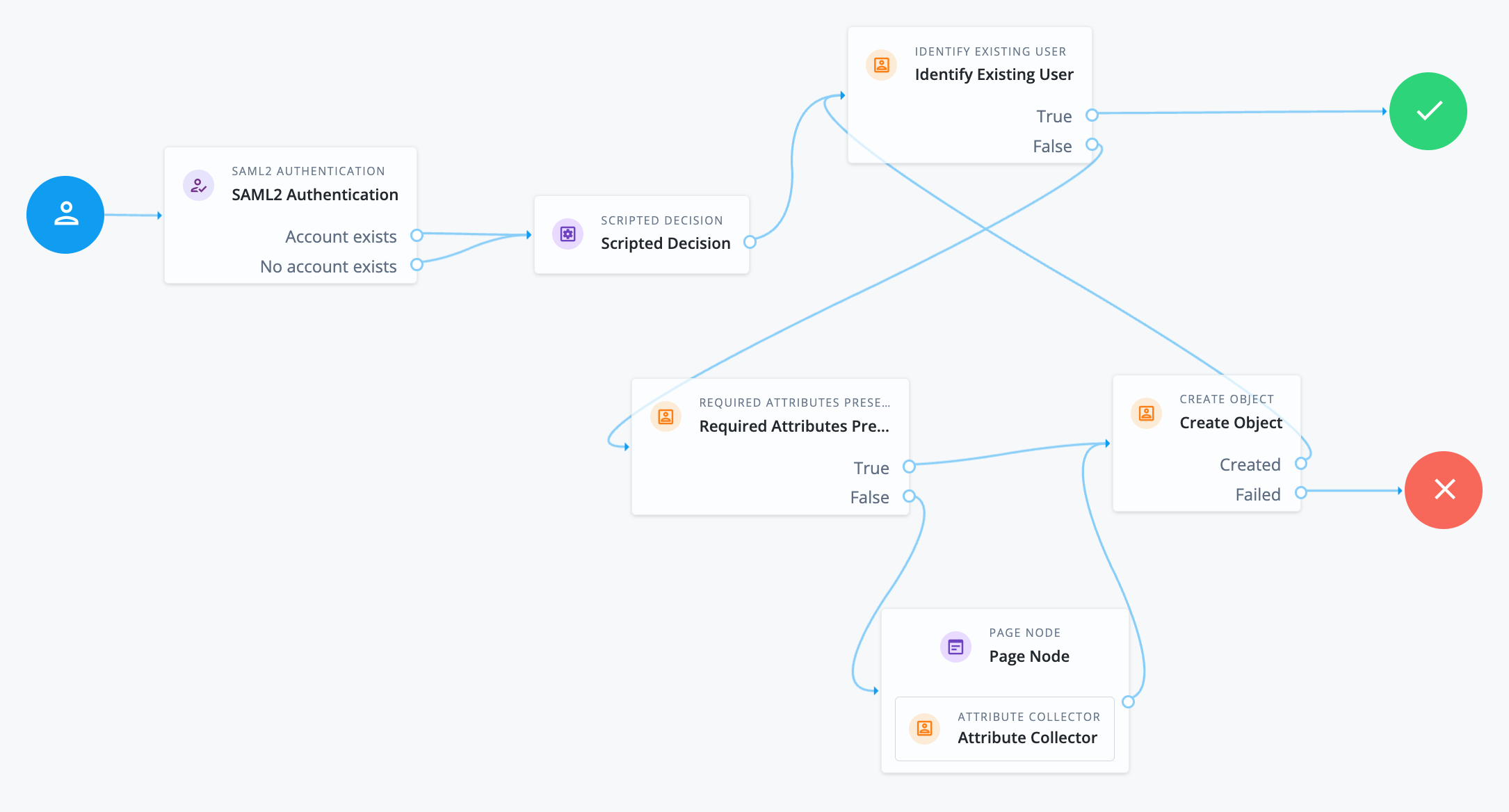
The following example uses the SAML 2.0 node to request an assertion from the IdP, and creates an account for the user in the SP if one doesn’t exist.
|
If you aren’t using auto-federation, you can also use journeys to create persistent links between user accounts with a Write Federation Information node. |
To configure a journey to create accounts dynamically:
-
Add a SAML2 Authentication node.
SLO is not supported.
The node processes the assertion, makes its contents available to the journey’s state in the
userInfoobject, and tries to map the assertion’s nameID using theuidmapping in the SP’s assertion map.If the node finds a match, the journey continues through the
Account Existsoutcome. Otherwise, the journey continues through theNo Account Existsoutcome.The attribute the node uses to map the nameID isn’t configurable. This example adds nodes to process the
userInfoobject and matches its contents to the managed user’s schema.You can verify or inspect the SAML flow by including a Scripted Decision node to query the
samlApplicationbinding.For SP-initiated flows, the Scripted Decision node must be placed after the SAML2 Authentication node.
-
Add a Scripted Decision node to copy the information from the assertion to the authentication journey’s shared state.
Example script
-
Next-generation
-
Legacy
if (nodeState.get("userInfo")) {
  if (nodeState.get("objectAttributes")) {
    nodeState.remove("objectAttributes");
  }
  var userName=null,sn=null,mail=null;

  try {
    var attribs = nodeState.get("userInfo")["attributes"];

    userName=attribs["uid"][0];
    sn=attribs["sn"][0];
    mail=attribs["mail"][0];

  } catch (e) {
    logger.error("Error getting userInfo: " + e);
  }
  nodeState.putShared("username", userName);
  nodeState.putShared("objectAttributes", {"userName":userName,"sn":sn,"mail":mail, "givenName": userName});
}
action.goTo("true");
var fr = JavaImporter(org.forgerock.openam.auth.node.api.Action); if (nodeState.get("userInfo")) { if (nodeState.get("objectAttributes")) { nodeState.remove("objectAttributes"); } var userName=null,sn=null,mail=null; try { var attribs = nodeState.get("userInfo").get("attributes"); userName=attribs.get("uid").get(0).asString(); sn=attribs.get("sn").get(0).asString(); mail=attribs.get("mail").get(0).asString(); } catch (e) { logger.error("Error getting userInfo: " + e); } nodeState.putShared("username", userName); nodeState.putShared("objectAttributes", {"userName":userName,"sn":sn,"mail":mail, "givenName": userName}); } action = fr.Action.goTo("true").build();You can also query the
samlApplicationbinding on the SP side to get the assertion.Learn more in the Scripted Decision node API.
-
-
Add an Identify Existing User node to search for the user with the appropriate attribute, for example,
userName.If PingOne Advanced Identity Cloud finds an existing matching user, the journey succeeds and the user is authenticated.
-
Add nodes to create the new account if PingOne Advanced Identity Cloud doesn’t find a matching user on the SP.
The Scripted Decision node adds the attributes collected from the SAML assertion to the journey’s shared state. If additional attributes are required to create an account, use the Required Attributes Present node to identify missing ones and the Attribute Collector node to collect them.
Finally, to create the account, use the Create Object node. You must configure the appropriate identity resource in this node. For example,
managed/alpha_user. -
(Optional) If you haven’t configured auto-federation, you can add the Write Federation Information node to create a persistent link between the accounts.
Refer to Link identities by using journeys for an example.