Manage certification campaigns
Campaigns are the second step in certifying access for users.
Once you create a template, and you are ready to start the review process, create a campaign.
After you start a campaign, the end users (certifiers), that are defined in the template, are notified to start reviewing the data. The process of certifiers reviewing data is called an access review.
When you kick off a campaign, through the ad-hoc (one-time) run under the Templates tab or through the schedule set in the template, the Certification tab displays the certification.
The following video shows an example:
To access campaigns, from the Advanced Identity Cloud admin console, click Certification > Campaigns tab.
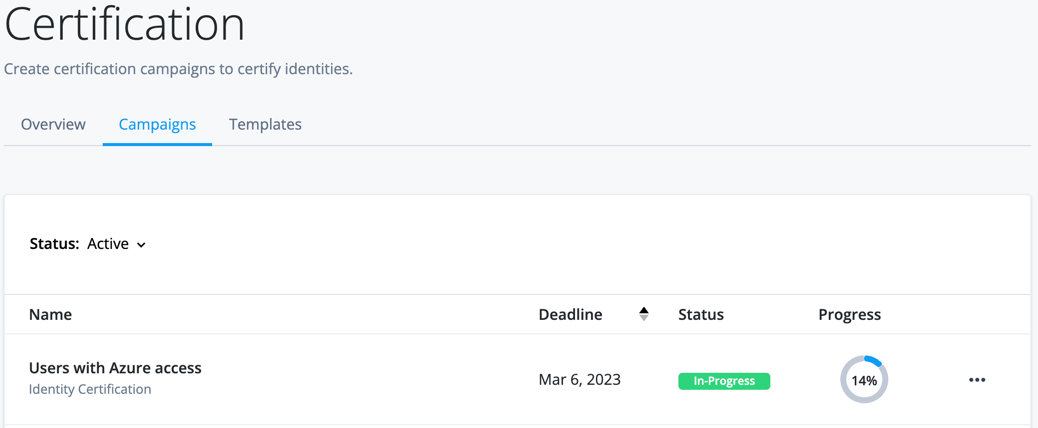
View campaigns
The landing page/modal on the Campaigns tab displays Active campaigns.
To view campaigns that have a specific status, such as Closed or Canceled, click the Status drop-down and filter the status.
| To view additional campaigns, click the caret icons at the bottom of the table. |
Campaign statuses to filter
| Status | Description |
|---|---|
Active |
The campaign is in progress. In the Status column, this includes the In-progress, Expiring and Overdue states.
|
Expired |
The campaign expired. Advanced Identity Cloud triggers this status when you select When to Certify > When campaign expires > immediately in the template. |
Cancelled |
This campaign was canceled manually and is no longer in progress. In certain situations when there is an error creating the campaign from the template, a campaign might automatically go into this state. |
Completed |
The campaign finished as expected with no issues. |
Staged |
The campaign is staged and isn’t active. Learn more in the details section of creating a template. |
Download certification campaign data
-
In the Advanced Identity Cloud admin console, go to Governance > Certification.
-
Click the Export icon ().
-
In the Export Certification Items modal, click one of the following:
-
Current Page: Export only items on the current campaigns page.
-
All Rows: Export all campaigns currently filtered.
-
-
Click Next, and select one of the formats:
-
CSV: Export in .csv format. Maximum: 10,000 rows.
-
XLSX: Export in .xlsx format. Maximum: 10,000 rows.
-
PDF: Export in .pdf format. Maximum: 1000 rows.
-
-
Click Export.
Campaign landing page columns
The campaigns listed on the landing page of the Campaigns tab consists of a table with various columns.
| Field | Description |
|---|---|
Name |
The name of the campaign. This name is generated from the template. |
Start Date |
The campaign start date. |
Deadline |
The campaign completion date. |
Status |
The state the campaign is in. Learn more in Campaign statuses to filter. |
Progress |
The percent complete of the campaign. |
To customize the campaign columns:
-
In the Advanced Identity Cloud admin console, go to Governance > Certification.
-
Click the Campaigns tab, and then click the column icon in the top right of the page.
-
In the Customize Columns modal, select the columns to include on your campaign charts:
-
Name: Displays the campaign name.
-
Start Date: Displays the campaign start date.
-
Deadline: Displays the campaign deadline.
-
Status: Displays the campaign’s status.
-
Progress: Displays the percentage completion progress.
-
-
Click Apply to save your changes.
Update deadline of campaign
The deadline (expiration) of a campaign can be updated after a campaign is ran.
To update the deadline:
-
From the Advanced Identity Cloud admin console, click Certifications.
-
Select the Campaigns tab.
-
Click next to the campaign to update the deadline.
-
Enter a new date.
-
Click Save.
View details of a campaign
From the Campaigns tab on the landing page, click the desired campaign to view more details.
The data the page displays depends on the certification type in the template.
The selected campaign includes three tabs:
To download the campaign summary and status data, click the download icon and select Excel or PDF.
Excel downloads support up to 10,000 rows. PDF downloads support up to 1000 rows.
Details tab
The Details tab includes graphical information about the campaign. For example, the percentage of completeness or the reviews currently in progress.
The information is broken out into various cards. The following table shows the various information by card.
Campaign details page
| Card/Title | Description |
|---|---|
Status |
Provides information about when the campaign expires. You can select Cancel Campaign to cancel the campaign. If the campaign status is Staged, you can select Activate to kick-off the campaign. |
Campaign Details |
Shows the percentage of the campaign complete, including the number of reviews completed versus the total amount of reviews, as well as general information about the campaign:
|
Users |
Pie chart. The number of new users versus previously certified users in the campaign. |
Decisions Breakdown |
Pie chart. A breakdown of the decisions made in the campaign by certifiers (certified, revoked, exception). |
Access by Application |
Pie chart. The number of accounts by application to be certified in the campaign. |
Users with no email address |
Numerical. The number of users that don’t have an email address on their profile. |
Certifiers with no email address |
Numerical. The number of certifiers (reviewers) that don’t have an email address on their profile. |
Access reviews tab
The Access Reviews tab contains information on the certifiers in the campaign. The certifiers could be an individual or a role. This includes the progress they have made on their reviews, as well as the ability to view the items each certifier is responsible for.
By default, the page displays the certifiers who are reviewing the access review, which is in the Active state.
To view other statuses, select the Status drop-down:
| Status | Description |
|---|---|
Active |
The certifier has line items on the campaign that don’t have a decision made on them. A line item is a record for a certifier to review. For example, the user Barbara Jensen’s record that details their access to a particular application is a line item. |
Expired |
The campaign has passed its deadline and the certifier has line items that don’t have a decision made on them. |
Completed |
The certifier has reviewed and made decisions on the line items assigned to them in their access review and signed off. |
You can use the search icon to search for a specific campaign by its name.
There are three columns in the Access Reviews tab:
-
Certifier: The individual or users assigned to a role responsible for a part of the campaign.
-
Status: The status of the campaign.
-
Progress: The progress the certifier has made in their reviews.
To view the percentage and number of items that are complete, hover over the progress icon.
Click the arrow icon on Certifier to filter alphabetically (ascending or descending).
To download certification data and status information for the campaign, click the download icon and select Excel or PDF.
Excel downloads support up to 10,000 rows. PDF downloads support up to 1000 rows.
To view additional features, such as forwarding a certifier’s items to another person or end users assigned to a role, click to the right of the table.
| To gain a detailed view of the items left for a certifier, click on their record in the table. The drilled-down view is the same view a certifier utilizes when completing their items for the campaign. Learn more in Run access reviews. |
System messages tab
The System Messages tab displays information and error messages generated while the campaign processes.
The tab combines the messages and sorts them by timestamp. Each message identifies whether it is informational or an error and includes a formatted timestamp.
If the messages span multiple pages, use the pagination controls to view additional messages.
If the campaign has no messages, the tab displays an empty state.
Cancel existing campaign
You can only cancel a campaign that’s in the Active state (which includes the states Expiring and Overdue). Learn more in Campaign statuses to filter.
There are two ways to cancel a campaign:
-
When viewing campaigns from the Certifications > Campaigns landing page:
-
Click next to the campaign.
-
Click Cancel.
-
Click Cancel Campaign.
-
-
In the drill-down campaign view:
-
Click into a campaign.
-
Click Cancel Campaign.
-
Click Cancel Campaign again in the confirmation screen.
-