Events
Administrators can configure a certification or workflow to run when Identity Governance detects a specific governance event. This event-triggered certification provides faster certification resolution compared to scheduled campaigns spanning several weeks or months that involve multiple applications, complex rules, and hundreds of reviewers.
A governance event runs the action you select when one of the following event types occurs:
-
User created: Advanced Identity Cloud detects when a user has been created.
-
User updated: Advanced Identity Cloud detects when an existing user has been updated.
-
User deleted: Advanced Identity Cloud detects when a user has been deleted or deactivated.
-
Account created: Advanced Identity Cloud detects when an account has been created.
-
Account updated: Advanced Identity Cloud detects when an existing account has been updated.
-
Agent created: Advanced Identity Cloud detects when an agent has been created.
-
Agent updated: Advanced Identity Cloud detects when an existing agent has been updated.
Events tab
To access the Events tab, from the Advanced Identity Cloud admin console, go to Governance > Events.
| If you have no events configured in the system, the message "There are no events to show" appears with a New Event button on the page. |
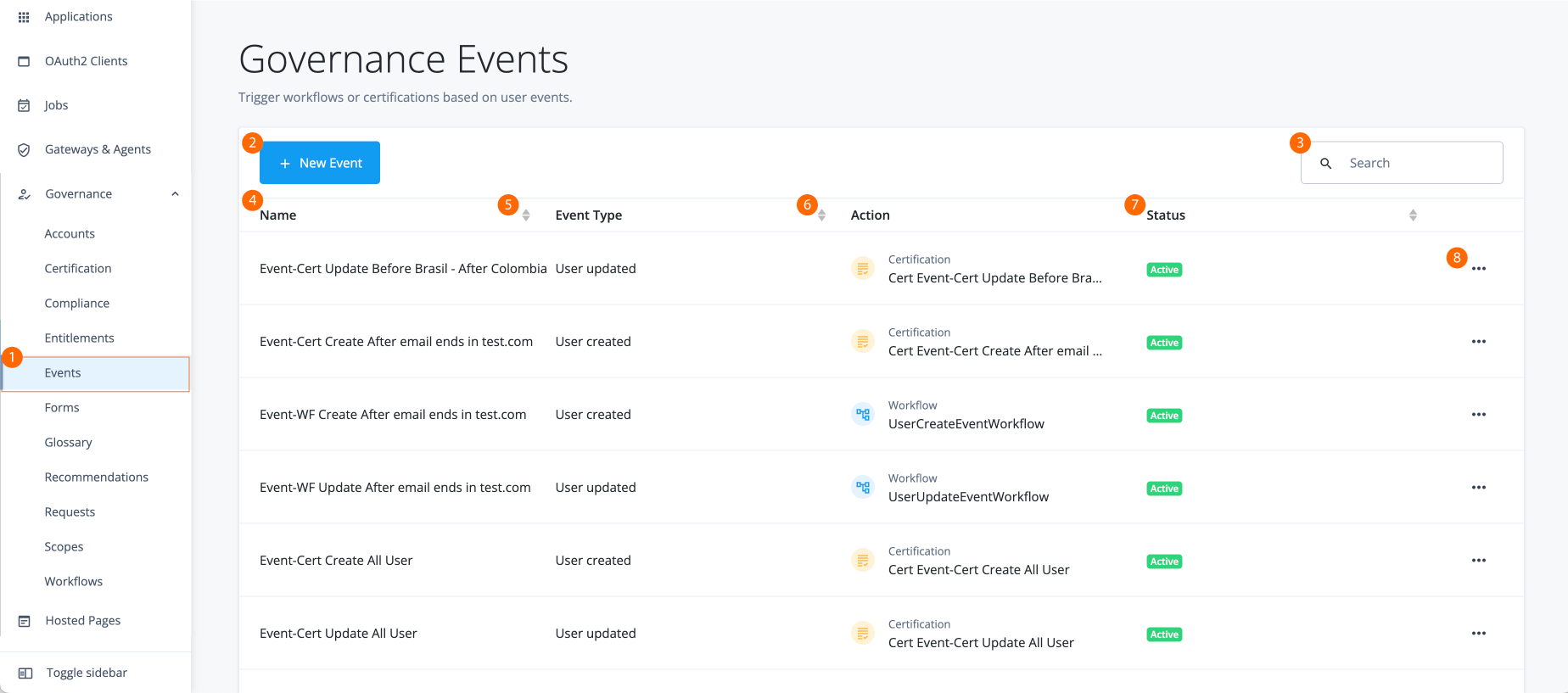
-
1 Click Governance > Events on the Advanced Identity Cloud end-user UI.
-
2 New Event. Click to add an event.
-
3 Search. Search by name (case-insensitive).
-
4 Name: Name of the event.
-
5 Event type:
User created,User updated,User deleted,Account created,Account updated,Agent created, orAgent updated. -
6 Action:
CertificationorWorkflow. -
7 Status:
ActiveorInactive. -
8 Ellipsis (). Click to edit, activate (deactivate if active), or delete the event.
The Name, Event type, Action, and Status columns are sortable in descending or ascending order.
Create a new event
-
In the Advanced Identity Cloud admin console, click Governance > Events.
-
Click New Event. You will have the option to create the following:
Edit an event
-
In the Advanced Identity Cloud admin console, click Governance > Events.
-
Select an event, and then click ellipsis ().
-
Click Edit, and make any changes to your event settings.
-
Click Save when done.
Activate or deactivate an event
-
In the Advanced Identity Cloud admin console, click Governance > Events.
-
Select an event, and then click ellipsis ().
-
Click Activate to set the event active in the system. The green
Activelabel appears in theStatuscolumn. -
To deactivate an active event:
-
Select an event, and then click ellipsis ().
-
Click Deactivate.
-
In the Deactivate Event modal, click Deactivate. The Inactive label appears in the Status column.
-