Configure user lifecycle management
Identity Governance allows authorized end users to create, update, delete, and view user information. This functionality enforces policies by requiring approval workflows before authorized end users can apply any user changes.
Manage user permissions
By default, administrators, manager, direct report, and end users have the following permissions:
| Action | Admin | Manager | End user |
|---|---|---|---|
View user |
Yes |
Yes |
If scoped |
View users access |
Yes |
Yes |
If scoped |
Create user |
Yes |
If scoped |
If scoped |
Modify user |
Yes |
If scoped |
If scoped |
Delete user |
Yes |
If scoped |
If scoped |
Enable manage users
Administrators must enable user management functionality to activate the feature in the hosted account pages. The user management functionality is also known as user lifecycle management (user LCM).
-
In the Advanced Identity Cloud admin console, go to Governance > Requests.
-
On the Requests page, click the Settings tab.
-
In the Governance LCM section, click Activate.
-
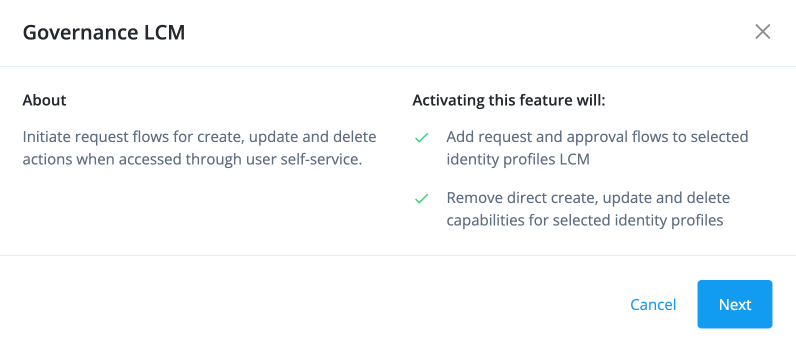
In the Governance LCM modal, read what activating this feature entails, and click Next.
-
In the Governance LCM modal, click User LCM, and then click Activate.
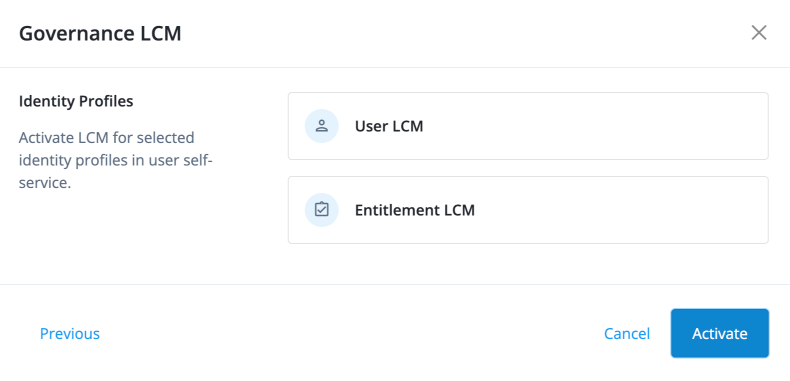
The manage user access is now enabled.
Configure the user create form
Create a form for the end users to use during the user create process.
-
In the Advanced Identity Cloud admin console, go to Governance > Forms.
-
Click New Form.
-
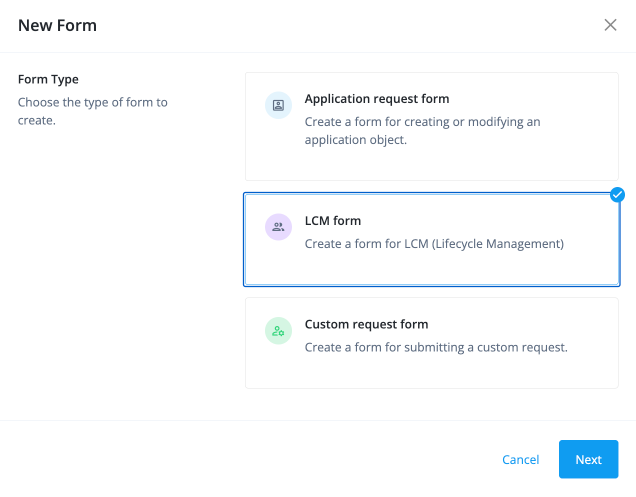
In the New Form modal, select LCM form.
-
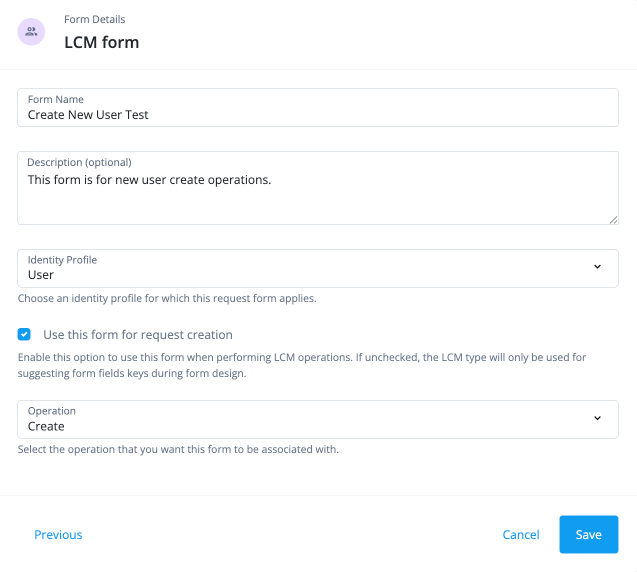
In the LCM form modal, configure the following:
-
Form Name: Enter a form name.
-
Description (optional): Enter a general description of the form.
-
Identity Profile: Select User.
-
Use this form for request creation: Click this option to use with LCM operations.
-
Operation: Associate the form to the LCM operation. Select Create.
-
-
Click Save.
-
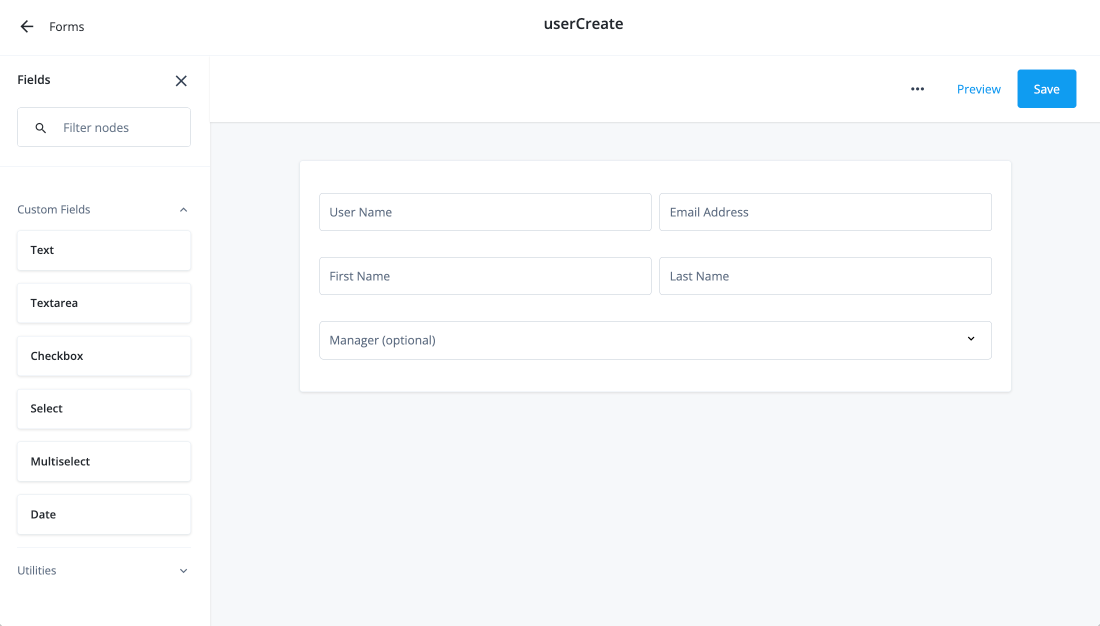
In the Create New User form editor, drag and drop the fields you want to include on the form and then click Save.
-
(Optional) Repeat the process to create forms for Modify User and Delete User, which appear in place of the default forms.
Configure user lifecycle workflows
Identity Governance provides the out-of-the-box request types and workflows to enable authorized users to carry out user LCM tasks. You can customize these workflows by creating copies of an out-of-the-box workflow.
| Request Type | Workflow |
|---|---|
Create User |
Create User |
Modify User |
Modify User |
Delete User |
Delete user |
Configure workflows for user LCM
Use the following steps to duplicate a default workflow, set approvers, and publish it:
-
In the Advanced Identity Cloud admin console, go to Governance > Workflows.
-
Select the default workflow for the Create User request type, click the ellipsis (), and then click Duplicate.
-
In the Workflow Details modal, enter a name for the workflow, and click Save.
-
In the Workflow Editor, click the Approval node.
-
In the right pane, click add approvers manually and click to add approvers.
-
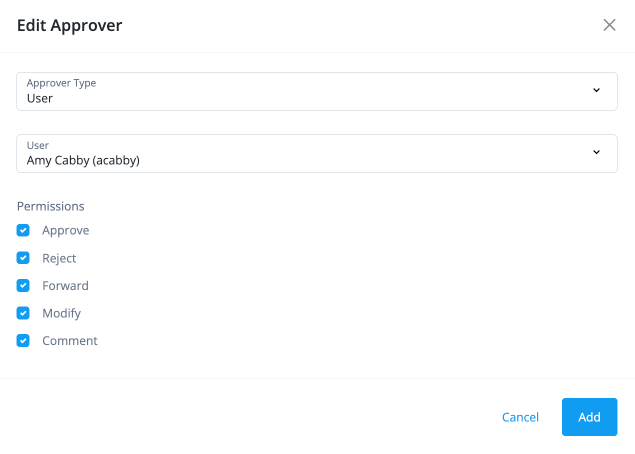
In the Edit Approver modal, configure the following:
-
Approver Type: Select User.
-
User: Select a user.
-
Permissions: Select the permissions available to the approver.
-
Approver
-
Reject
-
Forward
-
Modify
-
Comment
-
-
-
Click Add.
-
Click Save to apply your changes to the workflow.
-
When you’re ready to use your workflow, click Publish.
-
Repeat the process to set the approver for the default workflows associated with the Modify User and Delete User request types.