Task 2: Explore the platform
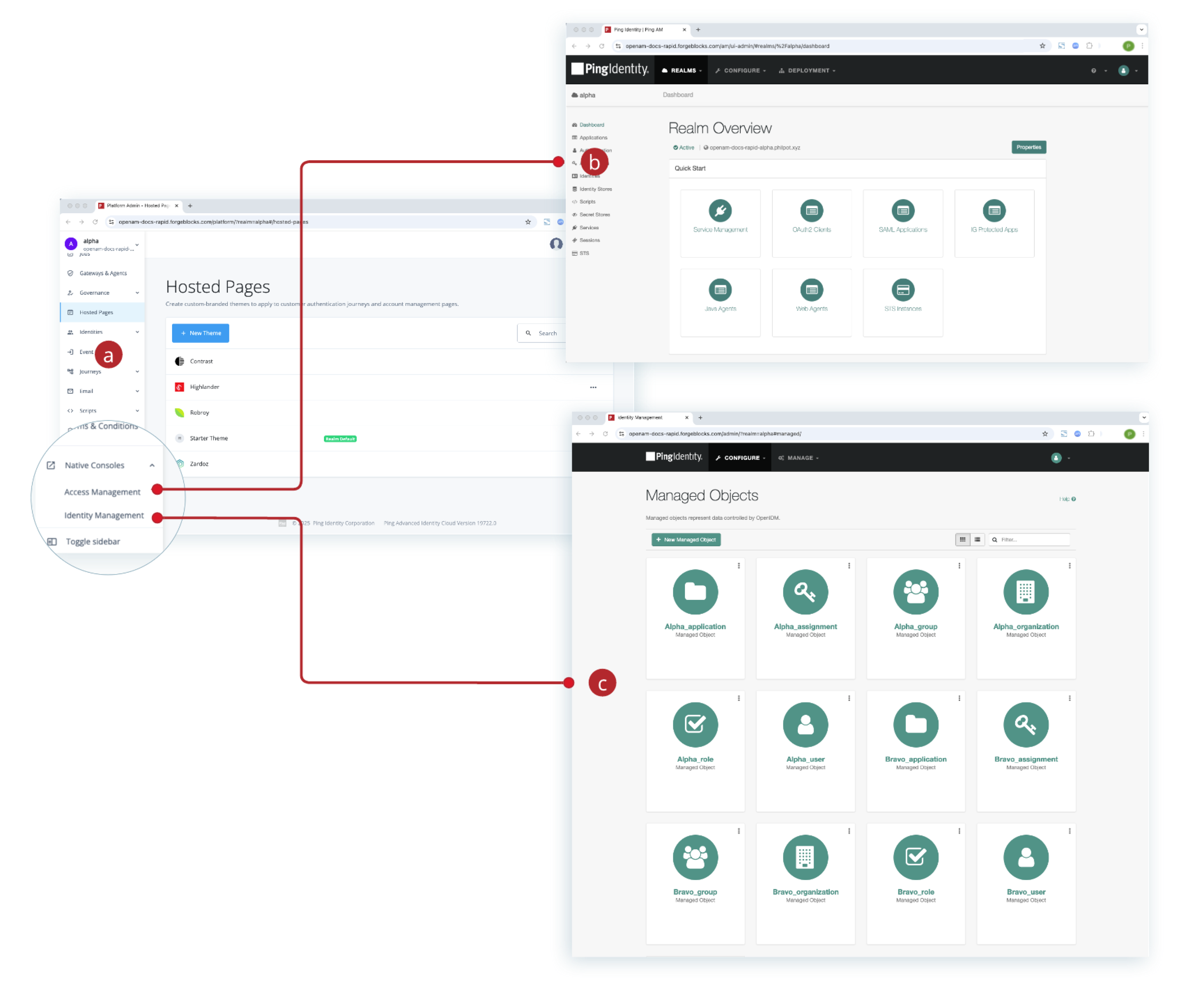
Advanced Identity Cloud provides three administrative consoles to help you manage your tenant. Take some time to explore these consoles and understand their primary functions.
-
a Advanced Identity Cloud admin console
-
b AM native admin console
-
c IDM native admin console
| While the administration consoles are ideal for many tasks, you can also manage your tenant using REST APIs. Learn more in Advanced Identity Cloud API reference. |
Learn more about the Advanced Identity Cloud admin consoles in this demo: Demo: Navigate the Advanced Identity Cloud Admin UI (10.33 minutes)
Advanced Identity Cloud admin console
This is the primary console, designed to handle most day-to-day tasks associated with managing your tenant. Use the Advanced Identity Cloud admin console to manage all aspects of your tenant including realms, identities, applications, user journeys, and password policy.
Summary of tasks you can perform in the Advanced Identity Cloud admin console
| Task type | Example tasks |
|---|---|
Tenant administration and configuration |
|
Monitoring and reporting |
|
Identity configuration |
|
Identity management |
|
Application and access management |
|
End-user experience and journeys |
|
Automation and extensibility |
|
Find the release version and release notes
To check the release version and view the latest release notes:
-
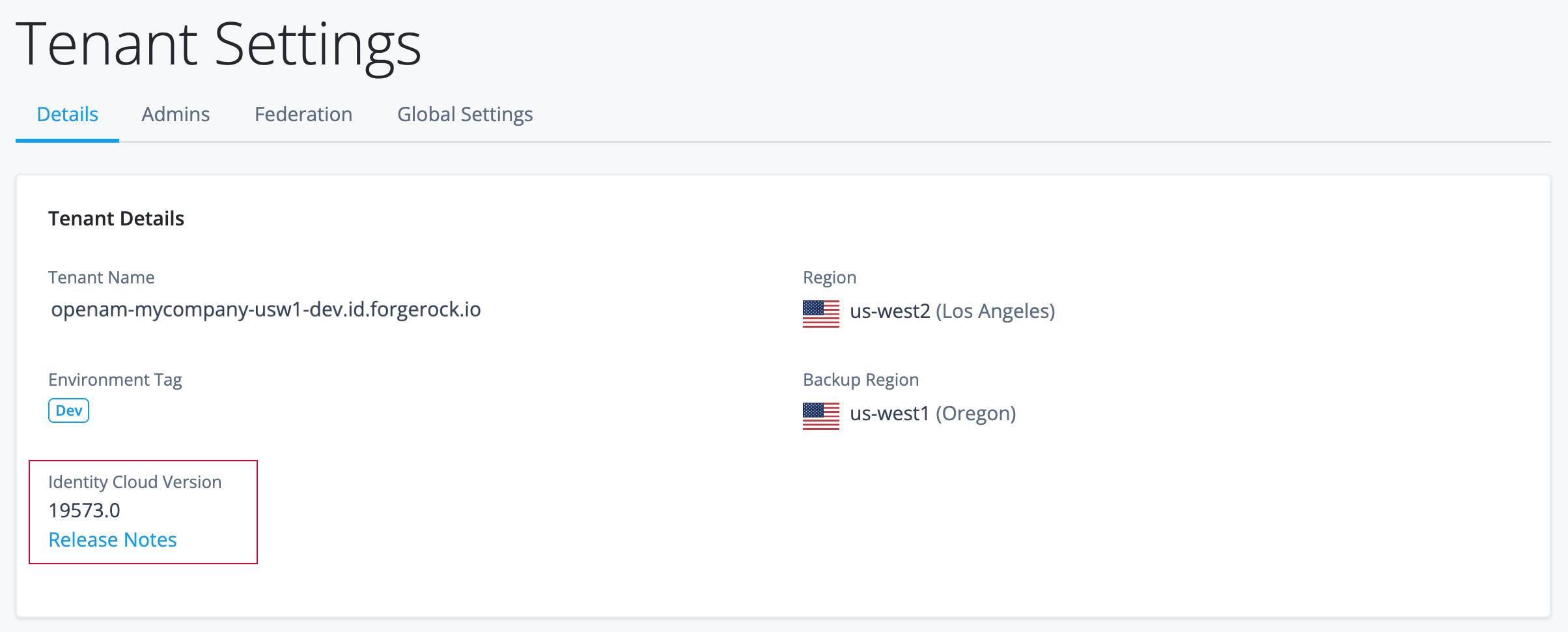
In Advanced Identity Cloud admin console, scroll to the page footer and click the release version. For example, PingOne Advanced Identity Cloud 19573.0. The Tenant Settings page opens.
-
On the Tenant Settings > Details tab, click Release Notes to display the release notes for the latest version.
| The Tenant Settings page displays a banner showing the next scheduled regular release date. |
Native admin consoles
The Advanced Identity Cloud admin console is the primary console for managing your tenant. The native consoles provide access to selected access management configuration and legacy identity management configuration.
Use a native console only when the relevant task is documented there. For all other tasks, use the Advanced Identity Cloud admin console.
AM native admin console
Use the AM native admin console to configure advanced access and security features that aren’t yet exposed in the main console.
Summary of tasks you can perform in the AM native admin console
| Task type | Description |
|---|---|
SAML 2.0 configuration |
While you can create basic SAML applications in the main admin console, use the native console for deeper SAML entity configuration. |
Advanced authorization policy management |
Configure detailed validation policies. |
Advanced realm services |
Configure low-level, realm-specific services, such as realm-specific session policies. |
Secret store mapping |
Map secrets stored in the ESVs to the underlying access management configuration, when integrating with other Ping Identity components or services such as PingOne Protect. |
To open the AM native admin console:
-
In the Advanced Identity Cloud admin console, click Native Consoles > Access Management.
IDM native admin console
| The IDM native admin console is deprecated and planned for removal. Use the Advanced Identity Cloud admin console wherever the required functionality is available. |
Summary of tasks you can perform in the IDM native admin console
| Task type | Description | ||
|---|---|---|---|
Legacy identity modeling |
The Advanced Identity Cloud admin console is the recommended console for object modeling. Do not use the IDM native admin console for object-modeling tasks.
|
||
Legacy synchronization configuration |
Use the Advanced Identity Cloud admin console for application-backed provisioning, mappings, and advanced sync. |
||
Standalone provisioners |
Use the Advanced Identity Cloud admin console Provisioners page to manage standalone provisioners. Use REST APIs for automation or functionality not exposed in the UI. |
To open the IDM native admin console:
-
In the Advanced Identity Cloud admin console, click Native Consoles > Identity Management.