CSV File
The CSV File application template allows you to provision users from a CSV file.
Register the application
-
In the Advanced Identity Cloud admin console, go to Applications > Applications, and click Browse App Catalog.
-
In the Browse App Catalog modal, select an application, and click Next.
-
Review the Application Integration information, and click Next.
-
In the Application Details window, specify the name, description, application owners, and logo for the application.
-
To make the application an Authoritative source of identity data, select the Authoritative check box. This option is not available for every application.
-
Click Create Application.
Configure the provisioner
-
In the Advanced Identity Cloud admin console, on the Provisioning tab, click Set up Provisioning:
-
If setting up provisioning for the first time:
-
If you have not configured a remote server, click New Connector Server and follow the steps to create a server.
-
If you configured one remote server, it is automatically selected.
-
If you configured multiple remote servers, choose a server.
-
-
When editing existing settings in the Connection area, click Settings.
-
-
Follow the steps on the Set up CSV modal.
-
Click Next.
-
Configure the following fields:
Field Description CSV File
The full file path to the CSV file that is the application data source. The path uses the file location format /opt/data/file.csv.
UID Column
The UID column name in the CSV file; the primary search key. The default value is
uid.Password Column
The password column name in the CSV file; the primary search key. The default is
password. -
Optionally, click Show advanced settings to set any of the following options:
Application specific settings Field Description Quote Character
The character used to enclose values. The default value is
".Field Delimiter
The character that delimits each field. The default value is
,.Newline String
The character that represents a new line in the CSV file. The default value is
\n.Space Replacement String
The character used to replace spaces within column names. The default value is
_.Sync Retention Count
The default value is
3.Exclude Unmodified
Select this option to synchronize only the modified properties on a target resource.
Pool configuration Field Description Max idle and active container instances
The maximum number of idle and active container instances. The default value is
10.Max Idle Connector Instances
The maximum number of idle connector instances. The default value is
10.Set Timeout Period
Select to enable a timeout period for the connection. After enabling, configure the following:
-
Timeout period (ms): The timeout period in milliseconds.
Set Minimum Idle Time
Select to set a minimum time (in milliseconds) before an idle object is removed. After enabling, configure the following:
-
Min idle time (ms): The minimum idle time in milliseconds.
Min Idle Instances
The minimum number of idle connector instances.
Result Handler configuration Field Description Enable for connectors with the attribute normalizer interface
Enables the attribute normalizer interface for supported connectors.
Enable local filtering/search features
Enables local filtering and search capabilities.
Enable case insensitive filter
Configures filters to ignore case sensitivity.
Enable configuration of search attributes; disable for local connectors
Enables search attribute configuration. Disable this option for local connectors.
-
In the Operation Timeouts (ms) area, select the operations to enforce timeouts on and enter the duration in milliseconds.
Available operations include Create, Validate, Test, Enable a Script on the Connector, Schema, Delete, Update, Sync, Authenticate, Get, Enable a Script on the Target, and Search.
-
In the Operation Rate Limits area, select the operations to enforce rate limits on.
You can enforce limits on specific operations, including Create, Validate, Test, Script on Connector, Schema, Delete, Update, Sync, Authenticate, Get, Script on Target, and Search.
For each selected operation, configure the following fields:
Field Description Request Limit
Requests allowed over time.
Request Period
Limit resets after this time (ms).
Request Timeout
Time before exception thrown (ms).
-
-
Click Connect.
-
Verify the information in the Details tab.
Configure provisioning and reconciliation resources
Use the object type list to select a provisioning and reconciliation resource, such as Account.
The selected object type determines the side tabs that display, as each resource has different provisioning and reconciliation requirements.
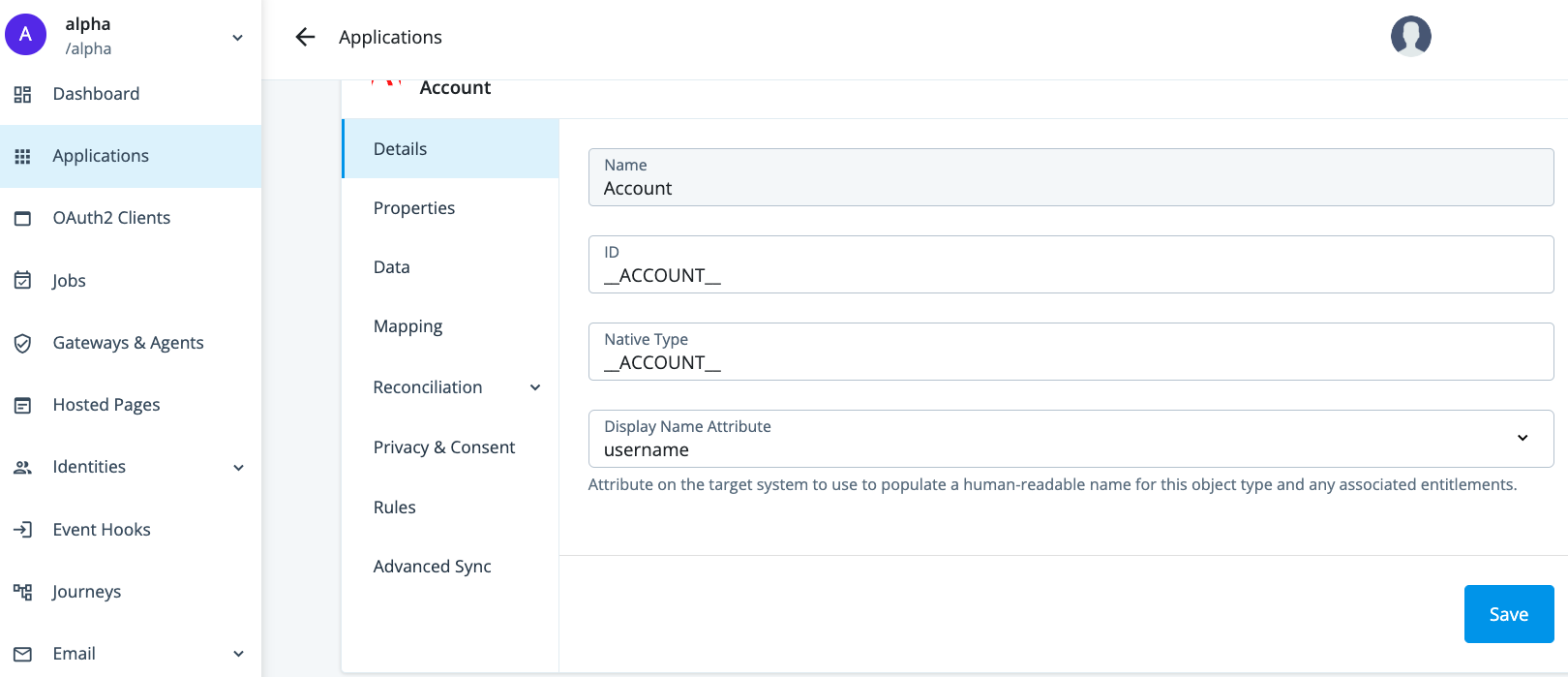
| Provisioning side tab | Description | Related sections |
|---|---|---|
Details |
View and manage an application, including name, ID, and native type. |
Select the specific application from Provision settings for an application. |
Properties |
View and manage properties for the selected object type. |
|
Data |
View data about the selected object type. |
|
Mapping |
View and manage mappings from the Advanced Identity Cloud admin console properties to external system properties and from external system properties to the Advanced Identity Cloud admin console properties. |
|
Reconciliation |
Preview mappings on target applications between external systems and the Advanced Identity Cloud admin console, and reconcile the data between the two systems. View and manage rules for the users and groups that use your application. View and manage schedules for Full and Incremental reconciliation. |
|
Privacy & Consent |
Manage end-user data sharing and synchronization. |
|
Rules |
View and manage provisioning rules for mappings between Advanced Identity Cloud and a target application. |
|
Advanced Sync |
Create and manage mappings between a managed object type and an application or between applications. |