Manage entitlements
|
This section is for delegated end users who have been granted entitlement LCM privileges through scopes and internal roles. If you’re an administrator looking to configure entitlement LCM, see Configure entitlement lifecycle management. |
The entitlement lifecycle management (entitlement LCM) feature delegates the responsibility of managing application permissions directly to you. As a designated application or entitlement owner, you are empowered to oversee the permissions for the resources you know best, without needing full administrative privileges.
From your dashboard, you can now:
-
Create new entitlements as your applications evolve.
-
Modify existing entitlements to ensure their metadata, such as descriptions and owners, remains accurate and up-to-date.
-
View which users currently hold specific entitlements.
To ensure proper governance, any significant changes you make are submitted through the request workflow, combining your expertise with organizational oversight.
Create a new entitlement
Before you create a new entitlement, make sure you have run the prerequisites in Prepare the application for entitlements.
-
In the Advanced Identity Cloud end-user UI, sign on as a test user who has application permissions.
-
Go to Administer > Entitlement. The application’s entitlements are accessible to the end user.
-
On the Entitlements page, click New Entitlement.
-
In the New Entitlement modal:
-
Click Application and click the application available to the test user. You should see only one available option.
-
Click Object Type and select an object type for the new entitlement.
-
Click Next.
-
-
In the Entitlement Details modal:
-
Enter or select the fields required for your entitlement. Fields can differ based on how you configured your glossary items. For example:
-
Description: Enter a general description of the entitlement.
-
Entitlement Owner: Type a user to add as an entitlement owner.
-
Entitlement Type: Enter the type of entitlement.
-
Parent Entitlement: Enter any parent entitlement if any.
-
Requestable: Click to make the entitlement requestable.
-
-
Click Submit.
The new entitlement appears in the list of entitlements specific to the application.
-
Modify entitlement details in an application
-
In the Advanced Identity Cloud end-user UI, sign on as your test user who has application permissions.
-
Go to Administer > Entitlements. The application’s entitlements are accessible to the end user.
-
Click an entitlement.
-
Modify any field including Entitlement Owner and click Save.
A change request is entered in the system and must be approved by the user specified in the workflow. For example: the Modify Entitlement workflow specifies that the entitlement owner approves any entitlement change requests.
Delete entitlements
|
It isn’t recommended to delete entitlements from Identity Governance. You should delete the entitlements in the target application and run an entitlement onboarding using reconciliation so that the deleted entitlement(s) and their relationships to accounts and identities are correctly accounted for. |
View entitlements in an application
-
In the Advanced Identity Cloud end-user UI, sign on as your test application owner:
veronica.achorn. -
Go to Administer > Entitlements. All entitlements specific to the selected application are displayed.
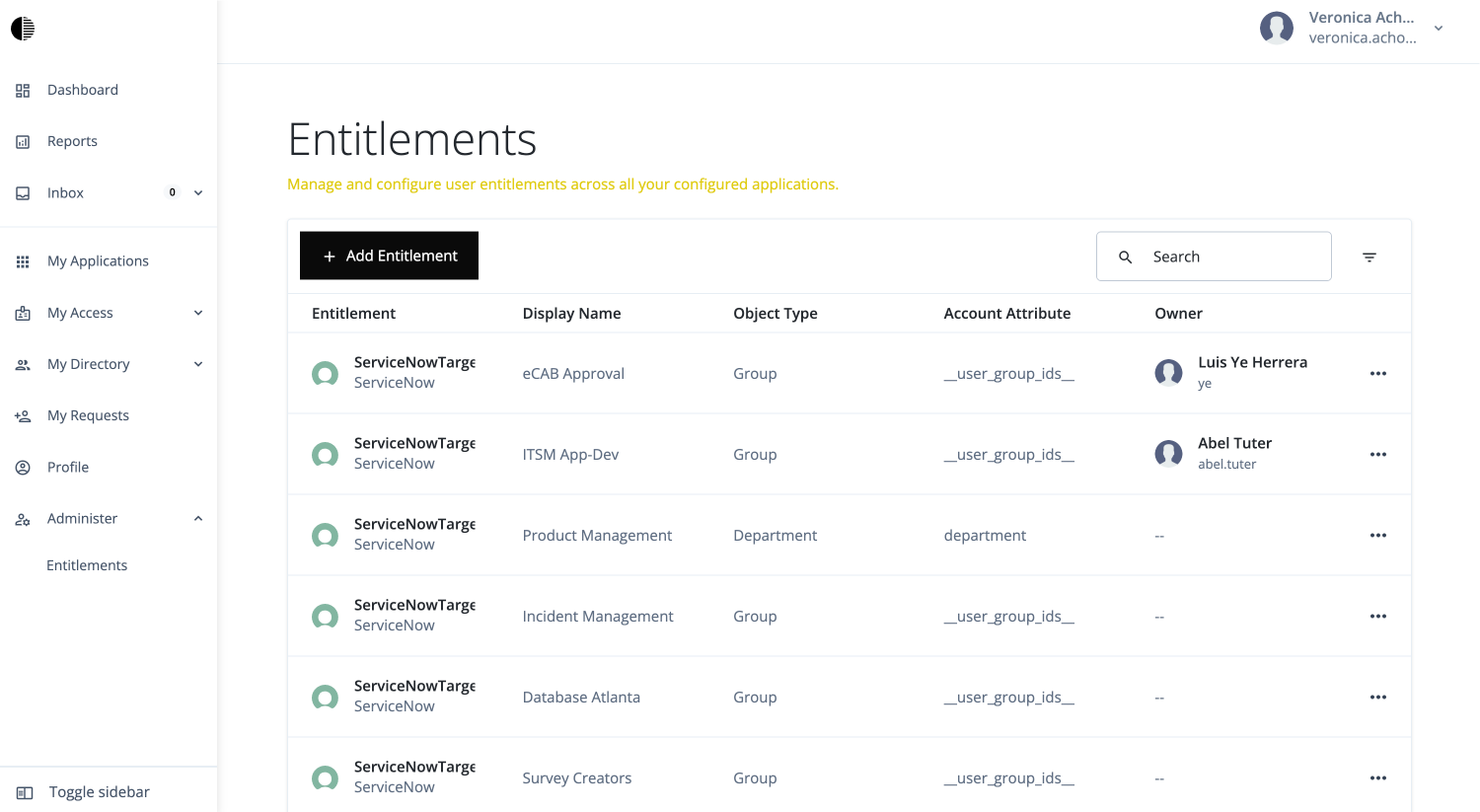
-
From here, the end user can do:
-
View all entitlements specific to the application.
-
View the details, object properties, and users of a specific entitlement.
-
Create an entitlement.
-
Modify an entitlement.
-