Task 7: Design profile management experiences
Providing self-service profile management capabilities improves the end-user experience and reduces administrative overhead. With Advanced Identity Cloud, you can create self-service experiences that let end users update their personal information, change their passwords, and manage other profile settings.
This task guides you through three key aspects of profile management:
-
Update personal information: End users can update their personal information after signing on.
-
Update password: End users can update their passwords while signed on using an update password journey.
-
Manage profile settings: Tenant administrators can configure profile management settings to tailor the experience for your organization.
The Best practices and next steps section then offers guidance for customizing the experience after you’ve mastered the basics.
Test updating personal information
End users can manage their profile information in the hosted account pages after they’ve signed on.
To test updating personal information:
-
In an incognito browser window, sign on to the Advanced Identity Cloud as an end user.
-
Click Profile to display the end user’s profile information.
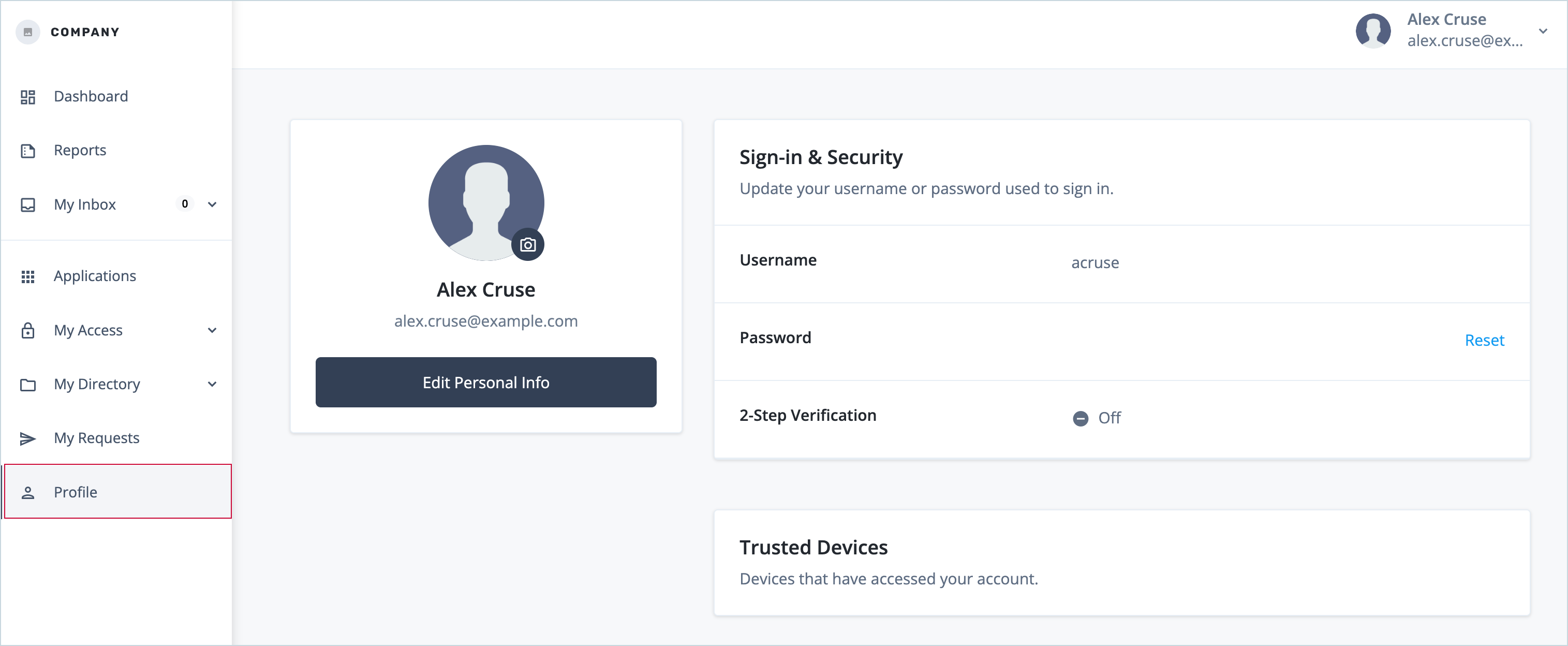
You’ll see additional menu items on the left if you have the Identity Governance add-on feature. -
Click Edit personal info.
-
Update the end user’s email, first name, last name and address.
-
Click Save to save the changes.
The changes are saved to the end user’s profile, and you’re returned to the profile page.
Test the default update password journey
Advanced Identity Cloud includes a preconfigured default update password journey that lets end users update their passwords while signed on.
To preview the default journey and test it as an end user:
-
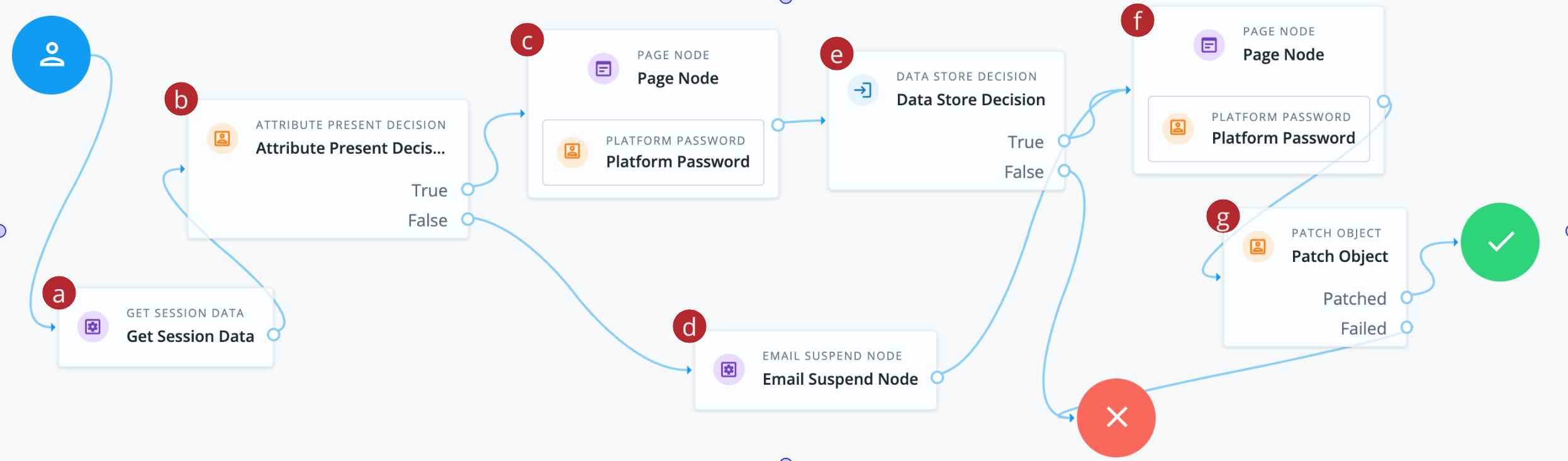
In the Advanced Identity Cloud admin console, go to Journeys > Journeys and click the UpdatePassword journey.
-
Click the ellipsis icon () and select Edit to view the journey.
-
a Identifies the signed-on end user from their session
-
b Verifies that the end-user’s password is present.
-
c Prompts the end user to enter their existing password.
-
d Sends an email to the end user with a password reset link, if an existing password isn’t present.
-
e Validates the username and password match an existing user identity in the identity store.
-
f Collects the end-user’s new password and validates the new password against password policies.
-
g Updates the end user’s password in the identity store.
-
-
In an incognito browser window, sign on to the Advanced Identity Cloud as an end user.
-
Click Profile to display the end user’s profile information.
-
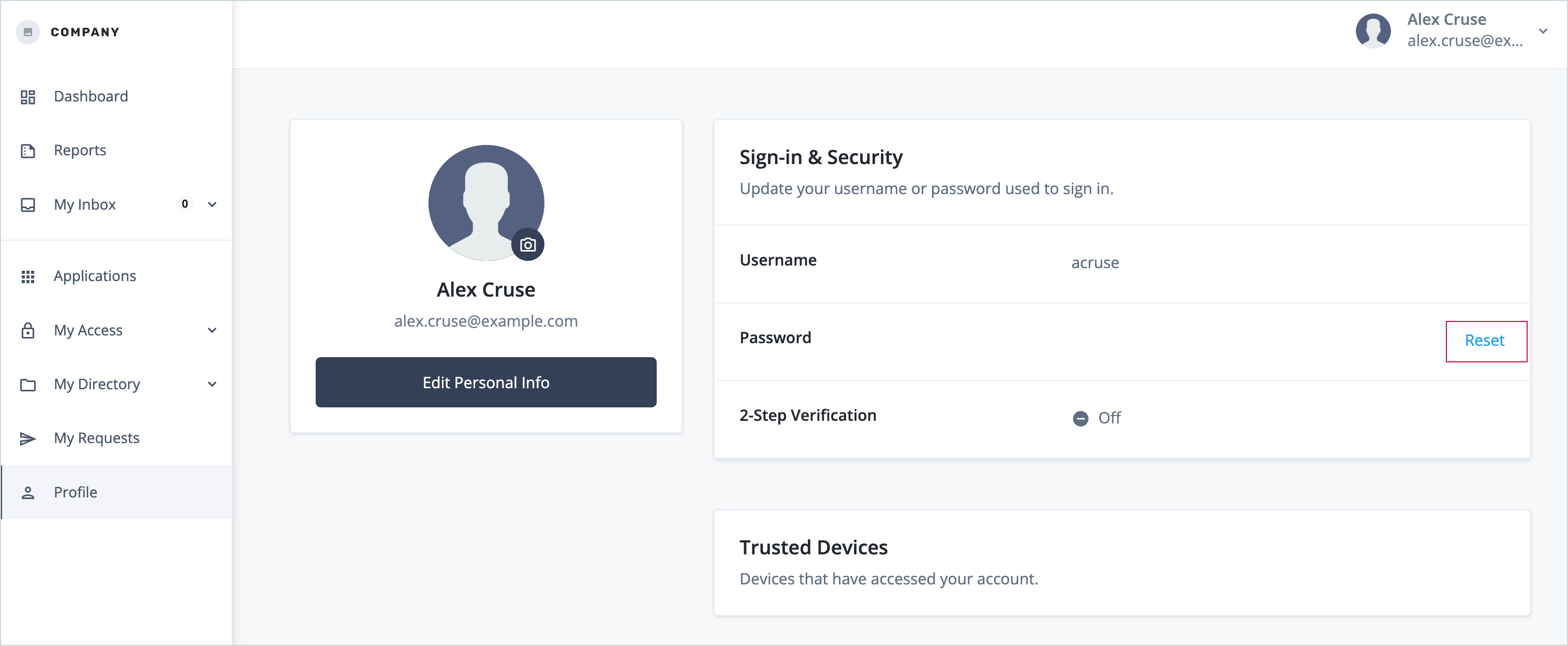
On the Password row, click Reset.
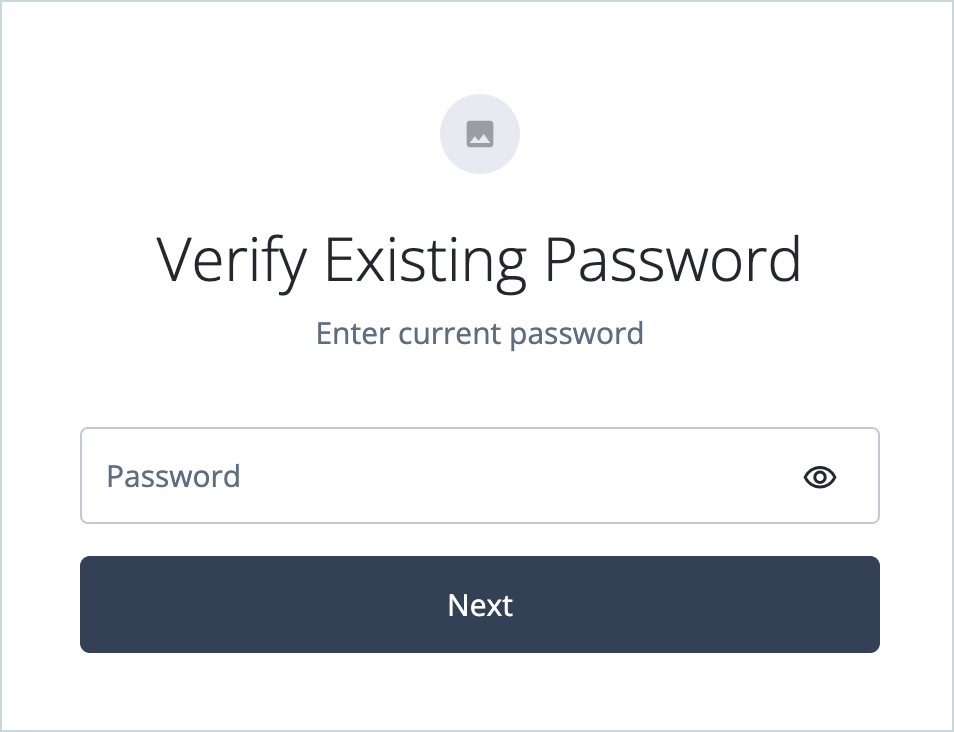
The Verify Existing Password page opens. This is the first step in the default UpdatePassword journey.
-
Enter the end user’s existing password and click Next.
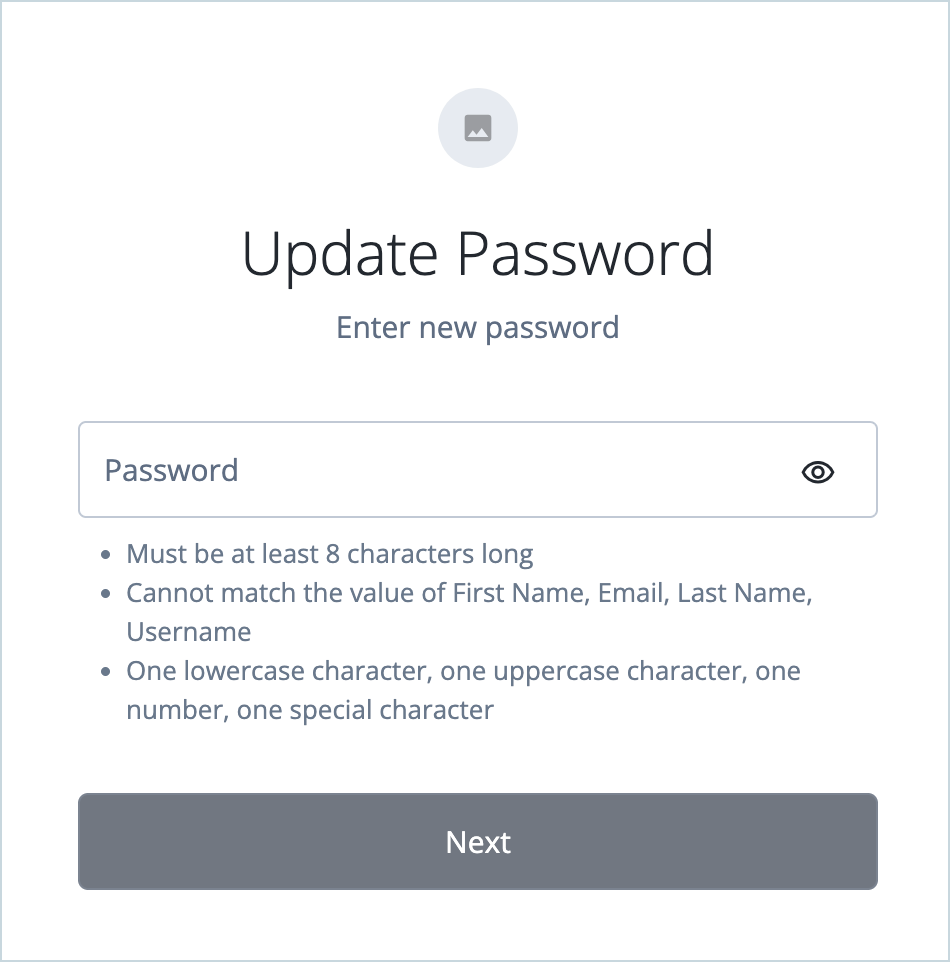
The Update Password page opens.
-
Enter a new password.
-
Click Next.
The new password is saved with the user’s profile, and you’re returned to the profile page.
Profile management settings
As a tenant administrator, you can configure self-service settings to control which profile fields end users can view and edit in the hosted account pages. This lets you tailor the profile management experience to your organization’s requirements.
Settings include:
-
Enabling or disabling profile management features.
-
Specifying which profile fields are editable by end users.
-
Configuring validation rules for profile fields.
Learn more in Configure visible information and end-user actions.
Best practices and next steps
Consider the following best practices and enhancements when designing your end-user profile management experiences:
-
Configure which attributes are visible and editable: This gives you granular control over your data. For example, you might want to display an
employeeIdbut make it read-only. Learn more in Configure actions and information for end users. -
Add custom attributes to the user profile: If your organization needs to store information not included in the default schema (such as a
departmentorlocation), you can add custom attributes to the user profile. Once added, you can make it available on the profile page. Learn more in Customize user identities. -
Notify users of critical account changes: This is a critical security measure against account takeover. After a sensitive change is completed (like a password change) use an
Email Template Nodein your journey to send a notification to the user. For an email address change, this notification should be sent to the old email address to alert the legitimate user of potentially fraudulent activity. Learn more in Email templates. -
Continuously validate the user experience Regularly review how users interact with profile and recovery flows using usability testing, accessibility checks and behavioural signals (such as drop-off points or repeated recovery attempts). Combine these insights with user feedback to inform and prioritize incremental improvements over time.