Configure entitlement lifecycle management
Entitlement lifecycle management (LCM) provides a type of delegated administration, allowing application owners, entitlement owners, and end users authorized with the proper scope permissions to manage entitlements within the applications available to them. By using Entitlement LCM, companies can keep entitlement attributes up-to-date, reducing the risk of outdated or inaccurate entitlements impacting decision making.
Entitlement LCM also enforces policies by requiring approval workflows before any entitlement changes are applied. This prevents users from granting excessive permissions without oversight and ensures access remains aligned with organizational policies.
Governance personas
By default, governance administrators, application owners, entitlement owners, and end users with scoped permissions can manage entitlements in the system. These users have the following permissions:
| Action | Admin | Application Owner |
Entitlement Owner |
End user |
|---|---|---|---|---|
View entitlement |
Yes |
Yes |
Yes |
If scoped |
View users who have entitlement |
Yes |
Yes |
Yes |
If scoped |
Create entitlement |
Yes |
Yes |
No |
If scoped |
Modify entitlement |
Yes |
Yes |
Yes |
If scoped |
Enable Entitlement LCM
Governance administrators must enable Entitlement LCM to activate the feature for their users.
-
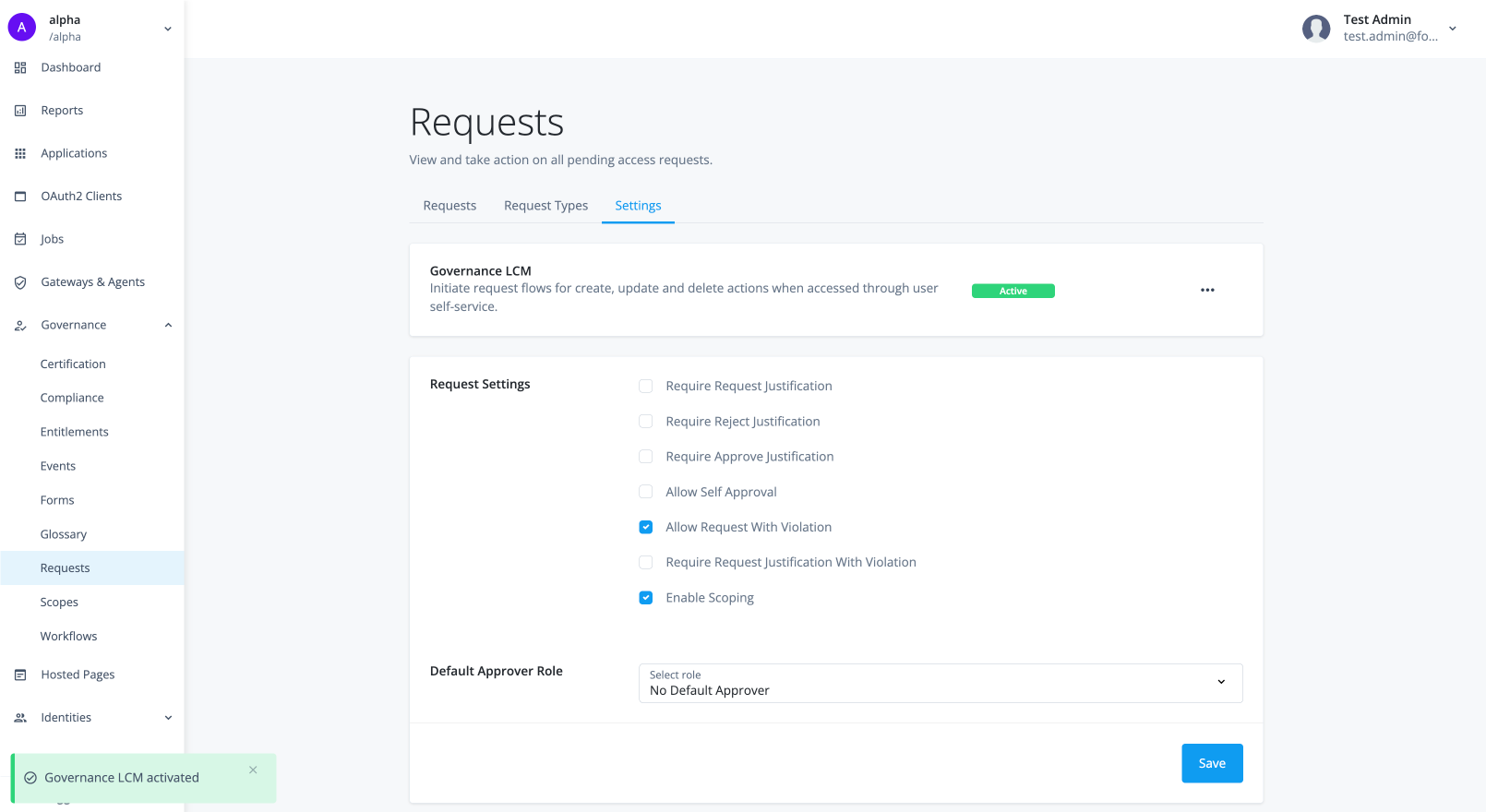
In the Advanced Identity Cloud admin console, go to Governance > Requests.
-
On the Requests page, click the Settings tab.
-
In the Governance LCM section, click Activate.
-
In the Governance LCM modal, read what activating this feature entails, and click Next.
-
In the Governance LCM modal, click Entitlement LCM, and then click Activate. The governance LCM is now active on your tenant.
Configure authorization
Entitlement LCM enables administrators to delegate entitlement management to authorized users. Scope permissions have been enhanced to grant a specific subset of permissions for managing entitlements. The scope permissions are summarized as follows:
| Permission | Applies to | Description | ||
|---|---|---|---|---|
View Applications |
Applications |
Allows the user to view matching applications. This scope is implicit when Create Entitlements is selected. |
||
Create Entitlements |
Applications |
Allows the user to create entitlements for the matching applications. |
||
View Entitlements |
Entitlements |
Allows the user to view matching entitlements. This scope is implicit when Modify Entitlements or View Grants is selected. |
||
Modify Entitlements |
Entitlements |
Allows the user to modify the matching entitlements. |
||
View Grants |
Entitlements |
Allows the user to view the other users who are assigned the entitlement.
|
Add scopes and assign to users
-
Sign on to the Advanced Identity Cloud admin console as a tenant administrator.
-
In the Advanced Identity Cloud admin console, go to Governance > Scopes.
-
Click New Scopes.
-
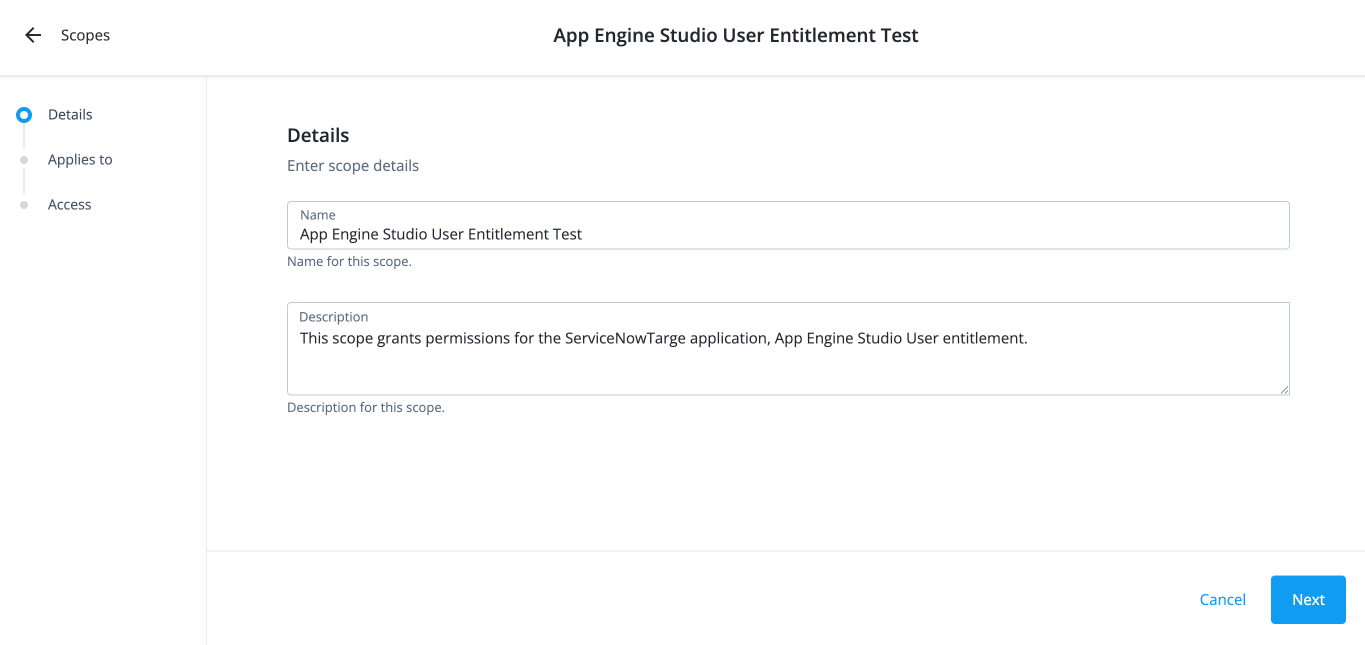
On the New Scope page, enter the following in the Details section:
-
Name: Enter the name for the scope.
-
Description: Enter a description for the scope.
-
Click Next.
-
-
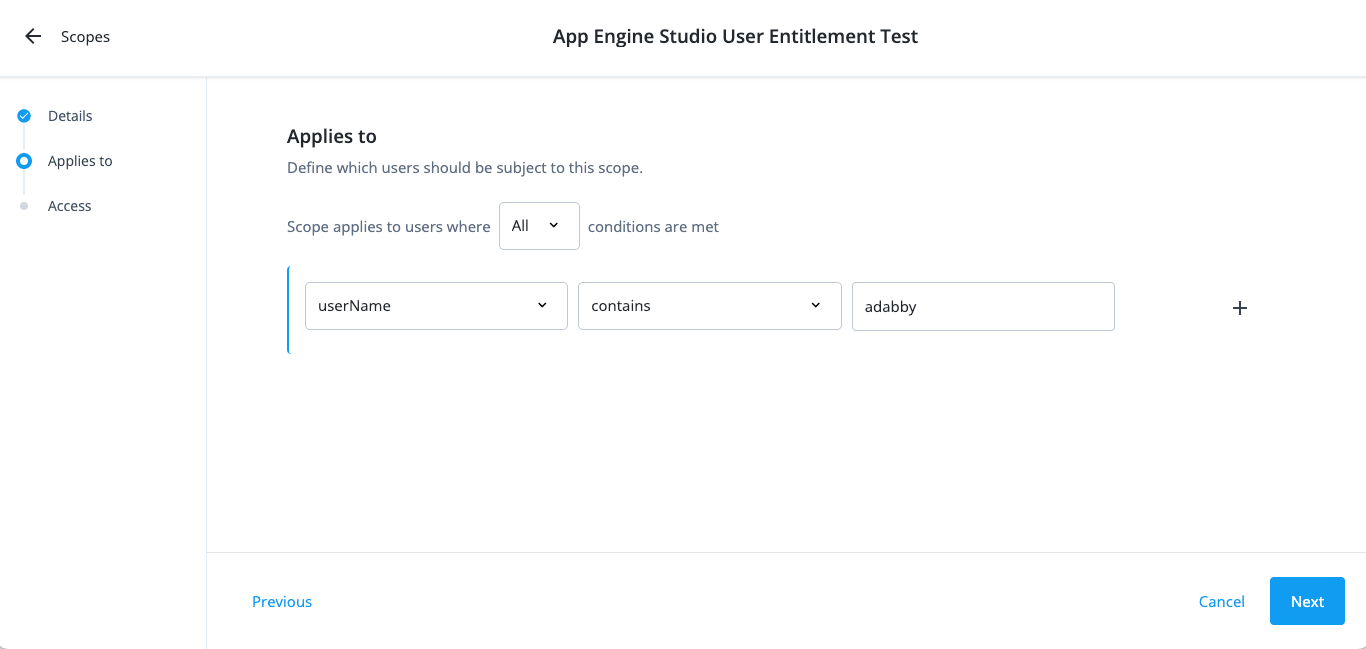
On the Applies to page, define which users should be subject to this scope. Decide if you want to grant application or entitlement permissions to the end user.
-
Select if the All or Any condition must be met.
-
Select a property for this scoping rule. For example, select userName.
-
Select an operator for the scoping rule. For example, select contains.
-
Enter an entitlement.
-
If you want to add another rule, click and repeat the steps.
-
Click Next.
-
-
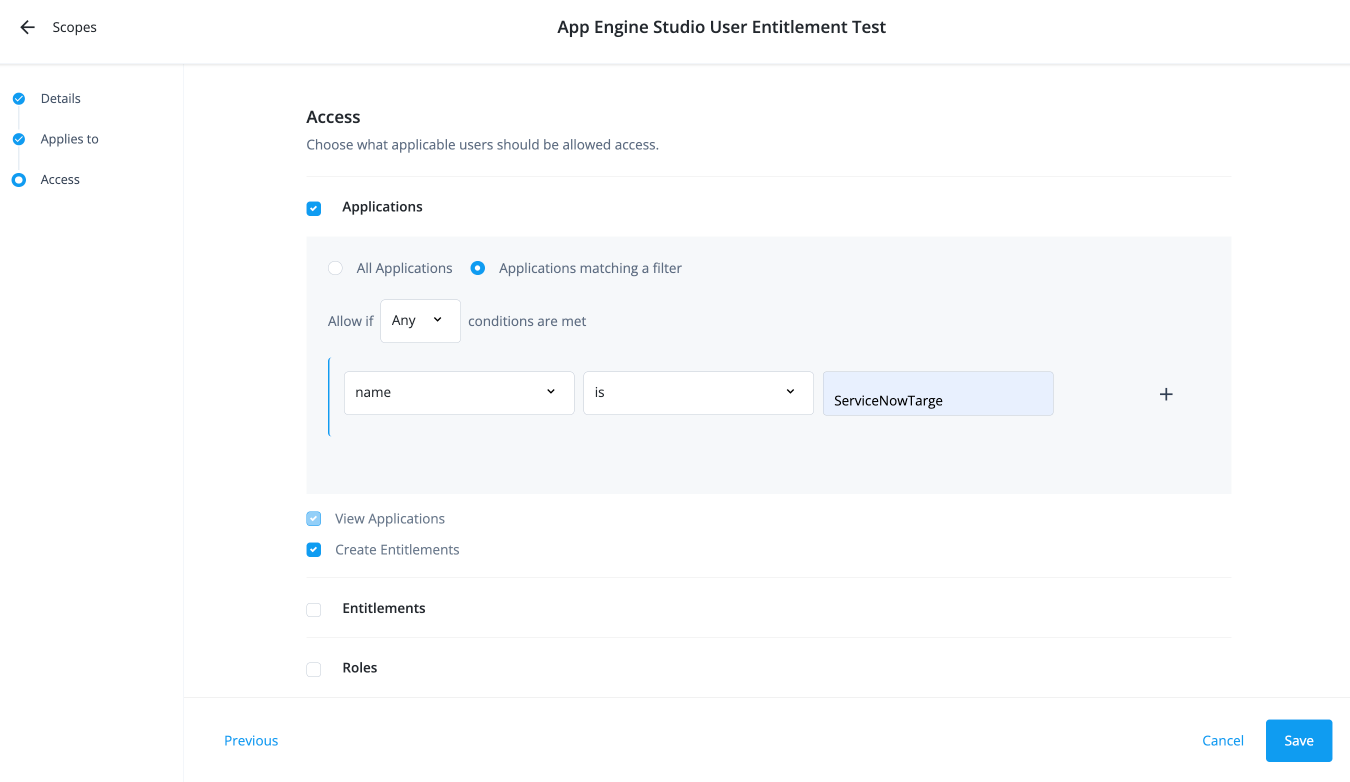
On the Access page, enter the following depending if you are granting applications or entitlement permissions:
-
For application permissions:
-
Select the Applications checkbox.
-
Click All Applications or Applications matching a filter. Click Applications matching a filter.
-
Select if All or Any condition must be met.
-
Select a property for this scoping rule. For example, select name.
-
Select an operator for the scoping rule. For example, select is.
-
Enter an application.
-
If you want to add another rule, click and repeat the steps.
-
Click Create Entitlements.
The View Applications scope permission is also included.
-
Click Save.
The end user now has the permission to create new entitlements for the matching application.
-
-
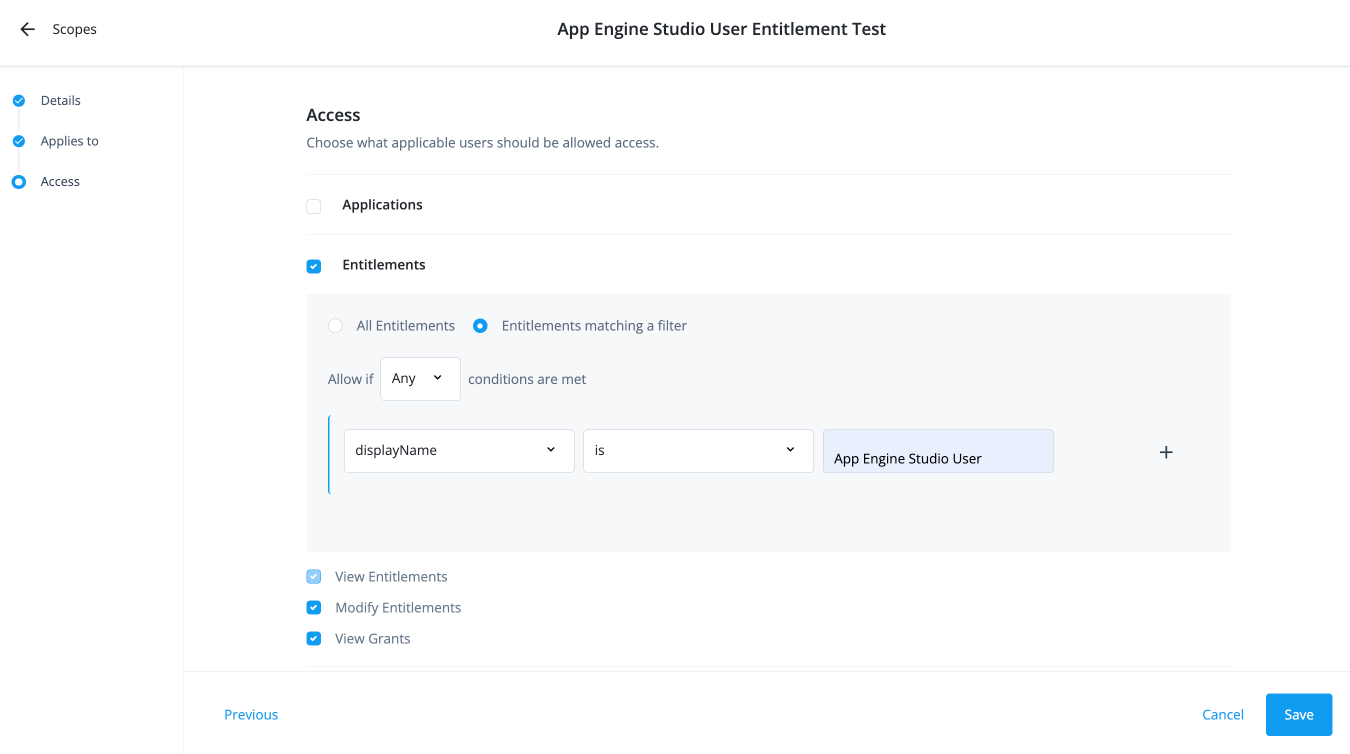
For entitlement permissions:
-
Select the Entitlements checkbox.
-
If you click Applications matching a filter, click All Entitlements or Entitlements matching a filter.
-
Select if the All or Any condition must be met.
-
Select a property for this scoping rule. For example, select userName.
-
Select an operator for the scoping rule. For example, select is.
-
Enter a user.
-
If you want to add another rule, click and repeat the steps.
-
Click Modify Entitlements.
The View Entitlements scope permission is also included.
-
Click View Grants to allow the end user to view who has the entitlement.
-
Click Save.
-
-
Configure entitlement lifecycle workflows
Identity Governance provides the out-of-the-box request types and workflows to enable authorized users to carry out Entitlement LCM tasks:
| Request Type | Workflow |
|---|---|
createEntitlement |
Create Entitlement |
modifyEntitlement |
Modify Entitlement |
As with all other Identity Governance requests, the Entitlement LCM actions are defined and processed in request workflows that allow users to:
-
Create new entitlements
-
Provide source entitlement attribute values
-
Enrich the entitlement glossary
-
Modify existing entitlements.
Troubleshooting entitlements
Typical troubleshooting cases that can occur with entitlements are:
-
Entitlements aren’t being onboarded from the application.
-
Onboarded entitlements aren’t visible in the catalog.
-
Onboarded entitlements don’t have a display name.
-
Entitlements have been assigned to users but aren’t visible in the user’s access.
-
Duplicate entitlement assignments assigned to the user.