Enabling third-party identity providers during self-registration
Self-registration is a streamlined self-service process that enables users to create accounts and access resources protected by multiple service providers.
Users can create a login with a unique username and password during self-registration. Learn more in Setting up self-service registration.
Users can also leverage existing identities from third-party identity providers during self-registration. Any identity provider (IdP) connection or IdP adapter, such as the Google IdP Adapter in the Google Login Integration Kit, can serve as an authentication source for a third-party identity provider.
With this configuration, users can either create a login or use an existing third-party identity during self-registration.
About this task
In the PingFederate admin console, enable third-party IdPs with self-registration. Enabling third-party IdPs includes entering information for the IdP connections or IdP adapter instances when creating a local identity profile and an IdP authentication policy.
Enable this functionality by mapping attributes returned by the identity provider to the registration page fields.
During self-registration, users provide an email address, first and last name, password, and, optionally, a mobile phone number. The email address is the user identifier. As specified in the partner agreements, all attributes are sent to the service providers.
A specific object class has already been created in the directory to store user information. The object class name is aPerson, and the Lightweight Directory Access Protocol (LDAP) attributes are mail, givenName, sn, and mobile.
This topic describes the process of connecting a PingDirectory installation to PingFederate and enabling a third-party IdP. The procedure uses ACME as an example social platform and third-party identity provider.
ACME stores user identity information for third-party identity providers. The procedure takes advantage of pre-existing user accounts at ACME. An IdP connection to ACME has already been established, and it returns the following attributes for each user: SAML_SUBJECT (email address), ssoFirstName, ssoLastName, and ssoMobile.
The following tasks are covered in this topic:
-
Install PingDirectory.
-
Create an authentication policy contract.
-
Create a local identity profile.
-
Configure an HTML Form Adapter instance.
-
Create an IdP authentication policy.
If PingDirectory is already configured to connect to PingFederate and the authentication policy contract is already created, begin with Create a local identity profile.
Install PingDirectory
Install PingDirectory.
Learn more in Installing the PingDirectory Suite of Products in the PingDirectory documentation.
Create an authentication policy contract
-
In the PingFederate admin console, go to Authentication > Policies > Policy Contracts.
-
On the Policy Contracts page, click Create New Contract.
-
On the Contract Info tab, enter a name for the contract.
-
Click Next.
-
On the Contract Attributes tab, extend the authentication policy contract by entering the following attributes in the Extend the Contract field:
-
firstName -
lastName -
mobileNumber -
SAML_SUBJECT(email address)
-
-
(Optional) Add other attributes.
-
After each entry, click Add.
-
When all attributes have been added, click Next.
-
On the Summary tab, review the changes.
-
Click Save.
Learn more in Managing policy contracts.
Create a local identity profile
-
In the PingFederate admin console, go to Authentication > Policies > Local Identity Profiles.
-
Click Create New Profile to open the Local Identity Profile page and configuration wizard.
-
On the Profile Info tab, enter a name in the Local Identity Profile Name field.
-
Select the authentication policy contract created in Create an authentication policy contract.
-
Select the Enable Registration checkbox.
-
Click Next.
-
On the Authentication Sources tab, enter
ACMEin the Authentication Source field. -
(Optional) Add additional third-party identity providers in the Authentication Source field.
-
After each entry, click Add.
-
When all authentication sources have been added, click Next.
Self-registration can support more than one third-party identity provider. Additional providers appear on the sign-on page in the order defined on this page.
-
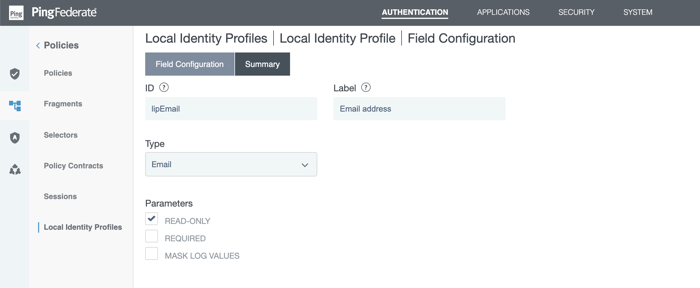
On the Fields tab, define the fields for the local identity profile using the following field definitions:
ID Label Type Parameters lipEmailEmail address
Email
Select the Required checkbox.
lipFirstNameFirst name
Text
Select the Required checkbox.
lipLastNameLast name
Text
Select the Required checkbox.
lipMobilePhone
Phone
Not required.
-
Click Create New Field.
-
On the Field Configuration tab, enter the ID and label.
-
Select the type from the list.
-
Select the parameter checkboxes, as required.
-
As needed, select Mask Log Values for the local identity field.
-
Select Mask all OGNL-expression generated log values.
-
Click Next.
-
Click Done.
-
Repeat the field-creation procedure for each remaining field.
-
After entering all local identity fields, select the Unique ID radio button for the email field.
-
Click Next.
-
On the Email Verification tab, click Next.
-
On the Registration tab, click Next.
-
On the Data Store Configuration tab, click Configure Data Store.
-
Select the LDAP datastore configured to connect to PingDirectory in the Data Store list.
-
Click Next.
-
On the LDAP Configuration tab, specify the branch of the directory hierarchy where PingFederate stores customer identities in the Base DN field. Specify the LDAP attributes associated with the fields defined in this local identity profile under Attribute.
-
On the Identity Creation tab, define the RDN pattern in the Relative DN Pattern field and select an object class, such as
aPerson, from the Object Class list.Use the following pattern:
attribute1=value1[, …, attributeN=valueN]To guarantee unique relative DNs for all users, use the
${entryUUID}variable with theentryUUIDLDAP attribute:entryUUID=${entryUUID}Learn more in Configuring LDAP relative DN and object class.
-
On the Data Store Mapping tab, configure the mapping between the local identity profile fields and datastore attributes using the following mappings:
Local identity profile field Data store attribute lipEmailmaillipFirstNamegivenNamelipLastNamesnlipMobilemobile -
On the Summary tab, click Done.
-
On the Summary tab of the local identity profile, click Save.
Learn more in Configuring local identity profiles.
Configure an HTML Form Adapter instance for customer identities
-
In the PingFederate admin console, go to Authentication > Integration > IdP Adapters.
-
Create a new HTML Form Adapter instance, or reuse an existing instance by clicking its name.
-
In the Password Credential Validator Instance section on the IdP Adapter tab, add the LDAP Username Password Credential Validator instance configured to validate credentials stored on PingDirectory.
-
Select the local identity profile created in Create a local identity profile from the Local Identity Profile list.
-
Complete the remaining configuration and save all changes.
Learn more in Configuring the HTML Form Adapter for customer identities.
If an HTML Form Adapter instance for customer identities is already configured, continue with Create an IdP authentication policy.
Create an IdP authentication policy
-
In the PingFederate admin console, go to Authentication > Policies > Policies.
-
Under Policy, select the HTML Form Adapter instance configured in Configure an HTML Form Adapter instance for customer identities.
-
Under Value, click the drop-down arrow to display the Fail and Success fields.
-
For the Fail path, select Done.
-
For the Success path, select the local identity profile created in Create a local identity profile.
-
Click Done.
-
Click Local Identity Mapping under the selected local identity profile to open the Inbound Mapping & Contract Fulfillment configuration wizard.
-
On the Inbound Mapping page, configure the
pf.local.identity.unique.idbuilt-in local identity field for the registration process.At runtime, PingFederate fulfills the value of
pf.local.identity.unique.idbased on this configuration and passes the value to PingDirectory.PingDirectory uses this value to determine whether the identity already exists.
Map
pf.local.identity.unique.idfrom the subject identifier of the preceding authentication source: theusernameattribute from the HTML Form Adapter.Configure the Inbound Mapping page as follows:
Inbound mapping fulfillment Source Value pf.local.identity.unique.idAdapter
username -
On the Attribute Sources & User Lookup tab, click Next.
-
On the Issuance Criteria tab, click Next.
-
On the Inbound Mapping & Contract Fulfillment > Summary page, click Done.
The wizard returns to the Manage Authentication Policies page.
-
Click Rules under the Success path of the HTML Form Adapter instance.
-
In the Rules dialog, create a policy path for users who choose to register and authenticate through ACME. Configure the rule as follows:
Attribute name Condition Value Result policy.actionequal to
ACME
ACME users
The
policy.actionvalue must match the value defined on the Authentication Sources tab. The Result value controls the label shown for the policy path and doesn’t need to match the authentication source value. -
If multiple third-party identity providers are defined on the Authentication Sources tab, repeat the rule configuration for each provider.
-
Select Default to Success. This preserves the Success path and allows users to choose whether to register directly or register through ACME.
-
Click Done to return to the Authentication Policies page.
-
For the ACME users path, select the IdP connection to ACME under Action.
Any IdP adapter instance or connection that connects to the third-party identity provider can be used.
-
For the Fail path, select Done.
If multiple third-party identity providers and policy paths are configured, select Restart to allow users to start over and choose another provider after an authentication failure. When Restart is triggered, the policy engine routes the request back to the first checkpoint of the invoked authentication policy.
Selecting Restart for the Fail path gives users the opportunity to choose another provider after failing to authenticate through ACME.
Avoid selecting Restart for the Fail path at the root of an authentication policy tree because undesirable looping behavior can occur. PingFederate mitigates this risk by automatically limiting the number of policy restarts per transaction.
-
For the Success path, select the local identity profile created in Create a local identity profile.
-
Click Local Identity Mapping under the selected IdP connection to open the Inbound Mapping & Contract Fulfillment configuration wizard.
-
On the Inbound Mapping page, configure
pf.local.identity.unique.idfor the registration process. Optionally, configure other fields so PingFederate can pre-populate values for additional registration fields.At runtime, PingFederate fulfills
pf.local.identity.unique.idbased on this configuration and passes the value to PingDirectory.PingDirectory uses this value to determine whether the identity already exists.
Map
pf.local.identity.unique.idfrom the subject identifier of the preceding authentication source, which is the subject identifier from the IdP connection.Configure the Inbound Mapping page as follows:
Inbound mapping fulfillment Source Value pf.local.identity.unique.idIdP Connection
SAML_SUBJECTlipEmailIdP Connection
SAML_SUBJECTlipFirstNameIdP Connection
ssoFirstNamelipLastNameIdP Connection
ssoLastNamelipMobileIdP Connection
ssoMobile -
On the Attribute Sources & User Lookup tab, click Next.
-
On the Issuance Criteria tab, click Next.
-
On the Inbound Mapping & Contract Fulfillment > Summary page, click Done.
The wizard returns to the Manage Authentication Policies page.
If multiple policy rules are configured, complete the Inbound Mapping & Contract Fulfillment configuration for each rule.
-
On the Policies tab of the Policies page, select the IdP Authentication Policies checkbox.
Other IdP authentication policies, if any, are enabled as well.
-
Click Save to retain the changes.
Result
Self-service registration is configured with an option for users to register and subsequently authenticate through ACME.
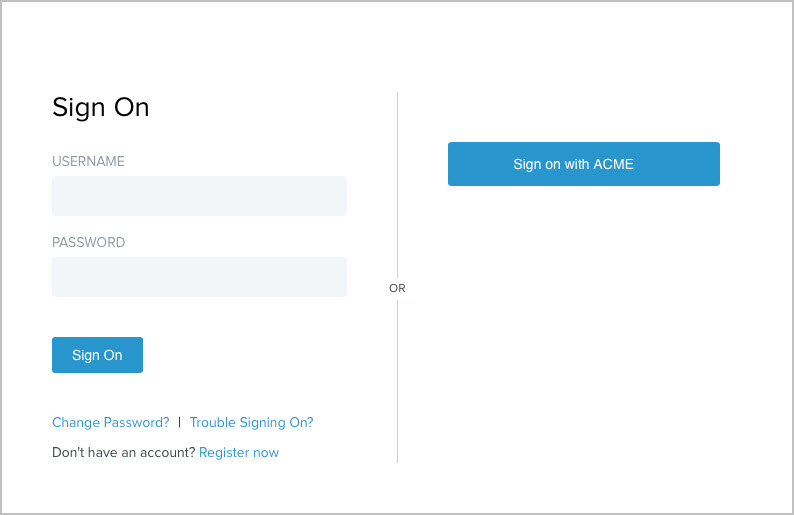
Users who sign on through the HTML Form Adapter instance have two registration options:
-
Click Register now, complete the registration page, and register.
-
Click the social sign-on link, authenticate through ACME, review the registration page, and register.
Based on the configuration, the sign-on page presents both options.
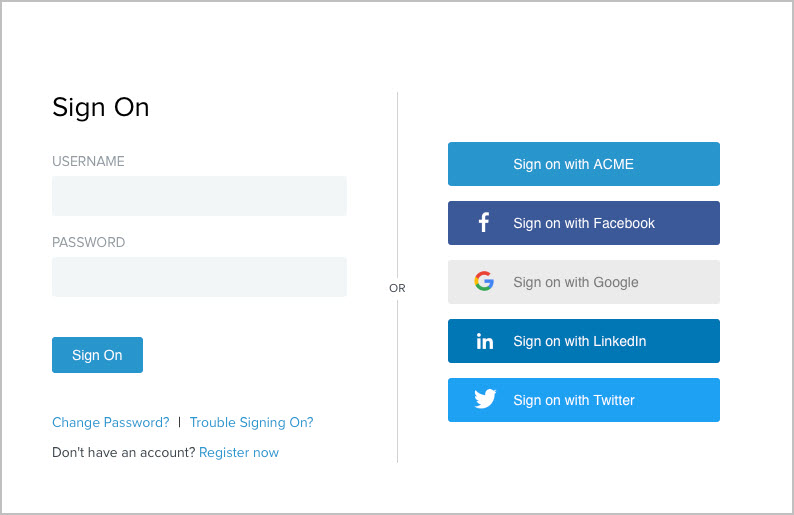
If Facebook, Google, LinkedIn, and Twitter are configured as authentication sources, the sign-on page presents each provider in the order defined in the local identity profile.
When a user registers through ACME and returns to PingFederate, PingFederate pre-populates the registration page with values received from ACME.
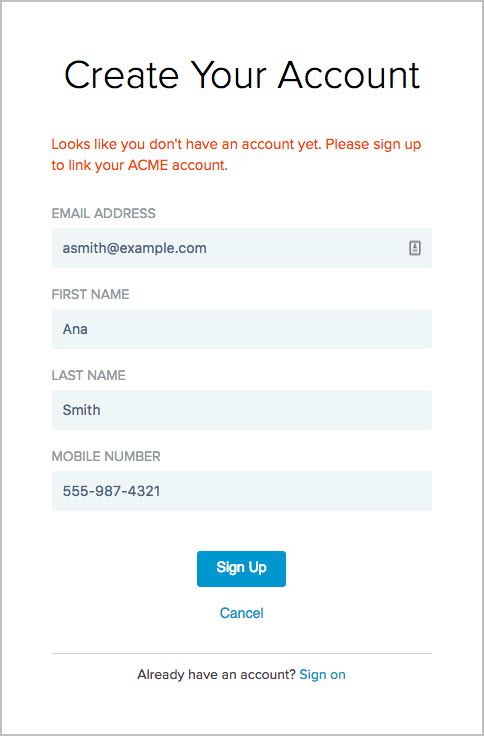
This option streamlines the self-service registration process.