Use Access Modeling
This section is for Identity Governance users, such as role owners and governance analysts, who use Access Modeling but don’t configure it.
Authorized access modeling administrators who are part of the
access-modeling-administrator group can run a role mining job in the Advanced Identity Cloud end-user UI.
|
Best practice is to run the role mining job on a daily basis. This cadence lets Identity Governance capture access and attribute changes and refresh recommendations. It keeps roles aligned with real-world usage. However, depending on your environment and how quickly access changes, you might run the job more or less frequently. |
What is Access Modeling?
Access Modeling (also known as role mining) analyzes existing user-to-entitlement assignments and discovers candidate access roles describing how people use access in your environment. It uses advanced machine learning algorithms and analytics thresholds to:
-
Examine current roles and entitlements across your access landscape.
-
Propose new role candidates and changes to existing roles.
-
Calculate confidence scores and driving factors for each role and entitlement assignment.
What is confidence scoring?
Every entitlement assignment has a confidence score. The score answers a simple question: of all employees who share this end user’s relevant attributes (like job function, department, and location), what percentage also hold this entitlement?
A score of 0.93 means 93% of comparable employees have this access. A score of 0.12 means almost no one with this end user’s profile has it.
Identity Governance computes the score from observed data across your entire population. It reflects actual provisioning patterns rather than any single approver’s judgment or any one team’s interpretation of policy.
-
High-confidence assignments are consistent with how the organization actually operates.
-
Low-confidence assignments warrant review.
Before you begin
Before you can use Access Modeling, make sure that:
-
Your organization has purchased and enabled the Access Modeling add-on capability for Identity Governance. If you don’t see the Access Modeling page in the Advanced Identity Cloud end-user UI, contact your Identity Governance or Advanced Identity Cloud tenant administrator to confirm whether the feature is enabled for your organization.
-
You have the correct permissions. To run a role mining job, you must be in the
access-modeling-administratorgroup. To manage roles, you might need to be designated as a role owner. Contact your Identity Governance or Advanced Identity Cloud tenant administrator if you believe you should have access.
Run a role mining job
The role mining job is part of the Identity Governance machine learning analytics pipeline. It processes the latest access data and generates candidate roles and updates to existing roles based on observed patterns in your environment.
|
Only users in the |
To run the role mining job:
-
In the Advanced Identity Cloud end-user UI, sign on as an end user who has role mining permissions.
-
Click Access Modeling.
-
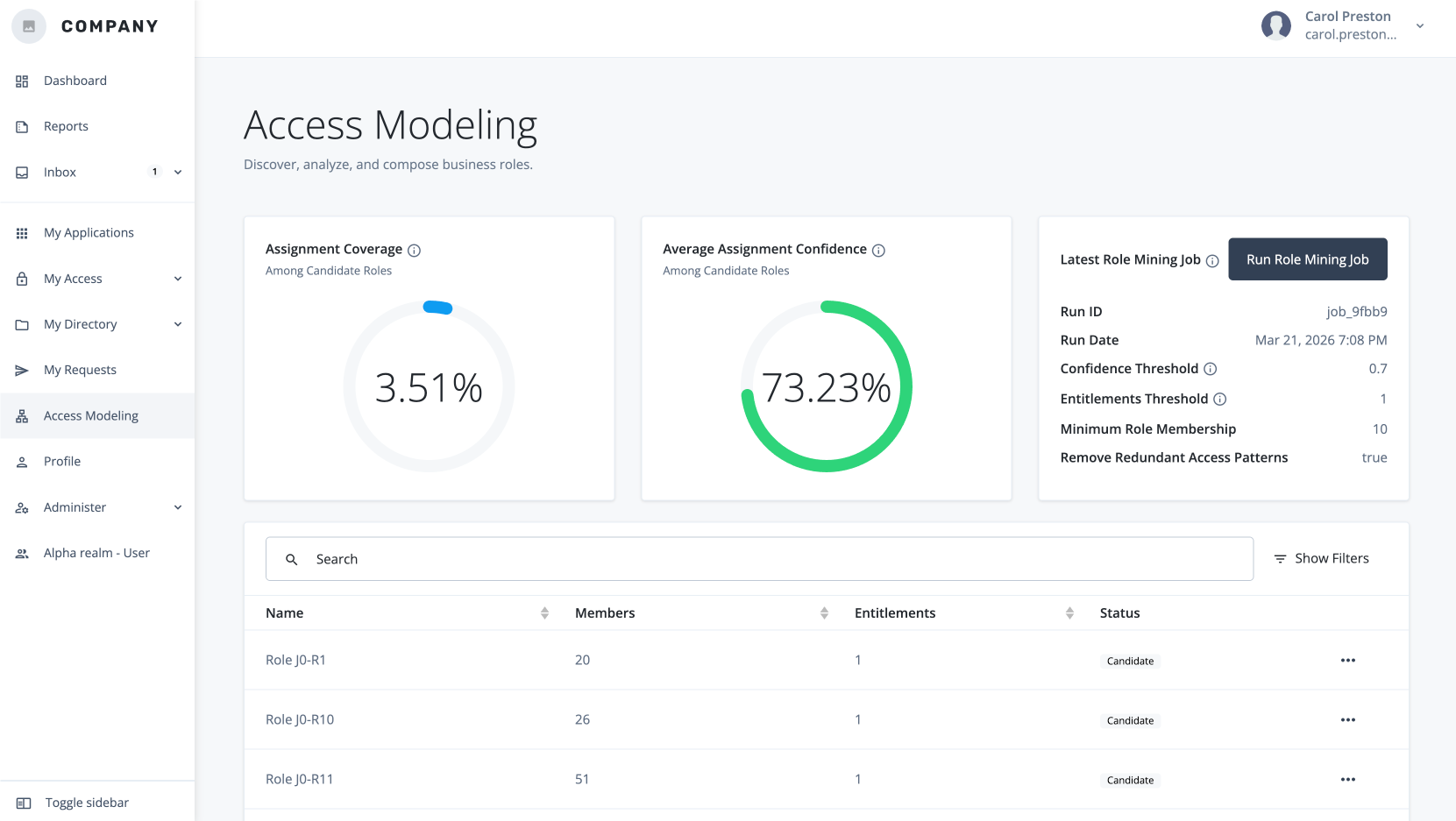
Click Run Role Mining Job. The system queues the role mining job in the analytics pipeline. When you select the button, Identity Governance runs the role mining job with the current configuration and thresholds.
Only one role mining job can run at a time. Depending on your environment size and analytics load, the job can take from several minutes to a few hours to complete. After the Run Role Mining button becomes active again, you’ll know the job completed.
Search roles using the filter
Most companies have a large number of roles within their system. The Access Modeling page provides a useful filter to locate specific roles.
-
In the Advanced Identity Cloud end-user UI, click Access Modeling.
-
On the Access Modeling page, click Show Filters.
-
On the Filter Roles modal, select the criteria you want to filter by:
-
Entitlement: Display only roles that include a specific entitlement.
-
Status: Select Candidate or Draft.
-
Users: Number of users in the role.
-
Minimum number of members: Display only roles with at least minimum specified members.
-
Minimum number of entitlements: Display only roles with at least the minimum specified entitlements.
-
-
Click Apply Filters.
Examine role details
For each candidate or existing role, Access Modeling provides a Details tab.
To examine a specific role:
-
On the Access Modeling page, select a candidate, draft, or active role.
-
On the role details page, review the following information:
UI element Description General role information
Displays when the role mining analytics were last refreshed, role status, and role identifier.
Export
Downloads the role definition JSON for use outside the UI.
Identity Coverage
Displays what percentage of identities are currently in this role.
Average Assignment Confidence
Displays the average confidence score for entitlements in this role.
Name
Lets you edit the display name for the role.
Description
Lets you add a short explanation of what the role is for.
Requestable
Designates a role as searchable and requestable in the Access Modeling page and other governance areas.
Role Owner
Assigns a role owner responsible for managing this role.
Delete
Removes the role from access modeling.
Create Draft
Creates a draft version of the role you can refine and publish.
Examine role entitlements details
For each candidate or existing role, Access Modeling provides an Entitlements tab that displays the entitlements included in the role and their confidence scores.
-
On the Access Modeling page, select a candidate, draft, or active role.
-
Click the Entitlements tab.
-
On the role details page, review the following information:
UI element Description Entitlements
Lists the entitlements included in the role. Click the entitlement to review its details.
Examine the role’s members
For each candidate or existing role, Access Modeling provides a members tab displaying the users included in the role and their attributes.
-
On the Access Modeling page, select a candidate, draft, or active role.
-
Click the Members tab.
-
On the role members page, review the following information:
UI element Description Attribute Distribution
Introduces the chart that summarizes member attributes.
Attribute selector
Lets you choose which attribute to analyze in the distribution chart. If you’re not sure what an attribute means, learn more in Examine the role’s access patterns.
Attribute distribution
Displays how many members share the selected attribute value.
Search
Filters the members list by username or other visible data.
Username
Displays each member’s username.
Attribute
Displays key attribute values (such as manager, location, or flags) for each member.
Examine the role’s access patterns
For each candidate or existing role, Access Modeling provides an Access Patterns tab displaying the rules that define the driving factors for the machine learning analytics job.
-
On the Access Modeling page, select a candidate, draft, or active role.
-
Click the Access Patterns tab.
-
On the role access patterns page, review the following information:
UI element Description Sort by
Displays options to sort access patterns, such as by Attribute Count or User Count and by Ascending or Descending order.
Users
Displays how many users match the access pattern.
Attribute label
Displays the name of a user attribute used in the pattern.
Create drafts and publish roles
Access Modeling lets authorized users review discovered candidate roles.
-
On the Access Modeling page, select a candidate role.
-
Review the role details, entitlements, members, and access patterns.
-
Click Create Draft. This creates a draft role based on the candidate role, which you can refine and publish.
You’ll see an additional Recommendations tab. In the Recommendations tab, you can review and accept or reject suggested changes to the role definition based on other candidates.
-
Update the role draft, and then click Publish. This submits the role for approval and publishing to Identity Governance.
-
In the Request Submitted modal, click View Request to see the request details and approval workflow.
-
If the request is approved, Identity Governance creates the role and marks it as
Active. If the request is rejected, click Comments to view the error message or feedback from the approver.
Maintain and export roles
Over time, use Access Modeling to keep roles accurate and useful:
-
Rerun the role mining job daily to capture changes in access and refresh recommendations.
-
Create new drafts from existing active roles when mining suggests significant changes or when roles become stale.
-
Unpublish or delete roles that no longer represent meaningful patterns.
To export the role definition:
-
On the Access Modeling page, select a candidate role.
-
Review the role details, entitlements, members, and access patterns.
-
Click Export to download the role definition as JSON for offline analysis or integration with other systems.
Delete a role
Access Modeling lets role admins and role owners delete a draft or candidate role.
-
On the Access Modeling page, select a candidate or draft role.
-
Review the role details, entitlements, members, and access patterns.
-
Click Delete.
Keep roles aligned with your access landscape
As a role owner, governance analyst, or other Identity Governance end user, you can help keep Access Modeling effective by:
-
Reviewing new candidate roles after each analytics run.
-
Cleaning up roles that no longer represent meaningful patterns (for example, roles with very low membership or stale entitlements).
-
Providing feedback to administrators when thresholds are too strict or too permissive based on what you see in the UI.
-
Together, administrators and end users use Access Modeling to maintain a clean, accurate set of roles that reflect real-world access and support effective governance.