Manage AI agents using the admin console
You can find background information on AI agents in PingOne Advanced Identity Cloud in Secure your AI-driven solutions using AI agents.
Create an AI agent
To create a new AI agent:
-
In the Advanced Identity Cloud admin console, go to AI Agents.
-
Click Add AI Agent.
-
In the Add new AI Agent modal:
-
Enter a descriptive Name for the AI agent. For example, "Retail Chatbot" or "Workforce Assistant".
-
Enter a Client ID for the AI agent using only alphanumeric characters, dashes, or underscores. For example, "retail-chatbot" or "workforce-assistant".
Once you enter a client ID and save the AI agent, the client ID can’t be changed. -
(Optional) Enter a Client Secret:
-
If you don’t enter a value for the client secret, you can enter it later using the AI agent’s Access tab.
-
If you do enter a value, make a note of it, as you won’t be able to view it again after creating the AI agent.
-
-
(Optional) Click Use Secret Store for secrets, then enter a Secret Label Identifier.
-
If you don’t enter a value, you can enter it later using the AI agent’s Access tab.
-
If you do enter a value, after saving the AI agent you must also create an ESV secret and map it to a secret label with the format
am.applications.oauth2.client.<identifier>.secret. For example, if you enterretail-chatbot-secretas the secret label identifier, you must create an ESV secret and map it to the secret labelam.applications.oauth2.client.retail-chatbot-secret.secret. Learn more in Secret labels with identifiers.
-
-
Click Save.
-
-
Complete the new AI agent’s configuration using the instructions in Update an AI agent.
Update an AI agent
To update an AI agent, use the following instructions:
-
Manage an AI agent’s application policies:
Update an AI agent’s basic settings or custom attributes
To view or edit an AI agent’s basic settings or custom attributes:
-
In the Advanced Identity Cloud admin console, go to AI Agents.
-
Review the AI Agents page to find the AI agent you want to edit, then click it.
-
Click the Overview tab:
-
(Optional) Edit the AI agent’s Name. The name should be a descriptive label for the AI agent, such as "Retail Chatbot" or "Workforce Assistant".
-
(Optional) Enter a Description for the AI agent. The description should provide additional context about the AI agent’s purpose or functionality, such as "A chatbot that helps retail customers navigate products and answer questions" or "A workforce assistant that helps employees access enterprise tools and resources".
-
(Optional) Select one or more Agent Owners for the AI agent. Agent owners are symbolic owners that can be used for visibility within your organization, but don’t have any functional permissions or privileges related to the AI agent.
-
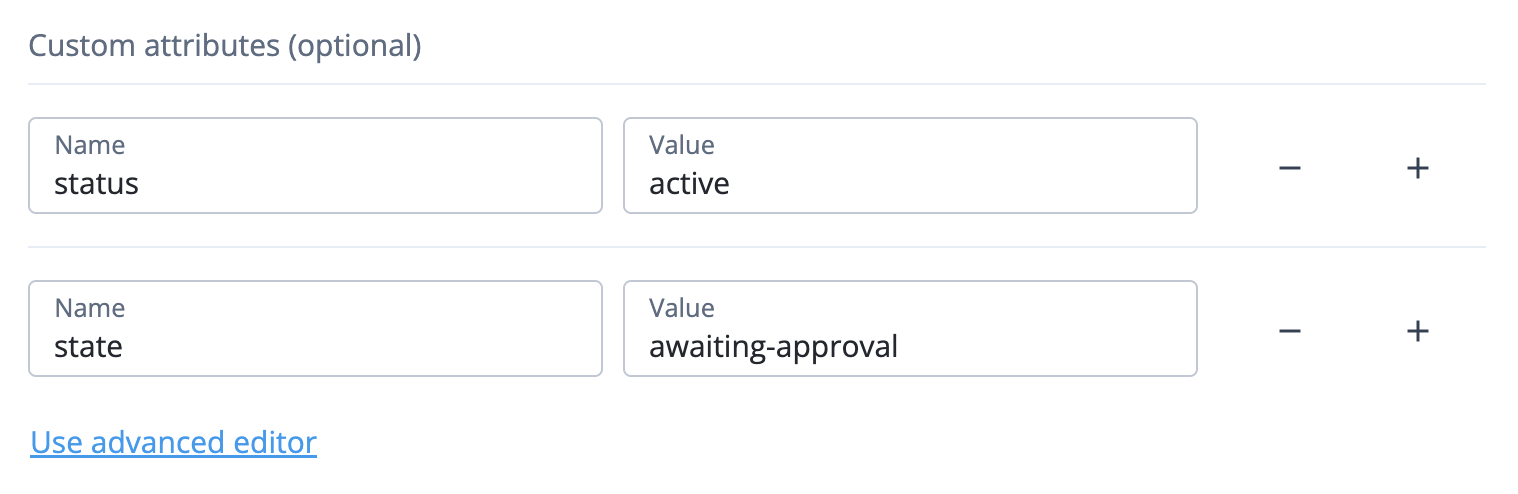
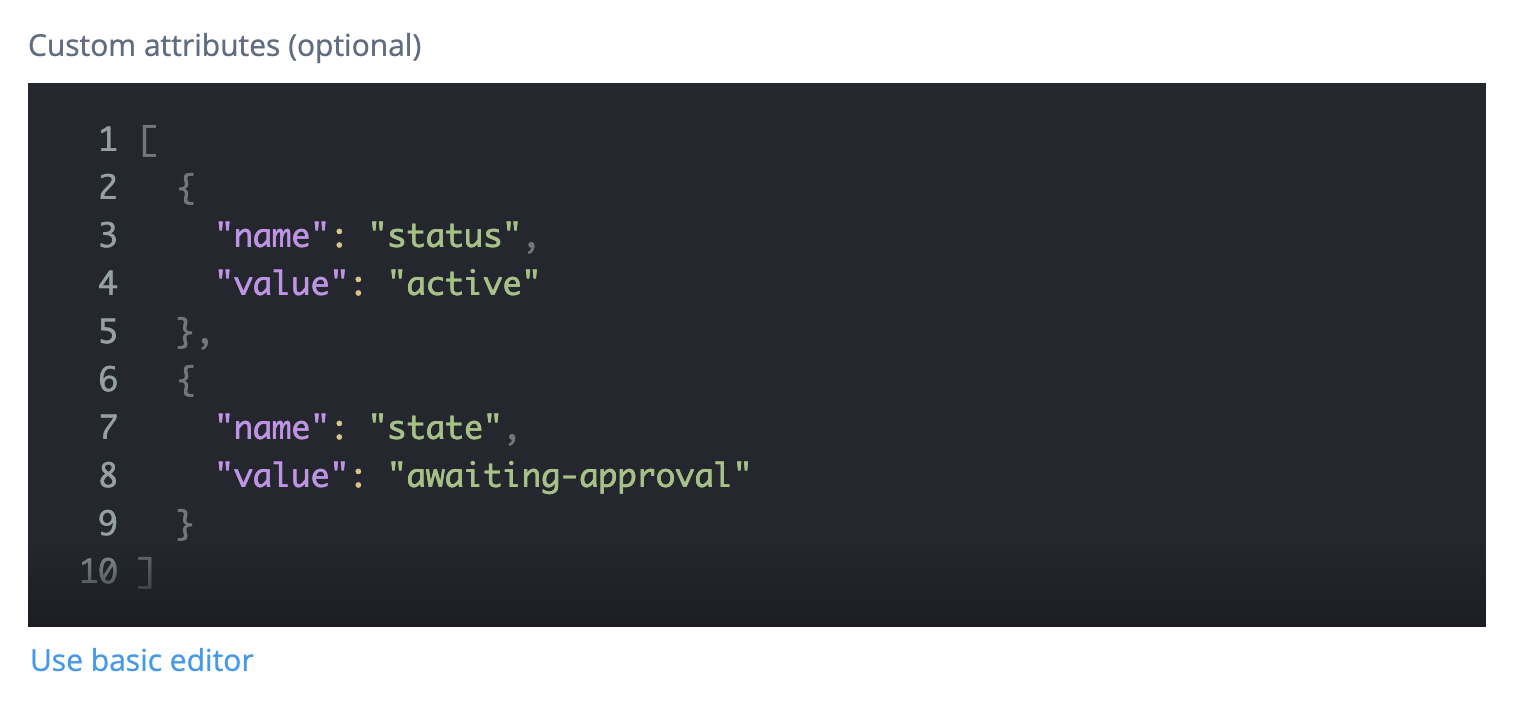
(Optional) Click Show advanced settings, then enter one or more Custom attributes. Custom attributes are key-value pairs that let you add additional metadata to the AI agent. For example, you could add
statusandstateattributes to track the AI agent’s lifecycle.You can enter custom attributes in two ways:
-
Basic editor: Use Name and Value fields to enter custom attributes one at a time. You can click the add button () to add additional custom attributes as needed and click the remove button () to remove any custom attributes you no longer need.
-
Advanced editor: Use a JSON editor to directly manage the underlying JSON object that stores the custom attributes. To switch to the JSON editor, click Use advanced editor. You can switch back to the basic editor at any time by clicking Use basic editor.
-
-
-
Click Save.
Update an AI agent’s access settings
To view or edit an AI agent’s OAuth 2.0 settings:
-
In the Advanced Identity Cloud admin console, go to AI Agents.
-
Review the AI Agents page to find the AI agent you want to edit, then click it.
-
Click the Access tab.
-
Review the AI agent’s Client ID and Client Secret fields:
-
The Client ID is a read-only field and can’t be modified.
-
The Client Secret is a read-only, masked field.
-
-
(Optional) To add, update, or reset the Client Secret:
-
Click the Reset button to the right of the Client Secret field.
-
In the Reset Client Secret modal, enter a New Client Secret field. Make a note of the new secret, as you won’t be able to view it again after clicking Save.
-
Click Save.
-
-
(Optional) Click Use Secret Store for secrets, then enter a Secret Label Identifier. If you enter a value, after saving the AI agent you must also create an ESV secret and map it to a secret label with the format
am.applications.oauth2.client.<identifier>.secret. For example, if you enterretail-chatbot-secretas the secret label identifier, you must create an ESV secret and map it to the secret labelam.applications.oauth2.client.retail-chatbot-secret.secret. Learn more in Secret labels with identifiers. -
(Optional) Click Show advanced settings and update the OAuth 2.0 client profile settings as needed. The settings are listed in step 4 of Create a client profile.
-
Click Save.
Create AI agent application policies
You can create application policies for an AI agent to specify which applications the AI agent can access, which end users or groups of end users the AI agent can act on behalf of when accessing those applications, and which OAuth 2.0 scopes the AI agent can use when accessing those applications.
-
In the Advanced Identity Cloud admin console, go to AI Agents.
-
Review the AI Agents page to find the AI agent you want to edit, then click it.
-
Click the Applications tab.
-
Click Add Application.
-
In the Add new Application modal:
-
Select an application from the Resources drop-down list. To create an application to select here, refer to Application management.
-
(Optional) Enter a Description for the application policy. The description should provide additional context about the application policy. For example:
-
"Allows the retail chatbot to access the product catalog on behalf of customers to help them find products and answer questions"
-
"Allows the workforce assistant to access Salesforce on behalf of employees".
-
-
(Optional) In the Acting On Behalf Of section, use one or both of the Subjects and Subject Groups drop-down lists to select which individual users (subjects) or groups of users (subject groups) the AI agent can act on behalf of when accessing the application. For example:
-
For a retail chatbot, you could specify a
Privilege Membercustomer group to allow the AI agent to act on behalf of any user in that group. -
For a workforce assistant, you could specify
Sales SupportandCustomer Serviceemployee groups to allow the AI agent to act on behalf of any user in that group.
To create users or groups to select here, refer to Manage identities.
-
-
(Optional) In the Permissions section, use the Permissions field to select or enter scopes:
-
You can select specific scopes from the drop-down list. The scopes in this list come from the application you select in the Resources field.
-
You can also enter custom scope values that aren’t in the drop-down list by typing them into the field.
When selecting scopes, you should choose only the scopes that are necessary for the AI agent to perform its intended functions when accessing the application, following the principle of least privilege. In particular, you should avoid selecting any high-risk or sensitive scopes that would allow the AI agent to perform actions that could be destructive or have significant consequences if misused, such as deleting data or managing user accounts. For example:
-
For a retail chatbot accessing a product catalog application, you might only select read-only scopes that allow the AI agent to view product information on behalf of customers, but not any write scopes that would allow the AI agent to modify or delete product information. Additionally, you might want to select scopes that allow the AI agent to add a product to a customer’s shopping cart on their behalf, but avoid any scopes that would allow the AI agent to complete a purchase on the customer’s behalf without their explicit approval.
-
For a workforce assistant accessing Salesforce, you might select a mix of read and write scopes that allow the AI agent to view and update customer information on behalf of employees, but avoid any high-risk scopes that would allow the AI agent to delete customer information or manage user accounts.
To create scopes to select here, in the Advanced Identity Cloud admin console, go to Applications, select the application you want to create scopes for, click the Sign On tab, then enter scope values in the Scopes field.
-
-
Click Save.
-
-
Repeat steps 5 and 6 to create additional application policies for the AI agent as needed.
Update AI agent application policies
-
In the Advanced Identity Cloud admin console, go to AI Agents.
-
Review the AI Agents page to find the AI agent you want to edit, then click it.
-
Click the Applications tab.
-
Review the application policies to find the policy you want to update.
-
To update an application policy:
-
Click the application policy.
-
In the Edit Application modal, follow the instructions in step 6 of Create AI agent application policies.
-
-
To revoke an application policy:
Revoking an application policy immediately removes the AI agent’s access to the associated application, which could cause disruptions if the AI agent is actively performing tasks on behalf of end users when you revoke the policy. Before revoking an application policy, make sure to review the AI agent’s activity and audit logs to understand its recent actions and ensure that revoking the policy won’t cause unintended consequences for your end users or your organization’s AI-driven solutions. -
Click the application policy’s ellipsis icon (), then click Revoke.
-
Delete an AI agent
Before deleting an AI agent, make sure to review the AI agent’s activity and audit logs to understand its recent actions and ensure that it’s not still in use by any of your organization’s AI-driven solutions.
-
In the Advanced Identity Cloud admin console, go to AI Agents.
-
(Optional) To delete an AI agent from the AI Agents page:
-
Click the AI agent’s ellipsis icon (), then click Delete.
-
In the Delete AI Agent? modal, click Delete.
-
-
(Optional) To delete an AI agent from the AI agent’s own page:
-
Click the AI agent.
-
Click Delete Agent.
-
In the Delete Agent? modal, click Delete.
-