Custom attributes for organization objects in Advanced Reporting
An organization object defines a hierarchical tree structure for users, allowing you to assign privileges to all or specific parts of the tree.
Advanced Reporting supports custom attributes for the organization object in its reports.
When an administrator creates a custom attribute in the admin console
for the organization object, the attributes are available in Advanced Reporting (custom reports) and filters.
|
Advanced Identity Cloud add-on capability
Contact your Ping Identity representative if you want to add Advanced Reporting to your PingOne Advanced Identity Cloud subscription. Learn more in Add-on capabilities. |
Steps
In this example, you’re a system administrator for a large AI company and want to generate a custom report displaying tech leads in your departments.
You need to set up a hierarchical organization for the Research and Development division, which
comprises multiple departments: Computer Vision, Data Engineering, and Data Science.
Within each department, there are multiple projects with tech leads.
Complete the following steps to create the custom report:
Create an organization with custom attributes
-
In the Advanced Identity Cloud admin console, go to Identities > Configure.
-
On the Managed Object Types page, select Alpha realm - Organization.
-
Click the Properties tab, and then click Add a Property.
-
Select the String property type, and then click Next.
-
In the New String Property modal, create the
custom_deptproperty:-
In the Property Key field, enter
custom_dept. -
In the Display Label (optional) field, enter
Department. -
Click Save.
-
-
Click Create another to create the
custom_techLeadproperty:-
Select String, and then click Next.
-
In the Property Key field, enter
custom_techLead. -
In the Display Label (optional) field, enter
Tech Lead. -
Click Save.
-
Create suborganizations
-
Sign on to the Advanced Identity Cloud admin console as as a tenant administrator.
-
Add a
Computer Visionsuborganization:-
Go to Identities > Manage.
-
Click Alpha realm - Organizations.
-
Click New Alpha realm - Organization.
-
In the New Alpha realm - Organization modal, enter
Computer Visionin the Name field, and click Save. -
In the new
Alpha realm - Organizationpage, enter the following:-
Description: Enter a general description for the suborganization.
-
Parent Organization: Select a parent organization, such as
Research and Development. -
Department: Enter a department, like
NLP, a subdivision of theComputer Visionorganization. -
Tech Lead: Enter or select a user for tech lead.
-
-
Click Save.
-
-
Repeat step 4 to add
Data EngineeringandData Sciencesuborganizations, respectively.
Create a new report for the custom organization
-
In the Advanced Identity Cloud admin console, go to Reports.
-
Click New Report.
-
In the New Report modal, enter the following:
-
Name: Enter a descriptive name for the new report.
-
Description (optional): Enter a general description for the report.
-
Who can run: Select Users.
-
-
Click Next.
-
-
Click Data Source.
-
In the Add a Data Source modal, select Organizations and click Next.
-
On the draft report page, select the properties in the Settings pane you want to appear in the report.
-
In the orgs section:
-
Click Department.
-
Click Tech Lead.
You can rearrange the columns by dragging and dropping them in the desired order.
-
-
Click Save.
-
Generate your custom organization report
-
On the Reports page, locate your custom report and click Run.
-
On your report page, click Run Now.
-
After your report has generated, click View Report.
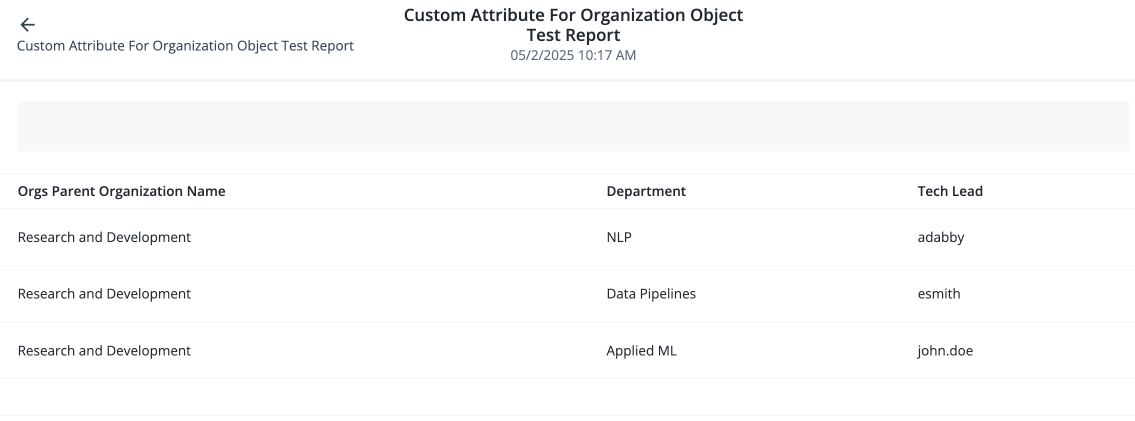
The report displays your departments and tech leads.
-
Review your report. If you are satisfied with the results, click > Publish to activate it.