Custom attributes for user objects
When an administrator creates a custom attribute for the user identity object, the attribute is available in Advanced Reporting (custom reports) and filters.
|
Any new custom attributes for the |
Custom attribute example
-
Add a custom attribute:
-
In the Advanced Identity Cloud admin console, go to Identities > Configure.
-
On the Managed Object Types page, select Alpha realm - User.
-
Click the Properties tab, and then click Add a Property.
-
Select the String property type, and then click Next.
-
In the New String Property modal, enter the following:
-
Property Key: enter
department.For user managed object types, custom properties are automatically prefixed with custom_. For example, enteringdepartmentcreates the attribute ascustom_department. Learn more about custom attributes in Create custom properties. -
Display Label (optional): enter
Custom department. -
Select Required if the property is required.
The requiredpolicy is assessed only during object creation, not when an object is updated. You can effectively bypass the policy by updating the object and supplying an empty value for that property. To prevent this inconsistency, select Required in the admin console and add anot-emptypolicy using the REST API.
-
-
Click Save.
-
-
Next, create a custom report using the Advanced Reporting feature:
-
In the Advanced Identity Cloud admin console, go to Reports.
-
Click New Report.
-
On the New Report modal, enter the following:
-
Name: Enter a descriptive name for the new report.
-
Description (optional): Enter a general description for the report.
-
Who can run: Select Users.
-
-
Click Next.
-
Click Data Source.
-
On the Add a Data Source modal, select Users and click Next.
-
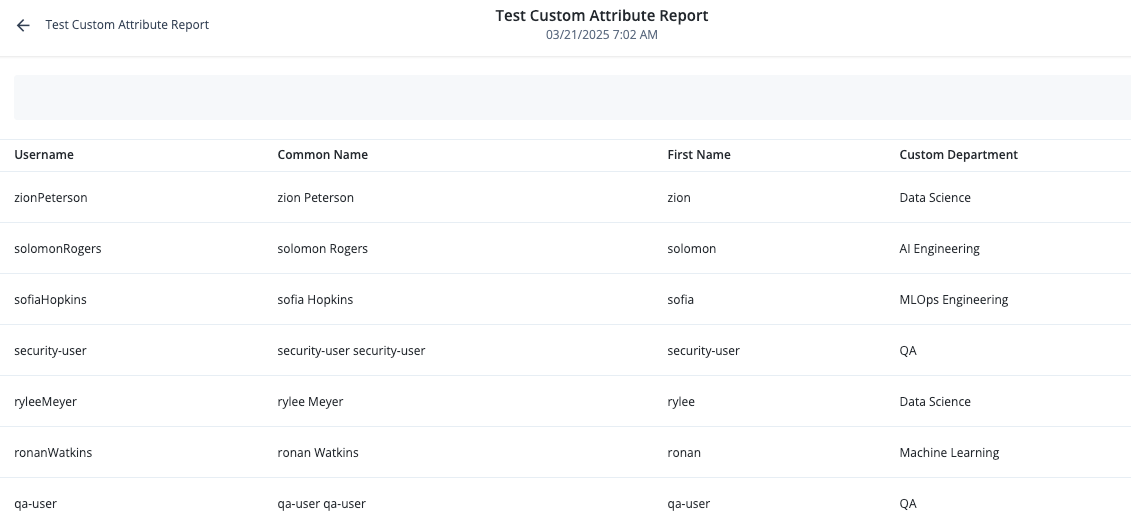
On the draft report page, select the properties in the right column that you want to appear in the report. For example:
-
Username
-
First Name
-
Common Name
-
Custom Department
You can rearrange the columns by dragging and dropping them in the desired order.
-
-
Click Save.
-
-
On the Reports page, locate your custom report and click Run.
-
On your report page, click Run Now.
-
After your report has generated, click View Report.
-
Review your report if you are satisfied with the results, click > Publish to activate it.
-