Role lifecycle management for Identity Governance
Administrator experience
Role lifecycle management (role LCM) lets authorized end users create, update, delete, and view role information. It also enforces policies by requiring approval workflows before the system applies any role changes. This prevents users from granting excessive permissions without oversight and ensures access remains aligned with organizational policies.
As a tenant administrator or governance administrator, you must configure and enable role lifecycle management (role LCM) before delegated end users can manage roles.
|
Personas
Role LCM involves the following personas:
| Persona | Description |
|---|---|
Administrator |
A tenant administrator or an internal administrator, such as a properly configured OAuth 2.0 client. |
Role owner |
A user listed as the owner of a role in Advanced Identity Cloud. |
End user |
An end user that’s an application owner or an entitlement owner. They might also receive permissions directly from Identity Governance scopes or have no additional role-related permissions. |
Role scope permissions
Scopes control what roles a user can see and manage. They define boundaries for role lifecycle operations based on role attributes, such as which applications or entitlements the role includes. When you assign a scope to a user, that scope determines whether they can view, create, modify, or delete specific roles.
By default, administrators, role owners, and end users have the following scope permissions:
| Action | Admin | Role owner | End user |
|---|---|---|---|
View role |
Yes |
Yes |
If scoped |
Create role |
Yes |
If scoped |
If scoped |
Modify role |
Yes |
If scoped |
If scoped |
Delete role |
Yes |
If scoped |
If scoped |
Sarah owns the Marketing role. As an end user, she also has a scope that lets her manage roles that match a filter for CRM entitlements.
Together, these permissions let Sarah:
-
View and edit the Marketing role through role ownership.
-
View and edit any role that matches the CRM-entitlement filter through her end-user scope.
-
Create roles that match the CRM-entitlement filter through her end-user scope.
-
Delete roles that match the CRM-entitlement filter through her end-user scope.
Because Sarah is the Marketing role owner and also has a scope that applies to roles matching the CRM-entitlement filter, she can still edit the Marketing role after it includes CRM entitlements.
Create scopes
Create one or more scopes to define who can manage roles and what data they can access. Scopes let you control visibility and permissions for roles, role members, and assigned entitlements so you can delegate role management to the right administrators.
-
Sign on to the Advanced Identity Cloud admin console as a tenant administrator.
-
Go to Governance > Scopes.
-
Click New Scopes.
-
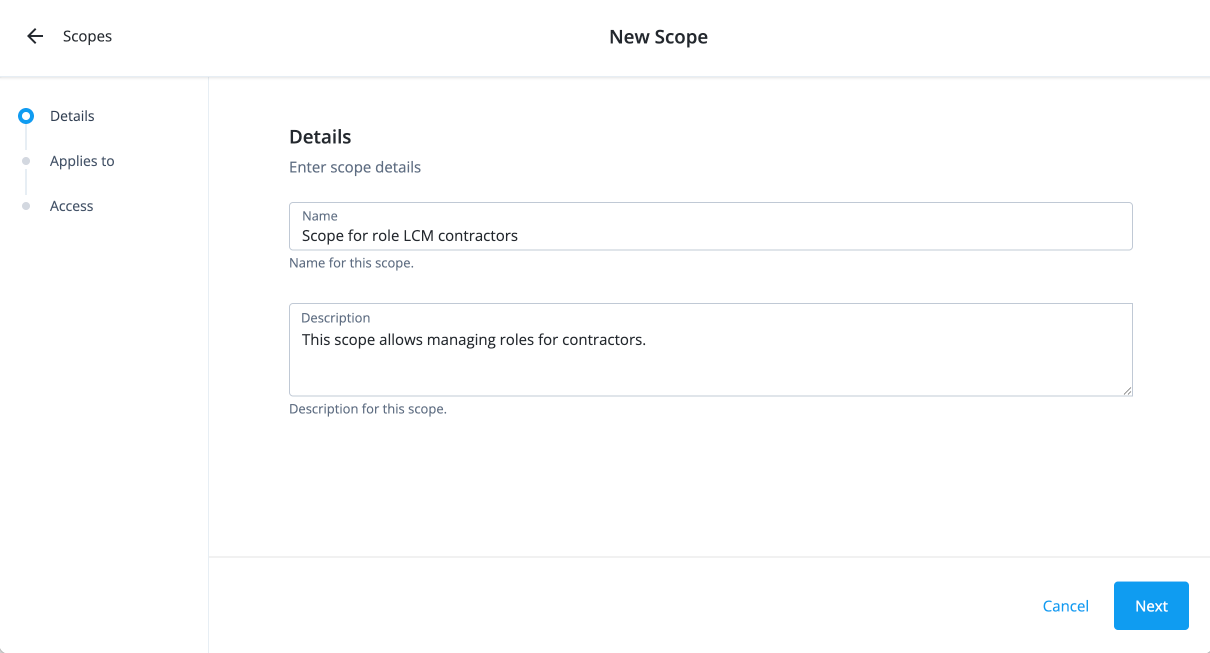
On the New Scope page, enter the following on the Details page:
-
Name: Enter a descriptive name for the scope. The name should be descriptive enough to easily identify the purpose of the scope. For example, enter Scope for role LCM for contractors if you want to assign an employee to manage roles for contractors.
-
Description: Enter a description for the scope. For example, enter This internal scope allows managing roles for contractors.
-
Click Next.
-
-
On the Applies to page, define which users should be subject to this scope.
-
Select if the All or Any condition must be met.
-
Select a property for this scoping rule. For example, select description.
-
Select an operator for the scoping rule. For example, select contains.
-
Enter a condition. For example, enter Default Approvers.
-
If you want to add another rule, click and repeat the steps.
-
Click Next.
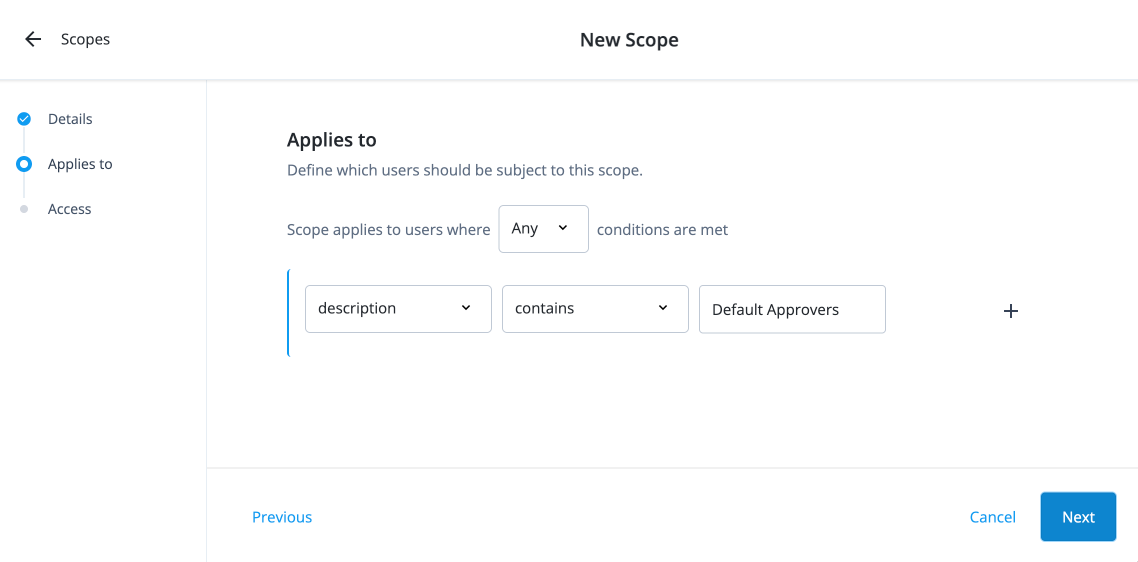
-
-
On the Access page, click Roles.
-
Select the All Roles or Roles matching a filter.
-
If you selected Roles matching a filter, select if All or Any conditions must be met.
-
Select a property for this scoping rule.
-
Select an operator for the scoping rule.
-
Enter a condition.
-
If you want to add another rule, click and repeat the steps.
-
-
Select the permissions available to the scope:
-
Create Roles: Permission to create a new role.
-
Modify Role: Permission to modify a role.
-
Publish Roles: Permission to publish a role.
-
Delete Role: Permission to delete a role.
-
-
Click Save.
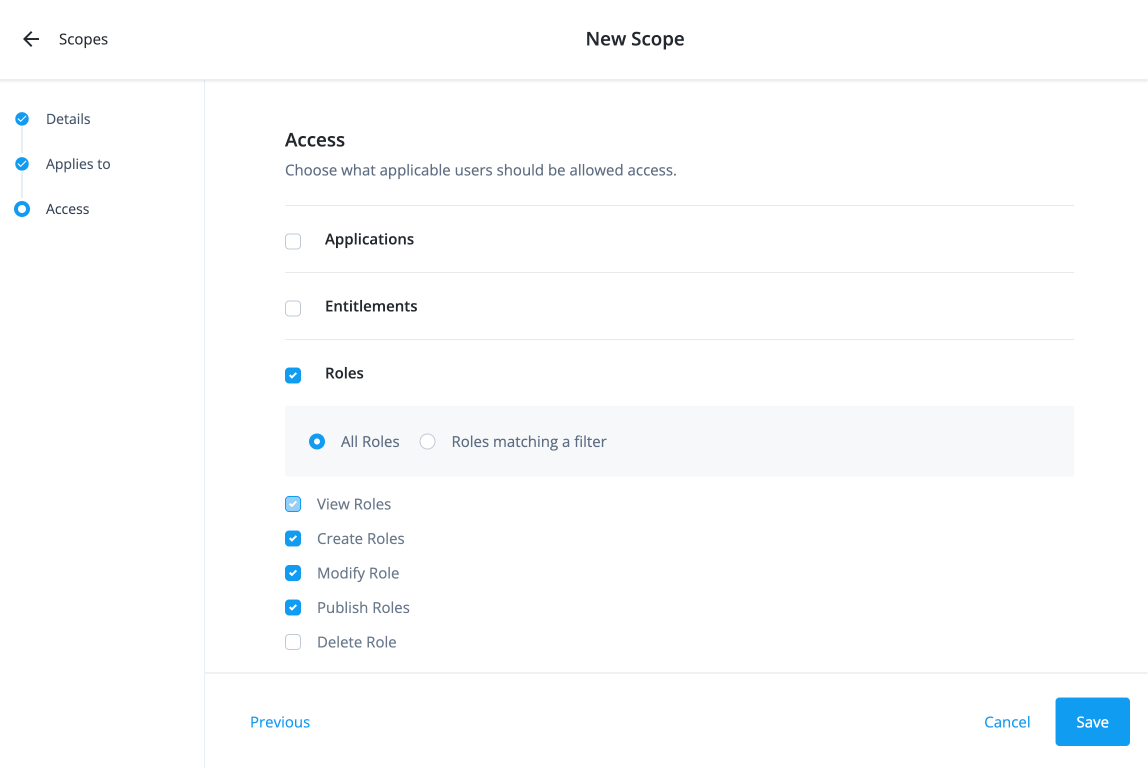
-
Create an internal role
Administrators must create an internal role so that authorized end users can view the Roles object.
-
Sign on to the Advanced Identity Cloud admin console as a tenant administrator.
-
Go to Identities > Manage.
-
Click Internal Roles > New Internal Role.
-
In the New Internal Role modal, enter the following and click Next.
-
Name: Enter a name for the internal role, such as Role LCM.
-
Description: Enter a description for the internal role.
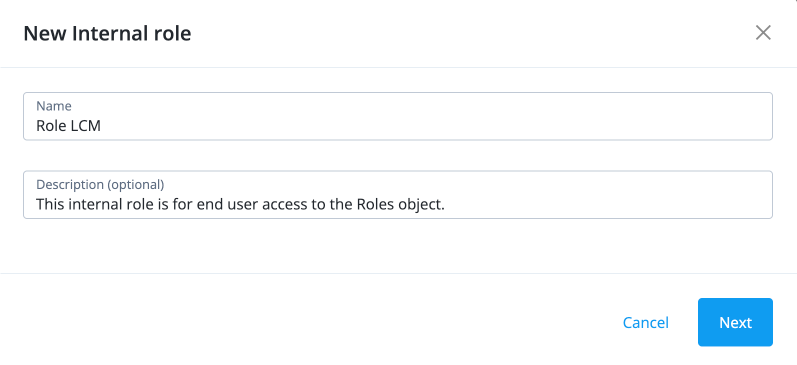
-
-
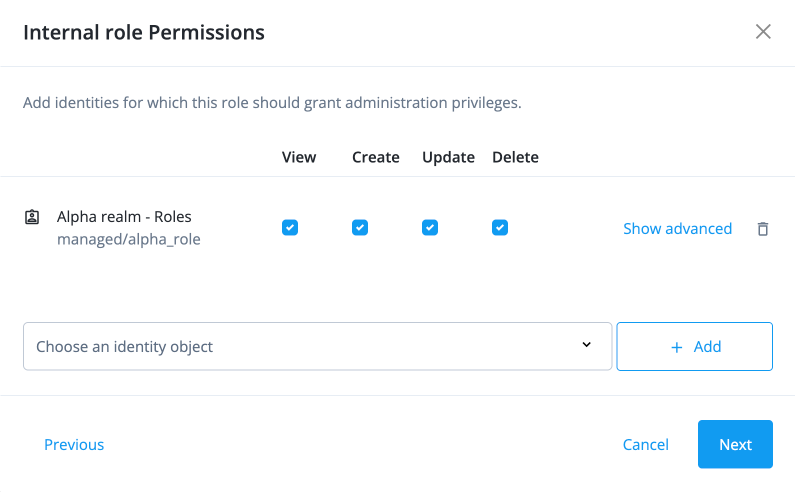
In the Internal role Permissions modal, select Alpha realm - Roles, and click Add.
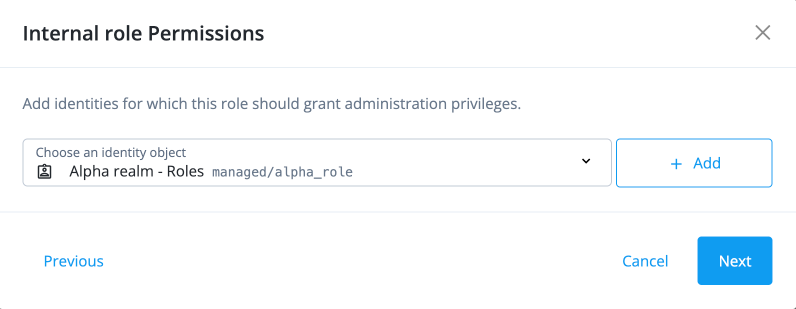
-
Select the internal role permissions you want available with the role:
-
View: Allows viewing role information.
-
Create: Allows creating new roles.
-
Update: Allows updating existing roles.
-
Delete: Allows deleting roles.
-
-
Click Show advanced. Click set all attributes and select Read/Write for the attribute permissions.
-
Name
-
Description
-
Members
-
assignments
-
applications
-
condition
-
temporalConstraints
Click Administer only a subset of Alpha realm - Roles by applying a filter to access a subset of roles based on specific criteria.
-
-
Click Next.
-
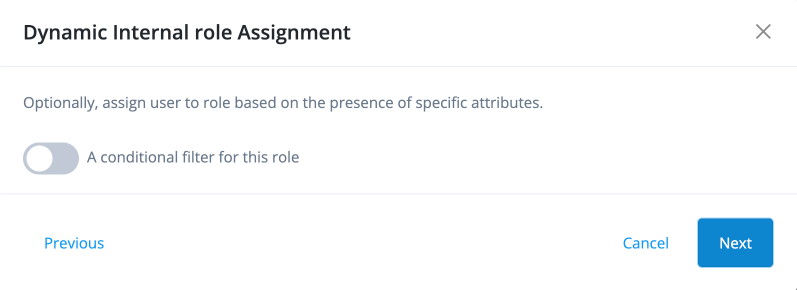
In the Dynamic Internal role Assignment modal, click A conditional filter for this role if you want to set a conditional role assignment. Otherwise, click Next.
-
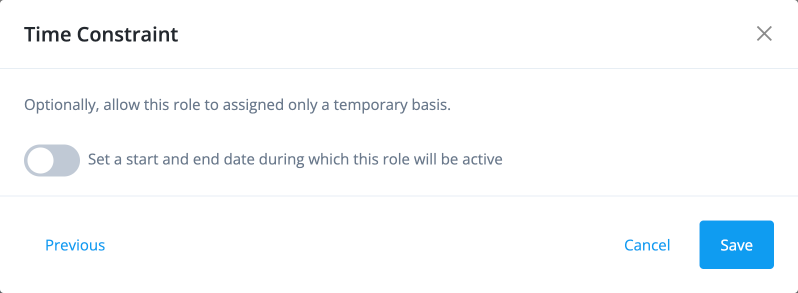
In the Time Constraint modal, click Set a start and end date during which this role will be active if you want to assign the role on a temporary basis. Otherwise, click Save to finish creating the internal role.
-
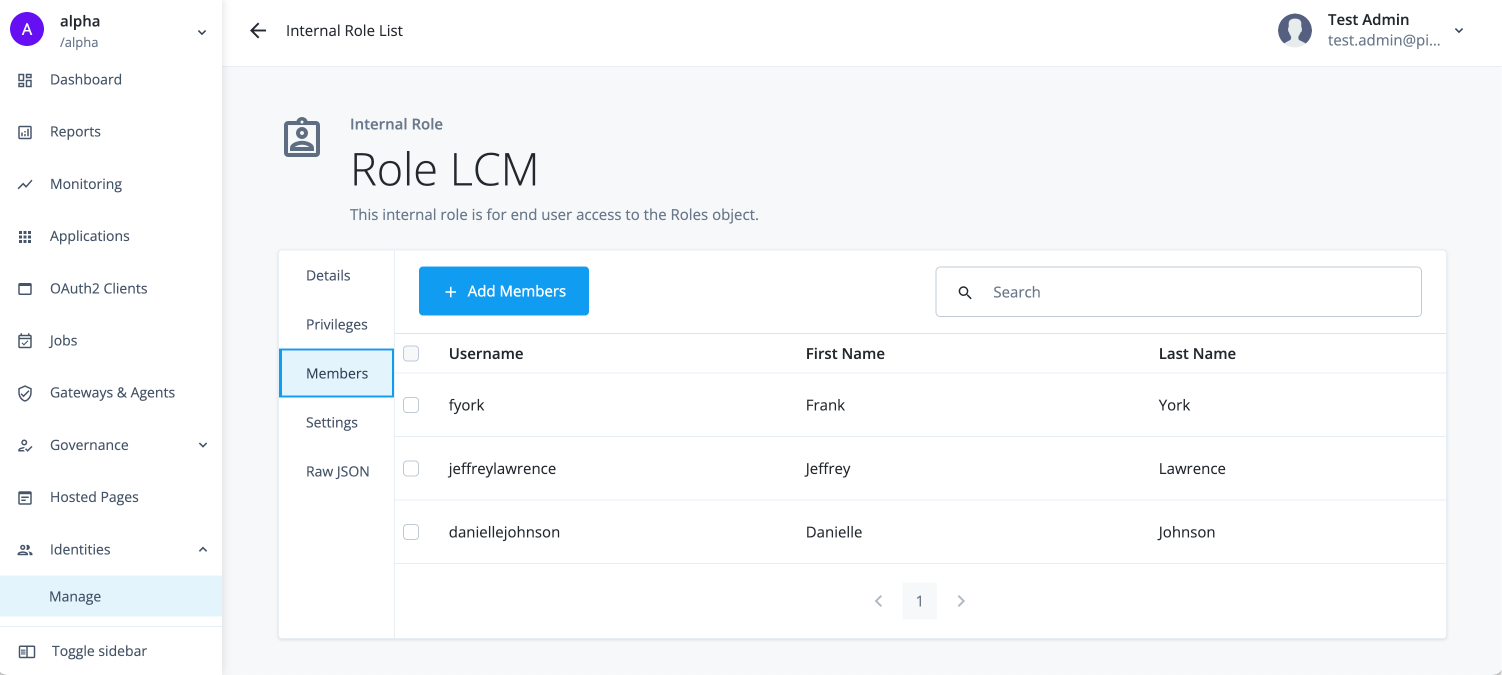
On the Role LCM page, click Add Members.
-
In the Add Members modal, select the users to which the internal role applies, and then click Save.
Enable roles LCM
Administrators must enable role LCM to activate the feature in the hosted account pages.
-
In the Advanced Identity Cloud admin console, go to Governance > Requests.
-
On the Requests page, click the Settings tab.
-
In the Governance LCM section, click ellipsis (), and then click Settings.
-
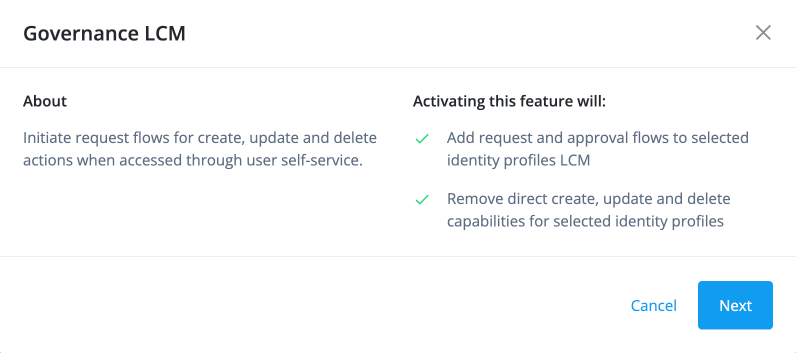
In the Governance LCM modal, read what activating this feature entails, and click Next.
-
In the Governance LCM modal, click Role LCM, and then click Activate.
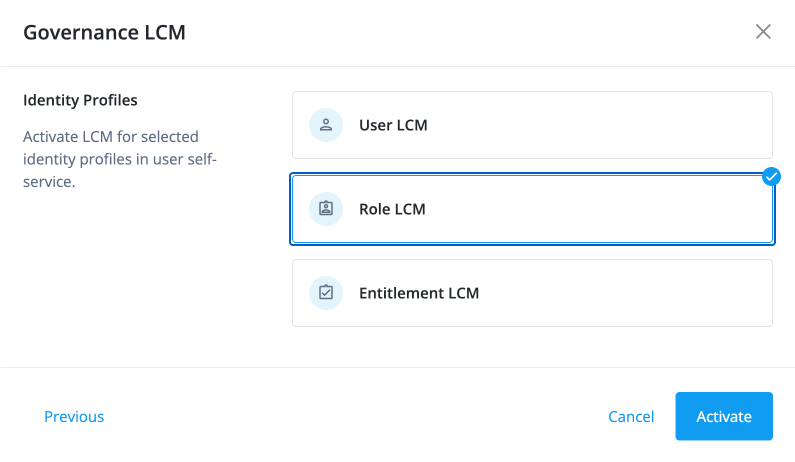
The roles LCM feature is now enabled.
Test roles LCM
After you enable role LCM, test the feature to ensure it’s working as expected before delegating role management to end users.
-
Sign on as a test user that’s a role LCM administrator.
-
Go to Administer > Roles.
-
Click New Role.
-
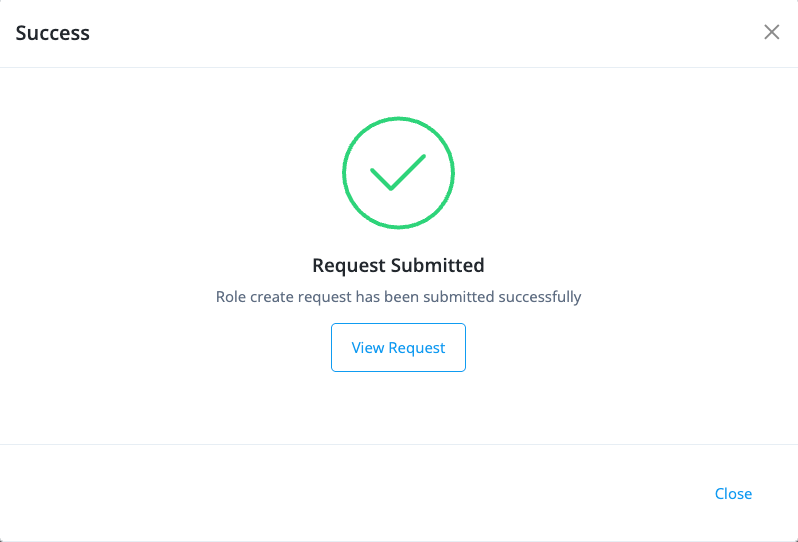
In the New role modal, fill out the form for the new role, and then click Save.
-
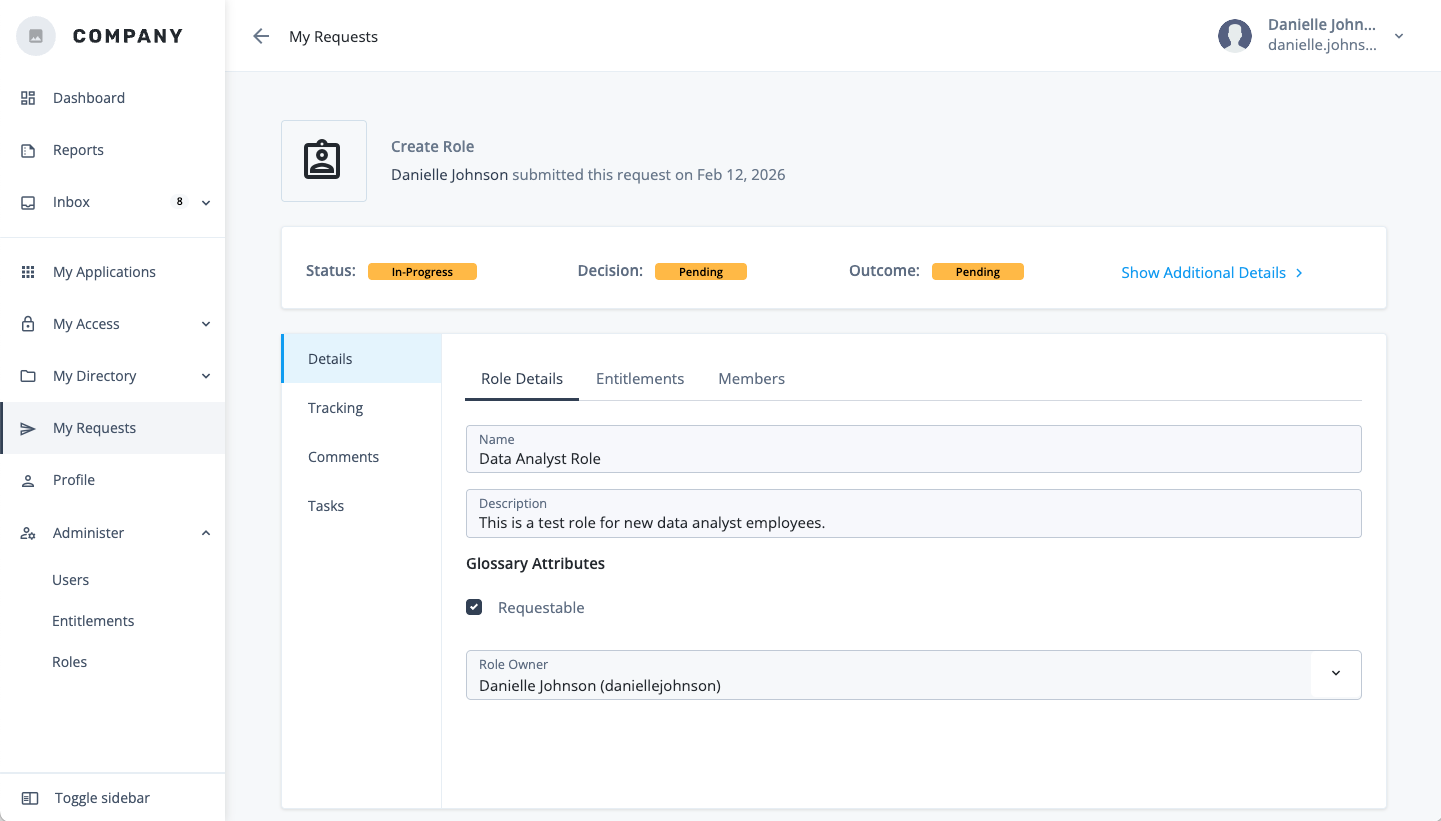
Click View request to see the details of the change request you just submitted, and ensure the workflow is correct.
-
Sign on to the Advanced Identity Cloud admin console as a tenant administrator.
-
Go to Governance > Requests.
-
Click the change request you just submitted, and ensure the request details are correct.
-
Approve or reject the request, and ensure the request status updates accordingly.
End user experience
|
This section is for delegated end users who have been granted role LCM privileges through scopes and internal roles. If you’re an administrator looking to configure role LCM, see Administrator experience. |
Role lifecycle management (LCM) lets administrators delegate key responsibilities to trusted end users. This lets the trusted end users perform administrative tasks on behalf of other end users without granting them full administrative privileges.
A delegated end user can now manage the entire lifecycle of specific roles directly from their hosted page dashboard. This includes the ability to:
-
Create new roles.
-
Modify existing roles.
-
Delete roles that are no longer needed.
To ensure proper governance and security, the system submits every action the delegated end user takes, such as creating, modifying, or deleting a role, as a request that requires workflow approval. This approach streamlines role management by empowering those closest to the business needs to handle these tasks.
Create a new role and assign it to an end user
-
In the hosted pages, sign on to your account. You should have received a notification that you have new permissions to manage roles.
-
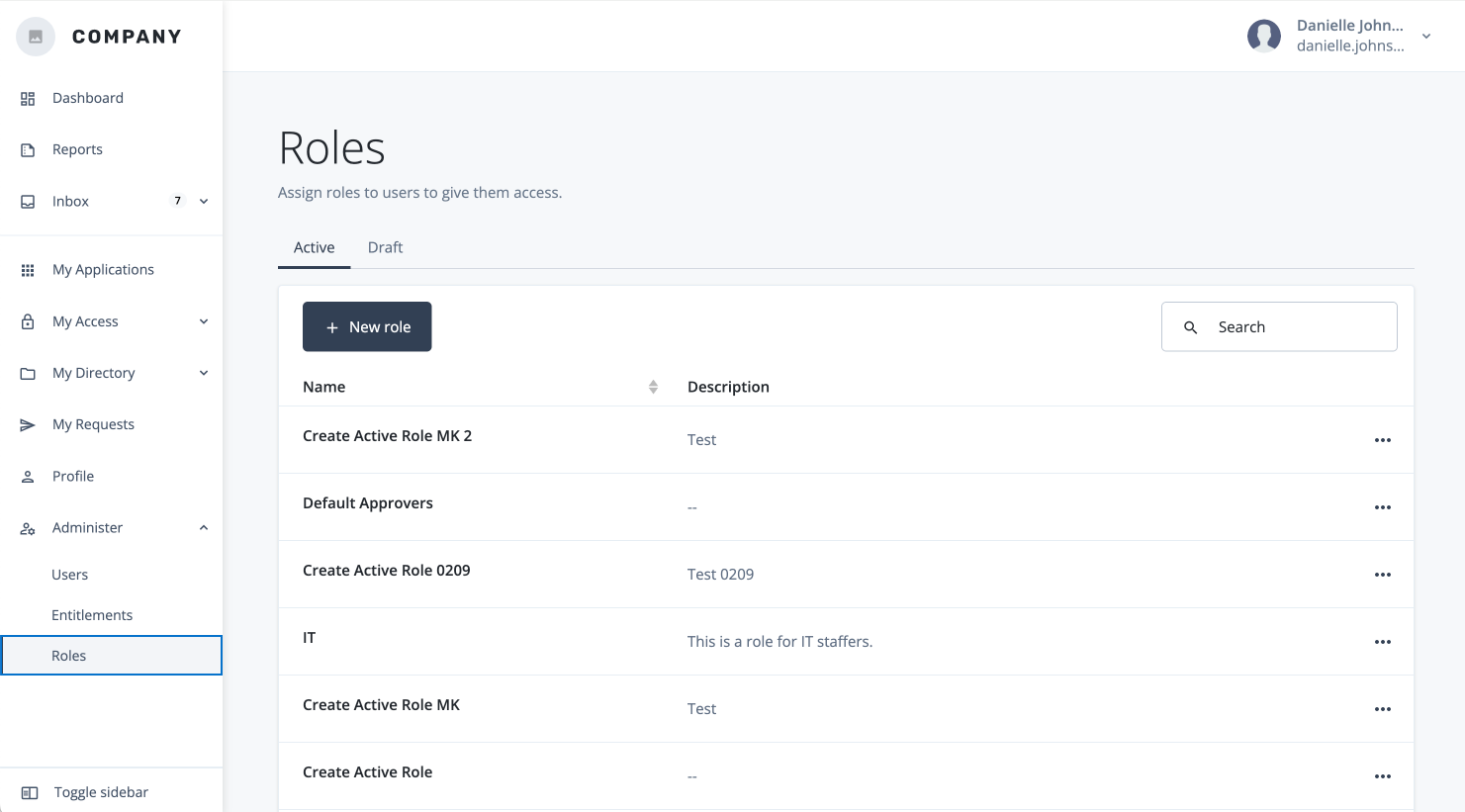
Go to Administer > Roles.
-
On the Roles page, click New Role.
-
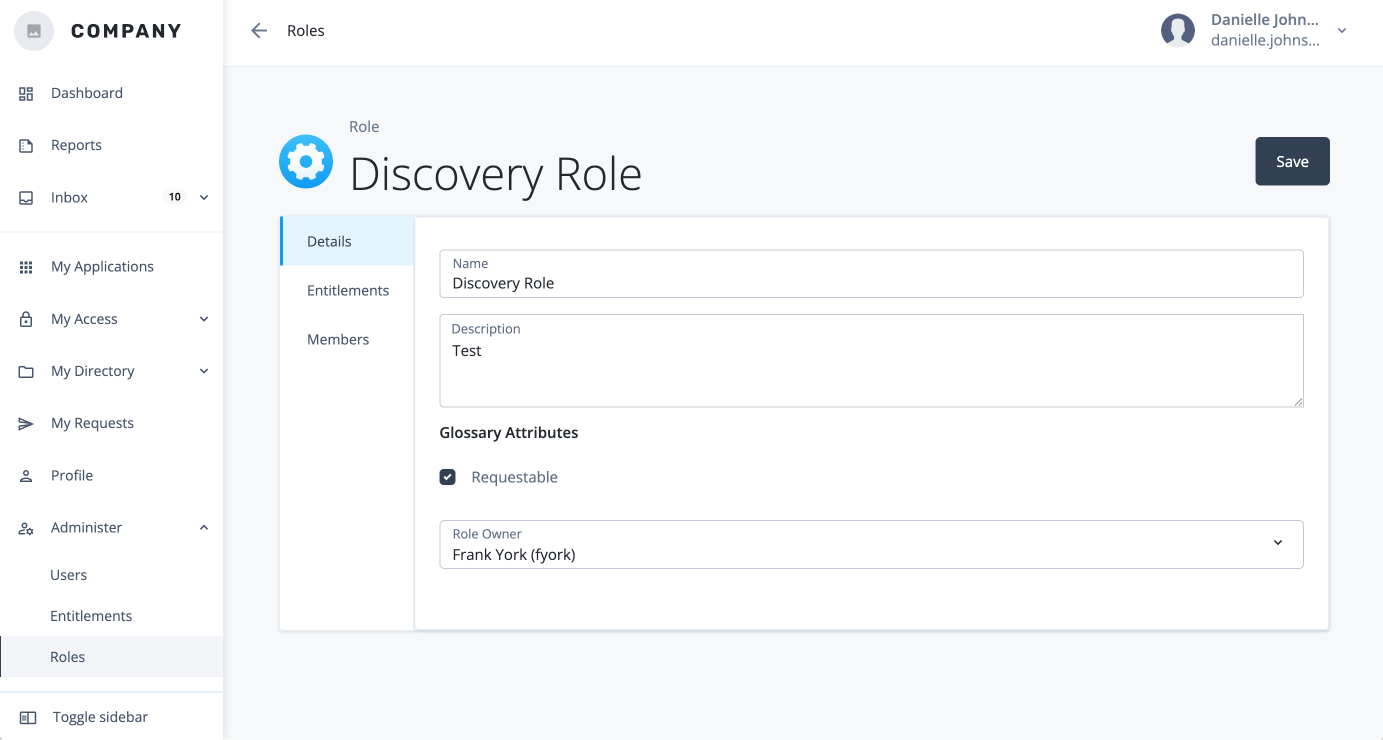
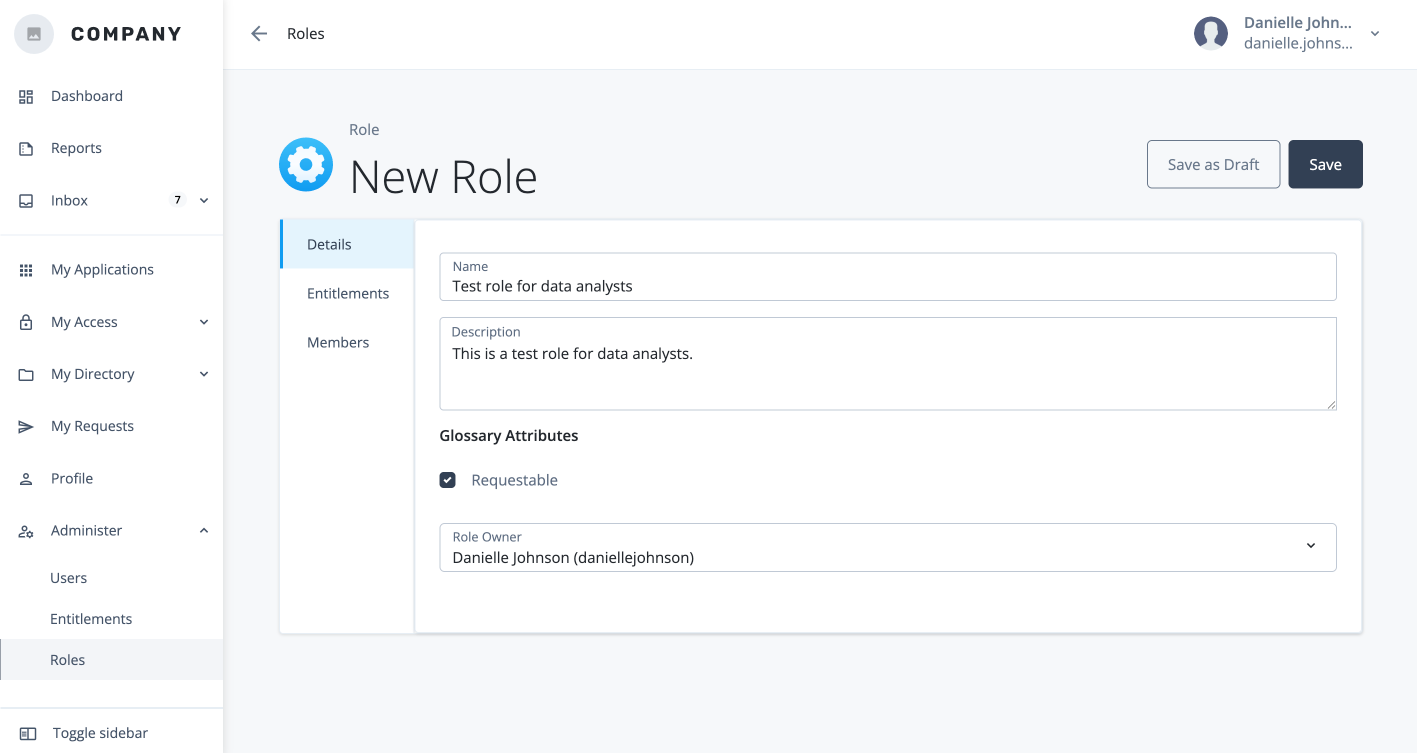
In the New role modal, fill out the form for the new role:
-
Name: Enter a name for the role. This is a required field.
-
Description: Enter a general description of the role.
-
Requestable: Click to enable the role as requestable. This means that the role can be requested in access requests and access reviews.
-
Role Owner: Select a user as a role owner.
-
-
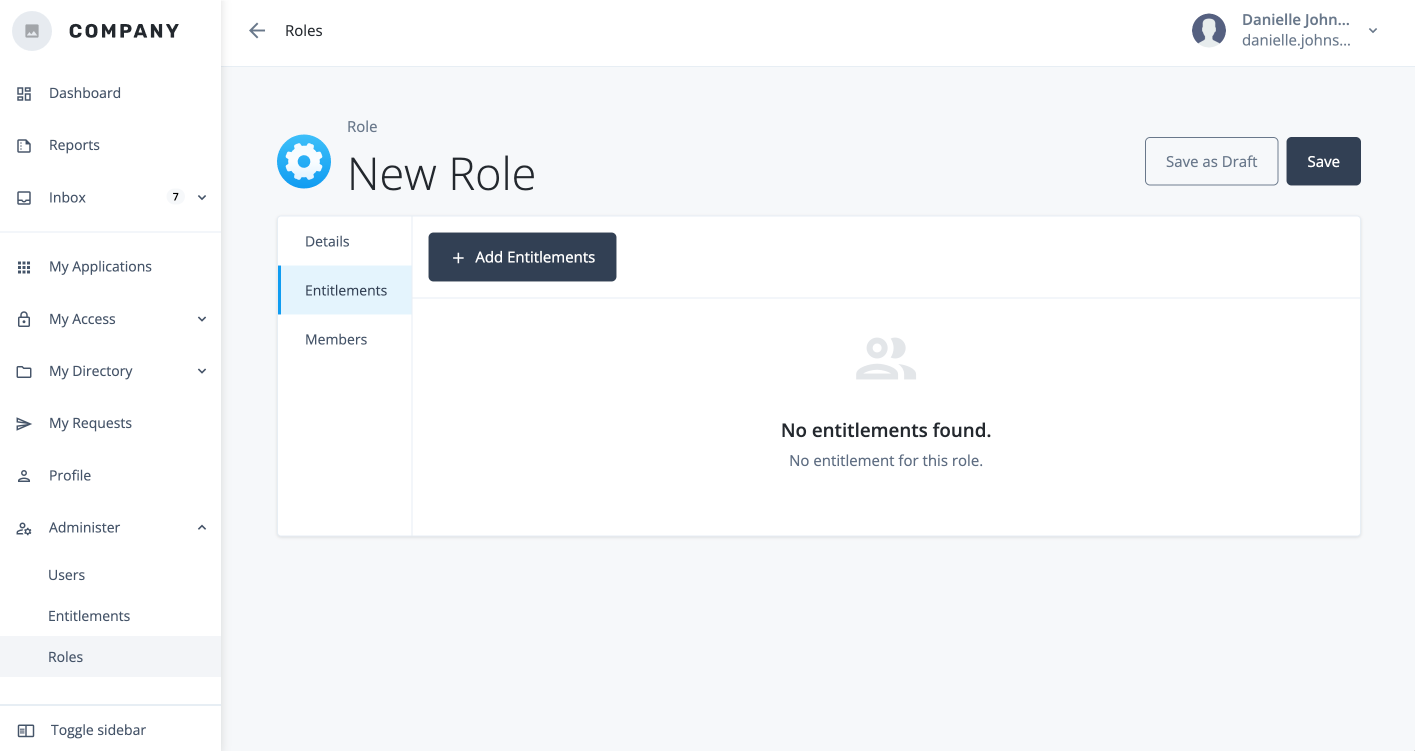
Go to Entitlements > Add Entitlements.
-
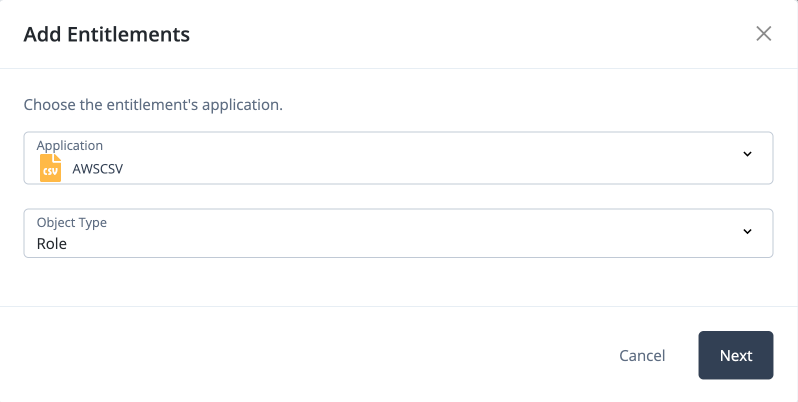
In the Add entitlements modal, select the application’s entitlement and object type and click Next.
-
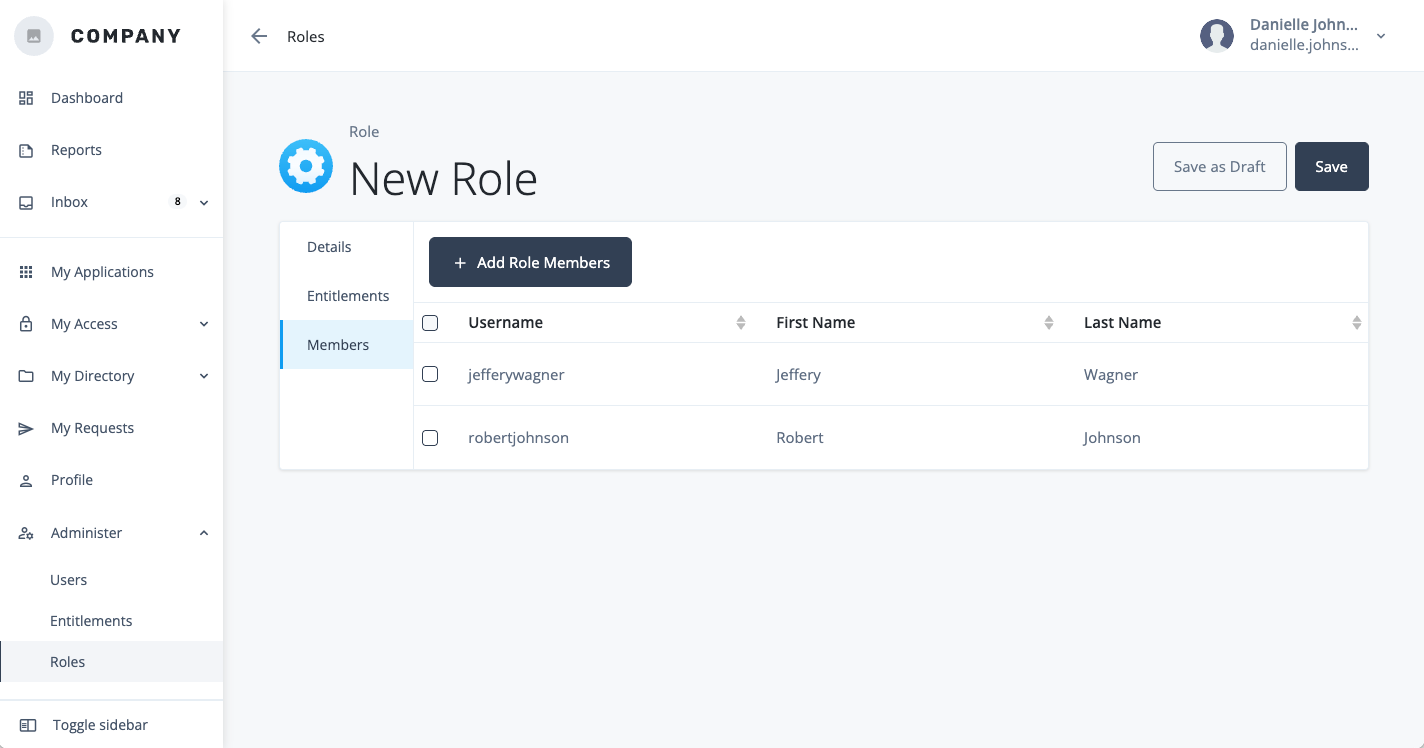
Go to Members > Add Role Members.
-
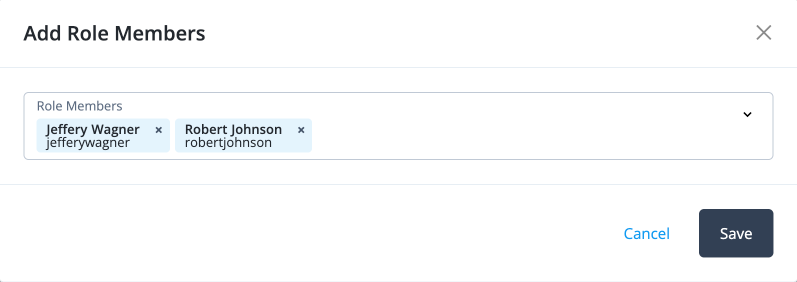
In the Add role members modal, select the users to add as members of the role and click Save.
This action creates a change request that requires approval from the user specified in the workflow.
-
Click View request to see the details of the change request you just submitted.