Configure an application authorization policy
Use application authorization policies to control who can sign on to OpenID Connect (OIDC) and SAML applications in Advanced Identity Cloud. When you add a policy to an application, only users who meet the policy’s conditions can authenticate. During sign-on, the App Policy Decision node in the authentication journey evaluates the policy to determine whether to grant access.
The application policy builder supports a simplified set of policy conditions.
If you need conditions or constructs that aren’t available in the application UI, use the AM native admin console.
When using the AM native admin console, you must add custom policies to the Customer Application Policy Set.
|
Benefits of application authorization policies
Configuring an application authorization policy provides the following benefits:
-
Stronger security: Enforce granular access control by restricting access based on user, group, application, and environmental conditions.
-
Simplified maintenance: Add, edit, activate, and deactivate policies directly from the application UI without modifying the authentication journey for routine policy changes.
-
Reusable journeys: Use a single authentication journey for multiple applications, where each application has its own distinct authorization policy to control access.
-
Separation of duties: Allow a tenant administrator to build a reusable authentication journey, while an application owner manages access to their specific application by configuring the application’s authorization policy.
Example use cases
-
Group-scoped HR portal: An OIDC application for payroll is restricted to members of the
HR-Staffgroup. If an employee is removed from the group, they lose access automatically with no need to update the journey or the application’s SSO configuration. -
High-risk app: An application containing sensitive data is restricted to users who have authenticated with multi-factor authentication (MFA) and are using a trusted device.
-
Contractor access: Contractors are allowed to authenticate, but only during working hours and only from an approved IP address.
Find an example of a journey that enforces application-specific authorization rules in the Authorize application access in journeys use case.
Add an authorization policy to an application
-
In the Advanced Identity Cloud admin console, go to Applications > Applications and select the application.
-
Click the Sign On tab.
-
In the Access Policy section, click Create a Policy.
-
In the Add Access Policy modal, choose the policy type:
-
User-based Access: Restrict access to the application based on user attributes and application membership.
-
Group-based Access: Restrict access to the application based on group membership.
-
Environmental: Restrict access to the application based on environmental conditions, such as IP address or a date range.
-
Custom: Build a policy using the supported conditions, groups, and comparators to restrict access.
-
-
Click Next.
-
Build the policy and click Save.
Manage an authorization policy
After you save a policy, you can manage it from the Access Policy section of the application’s Sign On tab. Click the Ellipsis () icon to the right of the policy to:
-
Edit the policy’s conditions.
-
Activate or Deactivate the policy. When a policy is deactivated, it isn’t evaluated during sign-on.
-
Delete the policy.
Policy condition builder
The policy condition builder lets you construct policies based on user, group, and environmental conditions.
You can use the policy condition builder to:
-
Add one or more conditions.
-
Group conditions together.
-
Choose how values are compared.
-
Combine conditions into a policy that is evaluated when the authentication journey runs.
Policy condition builder elements
| Element | Purpose |
|---|---|
Condition |
A single rule to evaluate, such as group membership, role value, application assignment, IP range, or another supported user or environment attribute. |
Group |
A logical grouping of conditions that are evaluated together. |
Comparator |
Defines how the selected value is checked. For example equals, contains, starts with, or ends with, depending on the condition type. |
Value |
The user, group, attribute value, IP range, date, or other input that the condition evaluates against. The available value field depends on the selected condition and comparator. |
Example policy
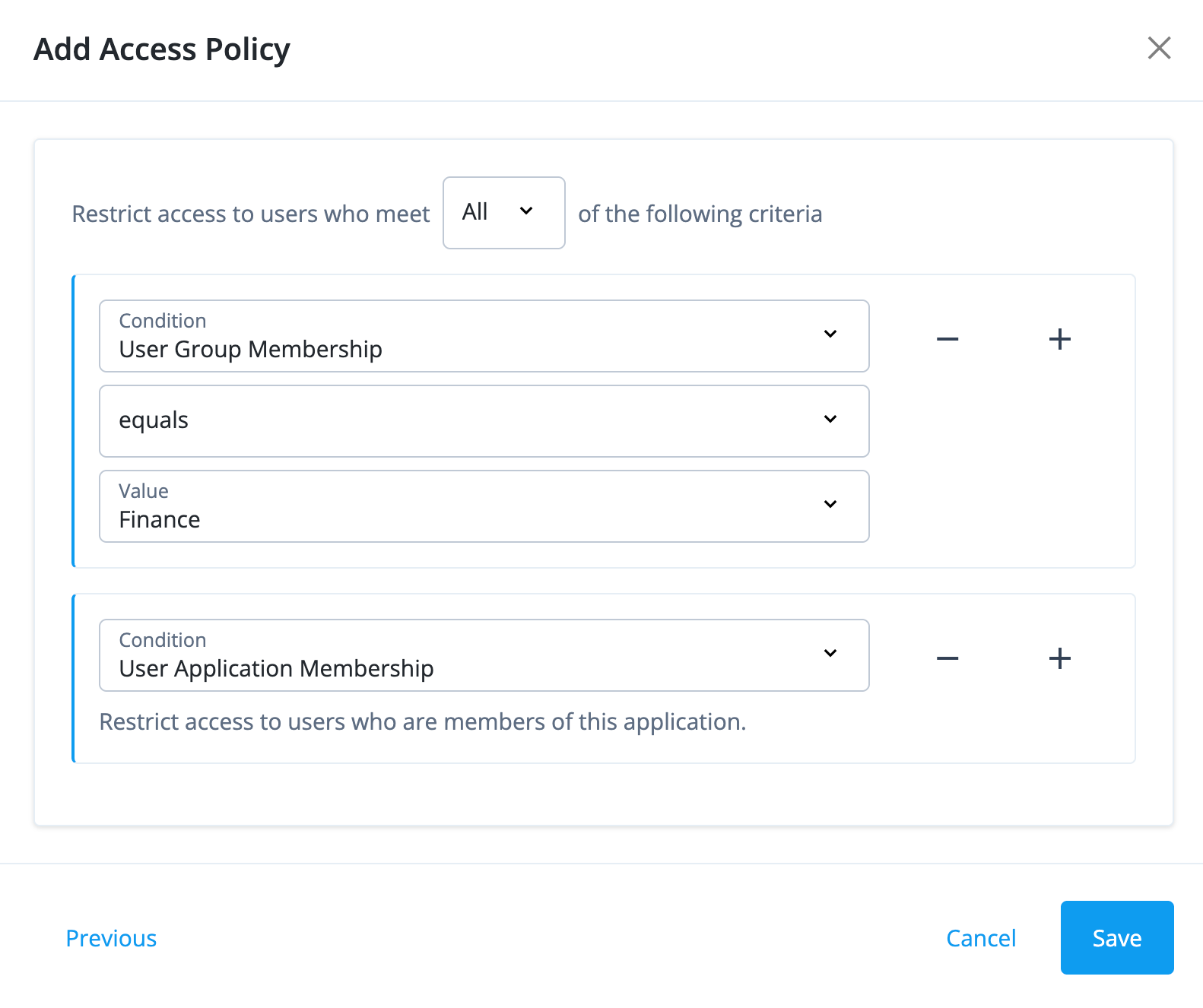
This example shows how to create a policy that grants access to the application only if the user is in the Finance group and has application membership.
The example assumes that you have a Finance group set up in Advanced Identity Cloud.
-
In the Advanced Identity Cloud admin console, go to Applications > Applications and select the application.
-
Click the Sign On tab.
-
In the Access Policy section, click Create a Policy.
-
In the Add Access Policy modal, select Custom and click Next.
-
Select All to restrict access to users who meet all the criteria.
-
For the first condition, select User Group Membership as the condition type, equals as the comparator, and the finance group (for example, Finance) as the value.
-
Click then Add Condition.
-
For the second condition, select User Application Membership.
-
Click Save to save the policy. The policy is automatically activated and added to the application.
Only users who are in the Finance group and have access to the application can sign on to the application.
Users who don’t meet both criteria are denied access.