Authorize application access in journeys
Description
Estimated time to complete: 30 minutes
In this use case, you register an internal high-risk application named PayrollHub and add an access policy that allows only members of the Managers group to sign in during business hours.
You then add an App Policy Decision node to a journey so that Advanced Identity Cloud automatically evaluates policy during authentication. This lets you verify access before sign-on completes, without writing custom scripts or configuring authorization separately.
The journey is also configured to run on every access attempt, so the authorization policy is evaluated each time an employee opens PayrollHub, even if they already have a session.
Goals
After completing this use case, you’ll know how to do the following:
-
Onboard an OpenID Connect (OIDC) web application in Advanced Identity Cloud.
-
Enforce application-specific authorization rules during authentication, filtering access by group membership and time-of-day restrictions.
-
Use the App Policy Decision node in a journey to evaluate the application’s access policy.
Prerequisites
Before you start, make sure you have the following:
-
A basic understanding of:
-
Access to your Advanced Identity Cloud development environment as a tenant administrator.
-
A test user added to the Managers group.
Tasks
Task 1: Create a custom application
In this task, you register PayrollHub as a custom OIDC web application in Advanced Identity Cloud. This represents the internal application that employees access from their company website.
-
In the Advanced Identity Cloud admin console, go to Applications > Applications and click Custom Application.
-
Select OIDC - OpenId Connect as the sign-in method and Web as the application type.
-
On the Application Details page, enter
PayrollHubas the application name, select an application owner from the list, and click Next. -
Enter a client secret.
Make a note of the Client ID and Client Secret values.
-
Click Create Application.
-
On the Sign On tab, configure the following:
Field Value Sign-in URLs
https://PayrollHub.internal/signinGrant Types
Authorization CodeScopes
openid profile -
Click Save.
Task 2: Assign the test user to the application
-
In the PayrollHub application, click the Users & Roles tab.
-
Click Add Member and select your test user.
-
Click Assign.
The test user is now able to sign on to PayrollHub.
Task 3: Restrict access to the application
In this task, you add an access policy to PayrollHub that restricts sign-on to managers who have been given access to the application and are signing on during business hours.
The App Policy Decision node evaluates this policy automatically during the authentication journey. Learn more in Configure an application authorization policy.
-
In the Advanced Identity Cloud admin console, go to Applications > Applications and open PayrollHub.
-
Click the Sign On tab.
-
In the Access Policy section, click Create a Policy.
-
In the Add Access Policy modal, select Group-based Access and click Next.
-
Select All to restrict access to users who meet all criteria.
-
For the first policy condition, set the following values:
Condition
User Group Membershipequals
Value
Managers -
Click then Add Condition.
-
For the second policy condition, set the following values:
Condition
Day, Date, or Time RangeTime Range
Start Time
08:00End Time
18:00 -
Click then Add Condition.
-
For the third condition, set the following values:
Condition
User Application Membership -
Click Save.
The saved access policy looks similar to this:
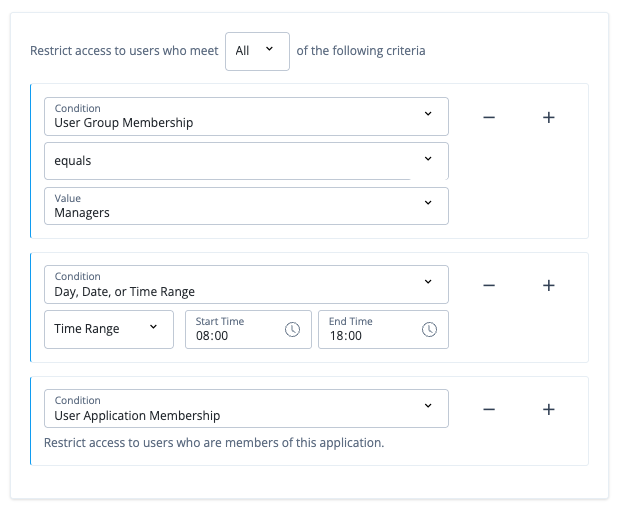
Only users who are in the Managers group, have access to the PayrollHub application, and sign on between 8am and 6pm can access PayrollHub.
All other users are denied access.
Task 4: Create a journey to control application access
In this task, you create a custom journey to control access to the PayrollHub application.
The journey uses the App Policy Decision node to check the application’s access policy during authentication.
-
In the Advanced Identity Cloud admin console, click Journeys > Journeys.
-
Click Add Journey, select Start from scratch, and then click Next.
-
Enter a name, for example
AppAuthorizationJourney. -
Select
Alpha Realm Users - managed/alpha_useras the identity object. -
Save your changes.
You don’t need to select the option to run the journey for all users regardless of current sessions because this is enabled by default for application journeys.
Learn more in Configure an authentication journey to always run and Custom journeys.
-
Add these nodes to the canvas:
-
Page node containing:
-
Platform Username node
-
Platform Password node
-
-
Data Store Decision node
-
App Policy Decision node
-
Failure
-
Success
-
-
Connect the nodes as follows:
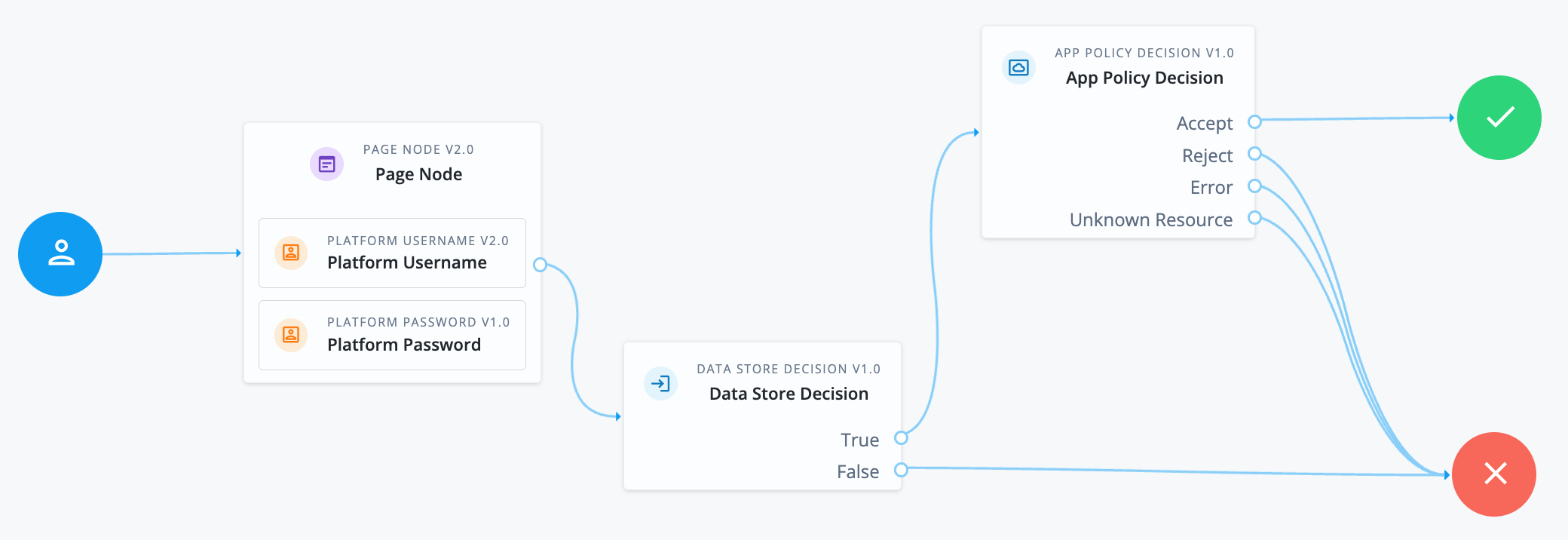
You could add an extra level of security by requiring multi-factor authentication (MFA) for users who are granted access by the App Policy Decision node. -
Click Save.
The App Policy Decision node identifies the calling application from the authentication request and evaluates the access policy configured on that application.
Task 5: Associate the journey with the application
In this task, you configure PayrollHub to use the journey you created.
-
In the Advanced Identity Cloud admin console, go to Applications > Applications and open PayrollHub.
-
Go to Sign On > General Settings > Show advanced settings > Authentication.
-
Click Use a journey to authenticate users to this application.
-
In the Journey field, select
AppAuthorizationJourney. -
Click Save.
The application is now configured to use the journey you created to control access.
Validation
Test that the journey correctly enforces your authorization policy.
Steps
-
Open a browser in incognito mode and start an OAuth 2.0 authorization code sign-in flow, for example:
https://<tenant-env-fqdn>/am/oauth2/alpha/authorize?client_id=PayrollHub&redirectUri=http://www.PayrollHub.internal/signin&scope=openid&response_type=code -
Sign on between the hours of 8am and 6pm with a user who is a member of the
Managersgroup and has access to PayrollHub.The user should be granted access and redirected to the application with an authorization code.
-
Sign on again with a user who isn’t a member of the
Managersgroup.The user should be denied access and the journey should reach the Failure node.
-
Sign on again with a valid user, then immediately start a second authorization code flow.
Advanced Identity Cloud should prompt for credentials even though an active session exists, because the journey is configured to always run.
Explore further
Reference material
| Reference | Description |
|---|---|
Provides information about the node configuration and outcomes, including evaluation of the application’s access policy. |
|
How to configure an application access policy. |
|
Information about the app authorization policy set included in Advanced Identity Cloud. |
|
Associate a journey with an OIDC or SAML app so users authenticate with a flow tailored to that application. |