Social identity provider settings
This page provides a reference for the settings available when you configure a social identity provider in Advanced Identity Cloud. These settings control how Advanced Identity Cloud interacts with the external provider.
The settings available depend on the type of provider you are configuring (OIDC or OAuth 2.0) and the authentication methods you choose, but they generally include endpoint URLs, client authentication methods, and security options.
Status and button settings
- Active / Inactive
-
Whether the provider is enabled.
Required: Yes.
- Button preview
-
Click Edit to open the Edit UI Configuration modal, where you specify a map of properties that determine how the social identity provider button displays in the hosted journey pages.
Common properties affecting how a button displays in hosted pages
-
buttonClass: Adds the specified class to the identity provider button, for any additional styling you want to apply. -
buttonCustomStyle: Any custom CSS you wish to apply to the button outside of normal End User UI styling. -
buttonCustomStyleHover: Adds custom styling when the cursor is hovering over the button. -
buttonDisplayName: The name of the identity provider, which will be included either on the button or in the button’saltattribute, depending on styling. -
buttonImage: A relative path to an image in the End User UI.
Required: Yes
-
General settings
- Client ID
-
The
client_idparameter as described in section 2.2 of The OAuth 2.0 Authorization Framework specification.Required: Yes.
- Client Secret
-
The
client_secretparameter as described in section 2.3 of The OAuth 2.0 Authorization Framework specification.This property is deprecated. Select Use Secret Store for secrets and use the Secret Label Identifier instead to store the secret securely.
If you set a Secret Label Identifier and Advanced Identity Cloud finds a matching secret in a secret store, the Client Secret is ignored.
Required: No.
- Use Secret Store for secrets
-
When selected, the Secret Label Identifier field is displayed, allowing you to create a secret label for mapping to a secret in a secret store. This is the recommended way to manage client secrets.
- Secret Label Identifier
-
An identifier used to create a secret label for mapping to a secret in a secret store. This field is displayed only when you select Use Secret Store for secrets.
Advanced Identity Cloud uses this identifier to create a specific secret label for this service instance, using the template
am.social.providers.identifier.secretwhere identifier is the value of Secret Label Identifier.The identifier can only contain alphanumeric characters
a-z,A-Z,0-9, and periods (.). It can’t start or end with a period.If you set a Secret Label Identifier and Advanced Identity Cloud finds a matching secret in a secret store, the Client Secret is ignored.
Required: No.
- OAuth Scopes
-
The list of scopes to request from the provider.
The scopes that the provider returns depends on the permissions that the resource owner, such as the end user, grants to the client application.
For example, Google exposes its supported scopes in their OAuth 2.0 Scopes for Google APIs documentation.
Required: Yes.
- Auth ID Key
-
The attribute the social identity provider uses to identify an authenticated individual. For example,
id,sub, anduser_id.Required: Yes.
- Authentication Endpoint URL
-
The URL to the social provider’s endpoint handling authentication as described in section 3.1 of The OAuth 2.0 Authorization Framework. For example,
https://accounts.google.com/o/oauth2/v2/auth.Required: Yes.
- Access Token Endpoint URL
-
The URL to the endpoint handling access tokens as described in section 3.2 of The OAuth 2.0 Authorization Framework specification. For example,
https://www.googleapis.com/oauth2/v4/token.Required: Yes.
- User Profile Service URL
-
The user profile URL that returns profile information. For example,
https://www.googleapis.com/oauth2/v3/userinfo.This URL should return JSON objects in its response.
Required: No.
- Token Introspection Endpoint URL
-
The URL to the endpoint handling access token validation, as described in the OOAuth 2.0 Token Introspection specification. For example,
https://oauth2.googleapis.com/tokeninfo.Required: No.
- Redirect URL
-
The URL to which the identity provider will redirect the user after authenticating, as described in Section 3.1.2 of The OAuth 2.0 Authorization Framework specification.
Set the redirect URL to the tenant’s access management base URL. For example,
https://<tenant-env-fqdn>/am. Follow the redirect URL requirements exactly. The URL is also registered in the identity provider’s service.If you’re using an app built with the Ping SDKs for Android or iOS, you can also use a custom URI scheme as the redirect. For example,
com.example.sdkapp:redirect_uri_pathorauth://com.example.ios.sdkapp.-
When using the
FORM_POSTresponse mode, you must specify theform_postendpoint in the redirection URL. For example,https://<tenant-env-fqdn>/oauth2/client/form_post/social IdP client.Find more information in Response Mode.
-
If you encounter domain validation prompts when using
forgeblocks.comandid.forgerock.iodomains as redirect URLs in your Google OAuth 2.0 applications, you must use a custom domain, and then set up domain verification with Google. -
If you encounter
No provider founderrors when usingforgeblocks.comandid.forgerock.iodomains as redirect URLs in your OAuth 2.0 applications, either modify the redirect URL to include a realm identifier, or use a custom domain:-
Incorrect:
https://<tenant-env-fqdn>/am/oauth2/client/form_post/... -
Correct:
https://<tenant-env-fqdn>/am/oauth2/<realm>/client/form_post/...
or
https://<custom-domain>/am/oauth2/client/form_post/...A custom domain acts as a realm DNS alias, so when it’s used as a redirect URL, you don’t have to specify the realm because Advanced Identity Cloud implicitly knows which realm to use.
-
Required: Yes.
-
- Redirect after form post URL
-
The URL of a custom login page or application. Advanced Identity Cloud will send processed form post data related to social login authentication to that URL as the value of the
form_post_entryquery parameter.To continue the authentication journey, the custom login page is responsible for making a call to the Advanced Identity Cloud
/json/authenticateendpoint with the authentication ID (authID) and the processed form data (form_post_entry).Configure this property when the following is true:
-
The
FORM_POSTresponse mode is configured. -
Your users log in to Advanced Identity Cloud using custom login pages, such as apps using the Ping SDKs, instead of the Ping Identity-provided user interfaces.
Required: No.
-
- Scope Delimiter
-
The delimiter used to separate scope values. For example, a blank space (), or a comma character (,).
Most providers use a blank space.
Required: Yes.
This field is not applicable to the Twitter social provider and is hidden from the configuration. - Client Authentication Method
-
How the client should authenticate to the provider. Possible values are:
CLIENT_SECRET_POST-
The client sends the client ID and the secret in the
client_IDand theclient_secretparameters in the body of the request. CLIENT_SECRET_BASIC-
The client sends the client ID and the secret in a basic authorization header with the base64-encoded value of client-id:client-secret.
PRIVATE_KEY_JWT-
The client sends its credentials to the provider in a signed JWT as specified in the JSON Web Token (JWT) Profile for OAuth 2.0 Client Authentication and Authorization Grants.
ENCRYPTED_PRIVATE_KEY_JWT-
The client sends its credentials to the provider in a signed, then encrypted JWT as specified in the JSON Web Token (JWT) Profile for OAuth 2.0 Client Authentication and Authorization Grants.
Some authentication methods require additional configuration:
How do I configure JWT authentication with signed JWTs?
-
Obtain a list of supported signing algorithms from the provider’s
.well-knownendpoint, and decide which one you will use. -
In the JWT Signing Algorithm field, enter the signing algorithm that Advanced Identity Cloud will use to sign the JWT. For example,
RSA256.This field may already be configured if the client is sending request objects.
-
Provide a JWK with the public key to the identity provider. Read their documentation for more information.
For example, you could copy the contents of the public JWK in a field in the provider’s service configuration, or you could configure the realm’s
/oauth2/connect/rp/jwk_uriendpoint, which exposes the client’s public keys.Configure the realm’s
/oauth2/connect/rp/jwk_uriendpoint in the provider, which exposes the client’s public keys. Read the provider’s documentation for more information. -
Change the value in the Private Key JWT Expiration Time (seconds) field, if needed. It has a sensible value preconfigured, but you may need to tune it for your provider.
How do I configure JWT authentication with signed and encrypted JWTs?
-
Follow the steps in How do I configure JWT authentication with signed JWTs? to configure Advanced Identity Cloud to sign authentication JWTs.
Now you’re ready to configure Advanced Identity Cloud to encrypt authentication JWTs.
-
Obtain a list of supported encryption algorithms and methods from the provider’s
.well-knownendpoint, and decide which one you will use. -
In the JWT Encryption Algorithm field, select the encryption algorithm.
If the required encryption algorithm doesn’t appear in the list, check the reference entry for the JWT Encryption Algorithm field for information on how to add it.
This field may already be configured if the client is encrypting request objects.
-
In the JWT Encryption Method field, select the encryption method.
This field may already be configured if the client is encrypting request objects.
-
In the JWKS URI Endpoint field, configure the URI containing the provider’s public JWK set.
Obtain the URI from the provider’s
.well-knownendpoint, or their documentation.Advanced Identity Cloud uses the JWK URI to fetch the provider’s public encryption key.
-
Perform one of the following steps depending on the encryption method you configured:
-
If you chose Direct AES Encryption method, select
NONEin the JWT Signing Algorithm field. Signing is redundant with this encryption method. -
If you chose an encryption method different from the Direct AES Encryption method, configure signing. Find more information in How do I configure JWT authentication with signed JWTs?.
-
Required: Yes.
- PKCE Method
-
Specifies the PKCE transformation method Advanced Identity Cloud uses when making requests to the provider’s authorization endpoint, as specified in Section 4.2 of the Proof Key for Code Exchange by OAuth Public Clients specification.
Select
NONEto disable PKCE transformations.Required: No.
- Request Parameter JWT Option
-
(OIDC providers only) Specifies whether Advanced Identity Cloud should provide a request object JWT to the provider. Possible values are:
NONE-
Advanced Identity Cloud doesn’t send a request object to the provider.
REFERENCE-
The request object JWT is stored by Advanced Identity Cloud, which exposes a unique identifier for it using the
oauth2/request_uriendpoint for the realm. The endpoint URL and the JWT’s unique identifier are passed to the provider in therequest_uriparameter of the request.Ensure that the provider can reach the endpoint.
An example of the URL is
https://platform.example.com:8443/am/realms/root/realms/myRealm/oauth2/request_uri/requestobjectIDWhen integrating with itsme®, ensure that the base URL of Advanced Identity Cloud contains the
443port. For example,https://platform.example.com:443/am.How do I configure the Base URL Source service?
-
Under Native Consoles > Access Management, go to Realms > Realm Name > Services.
-
Add a
Base URL Sourceservice (if one isn’t already configured) or select it to change its properties: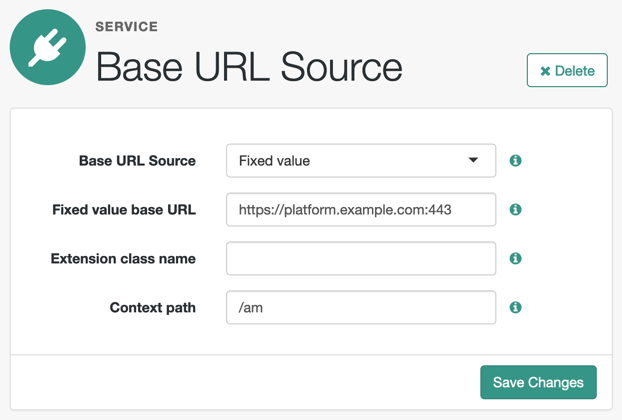
-
VALUE-
Advanced Identity Cloud appends the JWT as the value of the
requestparameter of the request.How do I configure the client to send signed request objects?
-
In the Request Parameter JWT Option field, select either
VALUEorREFERENCE.Read your identity provider’s documentation for more information.
-
Obtain a list of supported signing algorithms from the provider’s
.well-knownendpoint, and decide which one you will use. -
In the JWT Signing Algorithm field, select the signing algorithm that Advanced Identity Cloud will use to sign the request object. For example,
RS256.This field may already be configured if the client is using JWT client authentication.
-
Provide a JWK with the public key to the identity provider. Read their documentation for more information.
For example, you could copy the contents of the public JWK in a field in the provider’s service configuration, or you could configure the realm’s
/oauth2/connect/rp/jwk_uriendpoint, which exposes the client’s public keys.Configure the realm’s
/oauth2/connect/rp/jwk_uriendpoint in the provider, which exposes the client’s public keys. Read the provider’s documentation for more information.
How do I configure the client to send signed and encrypted request objects?
-
Follow the steps in How do I configure the client to send signed request objects? to configure Advanced Identity Cloud to send signed request objects.
Now you’re ready to configure Advanced Identity Cloud to send encrypted request objects.
-
Select Encrypt Request Parameter JWT.
-
Obtain a list of supported encryption algorithms and methods from the provider’s
.well-knownendpoint, and decide which one you will use. -
In the JWT Encryption Algorithm field, select the encryption algorithm.
If the required encryption algorithm doesn’t appear in the list, check the reference entry for the JWT Encryption Algorithm field for information on how to add it.
This field may already be configured if the client is encrypting authentication JTWs.
-
In the JWT Encryption Method field, select the encryption method.
This field may already be configured if the client is encrypting authentication JWTs.
-
In the JWKS URI Endpoint field, configure the URI containing the provider’s public JWK set.
Obtain the URI from the provider’s
.well-knownendpoint.Advanced Identity Cloud uses the JWK URI to fetch the provider’s public encryption key.
-
Perform one of the following steps depending on the encryption method you configured:
-
If you chose Direct AES Encryption method, select
NONEin the JWT Signing Algorithm field. Signing is redundant with this encryption method. -
If you chose an encryption method different from the Direct AES Encryption method, configure signing. Find more information in How do I configure the client to send signed request objects?.
-
-
- Require exp claim in Request Object
-
(OIDC providers only) If selected, the
expclaim must be included in JWT request objects in the /oauth2/authorize request.The
exp(expiration time) claim defines the lifetime of the JWT, after which the JWT is no longer valid.The default value of this attribute is false.
- Encrypt Request Parameter JWT
-
Specifies whether the request parameter must be encrypted when Request Parameter JWT Option is set to
REFERENCEorVALUE. - ACR Values
-
(OIDC providers only) A space-separated list, in order of preference, of the client’s
acrvalues.Required: No.
- Well Known Endpoint
-
(OIDC providers only) The URL for retrieving information about the provider, such as endpoints, and public keys. For example,
https://accounts.google.com/.well-known/openid-configuration.Leave this field empty for the LINE (Browser)configuration.Required: No.
- Request Object Audience
-
(OIDC providers only) The intended audience (
aud) of the request object when the Request Parameter JWT Option field is set toVALUEorREFERENCE.When not configured, Advanced Identity Cloud uses the value of the Issuer field.
- Private Key JWT Audience
-
(OIDC providers only) The intended audience (
aud) of the private key JWT when performing an authentication using thePRIVATE_KEY_JWTclient authentication method.When not configured, Advanced Identity Cloud uses the value of the Access Token Endpoint URL field.
- OP Encrypts ID Tokens
-
(OIDC providers only) Whether the provider encrypts ID Tokens.
How do I configure Advanced Identity Cloud to receive encrypted tokens?
Provide a JWK with the public key to the identity provider. Read the identity provider’s documentation for more information.
For example, you could copy the contents of the public JWK in a field in the provider’s service configuration, or you could configure the realm’s
/oauth2/connect/rp/jwk_uriendpoint, which exposes the client’s public keys.Configure the realm’s
/oauth2/connect/rp/jwk_uriendpoint in the provider, which exposes the client’s public keys. Read the provider’s documentation for more information.Required: No.
- Issuer
-
(OIDC providers only) The issuer of ID Tokens.
Specify a regular expression or a string value that exactly matches the value returned in the ID token. What you set here depends on the value of the Issuer comparison check property.
Obtain the
issuervalue from the provider’s.well-knownendpoint.Required: Yes.
- Enable Native Nonce
-
(OIDC providers only) When selected, the provider native SDK must include a
nonceclaim in the ID token. The value of the claim must be the value of thenonceclaim sent in the Authentication Request.Required: No.
- User Info Response Format
-
(OIDC providers only) The format in which the provider’s
userinfoendpoint returns data.Some options require additional configuration:
How do I configure the client to receive signed userinfo JWTs?
In the JWKS URI Endpoint field, configure the URL containing the provider’s public JWK set. Obtain it from the provider’s
.well-knownendpoint, or their documentation.Advanced Identity Cloud uses this URL to fetch the provider’s public signing key.
How do I configure the client to receive signed, then encrypted userinfo JWTs?
-
Follow the steps in How do I configure the client to receive signed userinfo JWTs? to configure Advanced Identity Cloud to receive signed JWTs.
Now you’re ready to configure Advanced Identity Cloud to receive encrypted JWTs.
-
Provide a JWK with the public key to the identity provider. Read their documentation for more information.
For example, you could copy the contents of the public JWK in a field in the provider’s service configuration, or you could configure the realm’s
/oauth2/connect/rp/jwk_uriendpoint, which exposes the client’s public keys. -
Configure the realm’s
/oauth2/connect/rp/jwk_uriendpoint in the provider, which exposes the client’s public keys. Read the provider’s documentation for more information.
Possible values are:
JSON-
The provider’s
userinfoendpoint returns a JSON object. SIGNED_JWT-
The provider’s
userinfoendpoint returns a signed JWT. SIGNED_THEN_ENCRYPTED_JWT-
The provider’s
userinfoendpoint returns a signed, then encrypted JWT.
-
- JWKS URI Endpoint
-
The URI that contains the public keys of the identity provider. Advanced Identity Cloud uses these keys to verify signatures or to encrypt objects.
Configure this field when:
-
Client Authentication Method is set to
ENCRYPTED_PRIVATE_KEY_JWT. -
Encrypt Request Parameter JWT is selected.
-
User Info Response Format is set to
SIGNED_JWTorSIGNED_THEN_ENCRYPTED_JWT.
Required: No.
-
- Claims
-
Any claims on the request object, in JSON format. These claims must conform to the claims request parameter, as defined in the OpenID Connect specification.
- JWT Signing Algorithm
-
The signing algorithm supported by the provider that Advanced Identity Cloud uses to sign the following:
-
Client authentication JWTs when Client Authentication Method is set to
PRIVATE_KEY_JWT. -
(OIDC providers only) Request JWTs when Request Parameter JWT Option is set to
VALUEorREFERENCE.
Obtain a list of the supported algorithms from the provider’s
.well-knownendpoint. SelectNONEif the client will encrypt the JWT with the Direct AES Encryption method, because the signature will be redundant.
Required: No. -
- JWT Encryption Algorithm
-
The encryption algorithm supported by the provider that Advanced Identity Cloud uses to encrypt client authentication JWTs. Applies only when Client Authentication Method is set to
PRIVATE_KEY_JWT, and OIDC providers request JWTs when Request Parameter JWT Option is set toVALUEorREFERENCE.When set to
NONE, Advanced Identity Cloud won’t encrypt the JWTs. Obtain a list of the supported algorithms from the provider’s.well-knownendpoint.Required: No.
- JWT Encryption Method
-
The encryption method supported by the provider that Advanced Identity Cloud uses to encrypt the following:
-
Client authentication JWTs when Client Authentication Method is set to
PRIVATE_KEY_JWT. -
(OIDC providers only) Request JWTs when Request Parameter JWT Option is set to
VALUEorREFERENCE.
Use in conjunction with
JWT Encryption Algorithm. Obtain a list of the supported methods from the provider’s.well-knownendpoint.
Required: No. -
- Private Key JWT Expiration Time (seconds)
-
Specifies the amount of time, in seconds, that Advanced Identity Cloud will cache the client authentication JWT before creating a new one.
Caching the JWT avoids creating a new one for every client authentication. However, the JWT can also become invalid if the provider changes its configuration.
Required: No.
- Response Mode
-
(OIDC providers only) Specify the way the provider returns ID tokens to Advanced Identity Cloud. Possible values are:
-
DEFAULT. The provider returns the ID token as query parameters, as explained in the OpenID Connect Core 1.0 incorporating errata set 1 specification.Most preconfigured providers use the
DEFAULTresponse mode. -
FORM_POST. The provider returns the ID token by submitting an HTML form using the HTTP POST method, as explained in the OAuth 2.0 Form Post Response Mode specification.When using this response mode, add the
/oauth2/client/form_post/social IdP clientURI to the Redirect URL, where social IdP client is the name of the social identity provider client that you’re configuring. For example,https://<tenant-env-fqdn>/oauth2/client/form_post/myAppleClientorhttps://<tenant-env-fqdn>/oauth2/alpha/client/form_post/myAppleClientif you need to specify a realm.
By default, the
form_postendpoint processes the post data, encrypts it, and redirects with it back to the authentication journey to resume authentication.+ However, environments using custom login pages need to configure the Redirect after form post URL property to redirect back to the custom login pages.
+ Required: Yes.
-
- Certificate Revocation Checking Options
-
Specify one or more options to be used by the TLS certificate revocation checking mechanism.
The possible values are:
-
ONLY_END_ENTITY: Only check the revocation status of end-entity certificates. -
PREFER_CRLS: Prefer certificate revocation lists (CRLs) to Online Certificate Status Protocol (OCSP). -
NO_FALLBACK: Disable the fallback mechanism. -
SOFT_FAIL: Allow revocation check to succeed if the revocation status cannot be determined due to a network error. -
DISABLE_REVOCATION_CHECKING: Disable all revocation checking.
Including
DISABLE_REVOCATION_CHECKINGas one of the options will prevent any revocation checking. For further details of the other options, refer to: PKIXRevocationChecker.Option.If no options are selected, the default behavior is to enable revocation checking with
SOFT_FAIL.If the certificate doesn’t specify any OCSP or CRL endpoints, the revocation checking will hard fail even if the
SOFT_FAILoption is selected. In this case, an administrator could disable revocation checking. -
- Use Custom TrustStore
-
Specifies whether a custom truststore is used to verify the server certificate of the
.well-knownendpoint or JWKs URI of an OpenID provider (OP) in a TLS handshake.If selected, a secret label is generated dynamically using the alphanumeric characters of the client configuration name. For example, a client configuration called
sampleOidcConfigresults in a secret label namedam.services.oidc.reliant.party.sampleOidcConfig.truststore.Map the generated secret label to an ESV secret.
If this setting is not selected, the default truststore is used to verify the server certificate.
- Request Native App for UserInfo
-
(Apple SSO) When selected, this flag indicates that the native app can send the user’s
userinfoin JSON format.Apple returns the
userinfoonly once, when the user first consents to send their details, and not on subsequent authentication attempts. In addition, the user has the option not to consent to Apple sending theiruserinfo.If you’re progressively profiling the
userinfowith data from other social providers (usually using a Patch Object node) there is a risk of overwriting the user’s details with blank values when the user authenticates through Apple SSO.To mitigate this risk, you can add a Scripted Decision node to your authentication journey to assess whether
userinfois provided.How do I use a Scripted Decision node to check
userinfo?The normalized-profile-to-managed-user.js script sets a boolean flag (
nameEmptyOrNull) that indicates whether Apple returned the user’sfirstNameandlastName.Add a Scripted Decision node to your journey that evaluates the flag and sets the outcome accordingly; for example:
-
Next-generation
-
Legacy
if (nodeState.get('nameEmptyOrNull')) {
  action.goTo("true");
} else {
  action.goTo("false");
}
var fr = JavaImporter(org.forgerock.openam.auth.node.api.Action); if (nodeState.get('nameEmptyOrNull')) { action = fr.Action.goTo("true").build(); } else { action = fr.Action.goTo("false").build(); }You can now configure your journey to patch the
userinfoobject based on the outcome of the Scripted Decision node. If you need to progressively profile the user information on every authentication, regardless of whether the user’s first name and last name are returned by the OIDC provider, you can use another Scripted Decision node that does the following:-
If the user details aren’t present, route the
userinfopatch through a Patch Object node configured to ignore thefirstNameandlastName. (In the Ignored Fields list, addgivenNameto ignore thefirstNameandsnto ignore thelastName.) -
If the user details are present, route the
userinfopatch through a Patch Object node that patches the full object.
Required: No.
-
- Transform Script
-
A script to convert the provider’s raw profile object into a normalized object, also referred to as a normalization script.
Each social identity provider returns different user profile information using their own attribute names.
For example, Google’s OIDC
/userinfoendpoint returns claims, which Advanced Identity Cloud stores in arawProfileobject. The followinggoogle-profile-normalization.jsscript maps the attributes of this object to Advanced Identity Cloud profile attributes:-
Next-generation
-
Legacy
function () {
    var normalizedProfileData = {};
    normalizedProfileData.id = rawProfile.get('sub');
    normalizedProfileData.displayName = rawProfile.get('name');
    normalizedProfileData.givenName = rawProfile.get('given_name');
    normalizedProfileData.familyName = rawProfile.get('family_name');
    normalizedProfileData.photoUrl = rawProfile.get('picture');
    normalizedProfileData.email = rawProfile.get('email');
    normalizedProfileData.username = rawProfile.get('email');
    normalizedProfileData.locale = rawProfile.get('locale');
    return normalizedProfileData;
}();
(function () { var frJava = JavaImporter( org.forgerock.json.JsonValue ); var normalizedProfileData = frJava.JsonValue.json(frJava.JsonValue.object()); normalizedProfileData.put('id', rawProfile.get('sub')); normalizedProfileData.put('displayName', rawProfile.get('name')); normalizedProfileData.put('givenName', rawProfile.get('given_name')); normalizedProfileData.put('familyName', rawProfile.get('family_name')); normalizedProfileData.put('photoUrl', rawProfile.get('picture')); normalizedProfileData.put('email', rawProfile.get('email')); normalizedProfileData.put('username', rawProfile.get('email')); normalizedProfileData.put('locale', rawProfile.get('locale')); return normalizedProfileData; }());The script returns a JsonValue object containing normalized attributes in the following format:
("platformAttributeName", rawProfile.providerAttributeName)Even if field names are the same, such as
emailandrawProfile.email, they still need to be mapped for them to be included in the returned JSON object.Advanced Identity Cloud provides default scripts for other preconfigured identity providers. Find information about the bindings and expected return values in the
identity provider-profile-normalization.*scripts in Sample scripts and in the Social IdP scripting API.To write your own script in Javascript for an identity provider, go to Realms > Realm Name > Scripts, and use the provided scripts as a reference.
When a user authenticates, the social authentication journey calls another transformation script set in the Social Provider Handler node to convert the attributes again; this time into an identity object that Advanced Identity Cloud can process.
Social authentication nodes expect every attribute to have a value. In other words, the attributes returned by the identity provider can’t be empty or
null, or the journey will end with an error.For example, if a user tries to log in using Google as the identity provider, but they didn’t configure a surname in their account, Google returns
nullas the value of thefamilyNamefor the identity, and social authentication fails.Ensure all users have their social profiles configured correctly, or modify the transformation scripts so that they don’t collect null or empty attributes.
Required: Yes
-
- Issuer comparison check
-
(OIDC providers only) Determines how the expected issuer value should match the actual value of the
issclaim:-
EXACT: Advanced Identity Cloud performs a string comparison between the expected and actual issuer values, which must result in an exact match. -
REGEX: Advanced Identity Cloud evaluates the expected issuer value as a regular expression, against which the actual value must match.This lets social identity providers use a common issuer value for multiple tenants, which is replaced with a unique value during the OIDC authentication flow. For example,
https://login.microsoftonline.com/(.*)/v2.0$is successfully matched againsthttps://login.microsoftonline.com/tenant-d5c6a592-eec6-47f0/v2.0.Consider the performance impact when constructing regular expressions as the comparison is performed for each social identity provider interaction.
Also, ensure the regular expression is as specific as possible to avoid matching against incorrect issuer values.
-