Advanced reporting optional parameters
|
Advanced Identity Cloud add-on capability
Contact your Ping Identity representative if you want to add Advanced Reporting to your PingOne Advanced Identity Cloud subscription. Learn more in Add-on capabilities. |
Ping Identity has added a feature to Advanced Reporting that lets administrators designate some report parameters as optional. This helps refine search filters by allowing end users to include optional parameters in the report.
For example, an administrator wants to generate a report of all employees by status with an option to filter them by their cost center city. The administrator creates a custom report with these parameters:
-
Status(required) -
Cost Center City(optional)
Configure the report template
-
On the Identity Cloud analytics dashboard, go to Reports and click New Report.
-
On the New Report modal, enter the following:
-
Name: Enter a descriptive name for the report, such as
Active Employees by status and city. -
Description: (Optional) Enter a description for the report, such as
Report of employees by status with optional filter for cost center city. -
Who Can Run: Select Users.
-
Click Next.
-
-
Click Data Source.
-
On the Add Data Source modal, select the data source for the report, such as
Users, and click Next. -
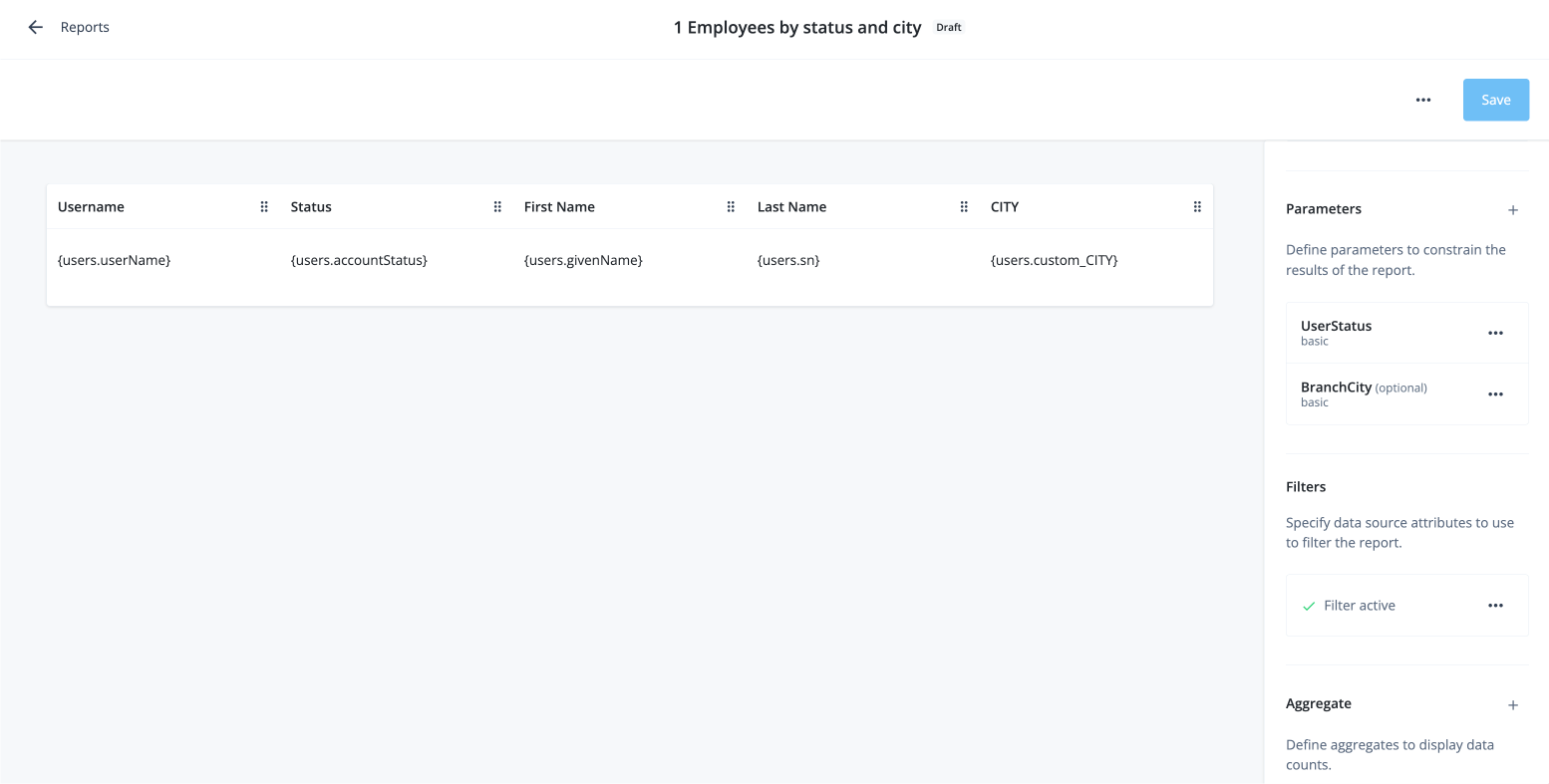
In the right pane, select the columns for your report.
-
Username: Click to use the
users.usernameattribute. -
Status: Click to use the
users.userAccountStatusattribute. -
First Name: Click to use the
users.firstNameattribute. -
Last Name: Click to use the
users.lastNameattribute. -
CITY: Click to use the
users.custom_CITYattribute for the cost center location.
-
-
In the right pane, scroll down to Parameters. Click the plus icon () to define parameters for the report:
-
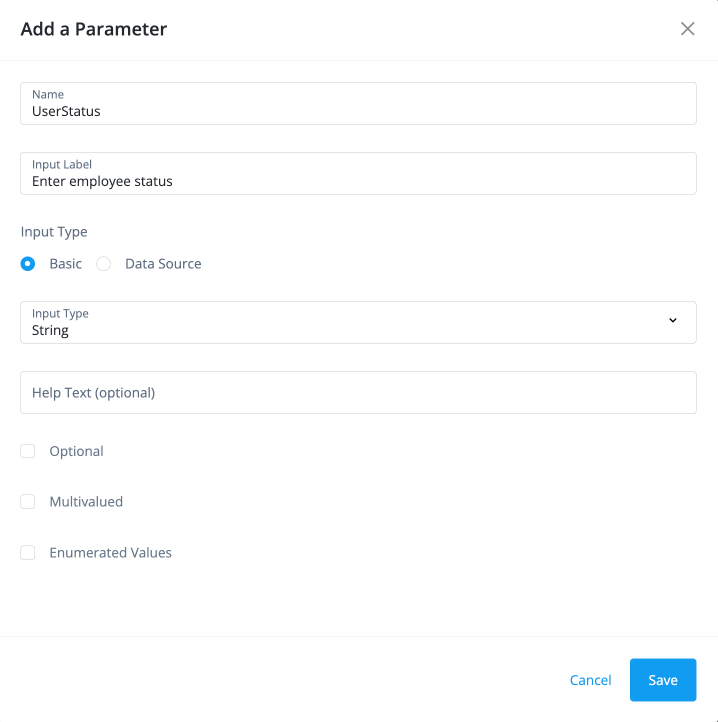
On the Add a Parameter modal, enter the following fields:
-
Name: Enter
UserStatus. -
Input Label: Enter
Enter current employee status. -
Input Type: Select String.
-
-
Click Save.
-
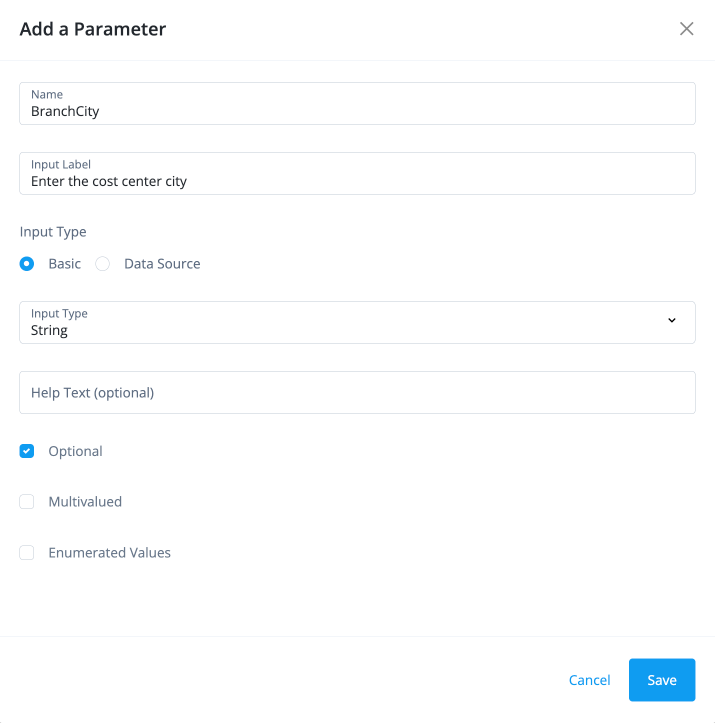
Repeat the last step to add a
BranchCityparameter with the following values:-
Name: Select
BranchCity. -
Input Label: Enter the label:
Enter the cost center city. -
Input Type: Select String.
-
Optional: Click this option.
You can’t use boolean input types for optional parameters.
-
-
Click Save.
-
-
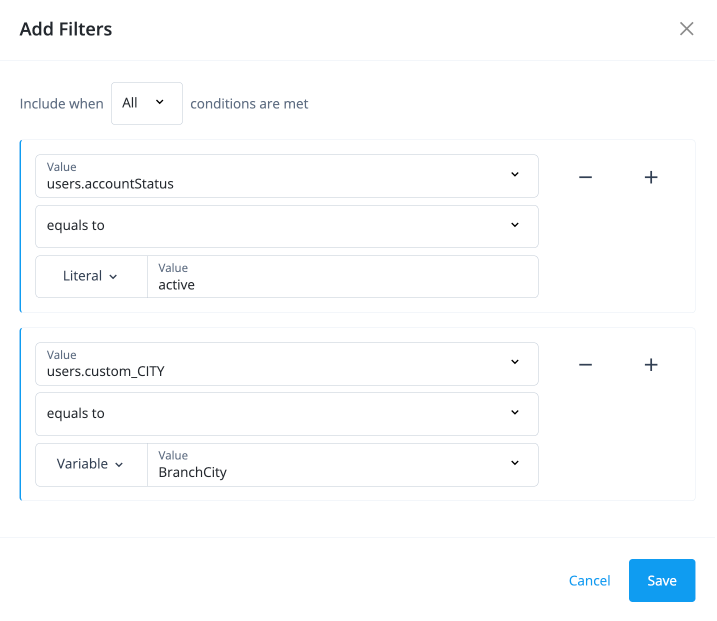
In the right pane, scroll down to Filters. Click the plus icon () to specify data source attributes for report filtering. Enter or select the following fields:
-
Any|All: Select
Allconditions that must be met for the filters. -
Value: Select
users.accountStatus. -
Connectors: Select
equals to. -
Literal|Variable: Select
Literaland enteractivein the Value field to filter for active employees.
-
-
Repeat the last step. Click the plus icon () and then select Add Rule to add another filter with the following values:
-
Value: Select
users.custom_CITY. -
Connectors: Select
equals to. -
Literal|Variable: Select
VariableandBranchCityin the Value field to filter for cost center city. -
Click Save.
-
-
Review your report template.
Generate the report
-
On the Reports page, click Run for the report you created.
-
To generate a report of all active employees, set the current employee status to
activeand leave the optional parameter blank. Click Run Report.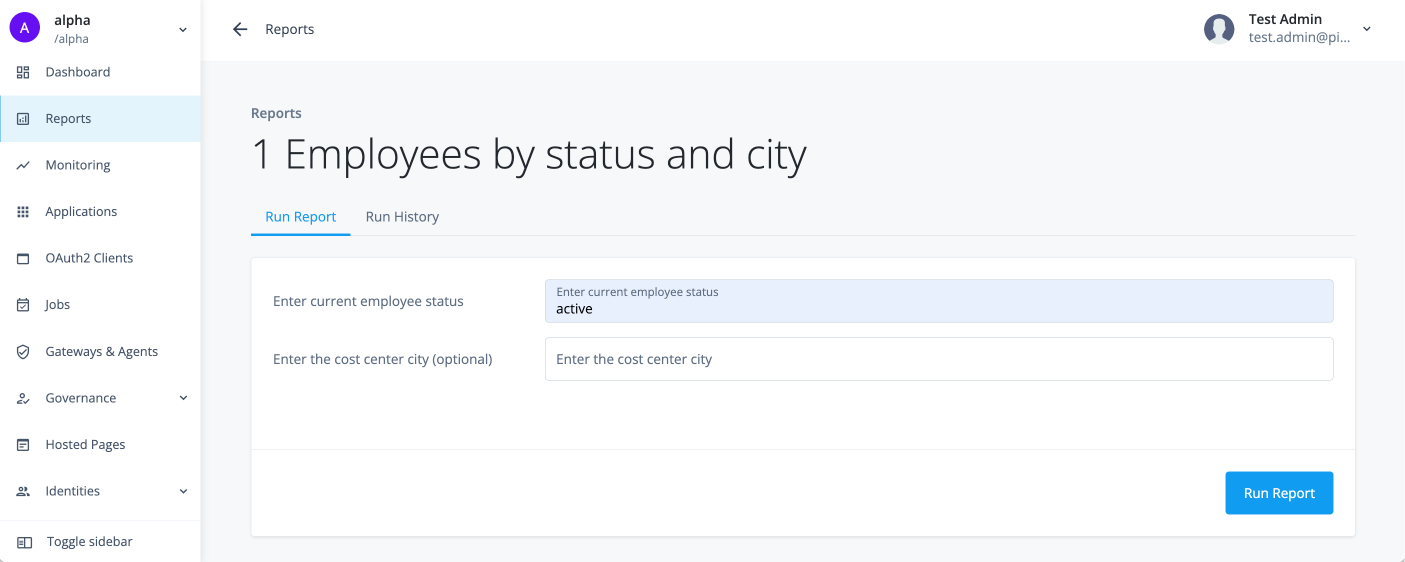
When you enter a required parameter, the Run Report button becomes active. If you leave the required field blank, the button remains inactive and you can’t run the report. -
Click View report to see the report results.
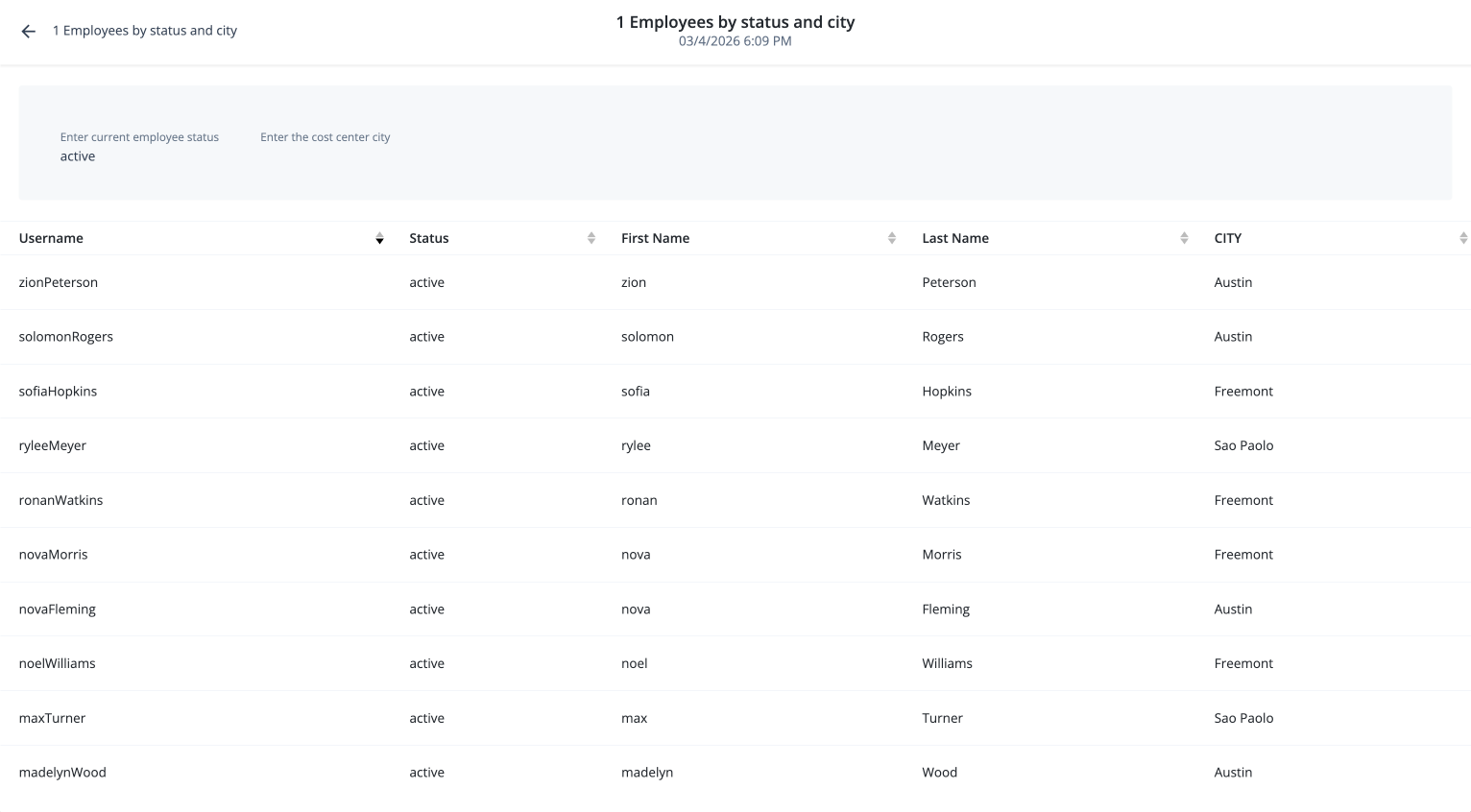
-
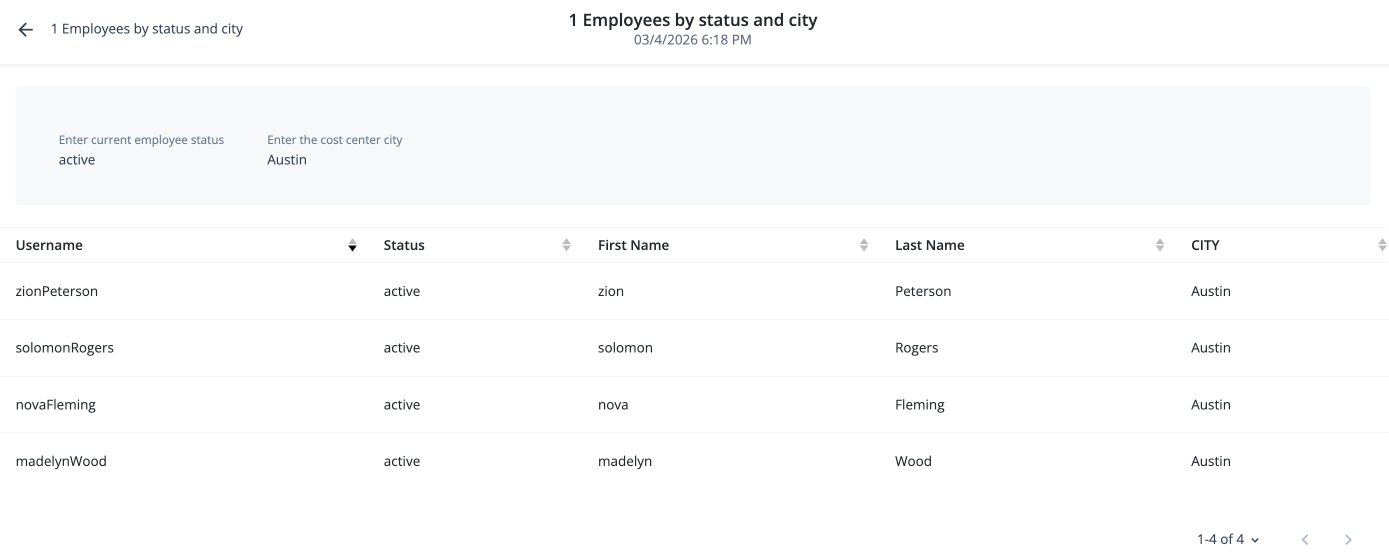
To see a list of active employees in a specific city using the optional parameter, set the current employee status to
activeand enterAustinfor the optional parameter.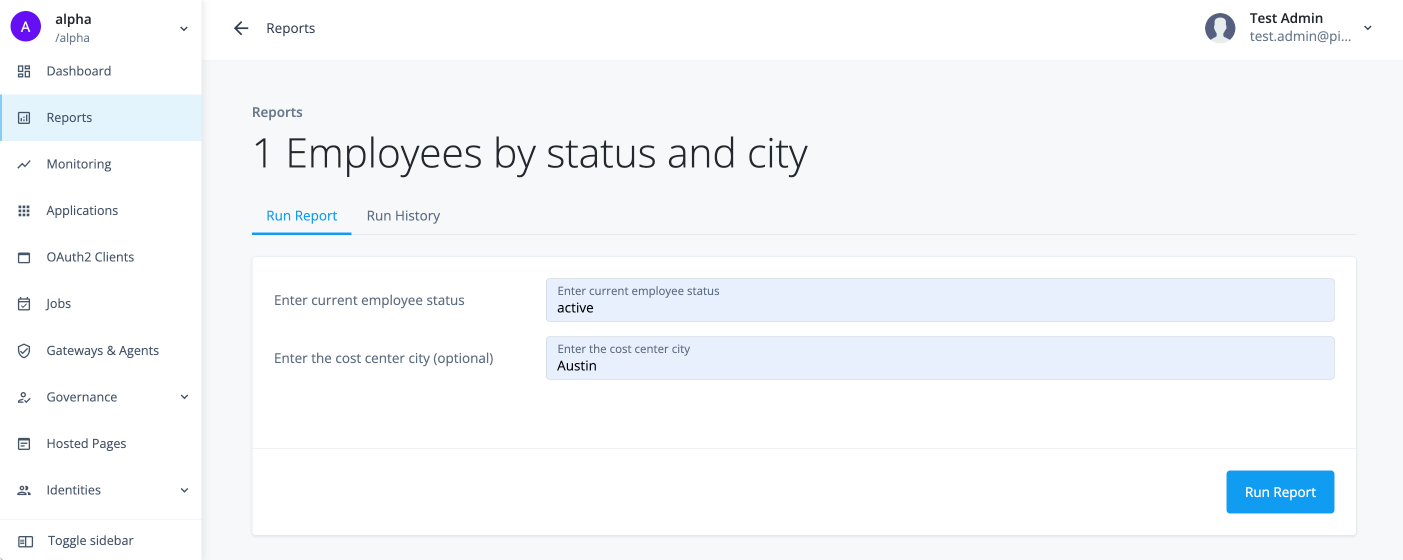
-
Click View report to see the report results.