Unmanaged applications
An unmanaged application (or disconnected application) is any application that lacks a live connector to Advanced Identity Cloud. Instead, administrators manually import governance data, such as accounts and entitlements, using APIs or .csv file uploads. Fulfillment uses an IT service management (ITSM) workflow instead of automated provisioning through a live connector.
Identity Governance lets application owners and administrators onboard and govern unmanaged applications directly, eliminating the need for central governance teams to manage individual service credentials or direct system access.
This section explains how to register an unmanaged application, import resource and account data, verify entitlements, and offboard the application.
Core concepts
| Term | Meaning | ||
|---|---|---|---|
Application |
An unmanaged app registered in Identity Governance, owned by one or more identities. |
||
Account object type |
Represents the account object structure for the app (for example, a Salesforce user account). |
||
Resource object type |
Represents any non-account object: an entitlement (group, role, permission set) or an application resource (service principal, API key, cloud resource). |
||
Roles attribute |
A multi-valued account attribute holding the entitlements granted to that account, referencing a
|
||
Delete detection |
The process of identifying records to remove by comparing a new upload against existing data. Any record absent from the new upload is marked for removal. |
||
Relationship |
The link between an account and the Advanced Identity Cloud user identity who owns it. |
Key differences between managed and unmanaged applications
The following table compares the capabilities of managed and unmanaged applications.
| Capability | Managed applications | Unmanaged applications |
|---|---|---|
Governance system |
Governed by Advanced Identity Cloud and Identity Governance. |
Governed exclusively by Identity Governance. |
Provisioning |
Automated provisioning through the application catalog and live connectors. |
Workflow-based fulfillment, such as through ServiceNow or manual IT tasks. Live connectors and the application catalog aren’t supported. |
Environment promotion |
Requires promotion between environments. |
Doesn’t use promotions. |
Role-based provisioning |
Fully supported through Advanced Identity Cloud roles (Identities > Manage > Roles). |
Not supported. Entitlements from unmanaged applications are excluded from role LCM modals but appear in access details. |
Important tips
-
Required attributes: Every object (account or resource) must define
idanddisplayNameattributes.Ping Identity plans to remove the
idanddisplayNameattribute requirements on all objects and the admin access token requirement in an upcoming release. -
Multi-valued attribute notation: Multi-valued attributes (for example,
entitlement_grants) must be represented as a JSON array encoded as a string:["value1","value2"]. In a .csv file, this appears as a quoted cell, for example,["0PS000000000001","0PS000000000007"]. -
When
userIdisn’t available at upload time: If you can’t includeuserIdin the account .csv file, use the Link API step to associate the account with an Advanced Identity Cloud user afterward.
Prerequisites
Before you start, review the following:
-
Identity linkage: Identities referenced by an account must already exist in Advanced Identity Cloud. Your account .csv file must include a
userIdcolumn mapped to the corresponding Advanced Identity Cloud user ID. -
Access token: Unmanaged app onboarding APIs require the tenant access token.
Workflow
Follow the onboarding steps in order; the offboarding steps are independent.
Onboarding an unmanaged app
Step 1: Get an access token
The unmanaged applications APIs require a tenant access token for authorization. Pass this token as a bearer token in the Authorization header of every subsequent API call in this workflow. Learn more in Authenticate to the REST API with an access token.
Step 2: Create the application
Register the unmanaged app in Identity Governance. This call creates the application record
and returns the applicationId you’ll use in every subsequent step.
POST {protocol}://{host}:{port}/iga/governance/application?_action=create{
"applicationId": "<generated-uuid>",
"name": "Salesforce",
"isDisconnected": true,
"datasourceId": "disconnected",
"description": "This is a disconnected application",
"ownerIds": [
"<_id of the managed user>"
],
"icon": "https://example.com/salesforce-logo.png"
}|
To find a managed user’s ID ( |
Step 3: Verify the application was created
Confirm the application is created and is flagged as disconnected:
GET {protocol}://{host}:{port}/iga/governance/application?disconnected=trueStep 4: Add object types
Two object types are required: Account and Resource.
4a. Add account object type
Account object types represent the account structure for the application (for example, a Salesforce user account).
The entitlement_grants property is multi-valued and references the Resource object type representing the entitlements granted to that account.
POST {protocol}://{host}:{port}/iga/governance/application/{applicationId}/objectType?_action=create{
"id": "User",
"type": "account",
"properties": {
"user_name": {
"type": "string",
"userSpecific": true,
"order": 9,
"displayName": "User Name"
},
"entitlement_grants": {
    "items": {
        "type": "string"
    },
    "required": false,
    "type": "array",
    "userSpecific": true,
    "order": 2,
    "displayName": "Roles",
    "isEntitlement": true,
    "reference": {
        "objectType": "Roles"
    }
},
"id": {
"type": "string",
"userSpecific": true,
"displayName": "ID",
"required": true,
"flags": [
"NOT_UPDATEABLE"
]
},
"displayName": {
"type": "string",
"order": 10,
"displayName": "Display Name"
}
}
}4b. Add resource object type
Resource object types represent the entitlements or resources associated with the application, such as Salesforce permission sets, roles, or API keys. Create one resource object type for each category of entitlement your application provides.
POST {protocol}://{host}:{port}/iga/governance/application/{applicationId}/objectType?_action=create{
"id": "Roles",
"type": "resource",
"properties": {
"id": {
"type": "string",
"required": true,
"order": 9,
"displayName": "ID"
},
"displayName": {
"type": "string",
"order": 25,
"displayName": "Display Name"
},
"applicationId": {
"type": "string",
"order": 1,
"displayName": "Application ID"
},
"entitlement_type": {
"type": "string",
"order": 1,
"displayName": "Entitlement Type"
},
"criticality": {
"type": "string",
"order": 1,
"displayName": "Criticality"
},
"description": {
"type": "string",
"order": 1,
"displayName": "Description"
}
}
}|
The |
Step 5: Verify the schema
Confirm each object type is created as expected. The response includes the id, type, and properties
you defined in Step 4: Add object types. For example, for the User object type, verify that
"id": "User", "type": "account", and the entitlement_grants property with "isEntitlement": true are present.
If a property is missing or type is incorrect, rerun the relevant object type creation call
in Step 4: Add object types.
GET {protocol}://{host}:{port}/iga/governance/application/{applicationId}/objectType/{objectTypeId}Step 6: Upload, poll, and verify resource (entitlement) data
Load entitlements one entitlement type at a time.
curl --location '{protocol}://{host}:{port}/iga/governance/application/{applicationId}?_action=upload' \
--header 'Authorization: Bearer {accessToken}' \
--form 'file=@"/path/to/file"' \
--form 'objectType="Roles"'
The sample .csv file is as follows:
id,displayName,applicationId,entitlement_type,criticality,description
0PS000000000001,Sales User Basic,d76e8926-078f-4e82-a0ec-8bc4e73d093b,PermissionSet,Low,"Baseline Salesforce access for sales users..."
0PS000000000002,Sales Manager,d76e8926-078f-4e82-a0ec-8bc4e73d093b,PermissionSet,High,"Expanded sales access for managing pipelines..."
Response:
{
    "message": "File uploaded started for application d76e8926-078f-4e82-a0ec-8bc4e73d093b",
    "uploads": [
        {
            "extractionId": "fd12a94d-53fb-4426-aaaf-9cadaafc8072",
            "type": "resource"
        }
    ]
}
Use the extractionId from the response as {uploadId} in the following endpoint:
GET {protocol}://{host}:{port}/iga/governance/application/{applicationId}/upload/{uploadId}The response reports status, processed, inserted, and failed counts.
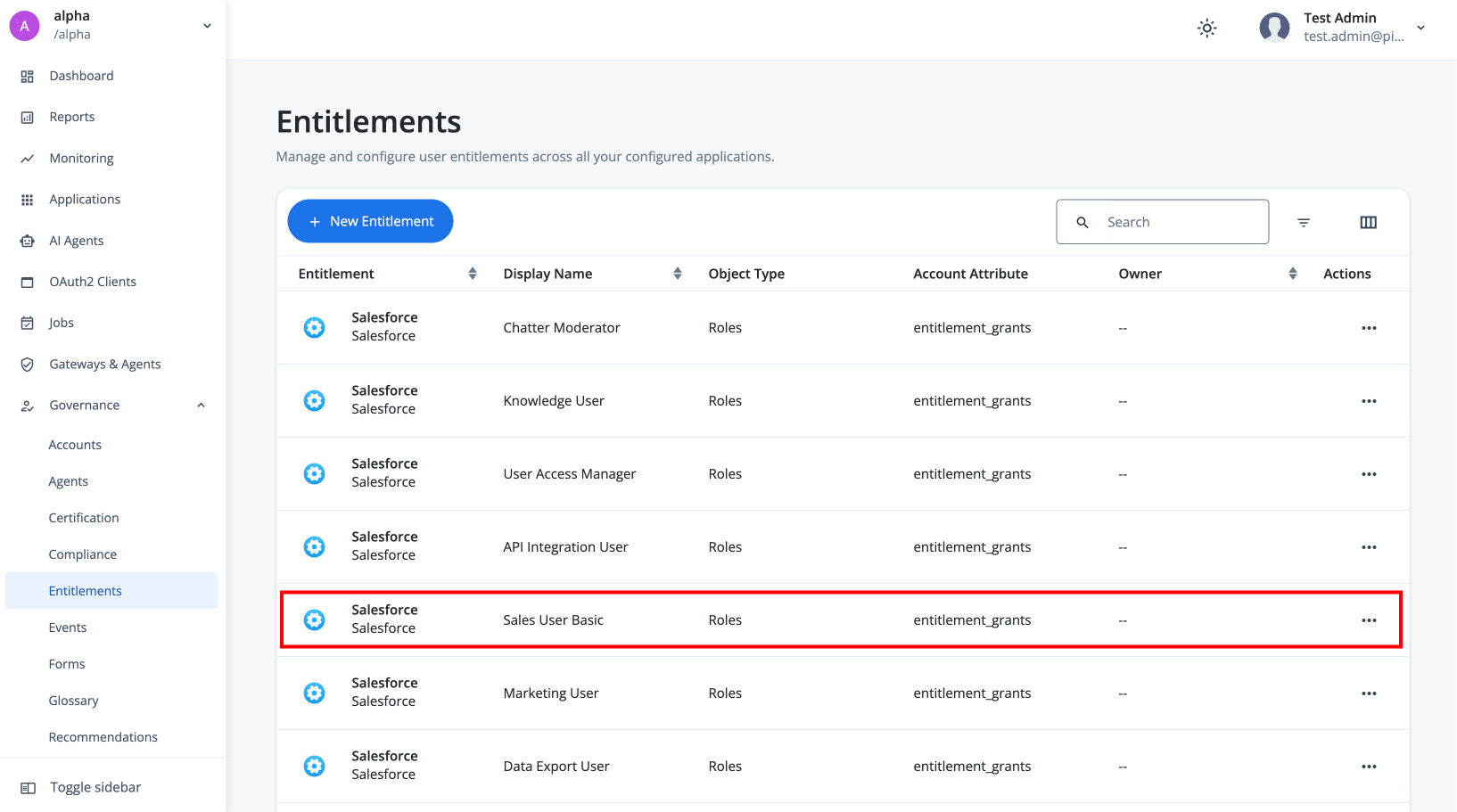
Before proceeding, confirm the uploaded entitlements are visible in the entitlement catalog, the central list of all entitlements available for governance.
In Advanced Identity Cloud, go to Governance > Entitlements, and search for the entitlement names from your .csv (for example, Sales User Basic).
Step 7: Upload account data and poll status
Upload the account records for your application. If your .csv includes userId values,
Identity Governance links each account to its Advanced Identity Cloud user at the same time, generating
a separate job for those identity relationships.
curl --location '{protocol}://{host}:{port}/iga/governance/application/{applicationId}?_action=upload' \
--header 'Authorization: Bearer {accessToken}' \
--form 'file=@"/path/to/salesforce_accounts.csv"' \
--form 'objectType="User"'|
|
The sample .csv file is as follows:
user_name,entitlement_grants,id,displayName,userId
aaron.anderson,"[""0PS000000000001"",""0PS000000000007""]",SF-ACCOUNT-00001,Aaron Anderson Salesforce Account,2d637638-366b-4e64-b05b-97c2c2fb8060
abigail.baker,"[""0PS000000000003"",""0PS000000000013""]",SF-ACCOUNT-00002,Abigail Baker Salesforce Account,8bbc1d1b-080f-4dbf-9c52-811aeaa850fe
Because accounts reference both Advanced Identity Cloud identities (userId) and entitlements (entitlement_grants),
Identity Governance can return multiple jobs: one for the accounts themselves, and one for the resulting identity relationships.
Each extractionId in the response identifies the upload job for that object type.
{
    "message": "File uploaded started for application d76e8926-078f-4e82-a0ec-8bc4e73d093b",
    "uploads": [
        {
            "extractionId": "b74a45b8-8359-41e7-81d1-6f56a6431319",
            "type": "account"
        },
        {
            "extractionId": "009e2f63-8623-463c-92b6-e4c9a508db22",
            "type": "relationship"
        }
    ]
}
Poll both extraction IDs using the same upload-status endpoint from Step 6: Upload, poll, and verify resource (entitlement) data.
If you need to remove the application later, refer to Offboard and delete an application.
Step 8 (optional): Link an account to an Advanced Identity Cloud user
If userId couldn’t be included in the account .csv file, associate the account with its Advanced Identity Cloud user identity individually:
POST {protocol}://{host}:{port}/iga/governance/account/{applicationId}/{objectType}/{accountId}/users?_action=add{
"applicationId": "{applicationId}",
"userId": "{AIC user id}"
}Response:
{
    "message": "Successfully provisioned disconnected relationship",
    "relationship": {
        "id": "937fffd0-b6b4-44a5-9216-4f3291bb2ffa",
        "type": "accountGrant",
        "userId": "ae82f3db-6945-4243-a7ee-71e42befa047",
        "applicationId": "d76e8926-078f-4e82-a0ec-8bc4e73d093b",
        "accountId": "d76e8926-078f-4e82-a0ec-8bc4e73d093b/User/SF-ACCOUNT-00001"
    }
}
Offboard and delete an application
Offboarding permanently removes the application record and all associated schema and account data from Identity Governance. Run delete detection first to mark removed records, then delete the application.
Step 1: Run delete detection
Delete detection identifies records to remove by comparing a new upload against existing data. Resubmit the full current dataset for each object type; any record absent from the new file is marked for removal.
Run the following command once per object type (for example, once for User, once for Roles):
curl --location '{protocol}://{host}:{port}/iga/governance/application/{applicationId}?_action=upload&type=delete' \
--header 'Authorization: Bearer {accessToken}' \
--form 'file=@"/path/to/file"' \
--form 'objectType="{objectTypeName}"'API quick reference
| Operation | Method | Endpoint |
|---|---|---|
Create application |
POST |
|
List applications |
GET |
|
Create object type |
POST |
|
Get object type |
GET |
|
Upload data (resource or account) |
POST |
|
Get upload status |
GET |
|
Link account to Advanced Identity Cloud user |
POST |
|
Delete detection (per object type) |
POST |
|
Delete application |
DELETE |
|