Audit logs
The audit logs provide a centralized view of governance events and selected identity activity in your tenant. For example, use the audit log to confirm when a role changed or investigate an unexpected account update. You can review events, filter the results, view daily activity counts, and export the results. You can also view event details and move between pages.
The audit log includes governance events and the following identity activity:
-
User creation, updates, and deletion
-
Role creation, updates, and deletion
-
Account creation, updates, and deletion after you use the account API
View audit events
Use this task when you need to review governance and identity activity.
-
In the Advanced Identity Cloud admin console, go to Governance > Audit.
-
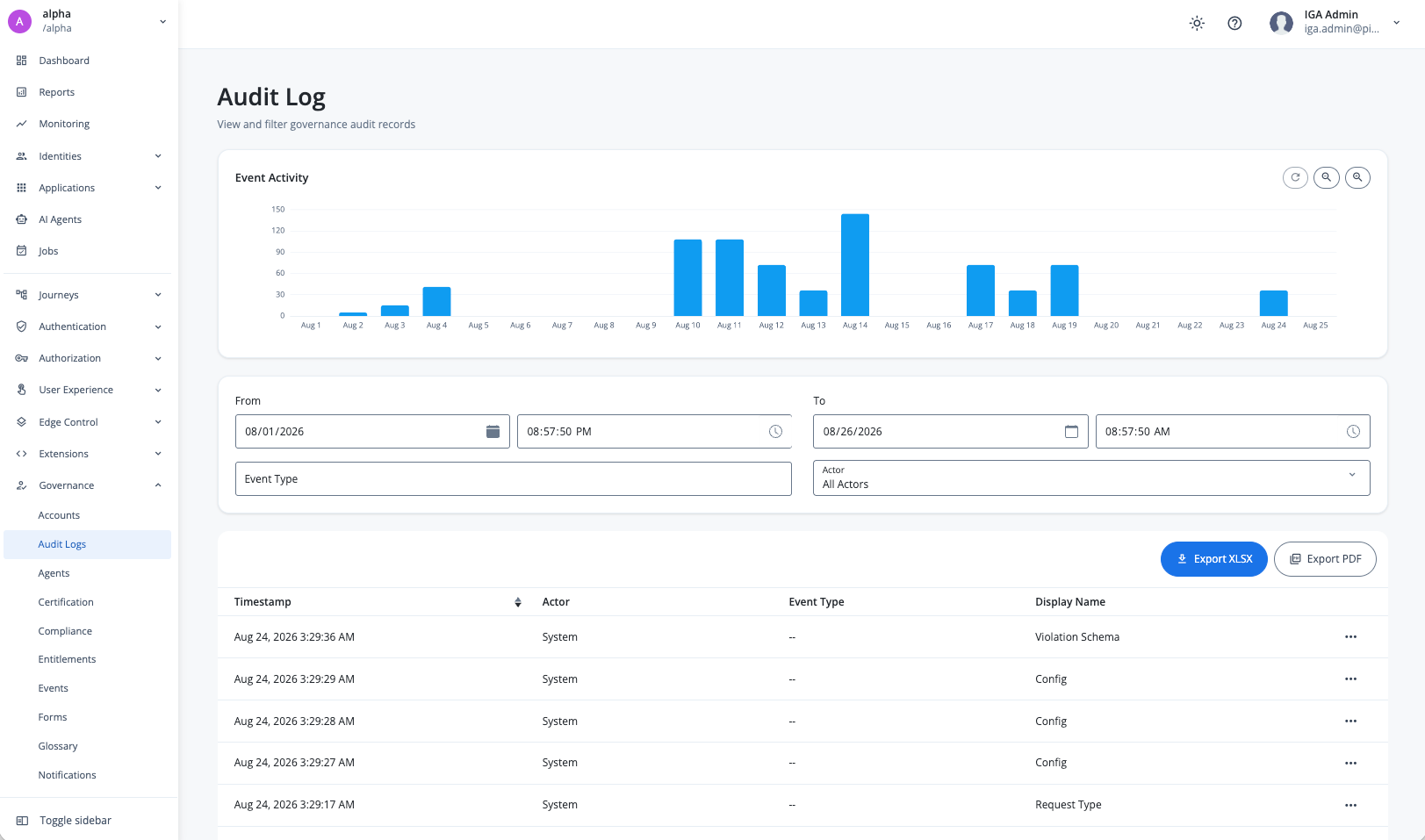
Review the audit events in the table. An actor is the user, administrator, or system that performed an event. The table displays information about each event, including the event timestamp, actor, event type, and display name.
-
In the Event Activity dashboard, hover over a specific day to see the number of events recorded on that day.
View a user’s audit events
-
In the Advanced Identity Cloud admin console, go to Identities > Manage.
-
On the Manage Identities page, click Alpha realm - Users, and click on a username.
-
Click Audit.
The audit events include events where the user is the actor or the target. You can review the event details and use the available pagination controls to view additional events.
Filter audit events
Use filters when you need to narrow the audit log to a specific date range, event type, or actor. After you apply the filters, the table displays only matching events.
-
On the Audit Log page, set the date range for the events that you want to view.
-
In the Event Type list, select the event type to display.
-
In the Actor field, select or enter the actor whose events you want to view. Available options are:
-
All Actors
-
User
-
Admin
-
System
-
-
Review the filtered events in the table.
To remove the filters, clear the filter values or reset the filters.
View daily activity counts
On the Audit Log page, view the Event Activity dashboard. The dashboard displays the number of events recorded for each day in a seven-day period.
Hover over a day to see its date and event count. Select a day to review the events recorded on that day.
View event details
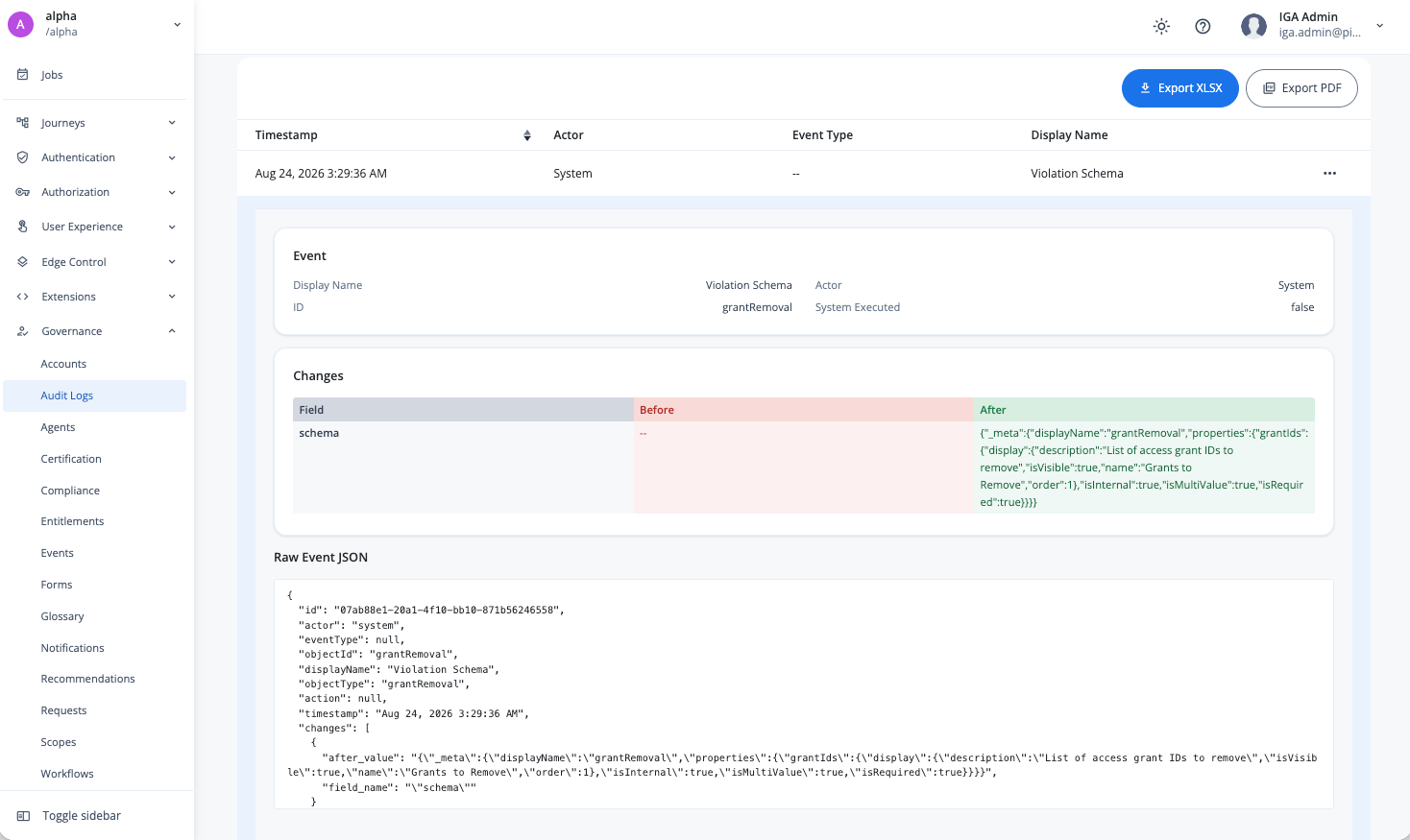
View an event’s details when you need to understand the changes it records. The details page displays the changes associated with the selected event.
-
On the Audit Log page, find the event that you want to review.
-
Click the Ellipsis icon (), and click View Details for a specific audit log.
-
Review the changes associated with the event.
Paginate audit events
The audit log displays a limited number of events on each page.
Use the pagination controls at the bottom of the table to move between pages. The table displays the events on the selected page.
Export audit events
Export events when you need to retain or share audit records, or analyze them outside the product.
You can export the events that the audit log displays to an .xlsx spreadsheet or a .pdf file.
-
On the Audit Log page, apply any filters that you want to include in the export.
-
Select XLSX or PDF.
The export contains the audit events that match the current filter criteria.