Notifications
This page lists outbound notifications sent by Identity Governance. Use the Notification Tasks page to review each notification’s dates, recipient, message, and delivery status.
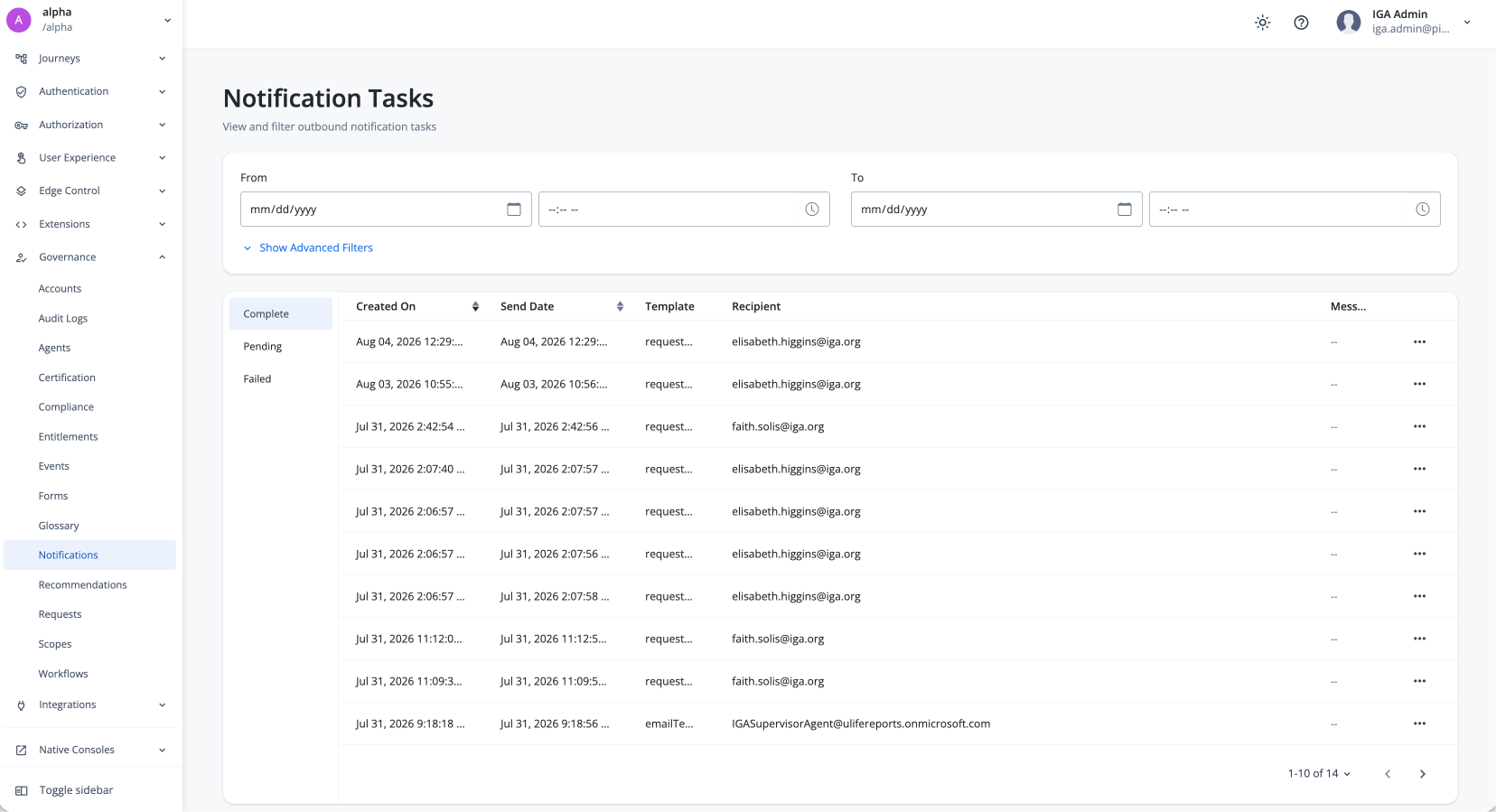
View notifications
To open the Notification Tasks page:
-
In the Advanced Identity Cloud admin console, go to Governance > Notifications.
-
Review the notifications list. Use the pagination control to move between result pages.
Filter notifications by status
Click to display the status:
-
Complete: Displays completed notification tasks.
-
Pending: Displays any pending notifications tasks.
-
Failed: Displays any failed notification tasks.
Review notification fields
The following table lists the notification fields and their descriptions:
| Notification field | Field description |
|---|---|
Created on |
The date and time when the notification was created. |
Send Date |
The date and time when the notification is scheduled to be sent. |
Template |
The notification template. |
Recipient |
The notification recipient. |
Message |
The notification message. |
View notification details
Open a notification’s details to inspect its delivery status and task data. The details show the raw task record for that notification.
-
In the notification list, click the Ellipsis icon (), and then click View Details for a task.
-
Review the raw task JSON to confirm the notification task status, request context, task identifier, remaining delivery attempts, system messages, metadata, and task data.
The taskData object contains notification-specific details, so its fields vary by task.
{
  "date": null,
  "status": "complete",
  "context": {
    "request": "request-0001"
  },
  "type": "notification",
  "id": "notification-task-0001",
  "remainingAttempts": 3,
  "systemMessages": [],
  "metadata": {
    "modifiedDate": "2026-08-25T12:00:00.000Z",
    "createdDate": "2026-08-25T11:55:00.000Z"
  },
  "taskData": {}
}
Filter notifications
Filter notifications to focus on a date range or other criteria. The filtered list helps you find the tasks you want to review:
-
In the From field, enter the start date in
mm/dd/yyyyformat, and select a start time. -
In the To field, enter the end date in
mm/dd/yyyyformat, and select an end time. -
Click Show Advanced Filters to display additional filter options, such as the Object Type. The available values are: All, Campaign, Request, and Violation. You can also run a filter based on a specific notification ID.