Hosted account pages
Hosted account pages are pre-built, customizable web pages that provide end users with self-service capabilities for managing their accounts after they’ve signed on. They’re a key part of the end-user experience and are designed to help you quickly set up common end-user self-service operations without needing to build your own custom web pages from scratch.
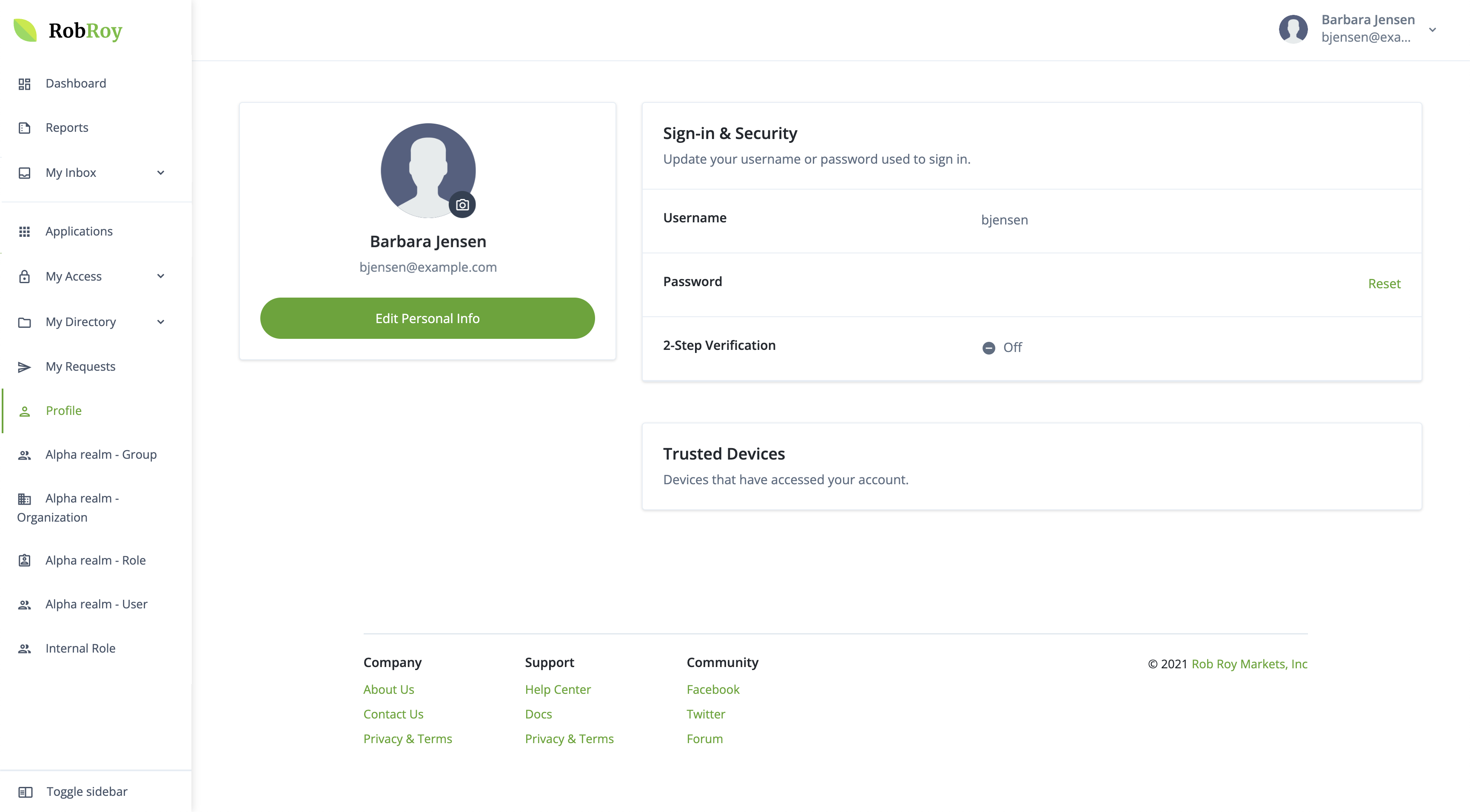
Summary of features
These pages allow authenticated end users to perform essential account management tasks. The specific features available depend on your Advanced Identity Cloud configuration, but commonly include:
-
Profile management: End users can view and update their personal information (for example, name, email address, address) if they’re configured to be editable.
-
Security management:
-
Password updates: Allowing end users to change their password.
-
Multi-factor authentication (MFA): Managing registered devices or two-step verification settings.
-
Security questions: Viewing or resetting their security questions.
-
-
Access and entitlement viewing: End users can see details about their access within integrated applications, which often includes:
-
My applications: Viewing and navigating to applications they have access to.
-
Roles and entitlements: Seeing the roles and specific privileges (entitlements) they have been assigned in onboarded target applications.
-
Account controls: Allowing end users to download or delete their own account data (if enabled).
-
-
Identity governance: With Identity Governance[1], end users can also:
-
Manage delegates: Assign individuals to handle their access reviews or other delegated items.
-
View direct reports: Managers can access the accounts, entitlements, and roles of their direct reports.
-
Manage requests: Create or view requests they have submitted for gaining access to an application, entitlement, or role.
-
Configure the navigation menu
The hosted account pages include a navigation menu that provides easy access to the various self-service features. The menu is configured using navigation profiles. You can create multiple navigation profiles to support different end-user experiences, and assign them to different end users using groups. Each navigation profile can be configured to display a different set of menu items. If an end user isn’t assigned to a navigation profile, the UI uses the navigation configuration in the appropriate hosted pages theme as a fallback. Learn more in Navigation menu display logic.
A high-level overview of the steps to configure the navigation menu is as follows:
-
Configure and promote fallback configuration:
-
In your development environment, for each of your active hosted pages themes, review the navigation menu configuration to ensure that it’s suitable as the fallback configuration for end users who aren’t assigned to any navigation profiles. To review or make changes to a theme:
-
Follow the instructions in Customize the visibility and arrangement of navigation menu items.
-
Use the
Fallback configurationtab when you are presented with the menu configuration options.
-
-
Run a series of promotions to move the updated theme configuration to your UAT[2], staging, and production environments so that the fallback configuration is consistent across all environments. Learn more in:
-
-
Configure navigation profiles:
Perform the following steps in each of your development, UAT[2], staging, and production environments. The navigation profile configuration is dynamic configuration, so you can make changes directly in each environment without needing to promote them.
-
For each end-user experience you want to support:
-
Create a group to represent the end-user experience, and assign end users to the group. For example, you might create a group called
Customer Self-servicefor end users who are external customers, and another group calledEmployee Self-servicefor end users who are internal employees. -
Create a navigation profile to support the end-user experience, and assign it to the group you created.
You can only assign a group to one navigation profile, but navigation profiles can be assigned to multiple groups.
-
Configure the menu items that the navigation profile displays to end users:
-
Follow the instructions in Customize the visibility and arrangement of navigation menu items.
-
Use the
Navigation profilestab when you are presented with the menu configuration options.
-
-
-
Configure the order of your navigation profiles to set their precedence relative to other navigation profiles. If an end user is assigned to multiple navigation profiles, the UI uses the first of these profiles when ranked in ascending order. For example,
1is ranked higher than2.
-