Manage just-in-time access
With JIT access, you request access only for the time you need it. When you submit a request, you see when your access starts and ends, so you always know how long it lasts. From the My Access page, you can review the start and end dates on your grants and request an extension if you still need the same access. As your end date approaches, Identity Governance sends reminder notifications based on your organization’s settings, and after someone approves your extension request (if required), Identity Governance updates your grant so that you keep access only as long as you need it.
View my JIT access start and end dates
Use this procedure to confirm how long your current access lasts:
-
In the Advanced Identity Cloud end-user UI, click My Access.
-
Depending on what you need to review, select one of the following:
-
My Accounts.
-
My Roles.
-
My Entitlements.
-
-
Review the details and find the Start date and End date fields to see when your access begins and when it expires.
Specify a start and end date for a request
-
In the Advanced Identity Cloud end-user UI, click My Requests, and then New Request.
-
In the New Request modal, select add access for yourself or someone else. If you select Other Users, select the user from the list. You can select a maximum of 10 users in a single request.
-
Click Next.
-
On the Access Catalog page, select the access you need: Applications, Entitlements, or Roles.
-
For this example, select Entitlements and select the entitlements you need.
-
Review the entitlement, and then click Add to Request.
-
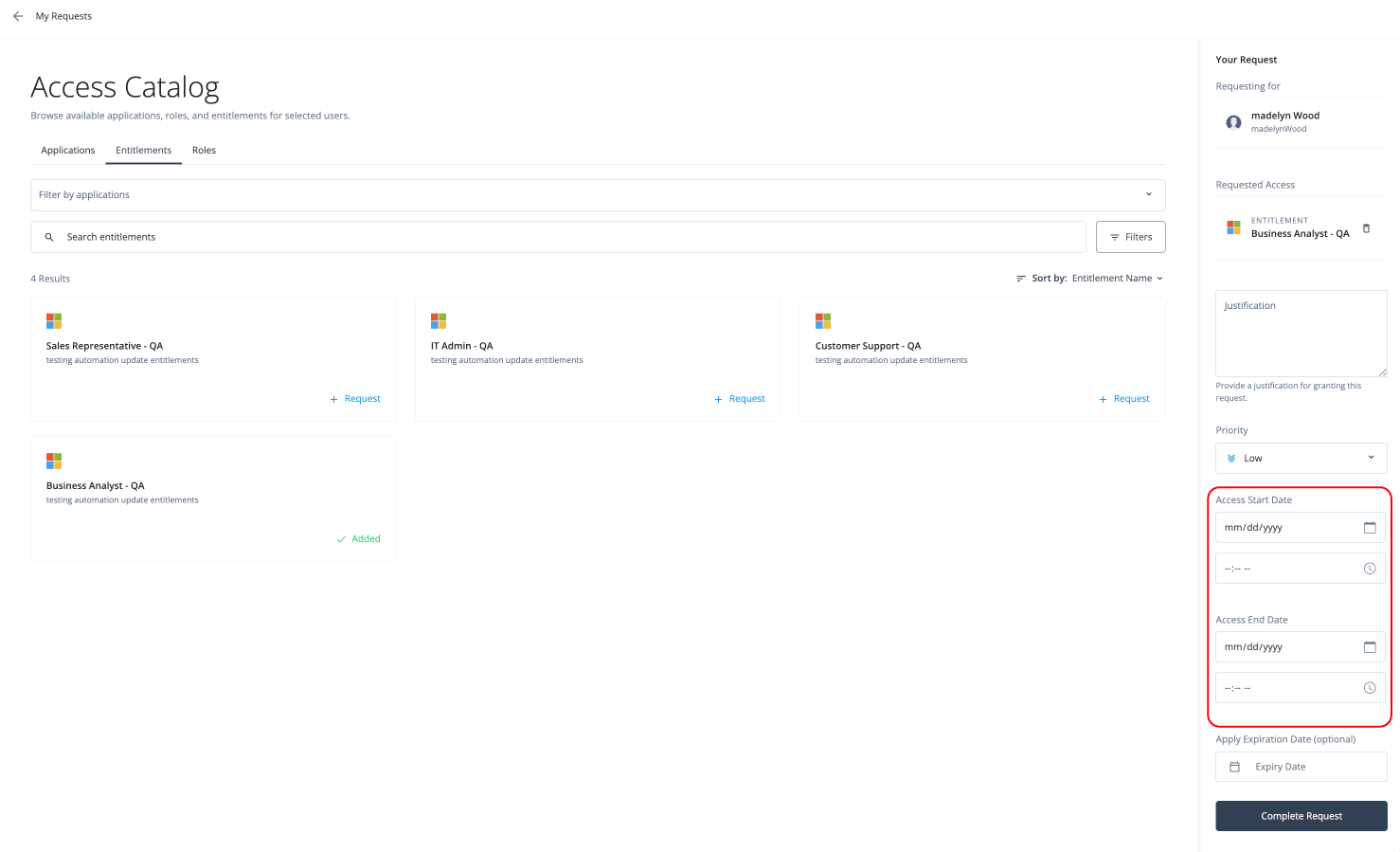
In the right pane, enter the following:
-
Justification: A reason for needing the access.
-
Priority: Select the priority of your request: Low, Medium, or High.
-
Access Start date: When you need the access to begin.
-
Access End date: When you need the access to end.
-
Apply Expiration Date (optional): Click to have the system automatically remove the access on the end date.
If you don’t select this option, the governance or role administrator must manually remove the access when you no longer need it.
-
-
Click Complete Request. Your request appears on the My Requests page.
Extend end date for access
-
In the Advanced Identity Cloud end-user UI, click My Accounts, My Roles, or My Entitlements.
-
Select the access you want to extend by clicking the ellipsis ().
-
Select Extend End Date.
-
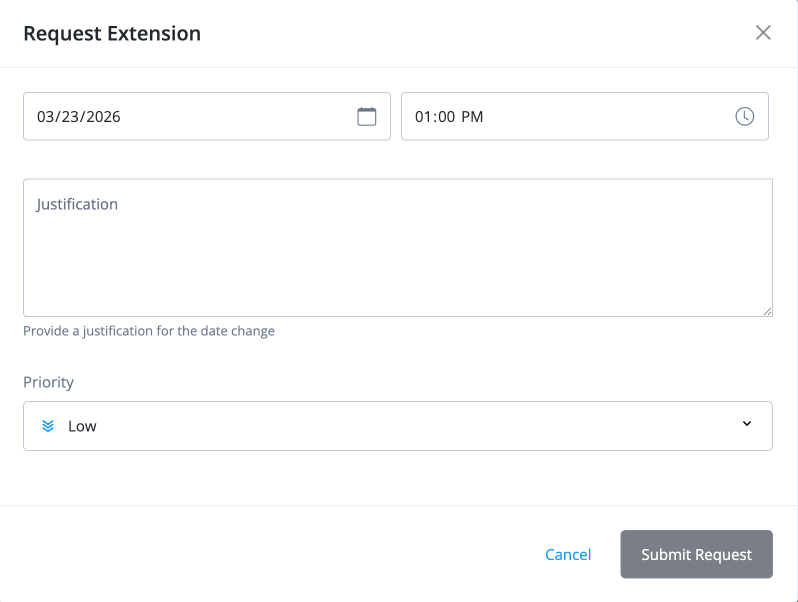
In the Request Extension modal, enter the following:
-
Date: Enter the new end date extension.
-
Time: Enter the time for the new end date extension.
-
Justification: Enter a reason for the extension.
-
Priority: Change the priority of your request if needed: Low, Medium, or High.
-
-
Click Submit Request. Your request appears on the My Requests page, where the owner must approve the extension request to update the end date.