Using risk score in the PingFederate authentication policy
After receiving a request, the Akamai Account Protector IdP Adapter examines it to determine if the Akamai Account Protector header is present. If the header is present, the adapter parses its value as described in the following sections.
|
The default request header the adapter looks for is |
How the adapter handles requests with or without the specified request header
Based on the threshold values configured in the adapter instance, the adapter evaluates the incoming request and determines a risk level. You can then use the resulting risk level and corresponding score to drive authentication policy decisions.
-
Learn more about configuring threshold values in the Medium Limit and High Limit fields described in Akamai Account Protector IdP Adapter settings reference.
-
Learn more about using the risk score in the authentication policy in the Authentication policy configuration section.
If the Akamai Account Protector header isn’t present in the incoming request:
-
The adapter exits, setting the
statustoSUCCESSand thelevelcore contract attribute tonoscore. -
The adapter doesn’t fulfill the
scorecontract attribute.
Configuring the PingFederate authentication policy
-
In the PingFederate admin console, go to Authentication > Policies > Policies and make sure the IdP Authentication Policies checkbox is selected.
-
Open an existing policy or click Add Policy.
You can find more information in Defining authentication policies in the PingFederate documentation.
-
In the Policy area, in the Select list, select a Akamai Account Protector IdP Adapter adapter instance.
-
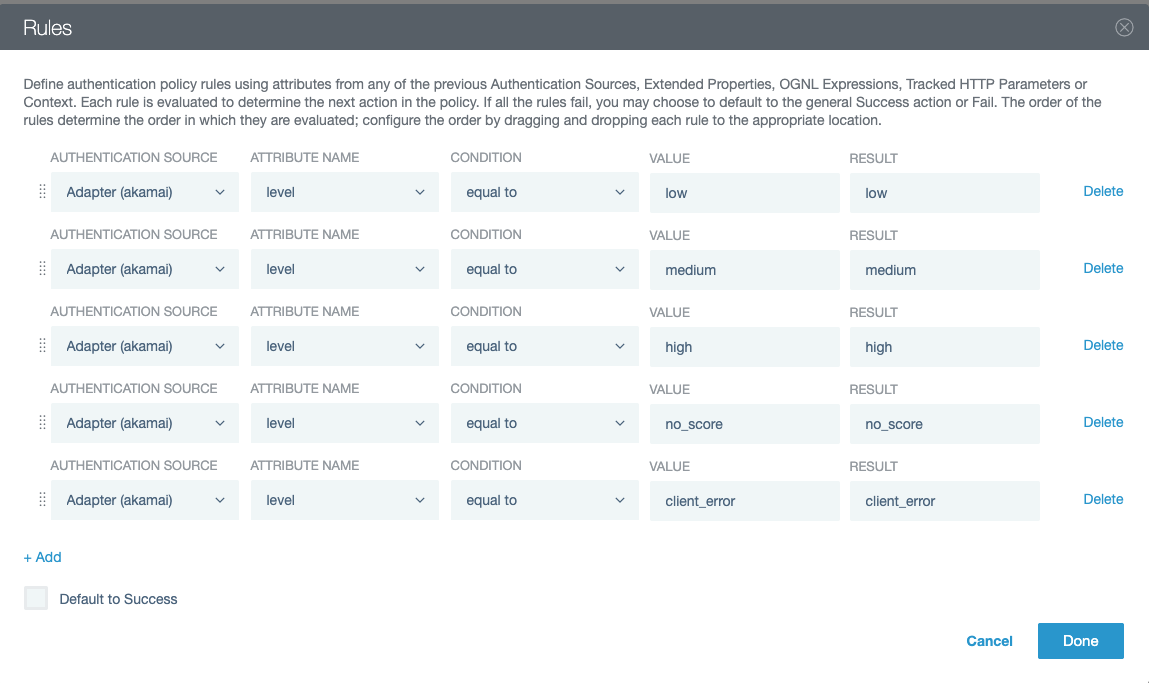
In the Rules modal, create paths for the possible outcomes of the
levelcore contract attribute.You can find more information in Configuring rules in authentication policies in the PingFederate documentation.
-
Under the Akamai Account Protector IdP Adapter adapter instance, click Rules.
-
In the Authentication Source list, select the adapter instance.
-
In the Attribute Name list, select the
levelcore contract attribute. -
In the Condition list, select equal to.
-
In the Value field, enter
low,medium,high,no_score, orclient_error.client_erroris a value the adapter sets if it received the Akamai Account Protector header but encountered a runtime error when reading thescorevalue. For example, if the value isn’t an integer, the adapter can’t determine where it falls as far as the configured Medium Limit and High Limit. -
In the Result field, enter a name.
This appears as a new policy path that branches from the authentication source.
-
To add more policy paths, click Add and repeat steps a - e.
-
(Optional) Clear the Default to success checkbox.
-
Click Done.
For example:
-
-
Configure each of the authentication policy paths you created based on the output of the
levelcore contract attribute. -
Click Done.
-
In the Policies window, click Save.