Creating a key pair
Use the Key Pairs tab of the Certificates and Key Pairs page to set up a key pair for your environment.
Generate a self-signed key pair directly in PingOne for standard single sign-on (SSO) needs like SAML or OAuth. Use this option when your use case doesn’t require a certificate signed by an external authority.
|
Follow the instructions in Importing a key pair if your organization requires a certificate signed by a trusted certificate authority (CA), or if you need a key for specific use cases like SSL/TLS or Windows passwordless authentication. |
Steps
-
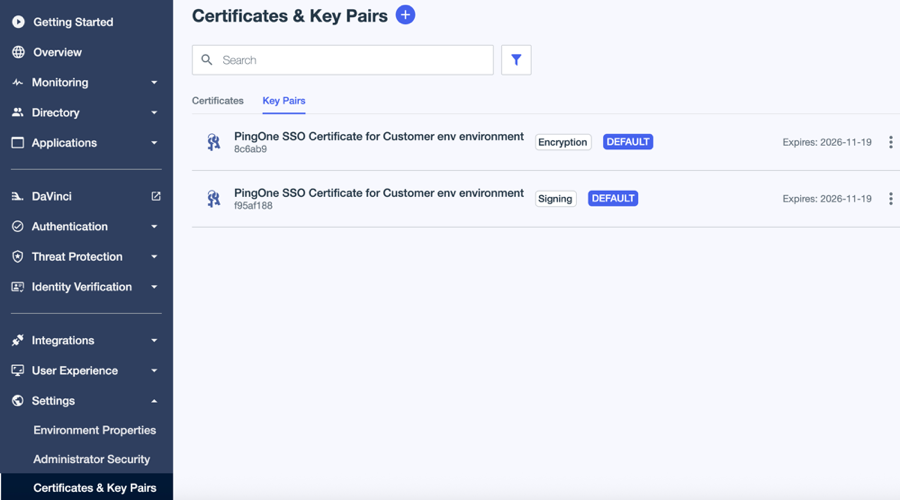
In the PingOne admin console, go to Settings > Certificates and Key Pairs.
-
On the Key Pairs tab, click the icon.
-
Select Create New Key Pair.
-
Enter the following information:
Option Description Common Name
The server name that is covered by the certificate. It is typically made up of the domain name, such as
www.example.com.Don’t use special characters (?, $, % and so on), IP addresses, port numbers, or http:// or https:// in the common name.
Usage Type
Select the primary usage for this certificate.
-
Signing - Verification Used to create and validate digital signatures. Enables the certificate to sign tokens or data so that other systems can verify the signature to ensure authenticity and integrity.
-
Encryption – Decryption: Used to securely protect sensitive data. Allows the certificate to encrypt information so only the holder of the matching private key can decrypt it.
-
SSL/TLS: Used to secure network connections. Supports encrypted HTTPS communication, ensuring secure connections between clients and servers.
-
Issuance: Used by certificate authorities (CAs) to sign and issue other certificates. Typically selected when the certificate will be used to generate subordinate or leaf certificates within a trust hierarchy.
Organization
The corporation, university, or government agency that is covered by the certificate. Use the legal name under which your organization is registered. Don’t use abbreviations or any of these symbols: ! @ # $ % ^ * ( ) ~ ? > < / \.
Organization Unit (optional)
A division within the primary organization, such as
EngineeringorHuman Resources. If your organization does business as a trade name, you can specify the trade or DBA name in this field.City (optional)
The city in which the organization is located. Don’t use abbreviations. For example, spell
Saint Louisrather thanSt. Louis.State (optional)
The state or province in which the organization is located.
Country
The two-character ISO 3166-1 country code. For example,
USfor the United States. You can find more information about country codes in the ISO 3166-1 standard documentation.Validity Days
The number of days the key is valid, with a maximum of 730 days.
Key Algorithm
The public key algorithm with which to generate the public-private key pair. Choose RSA or EC (Elliptic Curve).
Key Size Bits
The number of bits in the key’s algorithm. The available values depend on the selected key algorithm.
Signature Algorithm
The cryptographic algorithm used by the certification authority to sign the certificate. The available values depend on the selected key algorithm.
-
-
Click Save.