Machine-to-machine interaction
Machine-to-machine interaction is one of the use cases supported by OAuth 2.0 token exchange in PingOne. Learn more about how it works and the supported use cases in Configuring OAuth 2.0 token exchange.
Use machine-to-machine token exchange for server-to-server communication without user interaction. In this use case, the application initiating the flow first uses the client credentials grant type to obtain the initial access token from PingOne to access protected data on a resource server.
In ecosystems with multiple resource servers, allowing services unrestricted API access can risk unintended usage and complex dependencies. To further enhance security and maintain least-privilege boundaries, that resource server then uses the token exchange grant type to obtain a new token scoped to each downstream service. This prevents downstream services from accessing the original caller’s token.
Example scenario
A backend system, Zillion Deals, generates the top 10 deals of the week for an online retail store. To complete this task:
-
Zillion Deals needs to retrieve flyers from across the country from a resource server, e-Flyers.
-
e-Flyers must retrieve the best deals from another resource server, Zing.
-
Zillion Deals only communicates with e-Flyers, not directly with Zing. This prevents Zing as the downstream service from accessing Zillion Deals' original token.
What you’ll do
To set up the example scenario for machine-to-machine interaction, you’ll add:
-
Zillion Deals application: This backend application initiates the flow.
-
e-Flyers custom resource: This resource has the information needed by the Zillion Deals application.
-
e-Flyers Token Exchange application: This application processes the token exchange request.
-
Zing custom resource: This resource has additional information the Zillion Deals application retrieves data from without user interaction.
Example tasks
Adding e-Flyers as a custom resource
As a PingOne administrator, add a custom resource in PingOne for the e-Flyers resource server.
Steps
-
In the PingOne admin console, go to Applications > Resources and click the icon.
-
In the Create Resource Profile step:
-
For Resource Name, enter
e-Flyers. -
For Audience, enter the audience for the resource in the format of
https://api.example.com/e. -
(Optional) For Description, enter a brief description of the resource.
-
For Access token time to live, leave the default or optionally edit the maximum time that the access token will be valid for use in the application, in seconds.
-
Click Next.
-
-
In the Attributes step:
-
Leave the default mapping of
subto User ID.Even if you map the
subclaim to a user attribute, such as User ID, the resulting access token won’t contain thesubclaim. This occurs because machine-to-machine interactions have no end users involved because this initial token request uses the client credentials grant type. -
Click Add.
-
Enter an Attribute representing the flyers, such as
e.attrand then click the Gear icon () next to the attribute to open the Advanced Expressions modal. -
In the modal, enter an expression to map the flyers to the attribute, such as
'Eee', and click Save.The
e.attrattribute is an example sample attribute used for demonstration purposes only and isn’t a required attribute. The resulting access token (step 2 in Runtime process overview) will contain thee.attrclaim, where the value is alwaysEee. -
Click Next.
-
-
In the Scopes step:
-
Click Add Scope.
-
For Scope Name, enter a name, such as
e.crud. -
(Optional) Enter a Description for the scope.
-
Click Save.
-
Adding Zillion Deals as an application
Add an application in PingOne for Zillion Deals and assign the scope from the e-Flyers custom resource. Zillion Deals must use the client credentials grant type to obtain access tokens from PingOne to send API requests to e-Flyers to retrieve flyers from across the country.
When minting these access tokens, PingOne populates the attribute claim with the mapped value you provide (e.attr = Eee in this example) and doesn’t include the sub claim because no user is involved (User ID is null).
Steps
-
Go to Applications > Applications and click the icon.
-
In the Add Application panel:
-
For Application Name, enter
Zillion Deals. -
(Optional) Enter a Description for the application.
-
Select an OIDC-based application type and click Save.
-
-
On the Configuration tab:
-
Click the Pencil icon ().
-
For Grant Type, select Client Credentials.
The client credentials grant type is used for machine-to-machine interactions.
-
Leave all other default settings.
-
Click Save.
-
-
On the Resources tab:
-
Click .
-
Assign the resource you created in Adding e-Flyers as a custom resource.
-
Click Save.
-
Adding Zing as a custom resource
Add a custom resource in PingOne for the Zing resource server.
Steps
-
Go to Applications > Resources and click the icon.
-
In the Create Resource Profile step:
-
For Resource Name, enter
Zing. -
For Audience, enter the audience for the resource in the format of
https://api.example.com/z. -
(Optional) For Description, enter a brief description of the resource.
-
For Access token time to live, leave the default or optionally edit the maximum time that the access token will be valid for use in the application, in seconds.
-
Click Next.
-
-
In the Attributes step:
-
Leave the default mapping of
subto User ID.Although you can map the
subclaim to a user attribute, such as User ID, the resulting access token won’t contain thesubclaim. This occurs because machine-to-machine interactions use the client credentials grant type, which doesn’t involve a user. -
Click Add to add another attribute.
-
Enter an Attribute representing the deals, such as
z.attrand click next to the attribute to open the Advanced Expressions modal. -
In the modal, enter an expression to map the deals to the attribute, such as
'Zee', and click Save.The
z.attrattribute is an example sample attribute used for demonstration purposes only and isn’t a required attribute. The resulting access token (step 9 in Runtime process overview) will contain thez.attrclaim, where the value is alwaysZee. -
Click Next.
-
-
In the Scopes step:
-
Click Add Scope.
-
For Scope Name, enter a name, such as
z.read. -
(Optional) Enter a Description for the scope.
-
Click Save.
-
Adding the e-Flyers Token Exchange application
Create an application to handle token exchange requests and obtain access tokens from PingOne to send API requests to Zing. The e-Flyers Token Exchange application must use:
-
The token exchange grant type to ensure e-Flyers can request a token for Zing only when it presents a valid token from Zillion Deals. This maintains the authorization chain and improves audit traceability that the client credentials grant type can’t provide.
-
The application credentials in its token request because only applications can send token requests to PingOne, and custom resources can’t.
When minting these access tokens, PingOne populates the attribute claim with the value you provide (z.attr = Zee) and doesn’t include the sub claim because no user is involved (User ID is null).
Steps
-
Go to Applications > Applications and click the icon.
-
In the Add Application panel:
-
For Application Name, enter
e-Flyers Token Exchange. -
(Optional) Enter a Description for the application.
-
Select an OIDC-based application type and click Save.
-
-
On the Configuration tab:
-
Click .
-
For Grant Type, select Token Exchange.
-
Leave all other default settings.
-
Click Save.
-
-
On the Resources tab:
-
Click .
-
Assign the resource you created in Adding Zing as a custom resource.
-
Click Save.
-
-
Provide the application credentials and custom resource credentials to your organization’s developers for the applications and custom resources, respectively.
Required configurations
The following table lists the required configurations for the applications and custom resources and includes example client IDs that correspond to the runtime process overview:
| Applications | Custom resources |
|---|---|
Zillion Deals
|
e-Flyers
|
e-Flyers Token Exchange
|
Zing
|
Runtime process overview
The following diagram shows a high-level overview of the example machine-to-machine interaction flow:
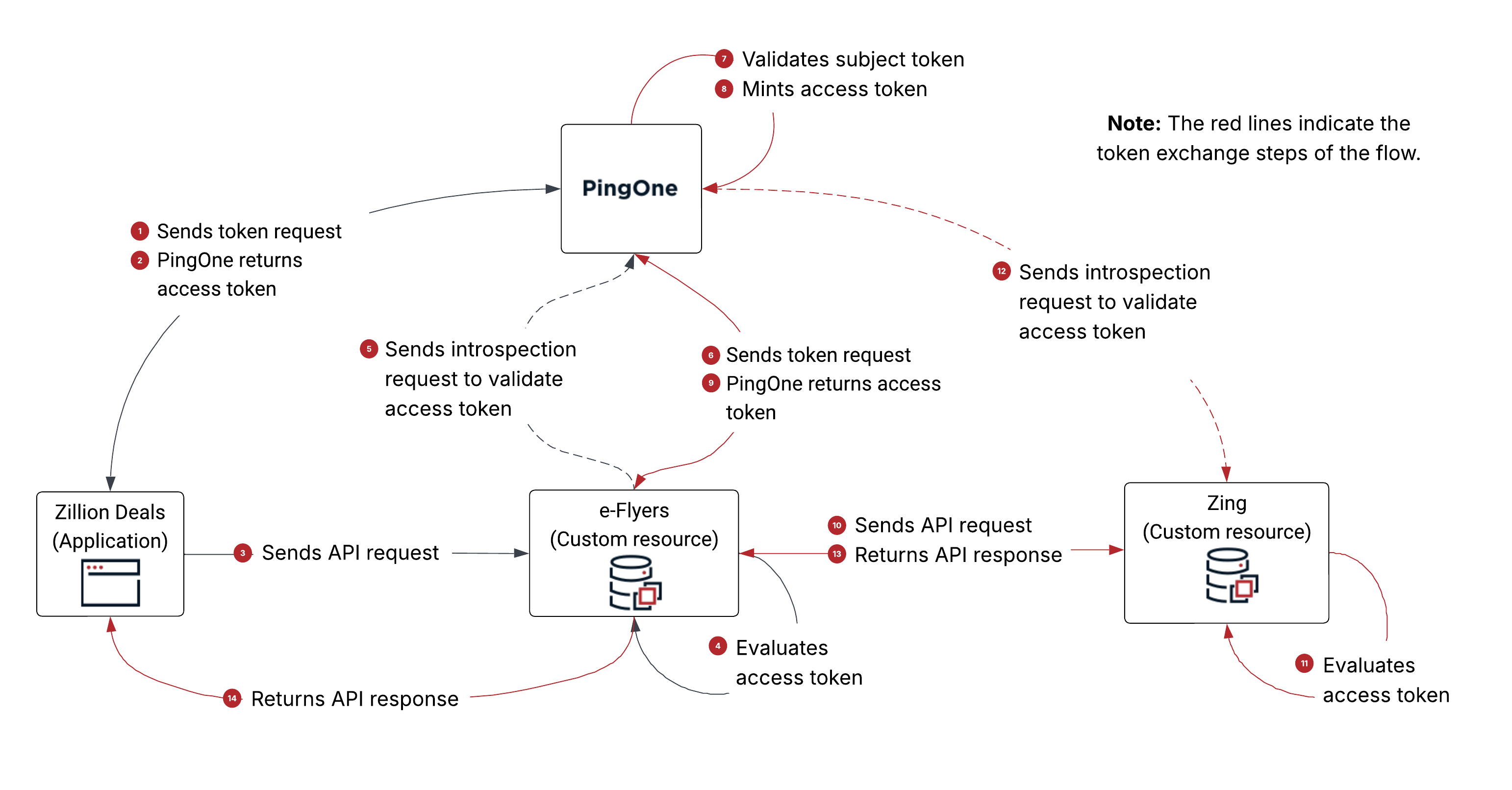
-
Zillion Deals sends a token request to PingOne using the client credentials grant type.
-
For client identification and authentication, Zillion Deals uses the client ID and secret defined in PingOne for Zillion Deals (
client_id=4076de38). -
Zillion Deals includes
scope=e.crudin the token request.
-
-
PingOne returns an access token to Zillion Deals based on the attribute mappings defined in PingOne for e-Flyers.
The payload is decoded as follows:
{ "client_id": "4076de38-d226-49c8-8b47-5f8df21ef3a2", # the client ID of Zillion Deals "iss": "https://auth.pingone.com/6991589d-87eb-47f4-9131-284cebe106b3/as", "jti": "98dccaf3-44d9-47a3-ba56-9f2db0888fca", "iat": 1770161254, "exp": 1770164854, "aud": [ "https://api.example.com/e" # the audience is e-Flyers ], "scope": "e.crud", # the scope of the access token "e.attr": "Eee", "env": "6991589d-87eb-47f4-9131-284cebe106b3", "org": "d4229c38-0f5e-4bf7-9292-9d3b0df7294c", "p1.rid": "98dccaf3-44d9-47a3-ba56-9f2db0888fca" } -
Zillion Deals sends an API request to e-Flyers. For authorization, Zillion Deals includes the access token (from step 2) as the
AuthorizationHTTP request header value in the API request. -
e-Flyers evaluates the access token and determines that:
-
The issuer of the access token is PingOne.
-
The application that requested the token is Zillion Deals.
-
The audience of the access token includes itself, e-Flyers.
-
-
e-Flyers sends an introspection request to PingOne to validate the access token.
For client identification and authentication, e-Flyers uses the client ID and secret defined in PingOne for e-Flyers (
client_id=bc82af8d). -
e-Flyers sends a token request using the token exchange grant type to PingOne.
-
For client identification and authentication, e-Flyers uses the client ID and secret defined in PingOne for the e-Flyers Token Exchange application (
client_id=b03ae60a). -
e-Flyers includes the following parameters in the token request:
-
scope=z.read -
subject_token=<access token from step 3> -
subject_token_type=urn:ietf:params:oauth:token-type:access_token -
requested_token_type=urn:ietf:params:oauth:token-type:access_token
-
-
-
PingOne validates the subject token for the following:
-
The subject token is a valid JWT.
-
The issuer of the subject token matches the issuer of the current PingOne environment.
-
-
PingOne mints an access token based on the attribute mappings defined in PingOne for Zing.
-
PingOne returns a token response containing an access token to e-Flyers.
The following is the token response:
{
    "access_token": "eyJ…", # the access token as a result of the token exchange token request
    "token_type": "Bearer",
    "expires_in": 3600,
    "scope": "z.read",
    "issued_token_type": "urn:ietf:params:oauth:token-type:access_token"
}
The access token is decoded as follows:
{ "client_id": "b03ae60a-e4f9-4e9e-ae3d-52592e61d939", # the client ID of e-Flyers Token Exchange App "iss": "https://auth.pingone.com/6991589d-87eb-47f4-9131-284cebe106b3/as", "jti": "03965dbd-6db1-40a9-92ae-7267faf7808a", "iat": 1770161259, "exp": 1770164859, "aud": [ "https://api.example.com/z" # the audience is Zing ], "scope": "z.read", # the scope of the access token "z.attr": "Zee", "env": "6991589d-87eb-47f4-9131-284cebe106b3", "org": "d4229c38-0f5e-4bf7-9292-9d3b0df7294c", "p1.rid": "03965dbd-6db1-40a9-92ae-7267faf7808a" } -
e-Flyers sends an API request to Zing. For authorization, e-Flyers includes the access token (from step 9) as the
AuthorizationHTTP request header value in the API request. -
Zing evaluates the access token and determines that:
-
The issuer of the access token is PingOne.
-
The application requesting the token is the e-Flyers Token Exchange application.
-
The audience of the access token includes itself, Zing.
-
-
Zing sends an introspection request to PingOne to validate the access token.
-
Zing returns an API response to e-Flyers. At this point, e-Flyers as a resource server can fulfill the API request from Zillion Deals (in step 3).
-
e-Flyers returns an API response to Zillion Deals.