Setting up SSO to PingOne for Enterprise
If your organization has set up PingOne for Enterprise, you can use single sign-on (SSO) from the PingOne admin console to the PingOne for Enterprise tenant. This allows organizations with multiple instances of PingOne for Enterprise to keep track of each environment without having to use a unique email address for each sign-on.
You’ll use SSO to PingOne for Enterprise by selecting the Enable My Ping SSO option on the sign-on page. Although user mapping is accomplished by an administrator signing on with an email address and password, SSO is set up using OpenID Connect (OIDC).
Adding PingOne for Enterprise to an environment
Add PingOne for Enterprise to your existing PingOne environment.
Steps
-
In the PingOne admin console sidebar, click the Ping Identity logo to open the Environments page and browse or search for the applicable environment.
-
On the Environments page, click the environment to open the details panel.
-
Click Manage Environment and click Overview in the sidebar.
-
In the Environment Capabilities section, click the Plus icon ().
-
Click Add next to PingOne for Enterprise and any other products or services that you want to add to the environment.
If you don’t see PingOne for Enterprise in the list, your organization doesn’t have this service configured. Learn more in Building solutions.
-
Click Finish.
Configuring SSO to PingOne for Enterprise
Before you begin
To set up SSO to PingOne for Enterprise, you must have the Organization Admin role assigned in PingOne. Learn more in Administrator Roles.
Steps
-
In the PingOne admin console, go to the Overview page and locate the PingOne for Enterprise entry in the Optional Connections section.
-
Click the More Options icon () and then click Manage SSO.
Result:
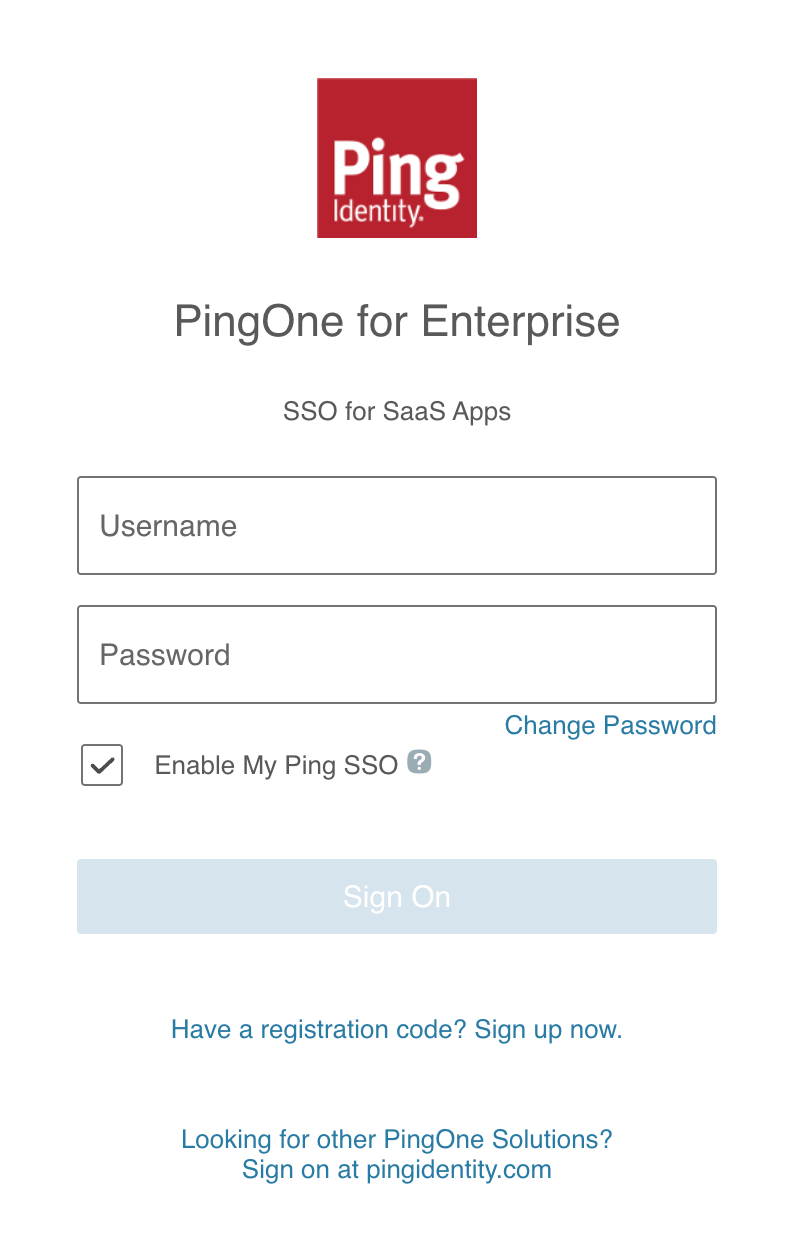
The PingOne for Enterprise sign-on page opens in a new tab.
-
Enter your username and password.
-
Select the Enable My Ping SSO checkbox.
This checkbox displays only if you have the Organization Admin role in PingOne.
-
Click Sign On.
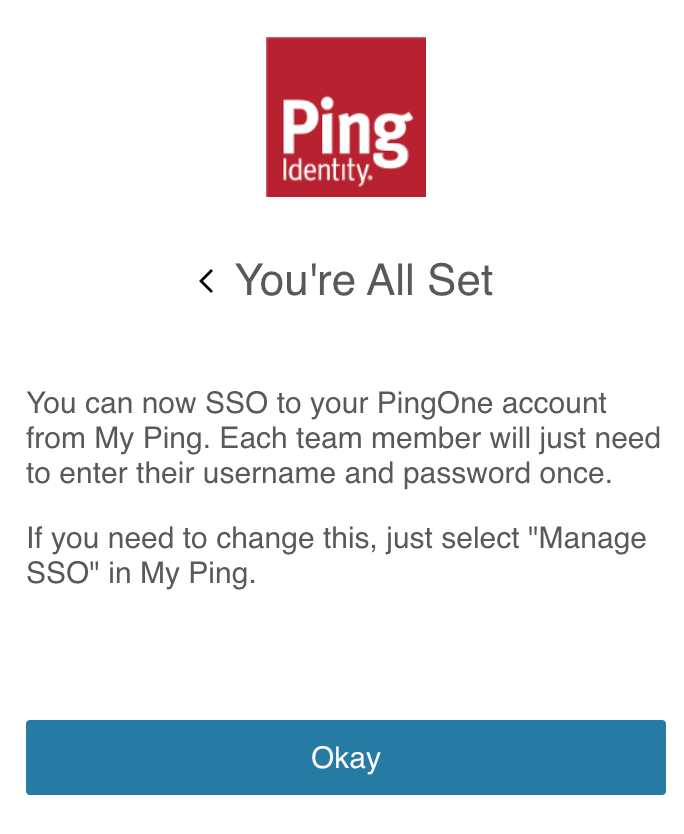
Result:
You see the following message:
-
Click Okay.
-
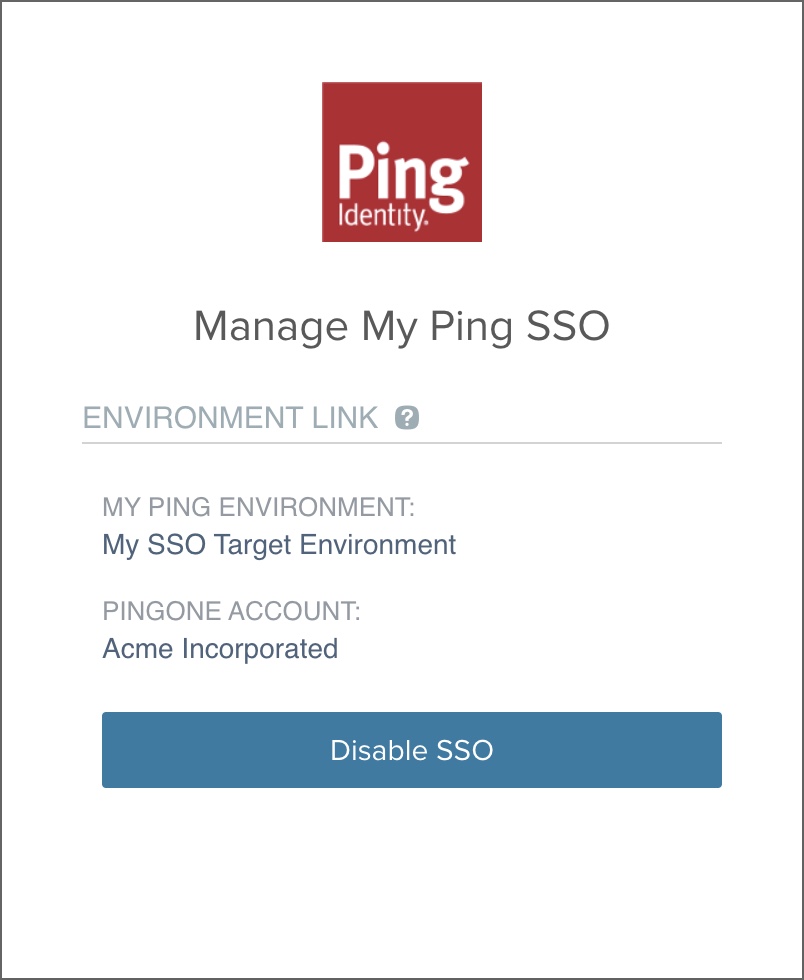
To remove the SSO link to your account or map to a different account, click the Manage SSO link.
The Manage SSO link allows you to unlink your username.
-
If you have the Organization Admin role and you want to unlink the environment for all administrator users, click Disable SSO.