Integrating an existing PingID account with an existing PingOne environment
You can integrate an existing PingID account with an existing PingOne environment.
Before you begin
|
Integration with a PingOne environment is a permanent change. Make sure you connect the correct PingOne environment because after integration is complete this change cannot be rolled back. |
Before the integration process starts, PingOne performs several validations to ensure the PingID account is compatible with the PingOne environment. Before you start the integration process, you can do several checks to minimize the possibility of the validation failing.
Make sure that:
-
You have the necessary licenses:
-
Your PingOne license must cover the same number of unique user accounts that exist in your PingID account.
-
Your PingID account license must still be valid.
To update a license, contact your Ping Identity representative.
-
-
The PingOne environment that you create is in the same geography as your PingID environment.
-
PingOne MFA is not added as a service.
-
Even if PingOne MFA is not added as a service, if the environment includes PingOne SSO, make sure that no paired multi-factor authentication (MFA) devices have been added to the PingOne environment.
Learn more in User Devices report.
-
For environments that use DaVinci flows, the PingOne MFA connector is not included in any existing flows.
-
The user accounts in your PingID environment do not include any duplicate users or usernames that contain unsupported characters. You’ll have the opportunity to fix issues during the PingID account validation process. Learn more about how to fix issues before you begin and find more detailed technical information in "Duplicate users found" error when attempting to connect a PingID environment to PingOne in the Ping Identity Support Portal.
-
Some policy rules are deprecated in PingOne. You’ll need to remove them from the legacy PingID web portal before you start the integration:
-
Remove the Mobile OS version rule from any PingID polices. In PingOne, the functionality in this rule is provided by the Device Requirements. To ensure existing Mobile OS version rule functionality is migrated to PingOne:
-
Before migration, in the legacy PingID admin portal, go to Setup > PingID > Device & Pairing and add the relevant requirements. The configuration is migrated to PingOne automatically and can be edited in the Device Requirements section of the PingID application.
-
-
Remove the location-based part of the following rules:
-
Access from the company network rule
-
Recent authentication from the office rule
-
Recent authentication from company network rule
-
-
In PingOne environments, the Limit Push Notification Rule is updated to a configuration in the MFA policy. If you have the rule defined in the PingID admin portal, you’ll be asked to redefine it during the integration process.
-
Integrate your existing PingID account with an existing PingOne environment so that you can:
-
Manage PingID users from PingOne
-
Allow users to manage their devices using MyAccount.
-
Apply a FIDO policy to PingID user accounts.
-
Implement a Windows login passwordless flow.
Steps
-
In the PingOne admin console sidebar, click the Ping Identity logo to open the Environments page and browse or search for the applicable environment.
-
Click the environment to open the details panel.
-
Click Manage Environment and click Overview in the sidebar.
-
In the Environment Capabilities section, click the Plus icon ().
-
In the Add a Capability list, click Add next to Workforce Authentication (PingID).
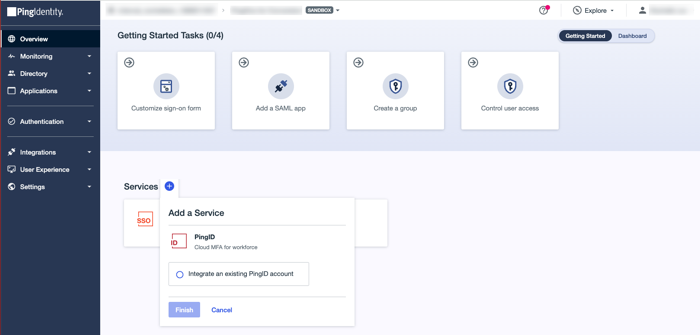
If the PingOne environment didn’t include PingOne SSO, it’s added automatically.
-
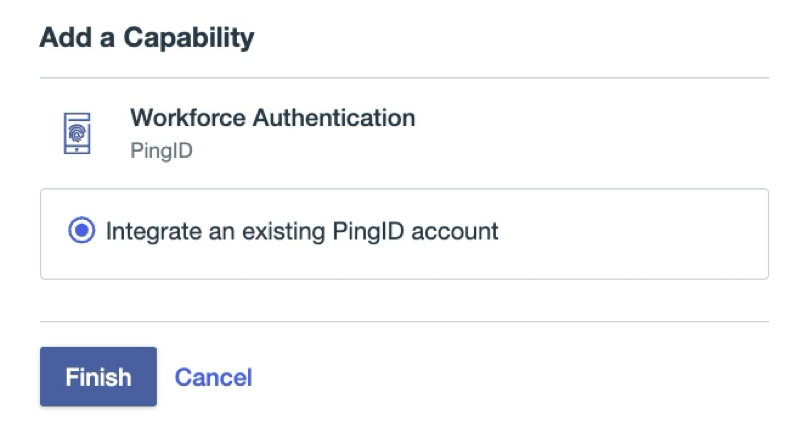
In the Add a Capability modal, click Integrate an existing PingID account and click Finish.
-
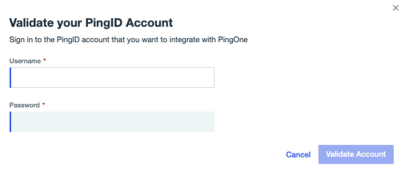
Enter the username and password for the PingID account you want to integrate and then click Validate Account.
-
Don’t close the window during the validation process, which can take several minutes.
-
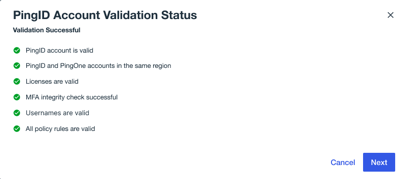
The validation wizard lists any issues that cause the validation to fail. Some issues can be fixed during the validation process. Others, such as licensing issues, must be fixed independently. Fix all issues, then rerun the validation, if required.
The Validation Successful status displays.
-
-
Click Next.
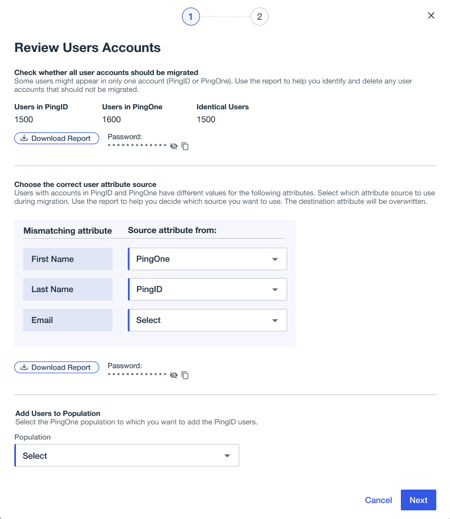
PingOne performs a review of the user accounts in PingID and PingOne and provides a list of actions required before migration. It also provides a summary of the user distribution indicating the number of accounts that are unique to PingID or PingOne and the number that they have in common (Identical Users).
The Review User Accounts page displays only the actions required that are relevant to your integration.
-
Perform the actions listed for the user accounts you want to integrate, and then click Next.
-
If you have user accounts that only appear in either PingID or PingOne, or have mismatching attributes within the same user account, you’ll need to fix them. Click Download next to the relevant section to download a report to help you.
-
For user accounts that are unique to PingID, select the population in which you want to create those user accounts in PingOne.
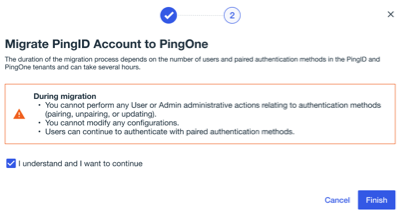
The Migrate PingID Account to PingOne page displays.
-
Migration can take several hours, depending on the number of users and paired authentication methods in the PingID and PingOne tenants. During migration, you can’t perform user or admin administrative actions relating to authentication methods including pairing, unpairing, updating, or modify any configurations.
-
Users can continue to authenticate with authentication methods that are already paired.
-
-
Click I understand and want to continue, and then click Finish.
You can check progress in the Overview page for the environment.
When integration is complete, a Migration completed label displays on the Workforce Authentication (PingID) capability.
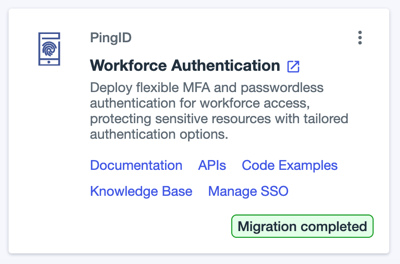
If the migration fails, a message shows indicating when you can retry migration (usually after 24 hours) and includes a link to the PingID migration report. View the report and fix any issues before you restart this procedure. If you require further help, contact your Ping Identity support representative.
Result
You can now manage your users through PingOne. Although most of the PingID APIs are still supported, you should use the PingOne APIs when working out of PingOne. Learn more in What you need to know before integrating or migrating a PingID account into a PingOne environment.
Learn more
Learn more about:
-
Post-requisites that might be required for your environment.
-
Allowing your users to manage their devices using MyAccount.
-
Implementing a Windows login passwordless flow in PingOne in the best practices documentation.