Scenario 1: Simple promotion without dependencies (early access)
The goal of this scenario is for you to complete the first promotion of the My First App application from the Promotion-Source environment to the Promotion-Target environment. As part of the promotion, you’ll also create some promotion variables.
In this first scenario, My First App has no dependencies.
Configure promotion variables in the source environment
As you prepare for your promotion, you’ve determined that although you want most of the configuration for My First App to be the same in both the source and target environments, you want to use different URLs for the Signoff URLs and Redirect URIs settings. To manage these differences, use promotion variables, which you’ll create in the Promotion-Source environment.
Steps
-
Sign on to the PingOne admin console for the Promotion-Source environment.
-
Go to Promote > Promotion Variables and click Create Promotion Variable.
-
In the Select Target Environment modal, select Promotion-Target in the Target Environment list.
-
Select The correct environment is selected and I want to continue and click Confirm.
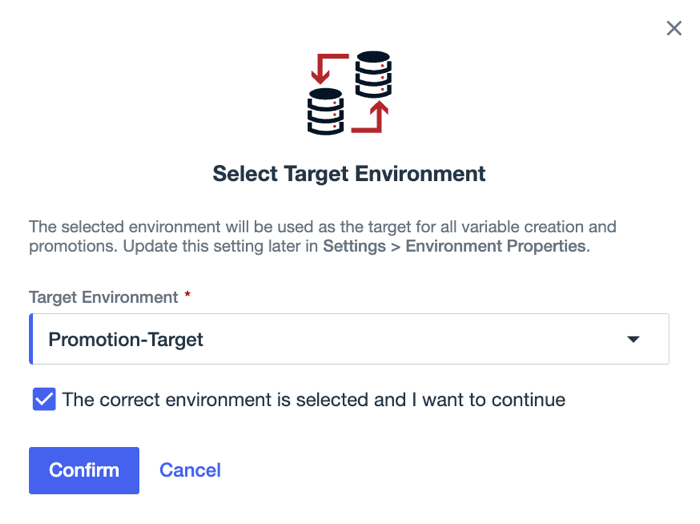
After you confirm the target environment, PingOne determines the resources for which you can create variables.
-
On the Create Variables page, in the Resource Details section, select Application in the Category list.
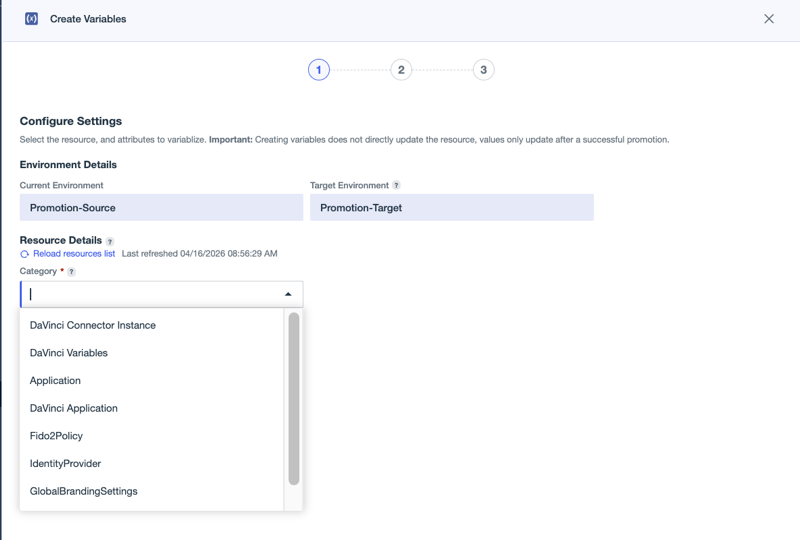
Categories allow you to narrow down the list and find what you’re looking for more easily.
You might need to click Reload resources list to pick up categories for configuration resources that were recently added to the environment.
Result
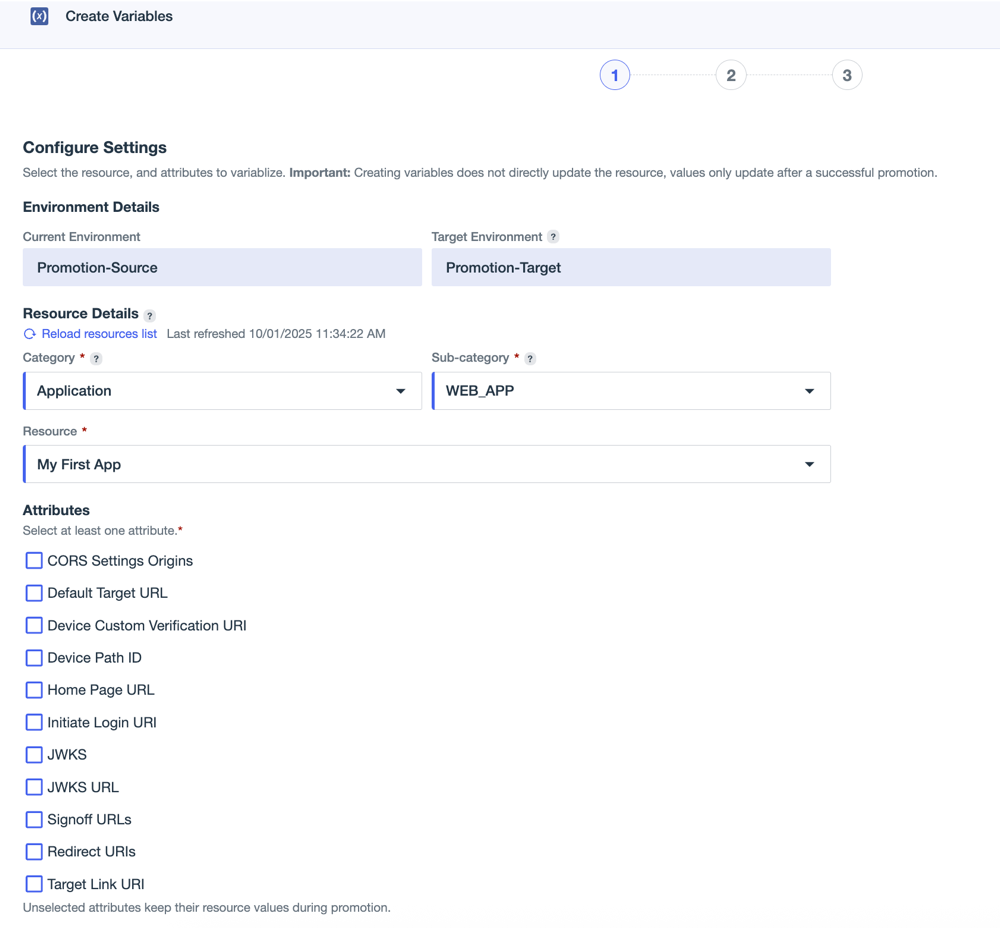
The subcategory auto-fills with Web App because My First App is the only application in the environment, and it’s an OIDC web application. Because there are no other applications in this environment, My First App is also selected automatically in the Resource list.
The Attributes list shows all of the application configuration attributes for which you can create variables.
-
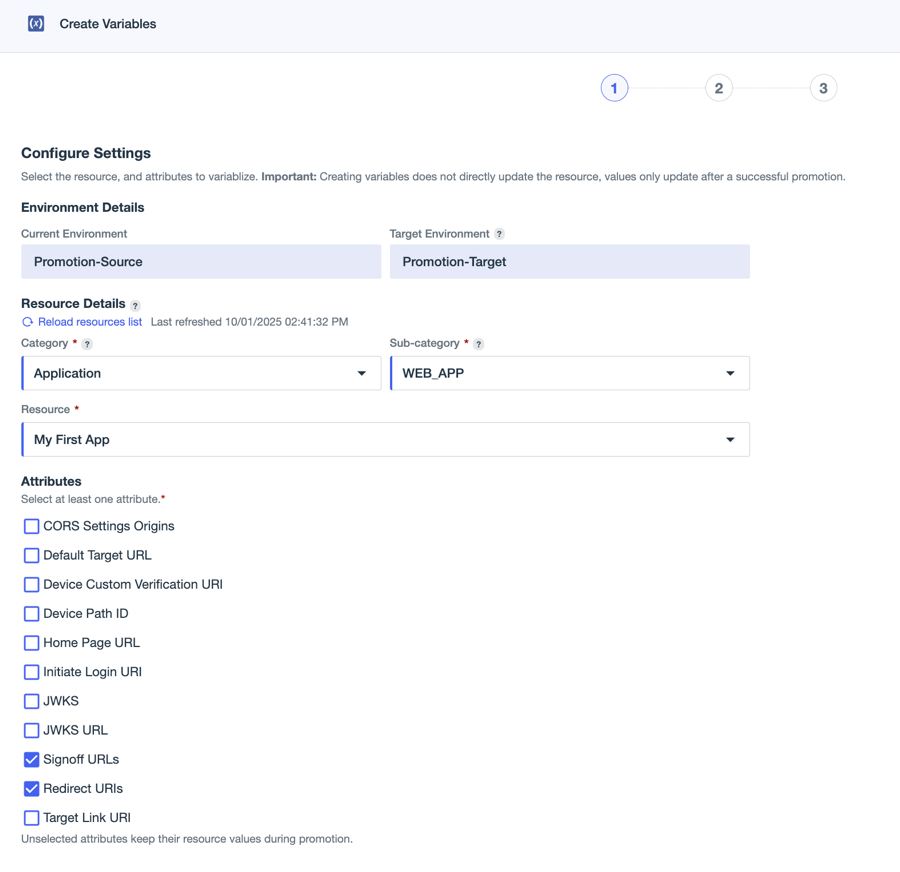
Select Signoff URLs and Redirect URIs, then click Next.
-
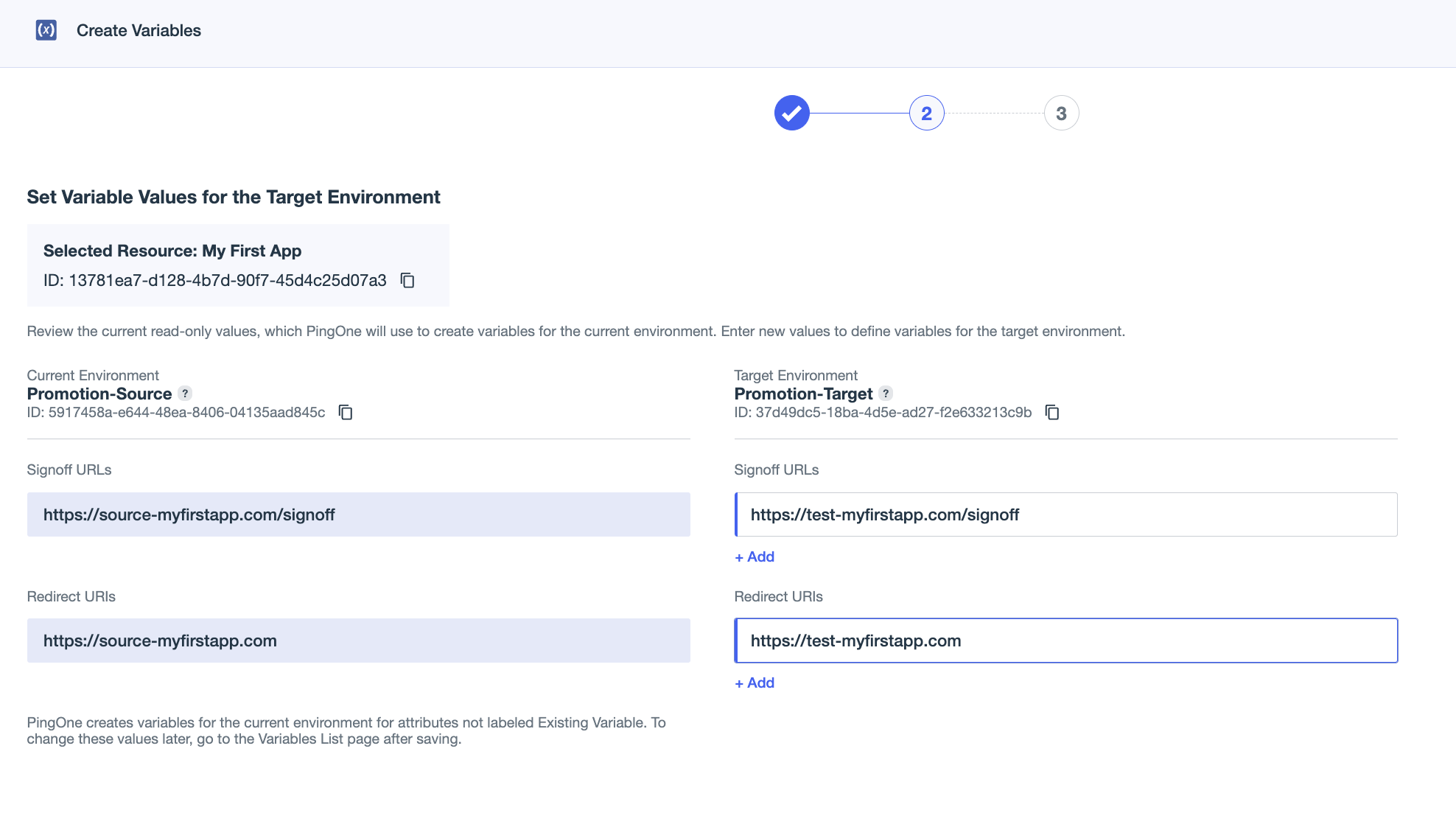
Set the following variable values to use in the Promotion-Target environment.
The values for the source environment are displayed on the left, and you define the target environment values on the right.
-
Signoff URLs:
https://test-myfirstapp.com/signoff -
Redirect URIs:
https://test-myfirstapp.com
-
-
Click Next.
-
On the Review and Save page, confirm the variable configuration and click Save.
Result
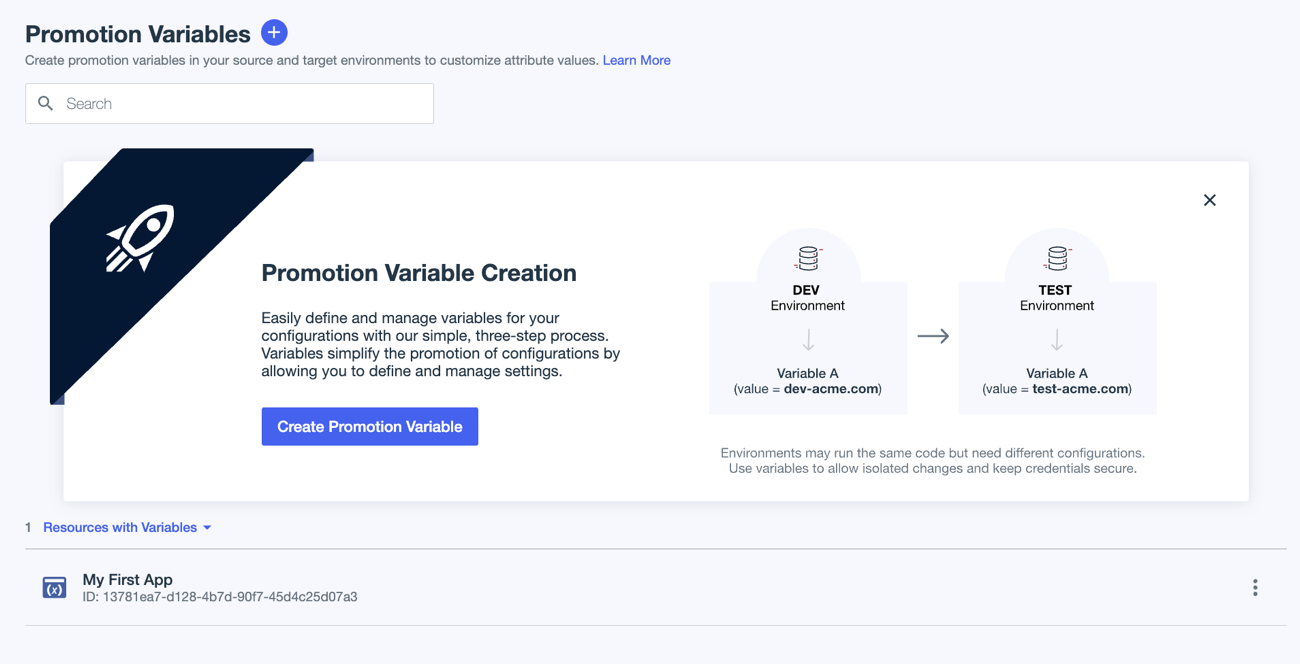
You’re returned to the Promotion Variables page. My First App is listed in the Resources with Variables section.
Configure and run the promotion in the source environment
To configure the promotion, you’ll confirm the target environment and select My First App as the resource to promote. Next, you’ll decide whether the resource should be created as new in the target environment or mapped to an existing resource. Finally, you’ll review the promotion details and run the promotion.
Steps
-
In the PingOne admin console for the Promotion-Source environment, go to Promote > Promotions.
-
Click Run a Promotion.
-
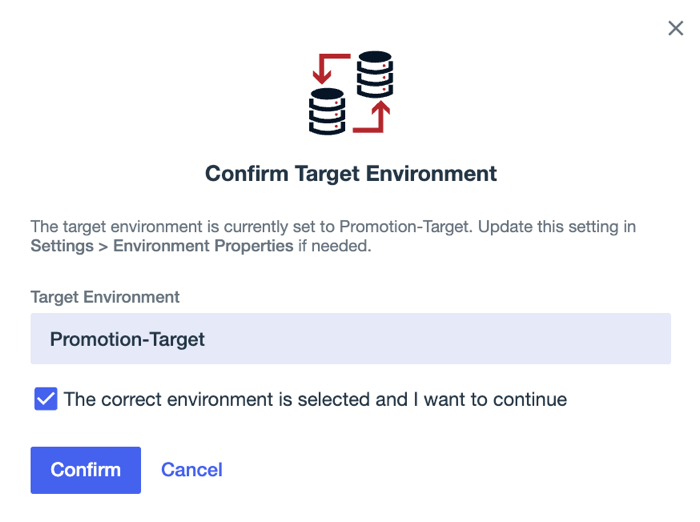
In the Confirm Target Environment modal, ensure that Promotion-Target is selected in the Target Environment list.
-
Select The correct environment is selected and I want to continue and click Confirm.
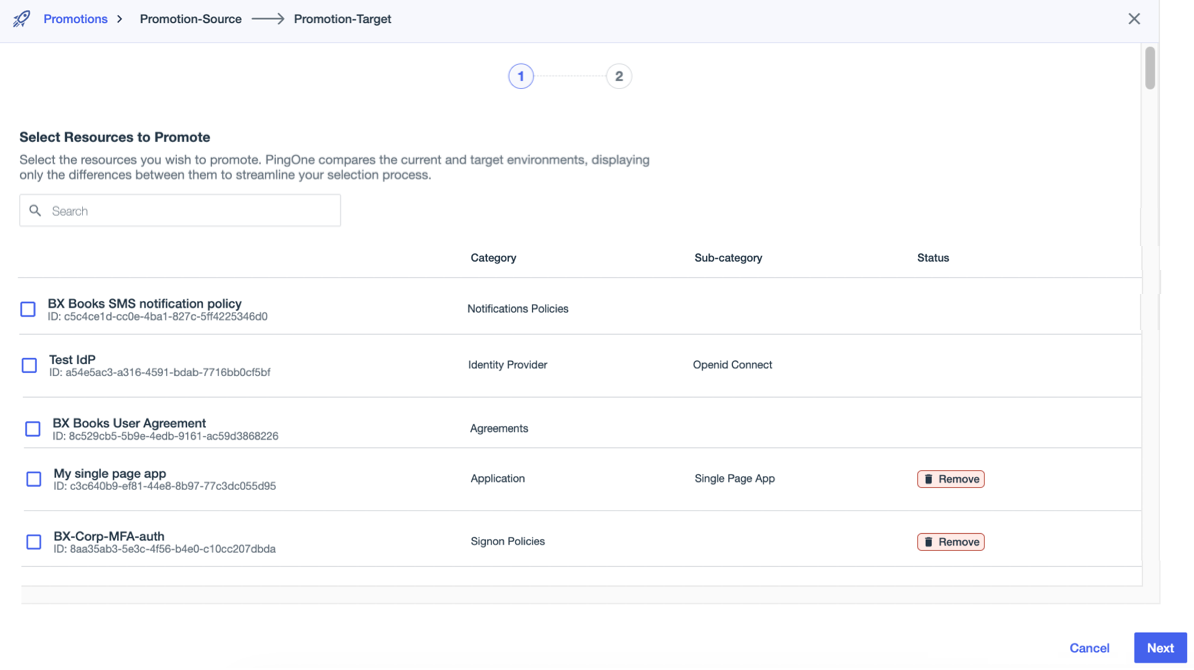
After you confirm the target environment, PingOne takes snapshots of the two environments, compares configuration resources, and lists the resources that you can promote.
-
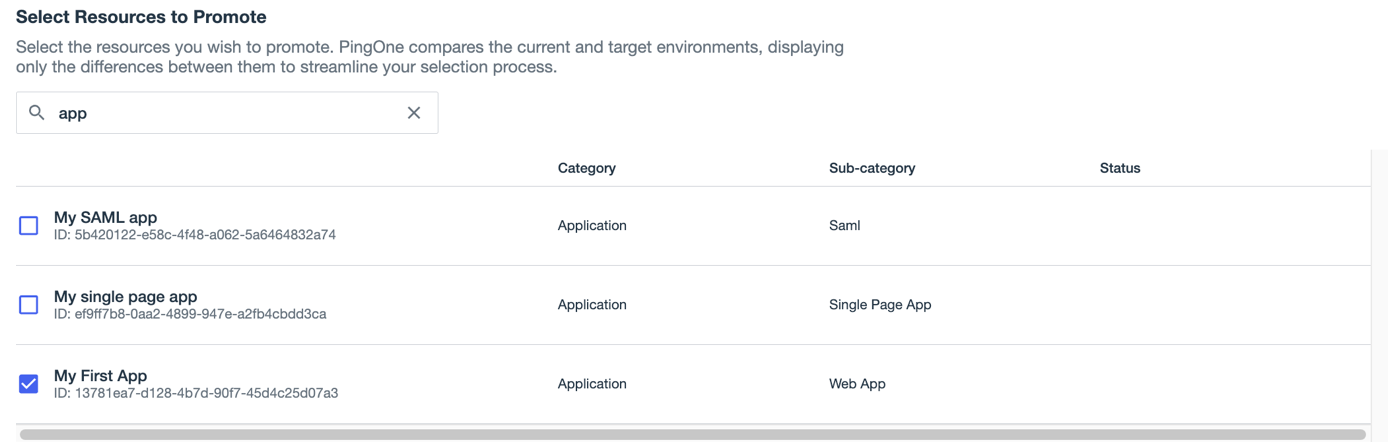
On the Select Resources to Promote page, search for My First App and select it.
-
Click Next.
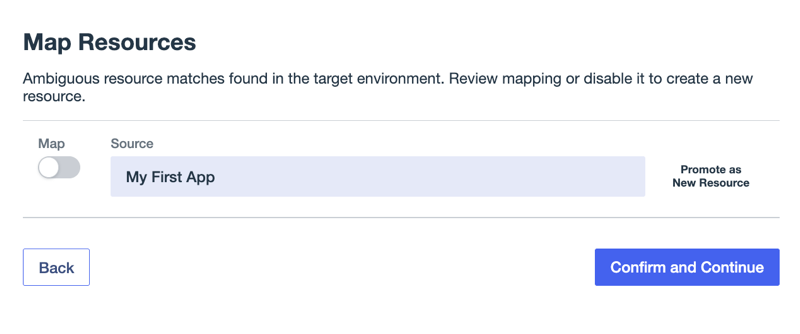
Because this is the first time you’re promoting the app to the target environment, you’re prompted to map it to a resource in the target environment.
On the Map Resources page, you can see that the promotion service didn’t find a corresponding resource in the Promotion-Target environment. In this case, you’ll promote the app as a new resource.
-
Click Confirm and Continue.
-
On the Confirm Promotion page, review the details for the promotion.
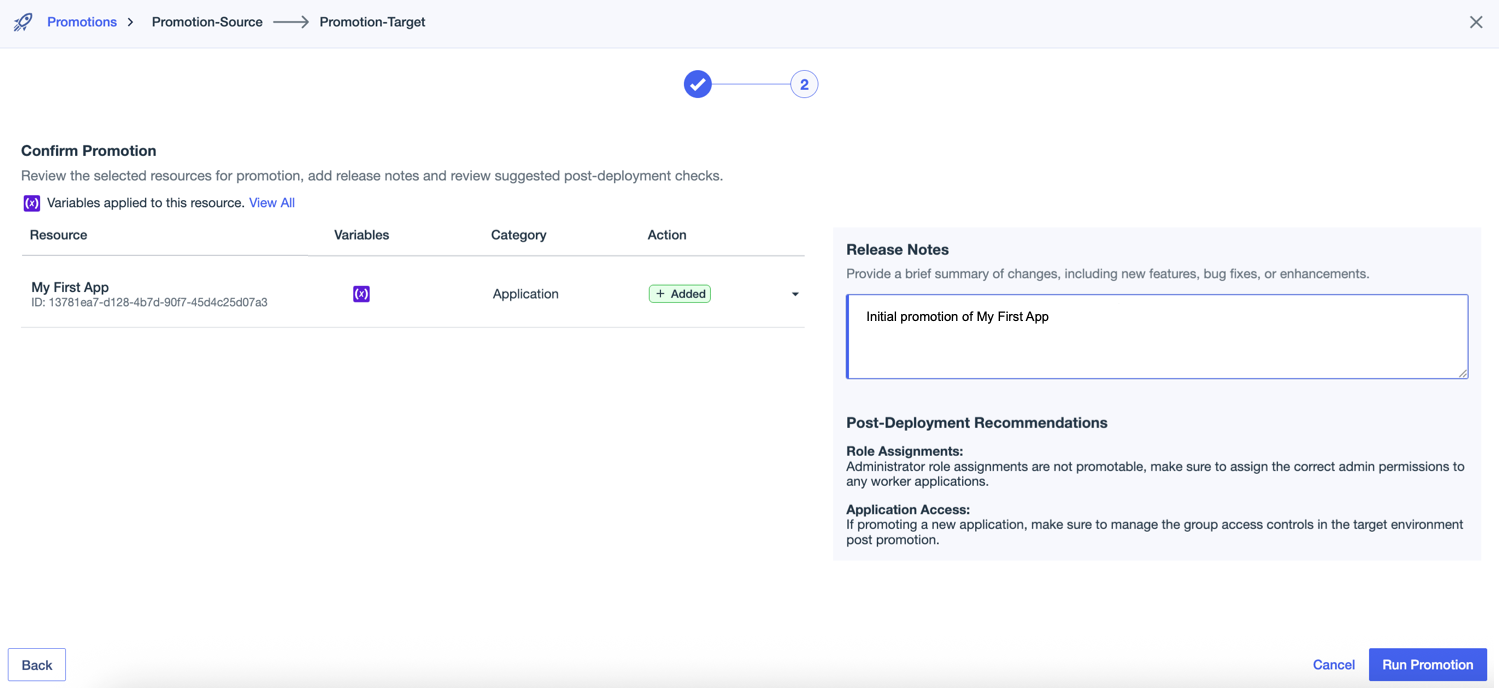
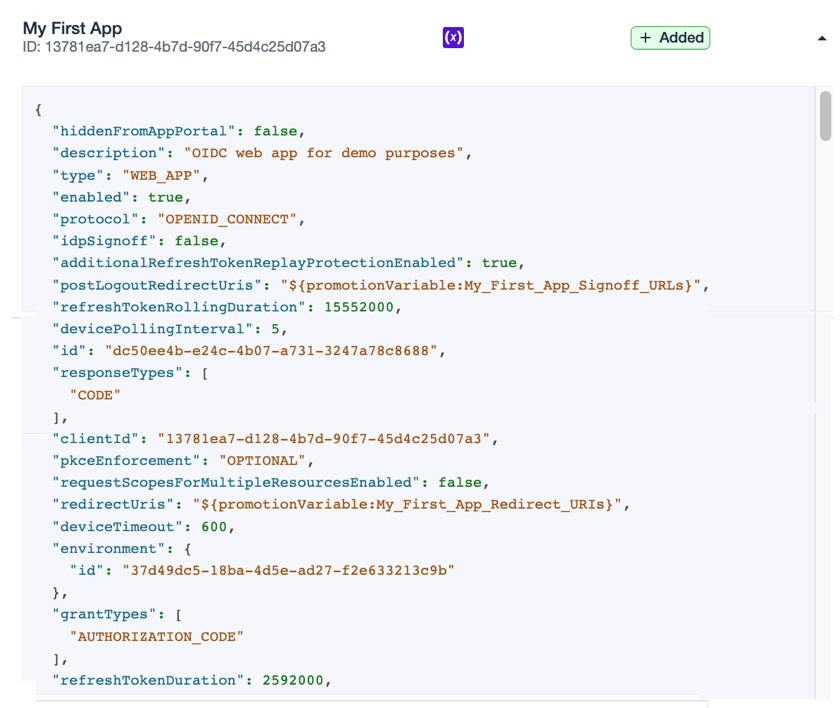
To view the JSON for the resource you’re promoting, click the down arrow on the right side of the table. Viewing the JSON allows you to visually inspect and verify the exact configuration values for the resource before you run the promotion.
-
Click Run Promotion.
Result
You’re returned to the Promotions page and the current promotion is listed with a status of In Progress. After about 30 seconds, refresh the page. The status will change to Success for a successful promotion.
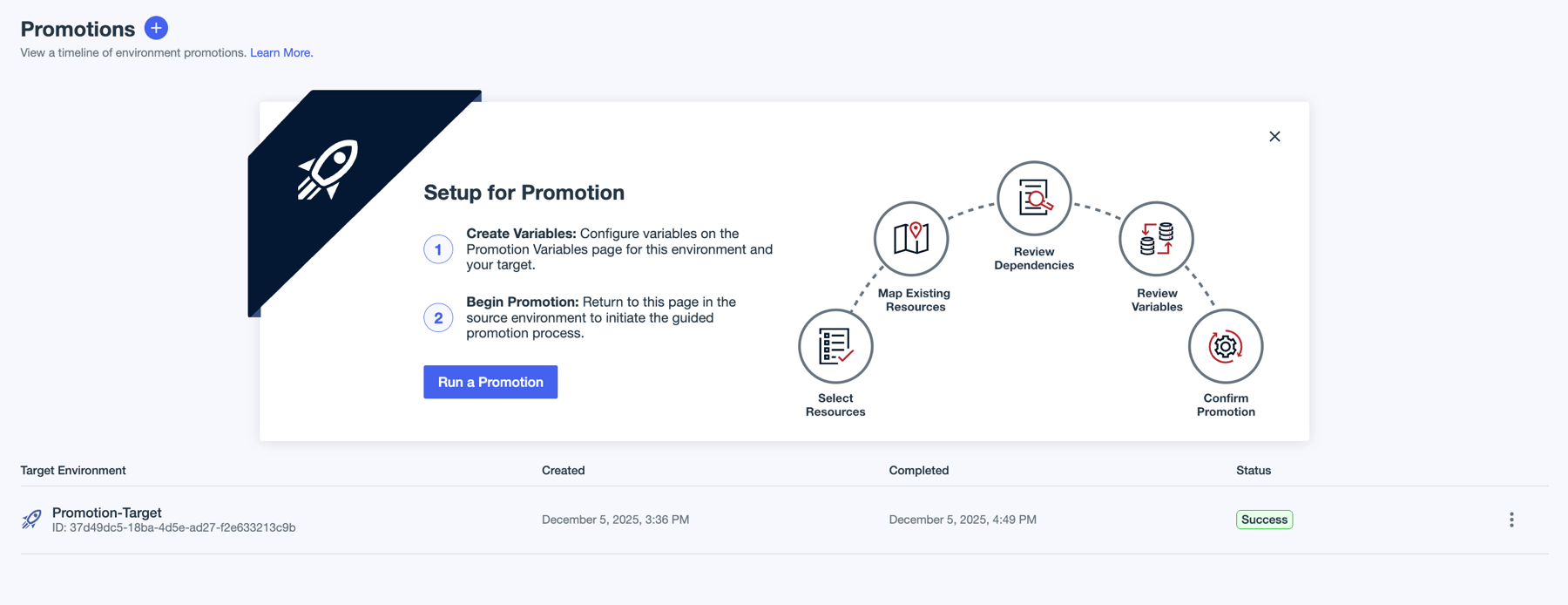
Verify the promotion
To verify the results of the promotion, first confirm the details of the promotion in the source environment, then ensure that the My First App application now exists in the target environment.
Steps
-
In the PingOne admin console for the Promotion-Source environment, go to Promote > Promotions.
-
Locate the promotion in the list, click the More Options icon (⋮), and select View.
Promotions are listed in reverse chronological order, so the most recent promotion appears at the top of the list.
- Overview tab
-
The Overview tab shows information about when the promotion was started and completed, the source and target environments, the status of the promotion, and any release notes that were added.
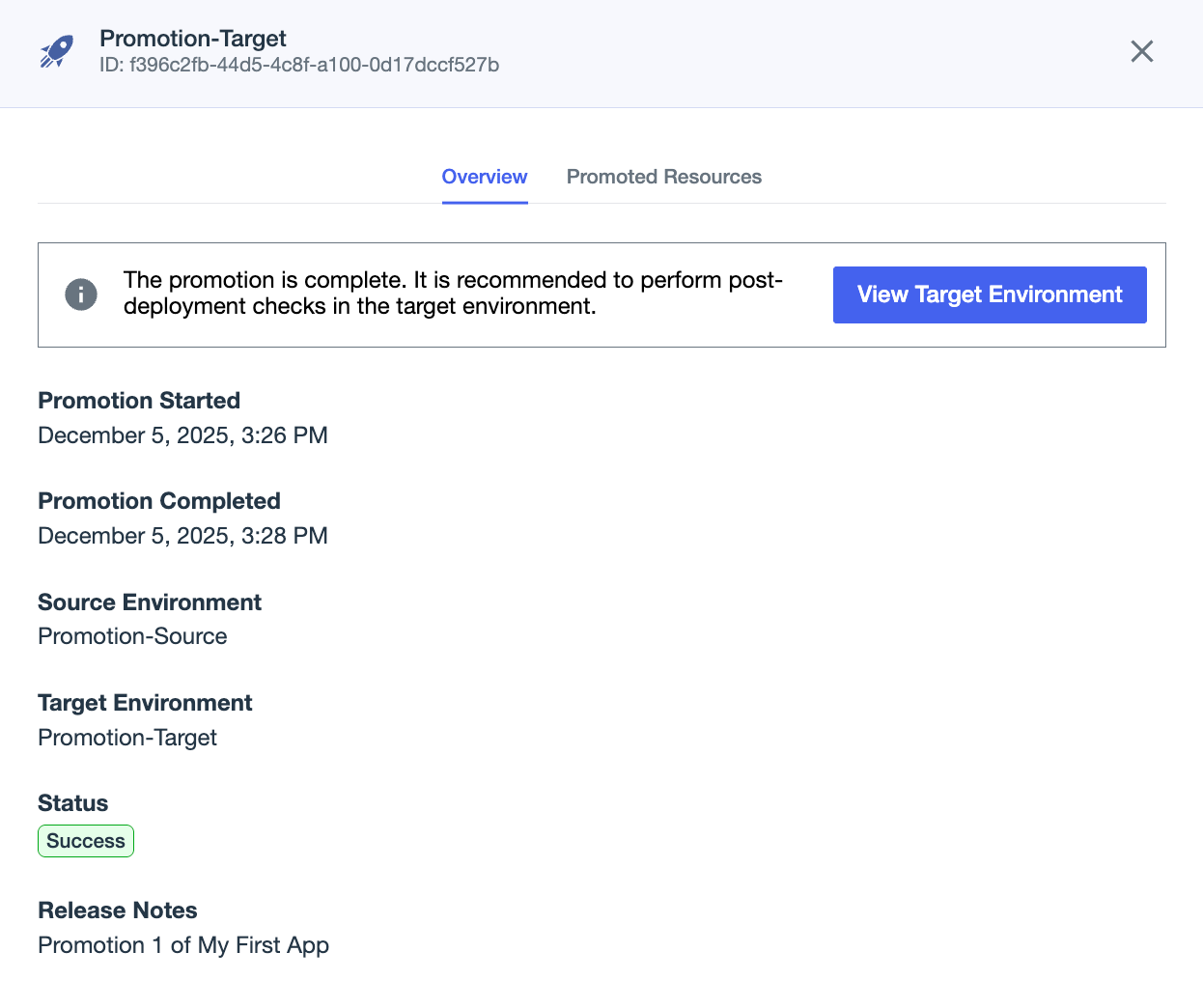
- Promoted Resources tab
-
The Promoted Resources tab shows the details about the resources that were promoted.
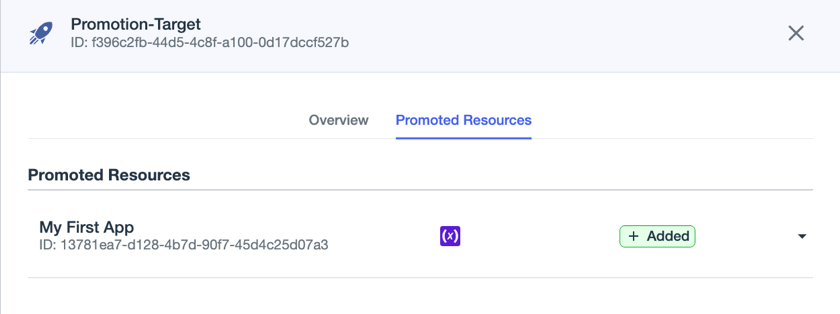
-
On the Overview tab, click View Target Environment.
You’re taken to the PingOne admin console for the target environment so that you can confirm that the promoted resources exist and match what you expect.
-
For this scenario, go to Applications > Applications, browse or search for My First App, and click it to open the details panel.
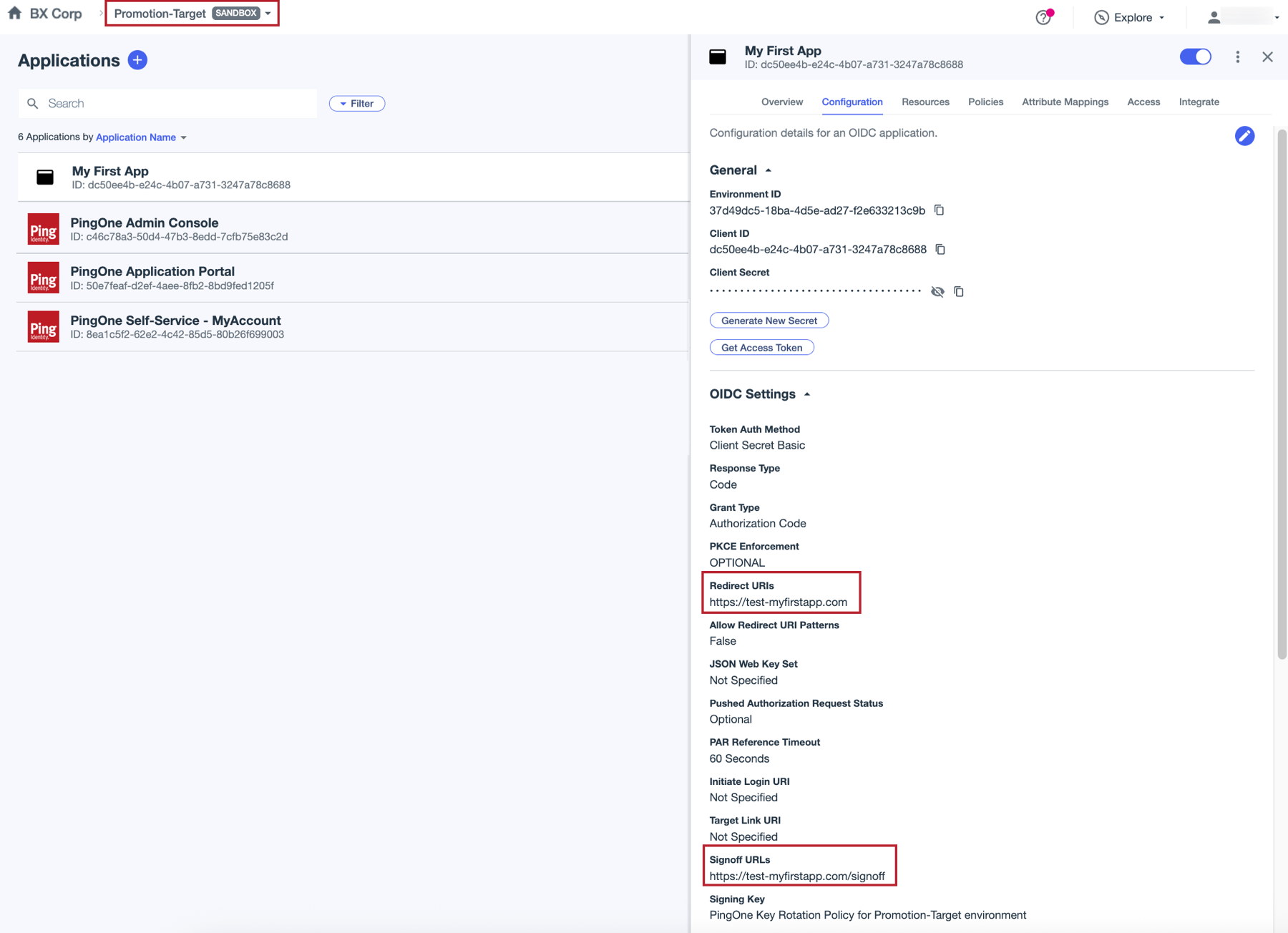
Result
My First App now exists in the Promotion-Target environment, and the values for the Signoff URLs and Redirect URIs match the values you configured when you configured the variables for the promotion.