Using the Identity Verification Dashboard
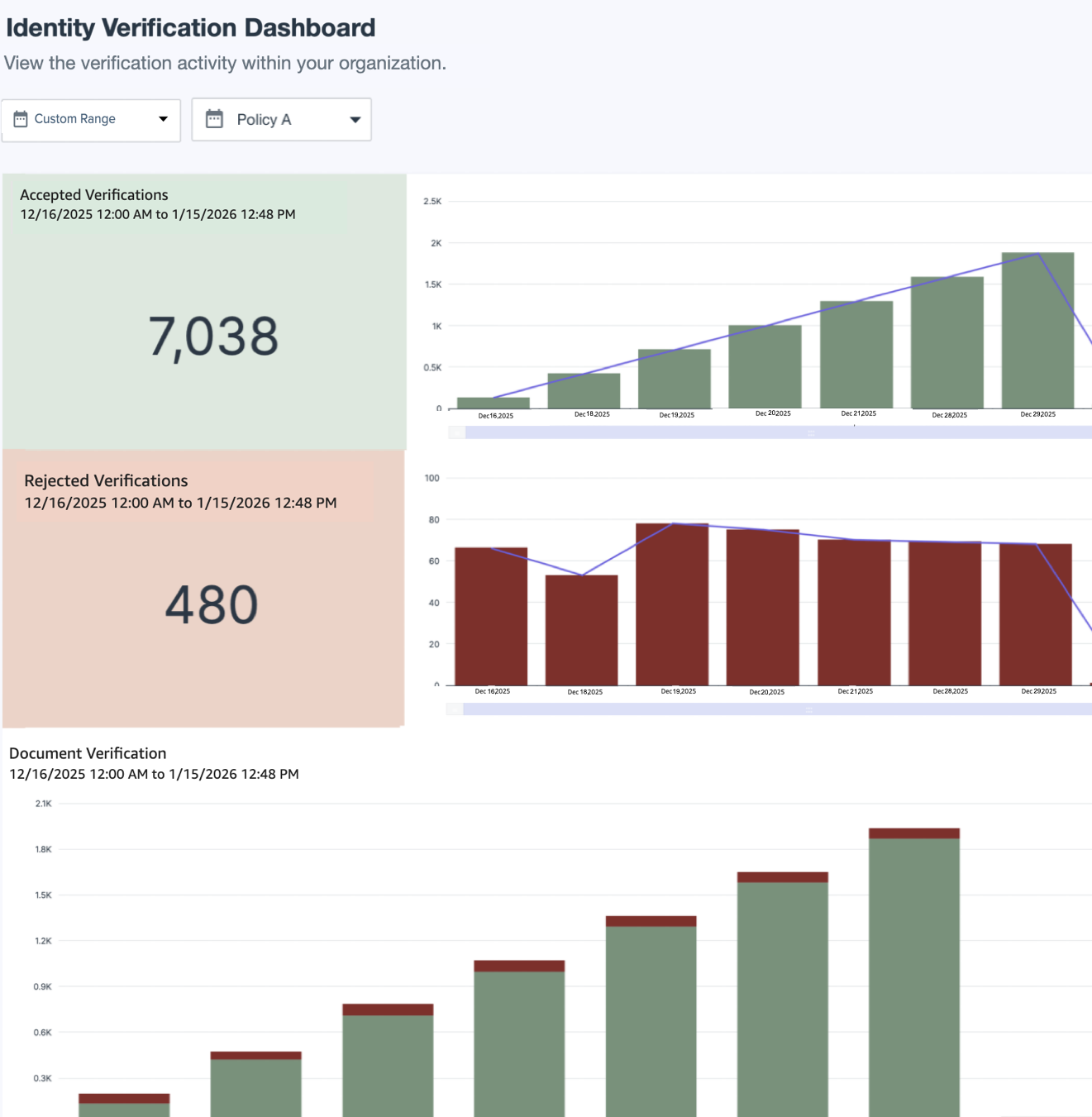
The Identity Verification Dashboard shows identity verification transaction activity for your organization filtered by your choice of date and PingOne Verify policy. You can use this information for managing both identify verification and the handling of accepted and failed verifications in the PingOne platform. Learn more about managing identity verification.
Steps
-
To access the Identity Verification Dashboard, in the PingOne admin console, go to Monitoring > Identity Verification.
-
To apply filtering to refine the data displayed on the dashboard,
-
Click a specific time range.
You can limit the data to:
-
Today (Default)
-
Last 7 Days
-
Last 30 Days
-
6 Months
-
Custom Range
Data begins on February 27, 2024.
-
-
Click a policy.
Result:
Charts appear showing identity verification transaction activity.
-
-
To adjust the charts, use the following controls:
Icon Name Description 
Maximize
Expands the chart to fill the dashboard.
To minimize the chart, click the icon again.

Menu options
Click the icon to see the following options:
-
View summary data: Displays chart data as a table.
-
Export to CSV: Exports chart data to CSV format.
-
Charts
The Identity Verification Dashboard shows the following verification charts:
-
Accepted Verifications: The graph shows the total number of accepted verification transactions that occurred during a selected time period. A successful transaction means a user has been validated by the service provider (SP) and verified by the ID verification service. Hover over the bar graph to get more information.
-
Failed Verifications: The graph shows the total number of failed verification transactions that occurred during a selected time period. A failed transaction means a user has been rejected by the SP or ID verification service. Hover over the bar graph to get more information.
-
Document Verification: The graph shows successful and failed documentation verification transactions that occurred during a selected time period.
-
Facial Verification: The graph shows successful and facial verification transactions that occurred during a selected time period. Facial verification checks for the liveness of the user and then compares the selfie with the user’s picture on their government-issued ID.