Rolling back a promotion (early access)
If a promotion causes issues in your target environment, you can roll it back, which restores the environment to its state immediately before the promotion. You can roll back both successful and failed promotions. A rollback undoes all changes made by the promotion.
Limitations and considerations
-
You can roll back only the most recent promotion to the target environment, and all promoted resources are rolled back. You can’t select a subset of resources to roll back. You also can’t roll back a rollback.
-
A promotion can sometimes affect resources that weren’t part of the promotion plan. For example, if you promote the deletion of a policy that was assigned to an application, the promotion also deletes the association between the application and the policy in the target environment. To restore the target environment to its previous state, a rollback must not only restore the deleted policy, but also restore the association between the policy and the application. In this case, the application is considered an indirectly affected resource, and is included in the rollback.
-
If you make manual changes to promoted resources in the target environment after the initial promotion and before the rollback, those changes might be overwritten during the rollback.
Steps
-
In the PingOne admin console for your source environment, go to Promote > Promotions.
-
In the list of promotions, locate the most recent promotion, click the More Options (⋮) icon, and select Roll Back.
-
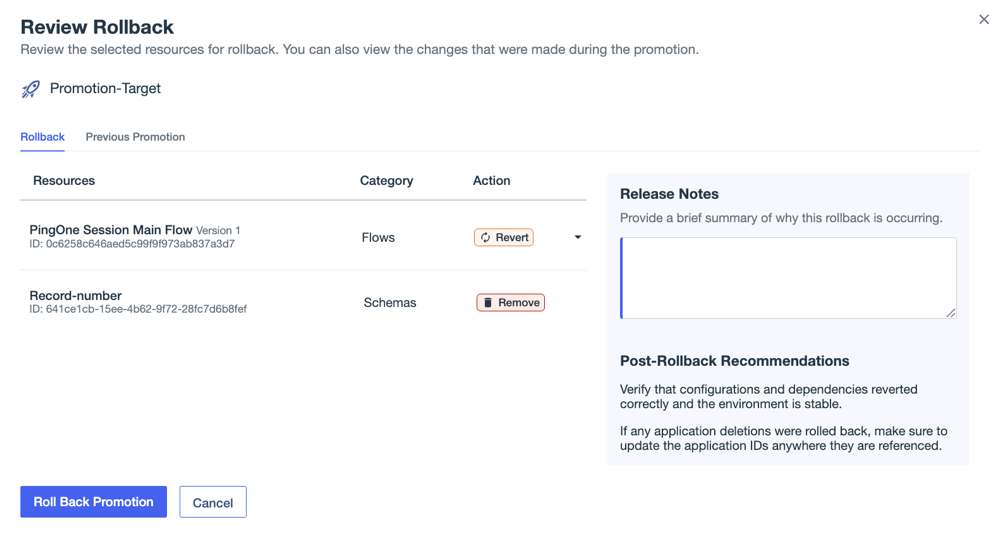
On the Review Rollback page, review the summary and add release notes.
-
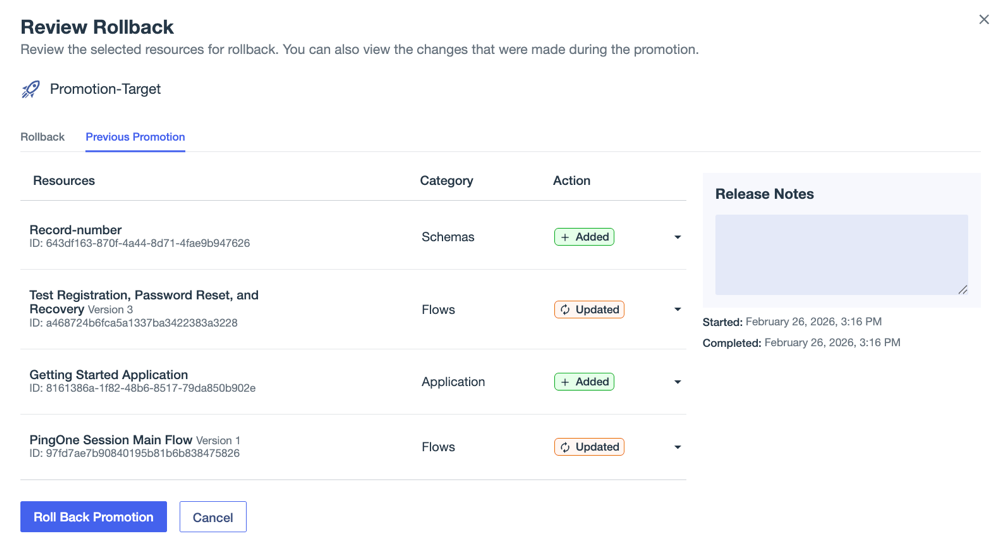
(Optional) To review the details of the promotion you are rolling back, click the Previous Promotion tab.
This tab shows details about the configuration resources that were promoted and will be rolled back, including any dependencies.
-
Click Roll Back Promotion.
Result
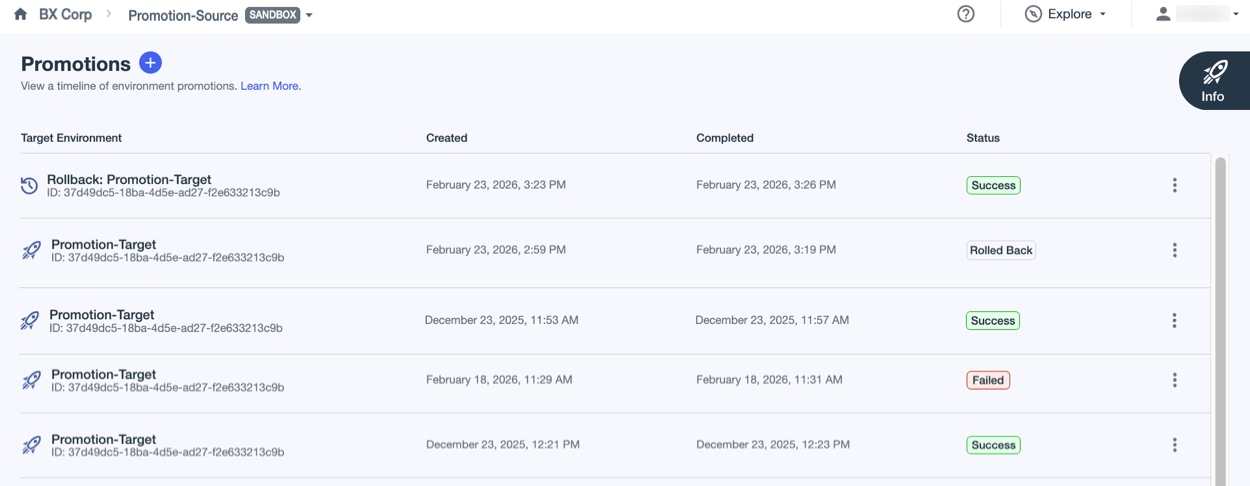
You’re returned to the Promotions page. The rollback shows a status of In Progress. After a couple of minutes, refresh the page. The status changes to Success for a successful rollback.
The promotion you rolled back now shows a status of Rolled Back.
Verifying the rollback
To verify the results of the rollback, first confirm the details of the rollback in the source environment, then check the target environment and ensure that it matches what you expect.
Steps
-
In the PingOne admin console for your source environment, go to Promote > Promotions.
-
Locate the rollback in the list, click the More Options icon (⋮), and select View.
- Overview tab
-
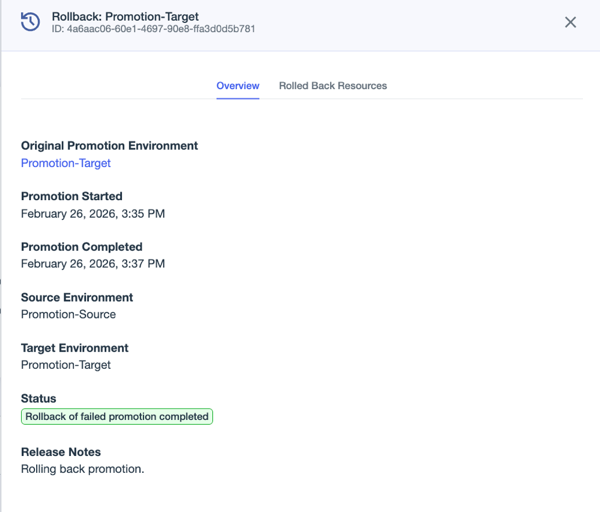
The Overview tab shows information about when the rollback was started and completed, the source and target environments, the status of the rollback, and any release notes that were added.
- Rolled Back Resources tab
-
The Rolled Back Resources tab shows the details about the resources that were rolled back.
-
On the Overview tab, click the link to the target environment in the Original Promotion Environment field.
Result
You’re taken to the PingOne admin console for the target environment so that you can confirm that the results of the rollback match what you expect.