Selecting the attribute to identify users from username tokens
When you add a Microsoft 365 application to allow users to sign on using PingOne and use Microsoft Entra Connect Sync to sync users from Active Directory (AD) to Entra ID, you can select which user attribute PingOne uses to match user records to the username from security token service (STS) requests.
By default, the following attributes are used and matched to identify users in an STS request:
-
Entra ID uses the AD
userPrincipalNameattribute as the source of the username. -
PingOne matches
userPrincipalNamefrom Entra ID to the email address (mailattribute) in the PingOne user record.
If the userPrincipalName attribute doesn’t match the mail attribute, you must select an attribute for PingOne to match user records to username tokens. If PingOne can’t locate a user record matching the username in the token, the STS request could fail and prevent PingOne from obtaining or renewing a primary refresh token (PRT) from Entra ID.
Steps
-
In the PingOne admin console, go to Applications > Applications and click the Microsoft 365 application in the Applications list.
-
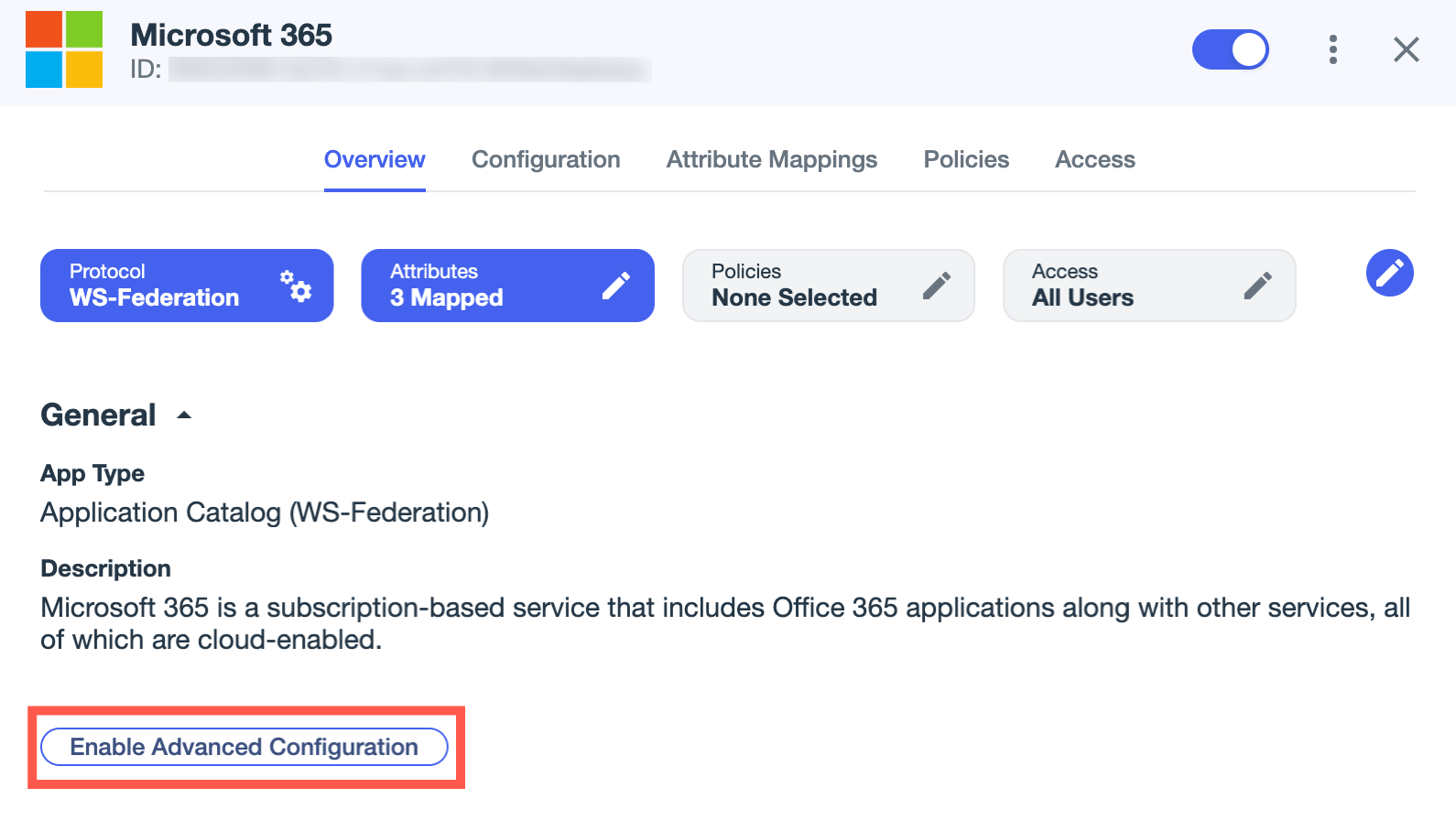
If you haven’t already, click Enable Advanced Configuration on the Overview tab and click Enable in the confirmation modal.
-
On the Configuration tab, click the Pencil icon ().
-
In the Attribute to identify users from username tokens list, select the attribute for PingOne to use to match the username from the STS request to an existing profile.
-
Click Save.
Example scenarios
The following scenarios describe example configurations when setting up user authentication with PingOne as the federated identity provider (IdP) for Entra and which attribute to select for PingOne to match to the username in the username token.
Example 1: Using userPrincipalName from AD as the Entra ID username with the userPrincipalName and mail attributes always sharing the same value
You set up the following attribute configurations:
-
Kept the default mapping for User Principal Name to
userPrincipalNamein Installing Microsoft Entra Connect Sync -
Kept the default mapping for
mailattribute from AD to Email Address in PingOne when adding an LDAP gateway user type for cloud users -
Didn’t create a custom attribute to store
userPrincipalNamein PingOne
Attribute selection
In this example configuration, you can select either None or Email Address if the userPrincipalName and mail attributes always share the same value.
Selecting either has the same outcome because the username in the username token is the userPrincipalName for the user, and PingOne can locate an existing user profile by matching the username from the token to the email address record.
Example 2: Using userPrincipalName from AD as the Entra ID username and storing userPrincipalName from AD in PingOne
You set up the following attribute configurations:
-
Kept the default mapping for User Principal Name to
userPrincipalNamein Installing Microsoft Entra Connect Sync -
Kept the default mapping for
mailattribute from AD to Email Address in PingOne when adding an LDAP gateway user type for cloud users -
Created a custom attribute to store
userPrincipalNamein PingOne and mapped the custom attribute when adding an LDAP gateway user type for cloud users
Attribute selection
-
If the
userPrincipalNameandmailattributes always share the same value, you can select None. You can alternatively select Email Address or the custom attribute you created to storeuserPrincipalNamein PingOne.Selecting any of these has the same outcome because the username in the username token is the
userPrincipalNamefor the user, and PingOne can locate an existing user profile by matching the username from the token to the selected attribute. -
If the
userPrincipalNameandmailattributes don’t always share the same value, select the custom attribute you created to storeuserPrincipalNamein PingOne. PingOne can locate an existing user profile by matching the username from the token to the custom attribute.If you don’t select the custom attribute you created, PingOne won’t be able to locate the user record for any user whose
userPrincipalNameandmailattributes don’t share the same value. This can lead to failures, such as PingOne not being able to obtain a primary refresh token (PRT) from Entra ID.
Example 3: Using an alternative AD user attribute as the Entra ID username
You set User Principal Name to a different AD user attribute (not userPrincipalName) to use as the Entra ID username.
In this scenario, you must:
-
Create a custom user attribute in PingOne to store the AD attribute you set for User Principal Name. Learn more in Creating an attribute in PingOne.
-
Map the attribute from AD to the custom attribute in PingOne in the LDAP gateway user type for your cloud users. Learn more in Adding an LDAP gateway to connect PingOne with AD.
Attribute selection
Select the custom attribute you created to store the AD attribute you set for User Principal Name in Entra. This enables PingOne to locate an existing user profile by matching the username in the username token to this attribute.
If you don’t select the custom attribute you created, PingOne won’t be able to locate the user record for any user whose userPrincipalName and mail attributes don’t share the same value. This can lead to failures, such as PingOne not being able to obtain a PRT from Entra ID.