Adding a risk policy
Every PingOne environment with the PingOne Protect service includes a default risk policy. You can create additional risk policies for different scenarios. For example, you might need to use a stricter risk policy in some situations and a more lenient risk policy in other situations. Learn more in Introduction to risk policies and Risk policies.
With PingOne Protect, you can create two types of policies:
- Global
-
Allows you to configure predictor scores, risk thresholds to map the scores to a risk level, and overrides or mitigations to take priority over the scores and levels. When using a global risk policy, you must choose which risk policy to pass to the risk evaluation.
- Targeted
-
Allows you to define risk policies for different targets, including flow types, applications being accessed, and user groups to which the risk policy will apply. You can also configure predictor scores, risk thresholds to map the scores to a risk level, and mitigations.
During risk evaluations, targeted policies are processed in the order displayed in the Targeted Policies list. You can set the order in which the targeted policies are evaluated. Processing stops when the target criteria for a policy are met.
In both types of policies, a mitigation is an action that you recommend if a given condition is met. For example, you can configure a mitigation rule to deny access if the email reputation predictor returns high risk. When the condition is met, the recommended action that you created is returned in the risk evaluation response.
|
Customize risk policies only after you’ve accumulated and analyzed sufficient risk evaluation data. Learn more in Reviewing risk evaluations. |
Before you begin
-
You must have a PingOne Protect license and add the service to your PingOne environment. Learn more in Adding the PingOne Protect service to your environment and Predictors.
|
If you have a PingID license only, you can configure a risk policy with limited predictors. Learn more in Creating a risk policy with an MFA-only license. |
-
Configure predictors you want to include in your risk policy.
-
Add any applications and user groups you want to use as targets for your risk policy. Learn more in:
-
Configure any MFA policies you want to use in a mitigation rule. Learn more in Configuring an MFA policy for strong authentication.
Steps
-
In the PingOne admin console, go to Threat Protection > Risk Policies.
-
Click the tab for the type of policy you want to add:
-
Global: A global policy is a legacy risk policy.
-
Targeted: A targeted policy allows you to configure a risk policy with conditions, including flow types, user groups, or applications.
-
-
Click the icon to add a risk policy.
You can optionally use the Risk Policy Assistant to create a new global policy and assign different scores to the various predictors to maximize the accuracy of your risk evaluations. The Risk Policy Assistant creates the policy based on your answers to questions about your use case. To launch the Risk Policy Assistant, click Assistant.
-
For Name, enter a unique name for the risk policy.
-
For targeted policies, in the Target section, select targets to use as criteria for when to use this policy:
Target Description Flow type
Select the applicable checkboxes for the type of flows to which this risk policy will be applied:
-
Registration: Initial creation of an account
-
Authentication: Standard authentication for sign-on or actions such as a password change
-
Authorization: Verification of whether the user is authorized to perform a specific action (for example, a profile change) using tools such as PingOne Authorize
-
Access: Verification of whether the user can access the relevant application using tools such as PingAccess
-
Transaction: Authentication that occurs for a purchase or other monetary transaction
Learn more about flow types in Risk policy flow types and in Risk Evaluations in the PingOne Protect API documentation.
Applications
Choose the applications to which this risk policy will be applied:
-
To apply the risk policy to all current and future applications in your PingOne environment, select the All Applications checkbox.
-
To choose specific applications, select the checkboxes for the desired applications in the Applications list.
Learn more in Applications and Adding non-application-portal applications.
Groups
Choose the user groups to which this risk policy will be applied:
-
To apply the risk policy to all current and future groups in your PingOne environment, select the All Groups checkbox.
-
To choose specific groups, select the checkboxes for the desired groups in the Groups list.
Learn more in Groups.
-
-
For Predictor Scores, map the risk level for each predictor to a score.
-
To add a predictor, click Add Predictor, select the predictor type in the Risk Model list, and set the score. The maximum score is 100.
Only predictors you’ve configured already show in the Risk Model list. Learn more about configuring a new predictor to add in a risk policy in Adding predictors.
-
To delete a predictor, click the Delete icon.
Example:
If the risk level for the IP velocity predictor is calculated as Medium, you can assign a score of 50. For High risk level, you can assign a score of 75.
-
-
For Risk thresholds, set the total risk score to be considered High and Medium final risk levels.
-
Configure overrides or mitigations for your risk policy:
-
Risk level Override: For global policies, set rules that take priority over the calculated final risk level for a policy if the condition is met.
You can create an override rule to assign the final risk level for the policy as high if the calculated risk level for the bot detection predictor results in medium.
-
In the Rules section, select Risk level Override.
-
To add a new override, click Add Rule.
-
In the Risk Model list, select a predictor type or condition.
-
In the Score list, select the overall risk level for the selected predictor that this rule will override.
In the previous example, you would select Medium for Score if you want to create a rule to return High for the policy when the selected predictor risk level is calculated as medium.
-
In the Return list, select the final risk level to return for the overall policy when the condition you selected for Score is met.
In the previous example, you would select High to create an override rule that returns high for the overall policy risk level if the selected predictor risk level is calculated as Medium.
-
(Optional) For Notes, you can enter text that’s returned in the risk evaluation response.
-
-
Mitigation: Define custom recommended actions to be included in the risk evaluation response with the calculated risk levels. Mitigation rules are evaluated in order from top to bottom and stop processing at the first match. Order mitigation rules from smallest to largest scope so that a broad rule doesn’t prevent more specific rules from being evaluated. Only the first matching rule triggers, and all rules below it are skipped.
When the conditions are met, the mitigation is returned in the risk evaluation response as the value for
result.mitigations[].action. Learn more in Targeted risk policies in the PingOne Protect API documentation.-
In the Rules section, select Mitigation.
-
To add a new action, click Add.
-
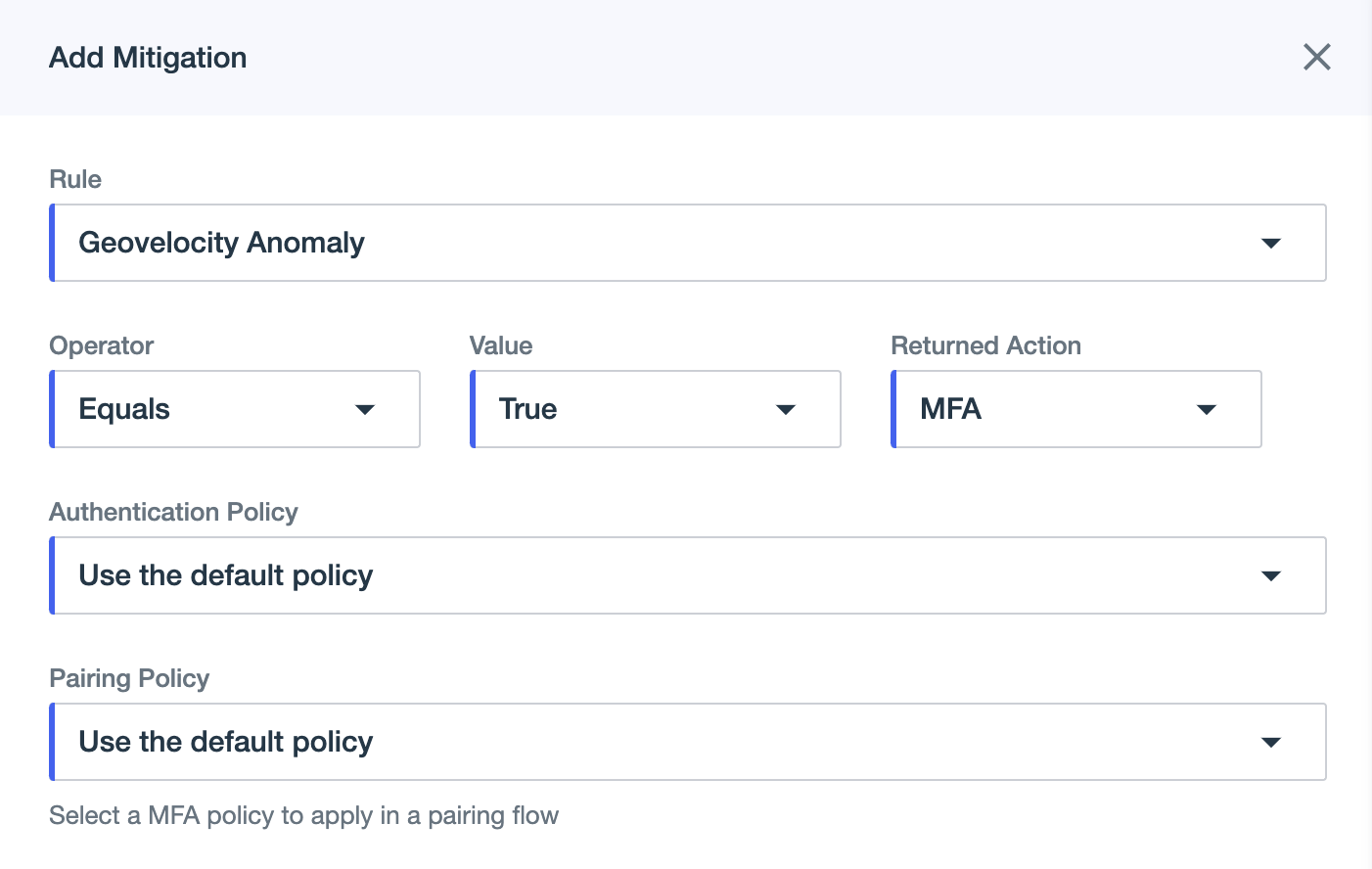
In the Rule list, select criteria for which to create a recommended action, such as a predictor, risk level, or risk score.
-
For Operator, select the applicable operator for the rule you want to create.
-
For Value or Level, select criteria based on the Rule you selected.
-
In the Returned Action list, select the action to recommend when the conditions for this rule are met.
-
(Optional) For Notes, you can enter text that is returned in the risk evaluation response.
Example:
You can select MFA to define a custom action to prompt the user to complete MFA if the conditions are met. When you select MFA, you can also choose an MFA policy for Authentication and MFA policy for Registration to use when prompting the user to complete MFA. When the conditions of this rule are met, a mitigation of
MFAis returned in the risk evaluation response as the value forresult.mitigations[].action. Learn more in Targeted risk policies in the PingOne Protect API documentation.
-
-
-
Click Apply.
Best practice: Mitigation rule ordering
Use the following examples for guidance when configuring mitigation rules. Order mitigation rules from smallest to largest scope so that a broad rule doesn’t prevent more specific rules from being evaluated. Only the first matching rule triggers, and all rules below it are skipped.
Less effective order
The following mitigation rules are ordered with the largest scope first, causing processing to stop before all rules are evaluated:
-
When the policy risk level equals High, deny the user.
-
When the Adversary in the Middle (AitM) predictor equals high risk level, deny and suspend the user.
-
When the Bot Detection predictor equals high risk level, set a custom recommended action.
With this ordering, rules 2 and 3 never trigger because the evaluation stops at the first match (rule 1). Because rule 1 is a broad condition, the more specific AitM and Bot Detection predictor rules aren’t triggered.
Recommended order
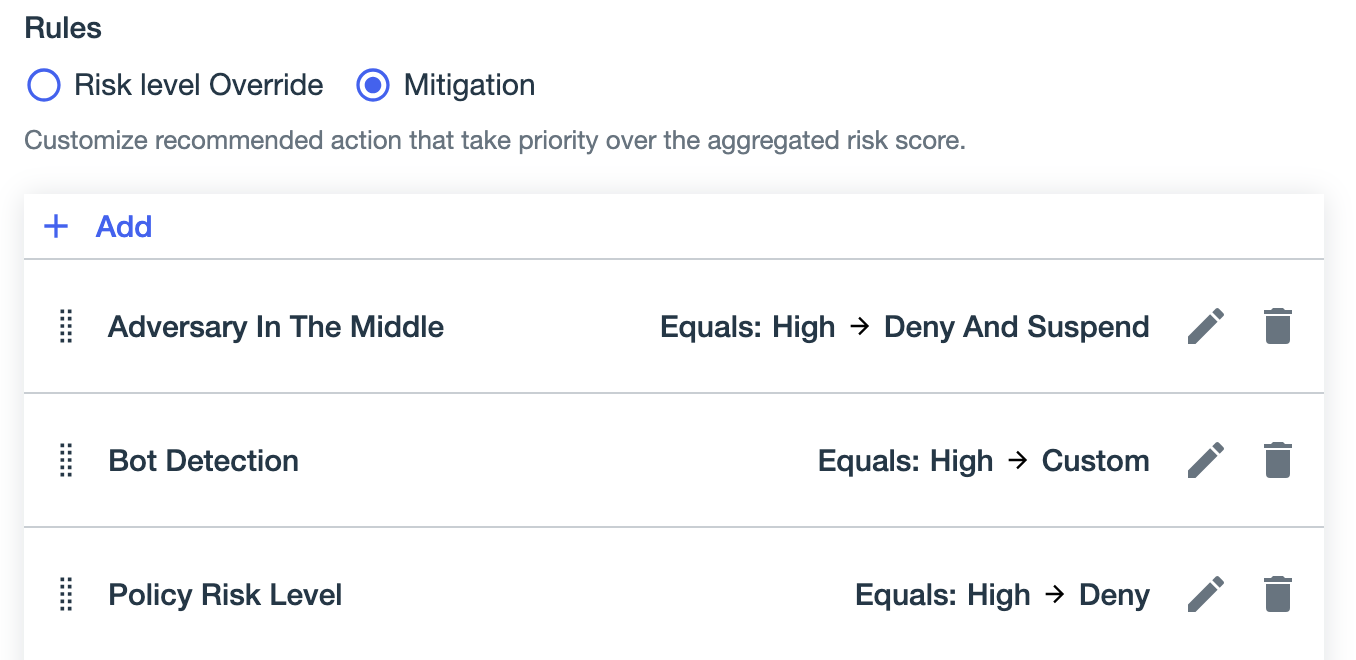
Using the same rules from the previous example, order mitigation rules from smallest to largest scope so that a broad rule doesn’t prevent more specific rules from being evaluated:
-
When the AitM predictor equals high risk level, deny and suspend the user.
-
When the Bot Detection predictor equals high risk level, set a custom recommended action.
-
When the policy risk level equals High, deny the user.
Next steps
In the Targeted Policies list, you can click Reorder to change the order that policies are evaluated during risk evaluations. Policies are processed in the order displayed in the Targeted Policies list. Processing stops when the target criteria for a policy are met. You can drag the policies in the Set Policy Priority list to change the order in which the policies are evaluated and click Save.
Before modifying an existing risk policy in use, create a staging policy to test how the changes will affect risk evaluations. Learn more in Creating and managing staging policies.