Troubleshooting webhooks
PingOne webhooks deliver real-time event notifications to your configured endpoints, enabling seamless integration with external SIEM systems. However, issues like missing events, delivery failures, or configuration errors can occur. Use the information in this section to understand and resolve common issues with webhooks.
Webhooks troubleshooting features
To help you troubleshoot, take advantage of these two features:
-
A Test Connection button on the Overview tab of the webhook details panel. Clicking this button tests the connection between PingOne and the destination system. If the test delivery isn’t successful, error details display in the Connection Status section.
Learn more in Viewing a webhook.
-
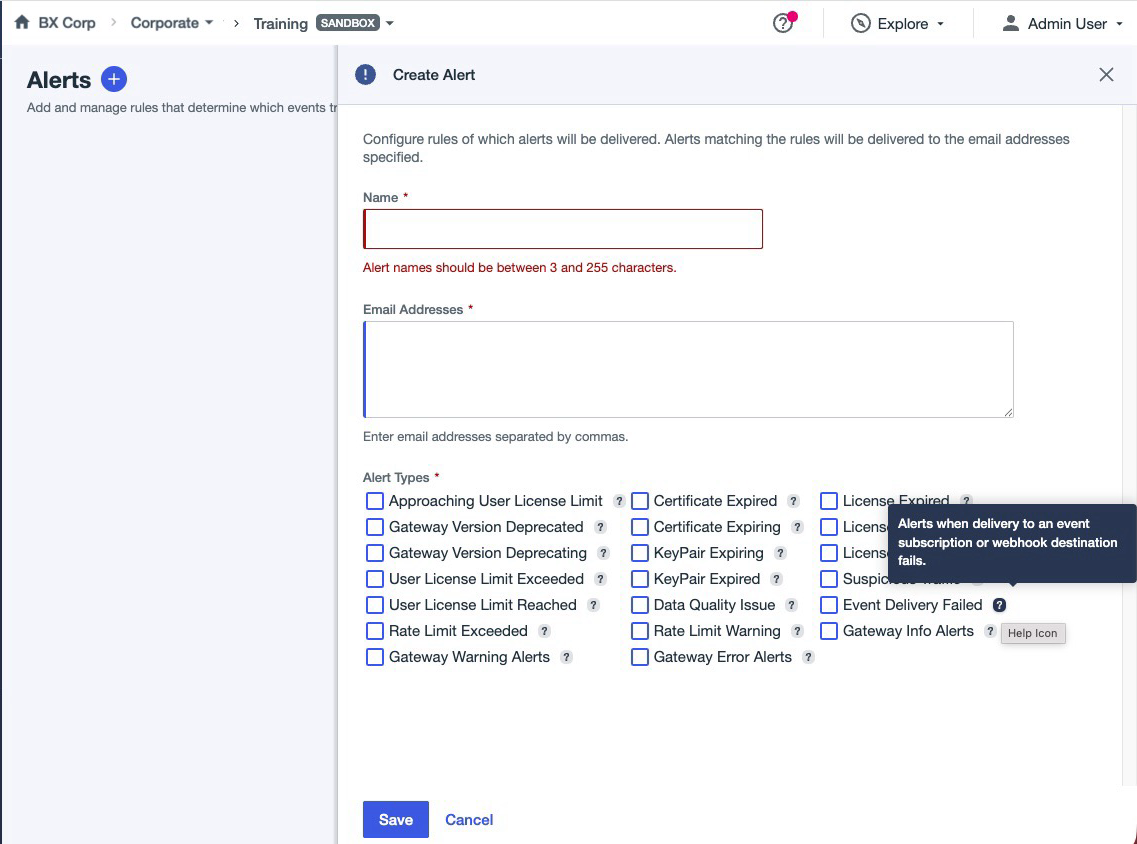
An Event Delivery Failed alert option that you can enable for webhook delivery failures. Users subscribed to this alert receive an email notification for each occurrence of a webhook destination failure.
Webhook events stop arriving after my service was down
If the webhook target is offline or unreachable, PingOne queues all matching events and continues to retry delivery.
-
The webhook service retries until a
200 OKresponse is received. -
Events are published in batches of up to a maximum of 500 messages. PingOne doesn’t move on to the next batch until the current batch is acknowledged.
If the endpoint remains down for longer than 7 days, the oldest events begin to expire and are no longer delivered.
|
Events expire after 7 days. |
You can find an overview of all logging and reporting capabilities in PingOne in PingOne Platform logging and reporting.
I’m not receiving all expected webhook events
A common reason for not receiving expected events is overly restrictive webhook filtering. When configuring a webhook, all filter conditions (such as Event Types, Tags, Applications, and Populations) are combined using AND logic. This means an event must match every filter to be sent to your endpoint.
One frequent issue involves the Populations filter. Many system-level or user-specific events aren’t associated with any population, so applying this filter might prevent those events from being delivered.
|
Start with the fewest filters possible and add more as needed. If you’re missing events, try removing some filters and test again. |
I’m getting TLS or SSL errors when connecting
Webhooks require a secure connection to your endpoint. Delivery failures can occur if your server uses an expired, self-signed, or untrusted TLS/SSL certificate.
-
Recommended solution: Use a valid certificate issued by a trusted Certificate Authority (CA).
-
Workaround (for development use only): You can temporarily bypass this check by enabling the Allow TLS connection with untrusted certificates option.
Webhook event delivery failing for a webhook using OAuth 2 Refresh Token authentication
If the delivery of a webhook that uses OAuth 2 Refresh Token for the authentication method is failing, the OAuth Refresh Token might have expired.
The webhook will show a Status of Delivery Error on the Webhooks page. If you’re subscribed to the Event Delivery Failed alert, you’ll receive an email message about the failure. These errors will also generate audit events.
When there are regular requests to deliver these webhook events to the destination system, PingOne remints OAuth refresh tokens before they expire, and no action is required. However, if there aren’t regular requests to deliver the events to the destination system, the OAuth refresh token might expire before PingOne is able to mint a new token.
To correct this issue, you must retrieve a new OAuth refresh token from the destination system and replace the value in the OAuth Refresh Token field in the webhook configuration. Learn more in step 8 of Creating or editing a webhook.
|
Ensure that the destination system allows you to mint a new access token using the current refresh token. |