AI agent logging and auditing
You can run reports to see a summary of events or actions performed by AI agent identities in PingOne. Learn more in Running an audit report.
You can find a complete list of events logged in PingOne in Audit Reporting Events in the PingOne API documentation.
Steps
-
In the PingOne admin console, go to Monitoring > Audit.
-
Enter the report parameters:
-
Time Range: Limit the report results to a specified range of time.
Data up to 14 days old relative to the current date is available immediately. Data older than 14 days must be requested from the Audit page or using the API, and you can’t request data for dates that are more than 2 years (730 days) before the current date. You can run reports a maximum of 14 days at a time. If you enter an invalid time range, you’re prompted to adjust it before you run the report.
-
Selected Fields: Specify which columns appear in the results list.
-
Time Zone: Specify which time zone to use in the results list. The timestamp shows the date and time for the selected time zone.
-
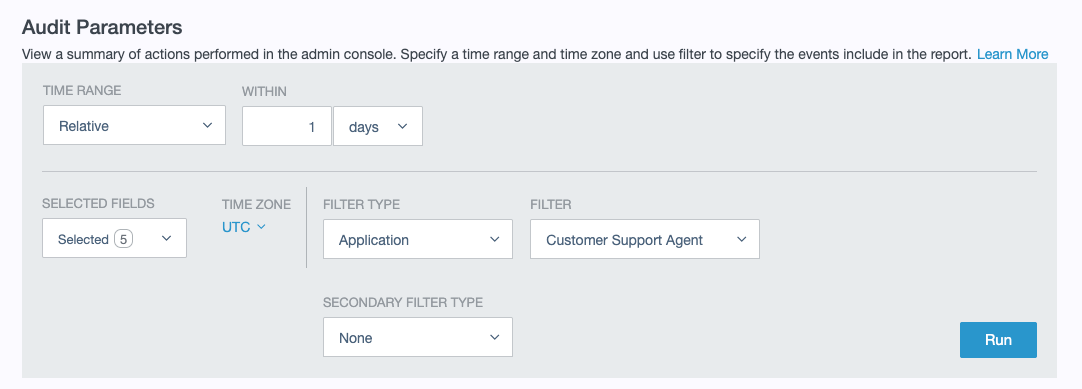
Filter Type: Select any of the following filter types to limit the results to AI agent identity activity and then select a filter. AI agent identity events use the application event types.
Filter Type Filter Application
Select the AI agent identity for which you want to limit results.
Event Type
Select any of the following to limit the event types to application-related event types:
-
Application Created
-
Application Deleted
-
Application Updated
Resource ID
Paste the ID of an AI agent identity to limit results. You can find the ID on the Overview tab of the AI agent identity. Learn more in Viewing AI agent identities.
-
-
Secondary Filter Type: Specify a secondary filter to limit the results to a particular type, user, or resource. You must specify a primary filter type before you can select a secondary filter type.
-
-
Click Run.
Result
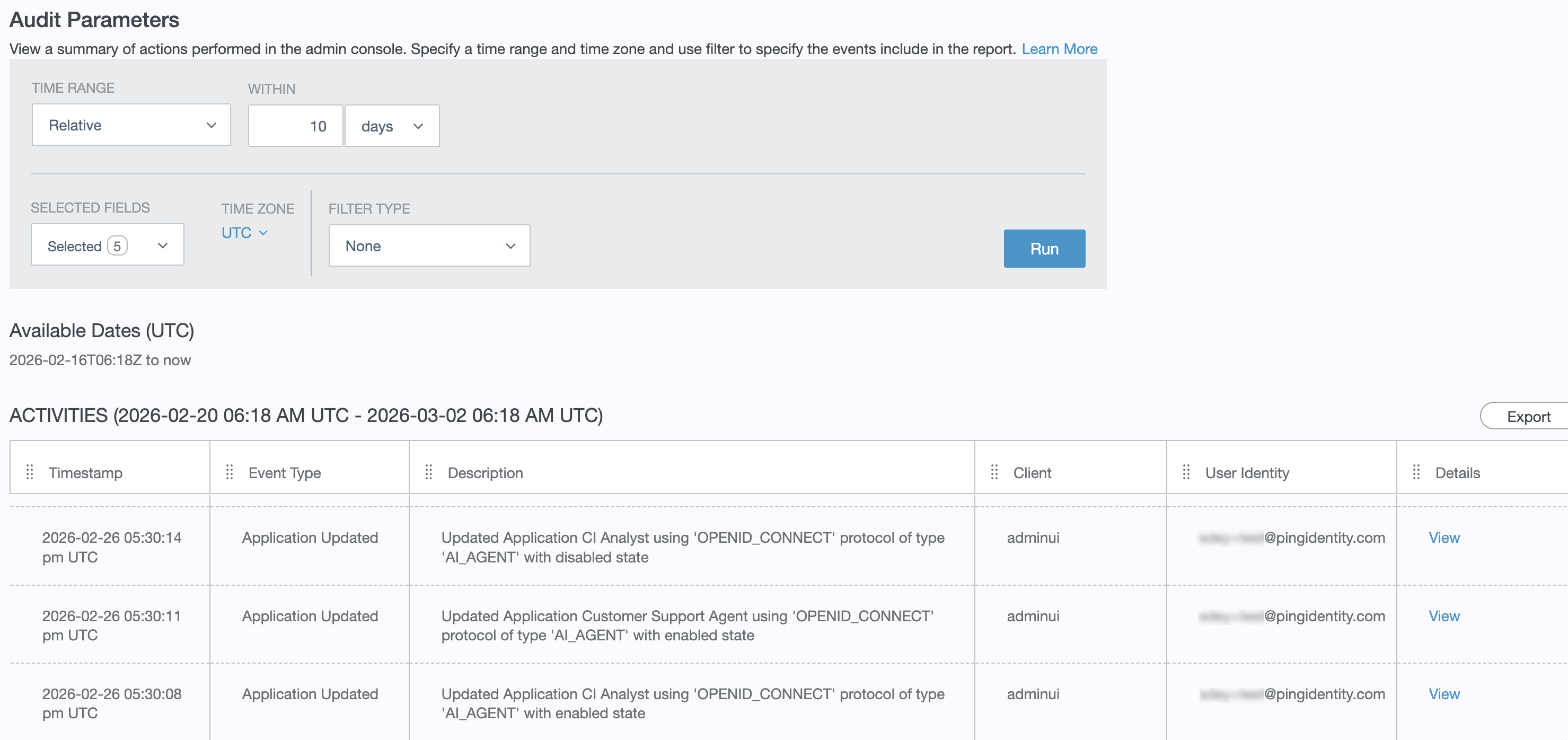
Results display based on the parameters you selected. The following image shows results for AI agent identity events:
|