Scenario 5: Promotion of deleted resource (early access)
The goal of this scenario is to demonstrate how to promote the deletion of resources from the source environment when the resource was previously promoted to the target environment.
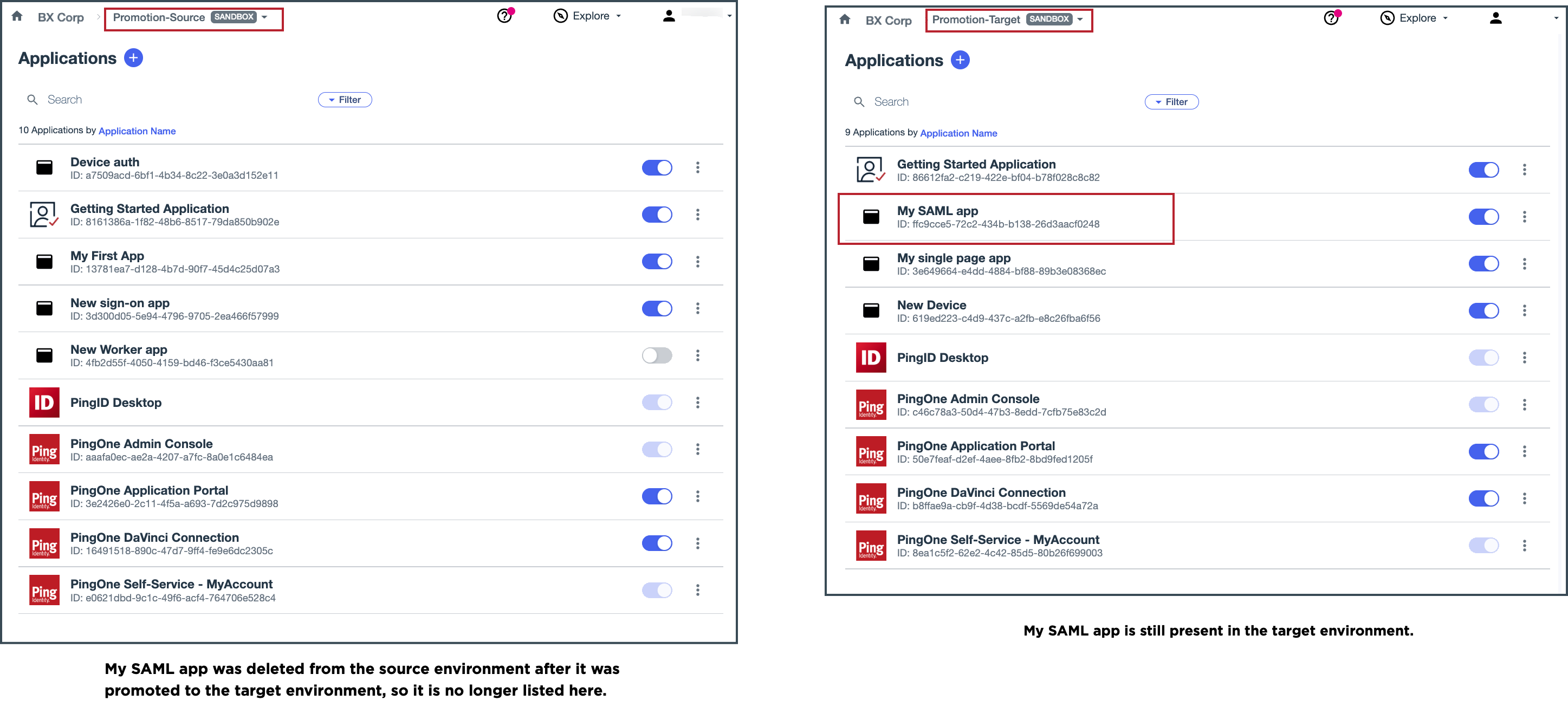
In this scenario, the My SAML app application that you promoted in scenario 2 has since been deleted from the Promotion-Source environment. You want to ensure that the application is also deleted from the Promotion-Target environment.
Configure and run the promotion in the source environment
To configure the promotion, you’ll confirm the target environment and select the resource to promote (the deletion of My SAML app). Then you’ll run the promotion.
Steps
-
In the PingOne admin console for the Promotion-Source environment, go to Promote > Promotions.
-
Click Run a Promotion.
-
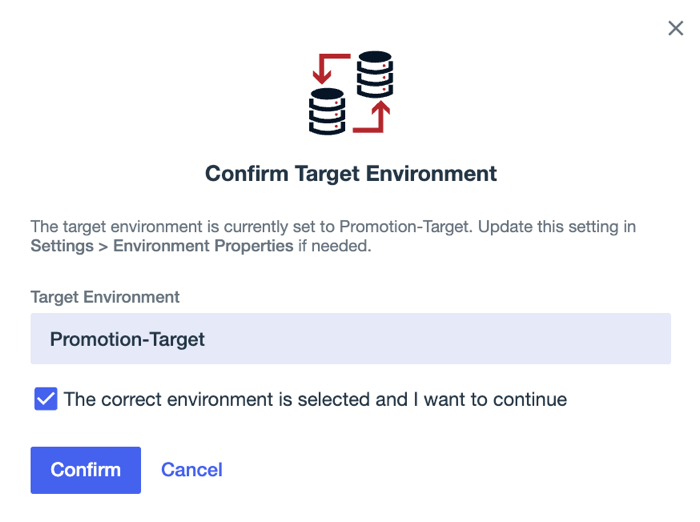
On the Confirm Target Environment modal, ensure that Promotion-Target is selected in the Target Environment list.
-
Select The correct environment is selected and I want to continue and click Confirm.
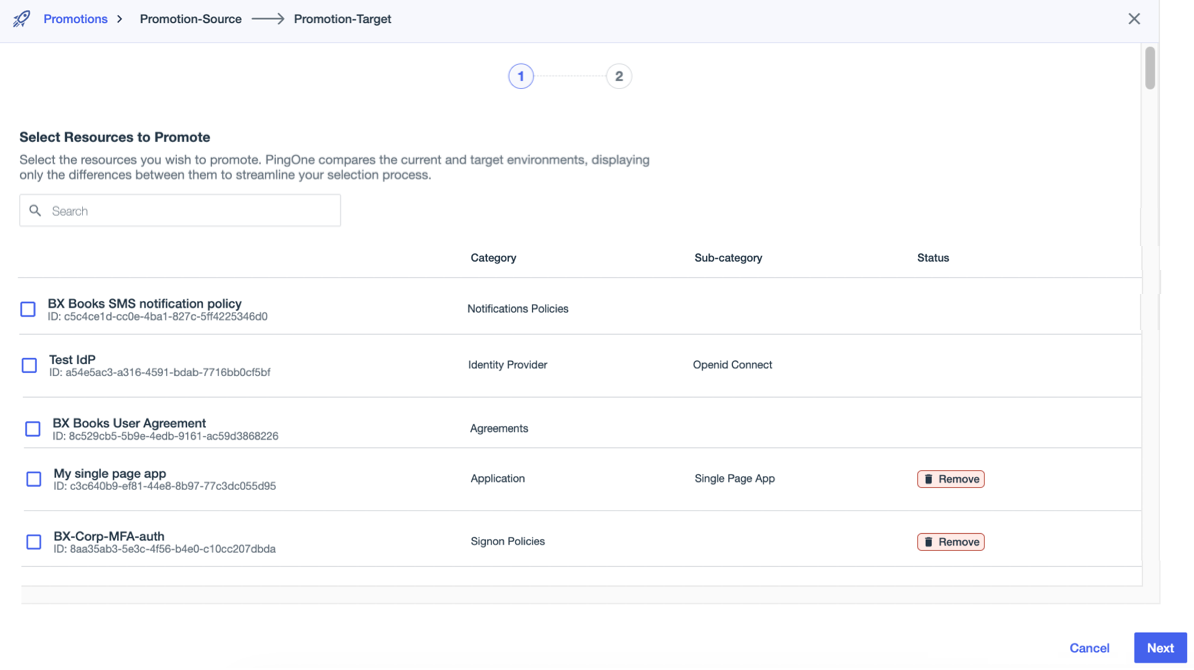
After you confirm the target environment, PingOne takes snapshots of both environments, compares configuration resources, and lists the resources that you can promote.
-
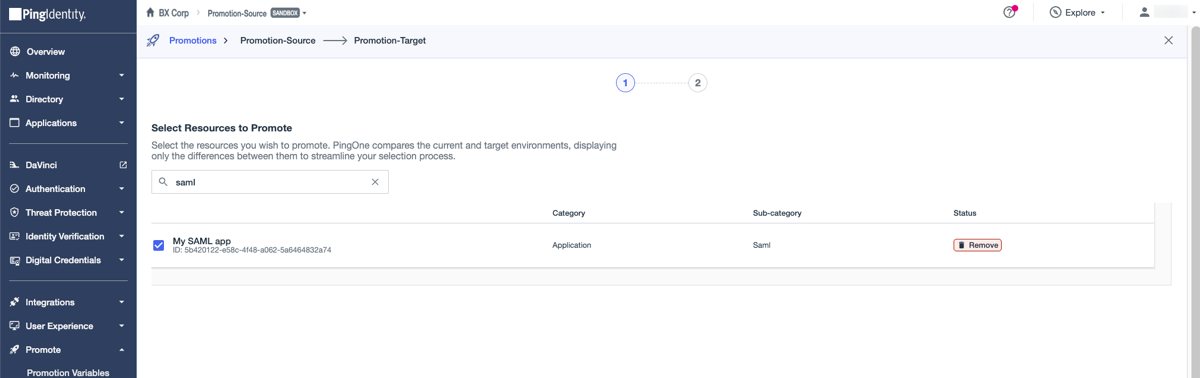
On the Select Resources to Promote page, search for the My SAML app application and select it.
Although the application was deleted from the source environment, it’s still tracked by the promotion service, so it’s still available for selection. A Remove label indicates that it was deleted.
-
Click Next.
-
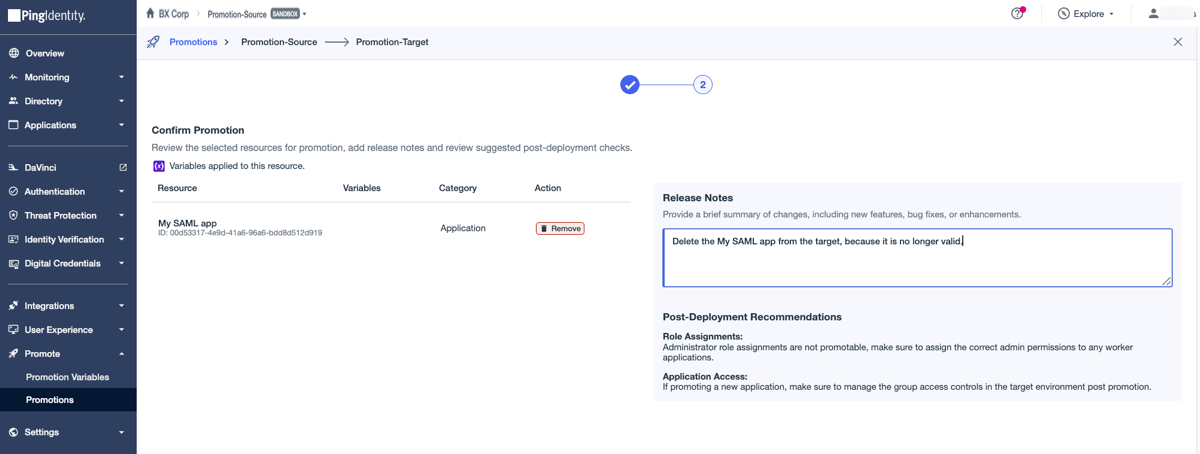
Verify the promotion details on the Confirm Promotion page and enter release notes.
-
Click Run Promotion.
Result
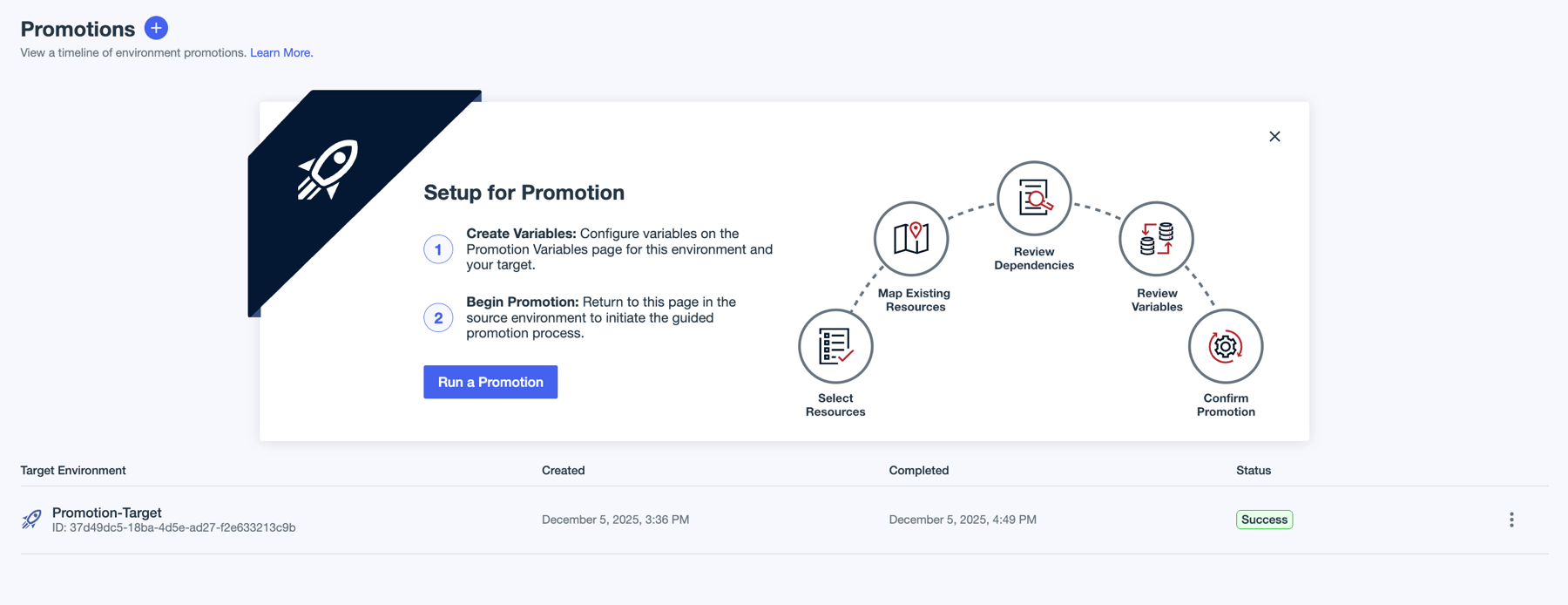
You’re returned to the Promotions page and the current promotion is listed with a status of In Progress. After about 30 seconds, refresh the page. The status will change to Success for a successful promotion.
Verify the promotion
To verify the results of the promotion, first confirm the details of the promotion in the source environment, then ensure that the My SAML app application no longer exists in the target environment.
Steps
-
In the PingOne admin console for the Promotion-Source environment, go to Promote > Promotions.
-
Locate the promotion in the list, click the More Options icon (⋮), and select View.
Promotions are listed in reverse chronological order, so the most recent promotion appears at the top of the list.
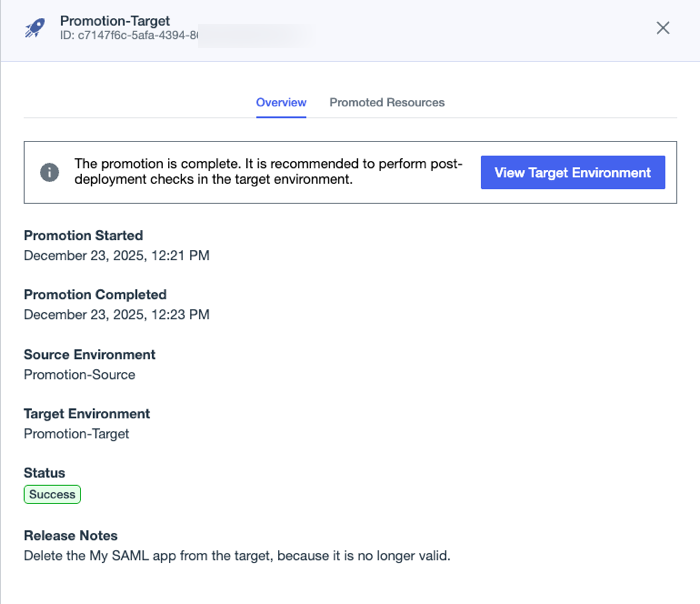
Verify that the promoted resources match what you configured. In this case, the Status indicates a successful removal of the application.
-
Click View Target Environment.
You’re taken to the PingOne admin console for the target environment so that you can confirm that the application was removed.
-
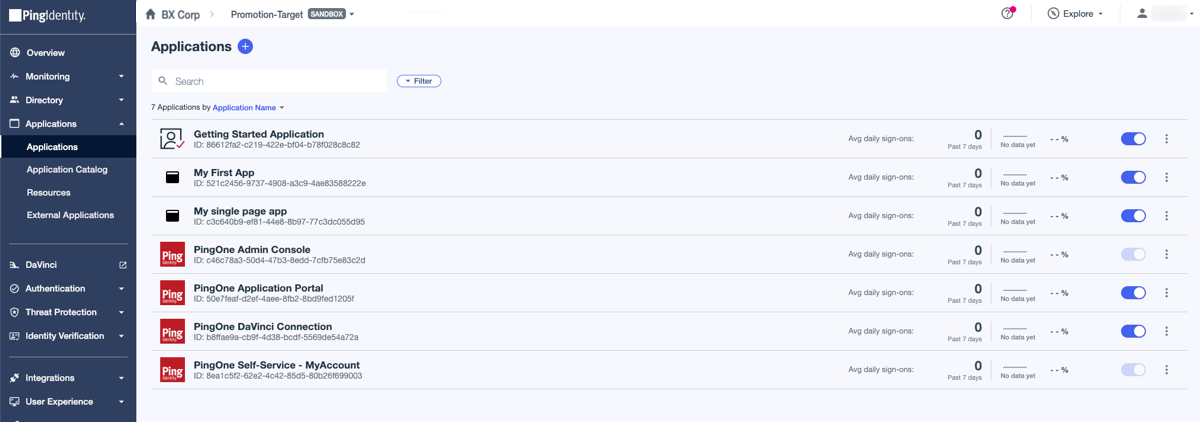
For this scenario, go to Applications > Applications to view the list of applications in the target environment.
Result
My SAML app no longer displays in the list. The deletion was a success.