Creating promotion variables (early access)
Use promotion variables to allow resources to have different attribute values in different environments.
If you don’t create promotion variables for a configuration resource, that resource is promoted to the target environment with all of the same configuration as the resource in the source environment.
|
There are some configuration resources for which you can’t create variables. |
Before you begin
-
You must have at least two environments in your organization to create variables, and you must have the Promotion Admin role or a custom role with equivalent permissions in both environments:
- Source environment
-
This environment contains resources you want to promote to another environment.
- Target environment
-
This is the environment to which you are promoting resources from a source environment.
-
The two environments should include the same PingOne services, or your promotion could fail.
Steps
-
Sign on to the PingOne admin console for your source environment.
-
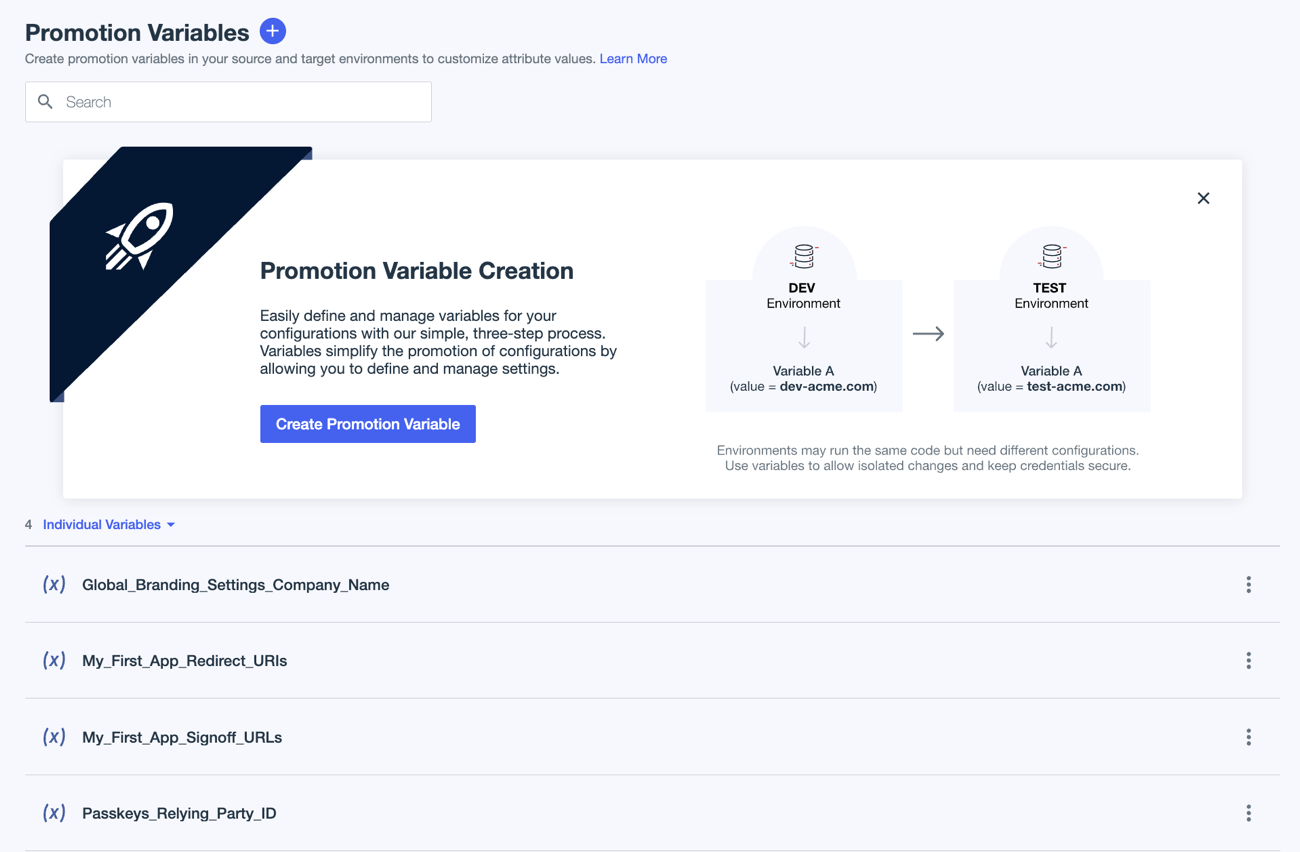
Go to Promote > Promotion Variables and click Create Promotion Variable.
If you haven’t configured a target environment for your promotions from this source environment, you’re prompted to select one. If you’ve already configured a target environment, you’re prompted to confirm that the target environment listed is correct.
To change the target environment, cancel out of the modal and go to Settings > Environment Properties. Select a different environment from the Target Environment field in the Configuration Management section of the Environment Properties page. Then return to Promotion Variables and start the variable creation process again.
-
On the Create Variables page, in the Resource Details section, select a Category and then a Sub-category, if applicable.
Categories and subcategories are groupings of configuration resources that allow you to narrow down the list and find what you are looking for more easily. Examples of categories include applications, policies, and so on. Only categories that apply to the resources you have in your environment are listed.
For example, if you don’t have any applications in your environment other than those delivered with PingOne, the Applications category isn’t listed.
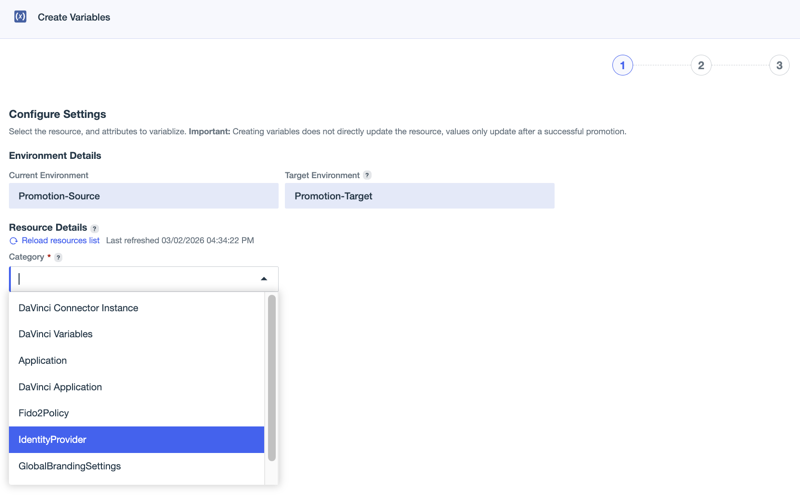
You might need to click Reload resources list to pick up categories for configuration resources that were recently added to the environment. It could take a couple of minutes to retrieve the updated list of resources.
-
In the Resource list, select the resource for which you want to create variables.
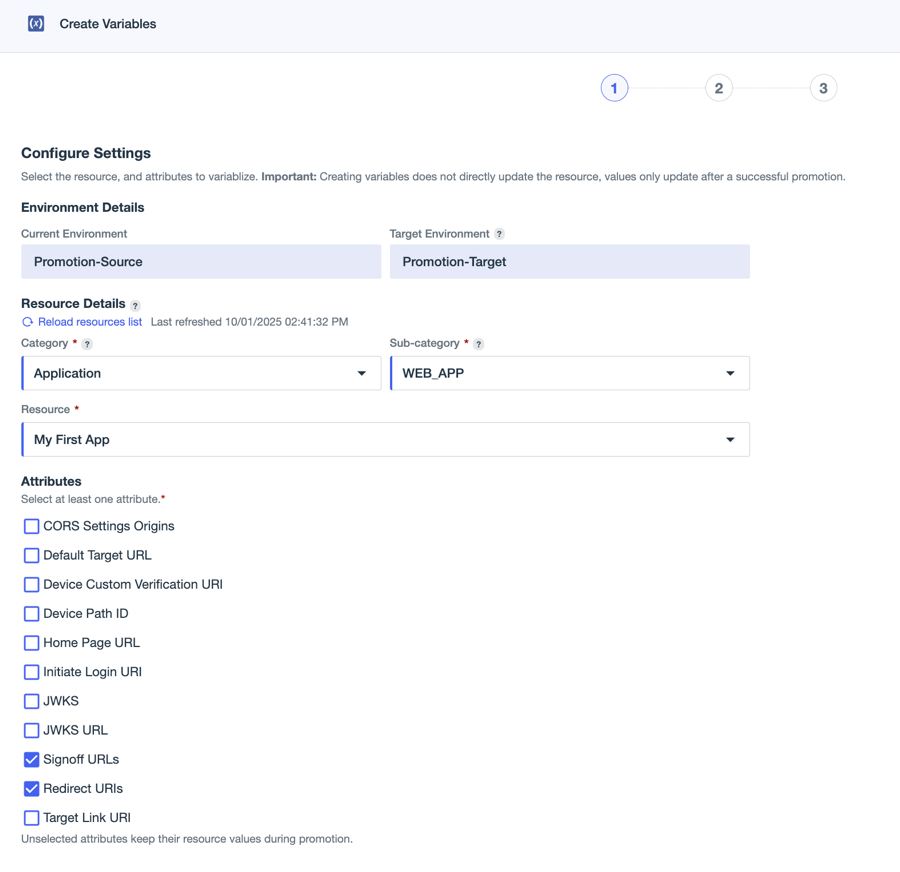
The Attributes list displays after you select the category, and shows all of the application configuration attributes related to the resource for which you can create variables.
-
Select the attributes for which you want to define variables, then click Next.
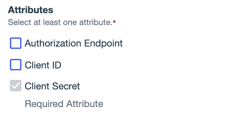
Depending on the resource selected, variables might be required for certain attributes. Sensitive variables must be created for passwords or secrets, for example. These attributes are selected automatically and you can’t clear them. Learn more in Sensitive variables.
-
Define the values to use in the target environment.
The values for the source environment are displayed on the left, and you define the target environment values on the right.
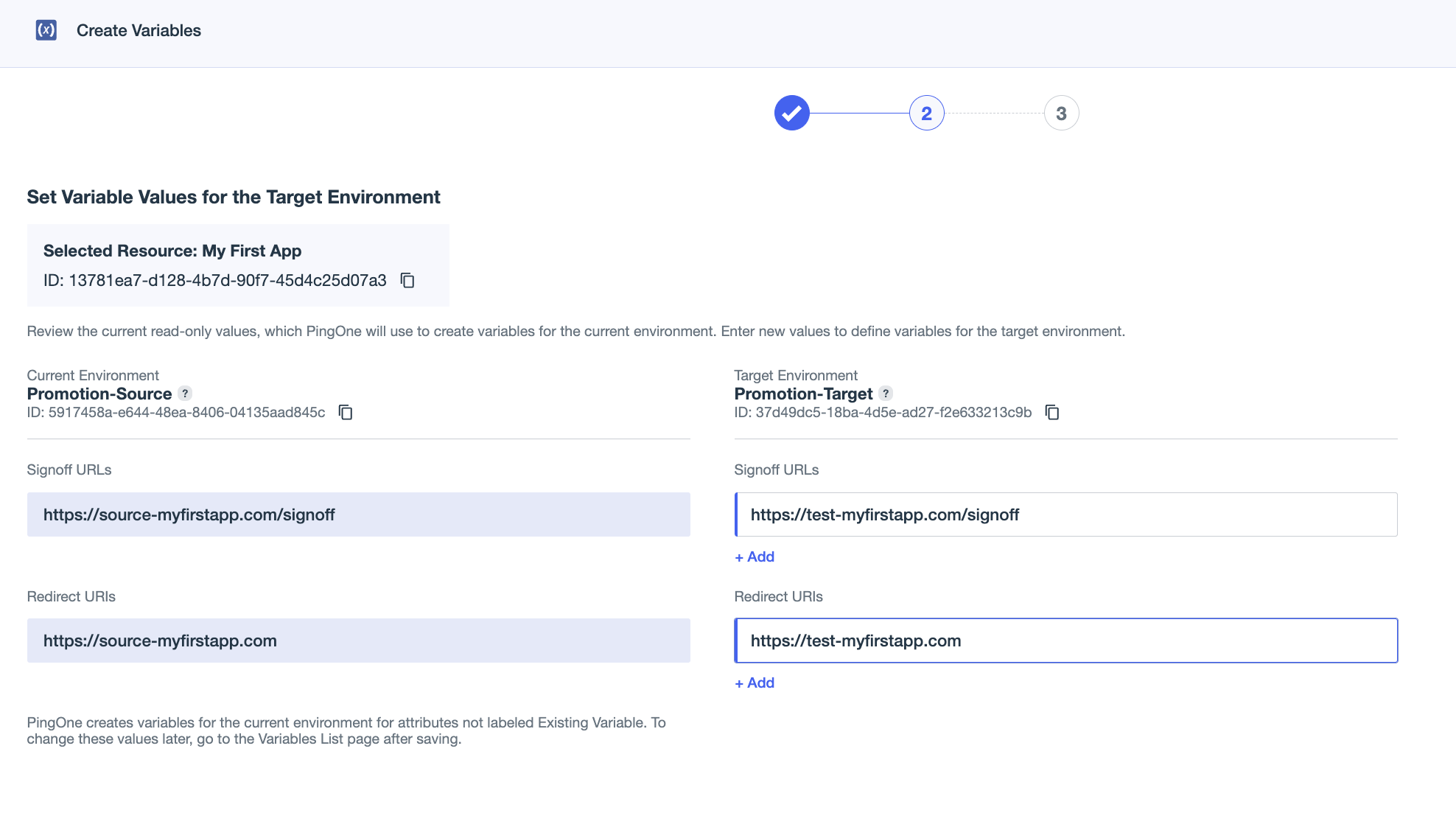
If you are defining a sensitive variable, the value in the source environment is hashed and can’t be revealed or copied. You must enter a new value for the target environment. You can click the Eye icon () to view the value you are entering until you click Next. After the value is saved, it is hashed and can’t be viewed or copied.
In this example, variable values were set for Signoff URLs and Redirect URIs.
-
After you complete the entries for all of the variables, click Next.
-
On the Review and Save page, confirm the variable configuration and click Save.
You return to the Promotion Variables page. The resource for which you created variables is listed in the Resources with Variables section.
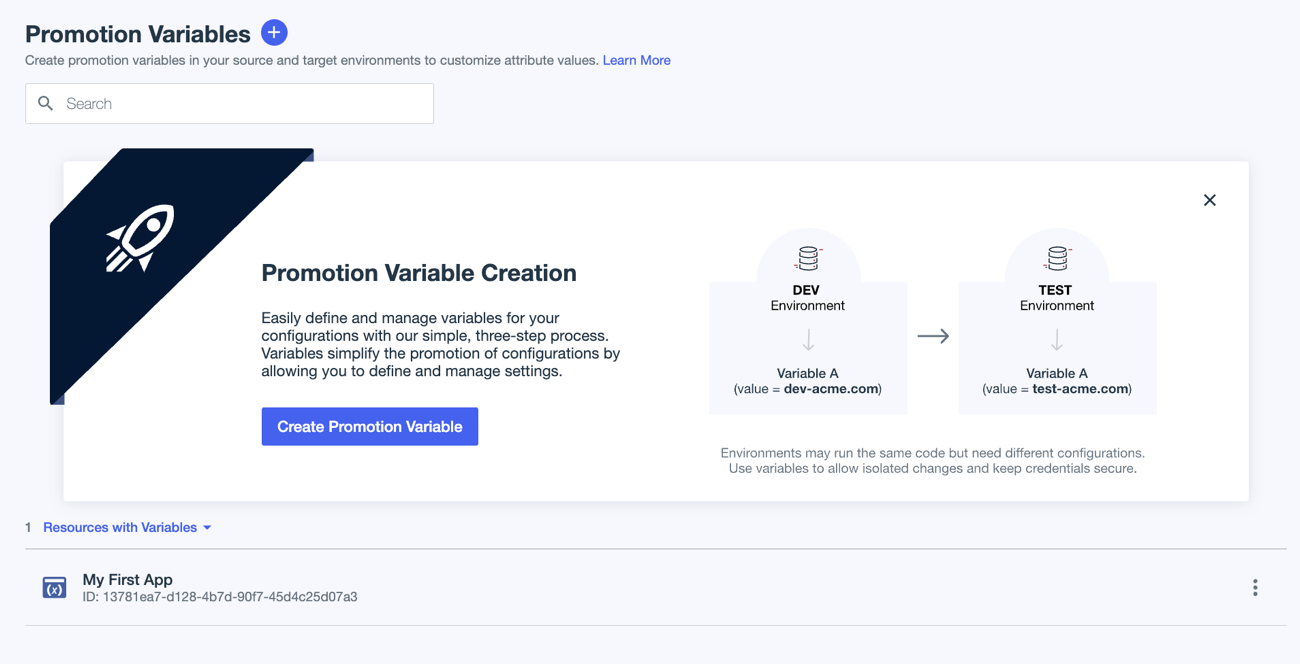
You can click the More Options icon (⋮) to view, edit, or delete the variables associated with the resource.
You can also change the view to show a list of all variables created in the environment by clicking the arrow next to Resources with Variables and selecting Individual Variables.
|
Variables are always created and configured in the source environment. When you create a variable for a resource attribute, you are defining the value that the attribute should have in the target environment after the resource is promoted. If you want to view the variables in the target environment before the resource has been promoted from the source environment, you must use the Individual Variables list. The resource isn’t listed in the Resources with Variables list in the target environment until after it’s been promoted for the first time. |