Impersonation
Impersonation is one of the use cases supported by OAuth 2.0 token exchange in PingOne. Learn more about how it works and the supported use cases in Configuring OAuth 2.0 token exchange.
Use impersonation for token exchange to enable an application (client) to perform a job or duty without maintaining separation between the user and the application. The application obtains a subject token representing the user who authenticates and authorizes the request, and exchanges it for a new token to access a custom resource. The custom resource handles the request as if it came from the user.
Example scenario
In this scenario:
-
Users ship packages using a shipping company, XL Delivery.
-
To successfully ship packages, XL Delivery must retrieve user shipping information from a resource server, Address.
-
The Address resource server must then retrieve the user’s apartment buzzer number from another resource server, Buzzer, by impersonating the user.
What you’ll do
To set up the example scenario for impersonation, you’ll add:
-
XL Delivery application: The user interacts with this application to initiate the flow.
-
Address custom resource: This resource has the information needed by the XL Delivery application.
-
Address Token Exchange application: This application processes the token exchange request.
-
Buzzer custom resource: This resource has the additional information the XL Delivery application will impersonate the user to retrieve.
Example tasks
Adding the Address custom resource
As a PingOne administrator, create a custom resource in PingOne for the Address resource server.
Steps
-
In the PingOne admin console, go to Applications > Resources and click the icon.
-
In the Create Resource Profile step:
-
For Resource Name, enter
Address. -
For Audience, enter the audience for the resource in the format
https://api.example.com/a. -
(Optional) For Description, enter a brief description of the resource.
-
For Access token time to live, leave the default or optionally edit the maximum time that the access token will be valid for use in the application, in seconds.
-
Click Next.
-
-
In the Attributes step, leave the default mapping of
subto User ID and click Next. -
In the Scopes step:
-
Click Add Scope.
-
For Scope Name, enter a name, such as
a.crud. -
(Optional) Enter a Description for the scope.
-
Click Save.
-
Adding XL Delivery as an application
Configure an application in PingOne for the end-user application, XL Delivery, and assign the required scope from the Address custom resource.
In this flow, the XL Delivery application uses the authorization code grant type to obtain access tokens from PingOne. The resulting access tokens contain a subject (sub), representing the user who authenticated and authorized the request to retrieve shipping information from Address.
Steps
-
Go to Applications > Applications and click the icon.
-
In the Add Application panel:
-
For Application Name, enter
XL Delivery. -
(Optional) Enter a Description for the application.
-
Select an OIDC-based application type and click Save.
-
-
On the Configuration tab:
-
Click the Pencil icon ().
-
For Grant Type, select Authorization Code.
-
Leave all other default settings.
-
Click Save.
-
-
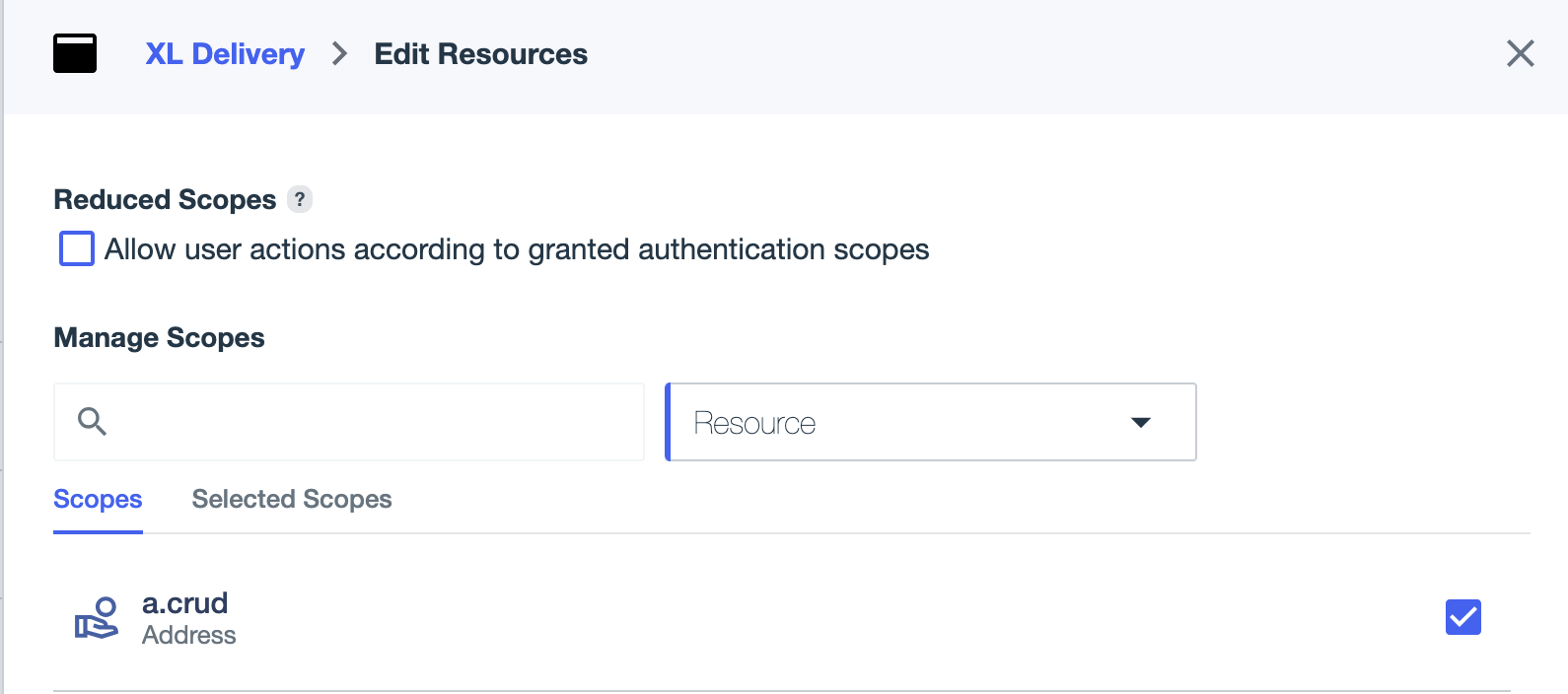
On the Resources tab:
-
Click .
-
Assign the resource you created in Adding the Address custom resource.
-
Click Save.
-
Adding Buzzer as a custom resource
Add a custom resource in PingOne for the Buzzer resource server.
Steps
-
Go to Applications > Resources and click the icon.
-
In the Create Resource Profile step:
-
For Resource Name, enter
Buzzer. -
For Audience, enter the audience for resource in the format
https://api.example.com/b. -
(Optional) For Description, enter a brief description of the resource.
-
For Access token time to live, leave the default or optionally edit the maximum time that the access token will be valid for use in the application, in seconds.
-
Click Next.
-
-
In the Attributes step:
-
Click the Gear icon () next to the
subattribute to open the Advanced Expressions modal. -
In the modal, enter
#root.context.requestData.subjectToken.suband click Save. -
Click Next.
-
-
In the Scopes step:
-
Click Add Scope.
-
For Scope Name, enter a name, such as
b.read. -
(Optional) Enter a description for the scope.
-
Click Save.
-
Adding the Address Token Exchange application
Create an application to handle the token exchange requests and obtain access tokens from PingOne to send API requests to Buzzer. The Address Token Exchange application must use:
-
The token exchange grant type to obtain access tokens from PingOne to send API requests to Buzzer.
-
The application credentials in its token request because only applications can send token requests to PingOne, and custom resources can’t.
The access tokens contain a subject (sub) taken directly from the subject of the access token from the XL Delivery application.
Steps
-
Go to Applications > Applications and click the icon.
-
In the Add Application panel:
-
For Application Name, enter
Address Token Exchange. -
(Optional) Enter a Description for the application.
-
Select an OIDC-based application type.
-
Click Save.
-
-
On the Configuration tab:
-
Click .
-
For Grant Type, select Token Exchange.
-
Leave all other default settings.
-
Click Save.
-
-
On the Resources tab:
-
Click .
-
Assign the resource you created in Adding Buzzer as a custom resource.
-
Click Save.
-
-
Provide the application credentials and custom resource credentials to your organization’s developers for the applications and custom resources, respectively.
Required configurations
The following table lists the required configurations for the applications and custom resources and includes example client IDs that correspond to the runtime process overview:
| Applications | Custom resources |
|---|---|
XL Delivery
|
Address
|
Address Token Exchange
|
Buzzer
|
Runtime process overview
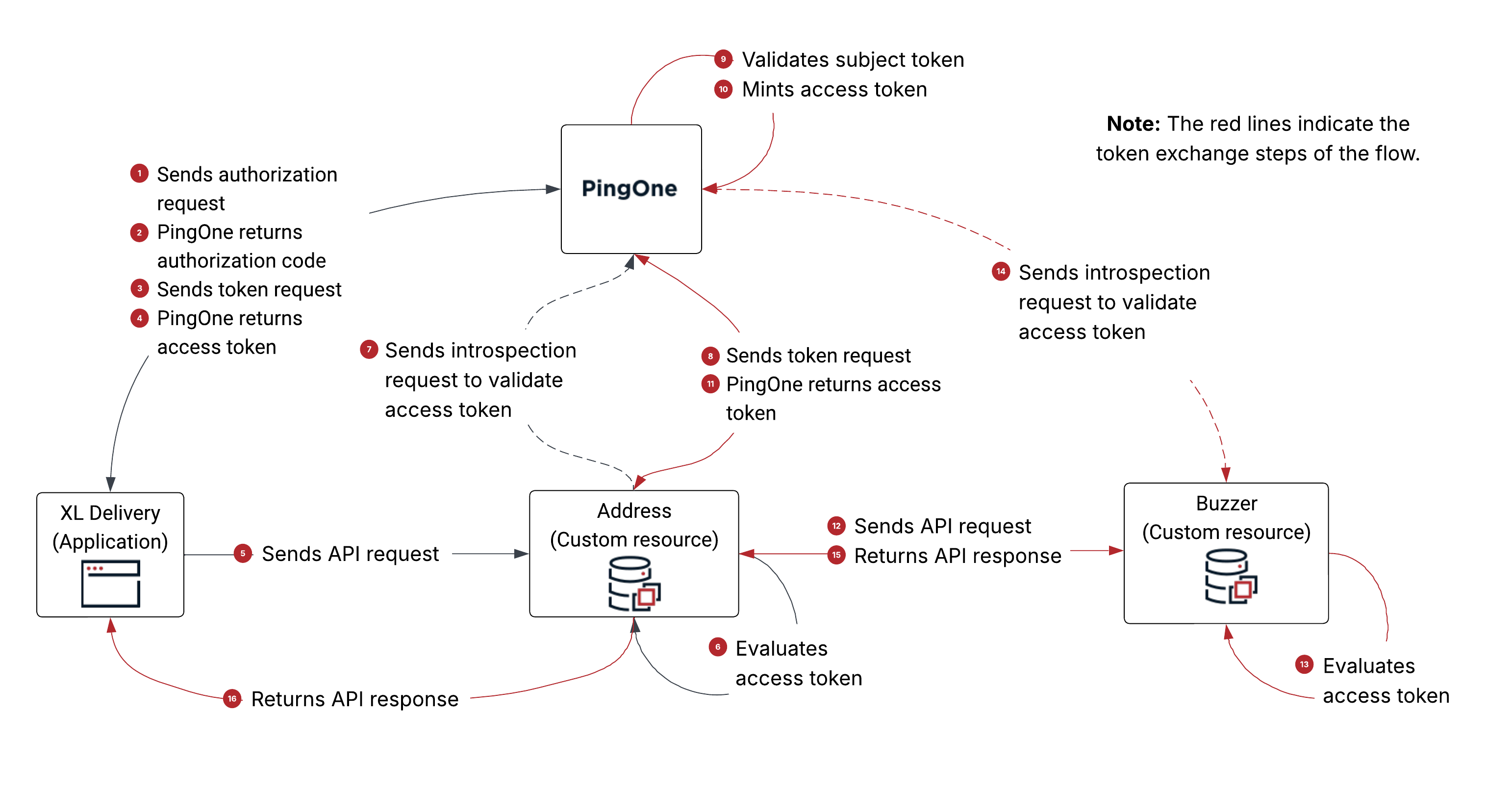
The following diagram shows a high-level overview of the example impersonation flow:
-
XL Delivery sends an authorization request to PingOne with
scope=openid+a.crud,client_id=a85f7a70, and other parameters. -
PingOne authenticates the user, obtains the authorization from the user, and returns an authorization code to XL Delivery.
-
XL Delivery sends a token request to PingOne using the authorization code grant type.
-
PingOne returns an access token to XL Delivery.
The payload is decoded as follows:
{ "client_id": "a85f7a70-c9ae-46cc-99cb-ff78a4ce486e", # the client ID of XL Delivery "iss": "https://auth.pingone.com/6991589d-87eb-47f4-9131-284cebe106b3/as", "jti": "ea50083a-a3d2-4c4a-978b-1175d83c59fd", "iat": 1770155043, "exp": 1770158643, "aud": [ "https://api.example.com/a" # the audience is Address ], "scope": "a.crud", # the scope of this access token "sub": "8ca2b15a-e3bd-43a5-bee1-1e533bae759d", # the id of the user using XL Delivery "sid": "2fc3e42c-f074-4efe-9bc7-ad91627be19b", "auth_time": 1770155030, "acr": "1Single_Factor", "env": "6991589d-87eb-47f4-9131-284cebe106b3", "org": "d4229c38-0f5e-4bf7-9292-9d3b0df7294c" } -
XL Delivery sends an API request to Address. For authorization, XL Delivery includes the access token (from step 4) as the
AuthorizationHTTP request header value in the API request. -
Address evaluates the access token and determines that:
-
The issuer of the access token is PingOne.
-
The application requesting the token is XL Delivery.
-
The audience of the access token includes itself, Address.
-
-
Address sends an introspection request to PingOne to validate the access token.
For client identification and authentication, Address uses the client ID and secret defined in PingOne for the custom resource (
client_id=44278071). -
Address sends a token request to PingOne using the token exchange grant type.
-
For client identification and authentication, Address must use the client ID and secret defined in PingOne for the Address Token Exchange application (
client_id=e8f90620)). -
Address includes the following parameters in the token request:
-
grant_type=urn:ietf:params:oauth:grant-type:token-exchange -
scope=b.read -
subject_token=<access token from step 5> -
subject_token_type=urn:ietf:params:oauth:token-type:access_token -
requested_token_type=urn:ietf:params:oauth:token-type:access_token
-
-
-
PingOne validates the subject token for the following:
-
The subject token is a valid JWT.
-
The issuer of the subject token matches the issuer of the current PingOne environment.
-
The associated PingOne user session is valid.
-
-
PingOne mints an access token based on the attribute mappings defined in PingOne for Buzzer.
-
PingOne returns a token response containing an access token to Address.
The following is the token response:
{
    "access_token": "eyJ…", # the access token as a result of the token exchange token request
    "token_type": "Bearer",
    "expires_in": 3600,
    "scope": "b.read",
    "issued_token_type": "urn:ietf:params:oauth:token-type:access_token"
}
The access token is decoded as follows:
{ "client_id": "e8f90620-43e7-4d56-af96-fb0efb77076f", # the client_id of Address Token Exchange App "iss": "https://auth.pingone.com/6991589d-87eb-47f4-9131-284cebe106b3/as", "jti": "b6c4af53-4396-452d-a3da-88008846cf76", "iat": 1770155325, "exp": 1770158925, "aud": [ "https://api.example.com/b" # the audience is Buzzer ], "scope": "b.read", # the scope of this access token "sub": "8ca2b15a-e3bd-43a5-bee1-1e533bae759d", # the id of the user using XL Delivery "sid": "2fc3e42c-f074-4efe-9bc7-ad91627be19b", "auth_time": 1770155030, "acr": "1Single_Factor", "env": "6991589d-87eb-47f4-9131-284cebe106b3", "org": "d4229c38-0f5e-4bf7-9292-9d3b0df7294c", "p1.userId": "8ca2b15a-e3bd-43a5-bee1-1e533bae759d" } -
Address sends an API request to Buzzer. For authorization, Address includes the access token (from step 11) as the
AuthorizationHTTP request header value in the API request. -
Buzzer evaluates the access token and determines that:
-
The issuer of the access token is PingOne.
-
The application requesting the token is Address Token Exchange.
-
The audience of the access token includes itself, Buzzer.
-
-
Buzzer sends an introspection request to PingOne to validate the access token.
-
Buzzer returns an API response to Address. At this point, Address as a resource server can fulfill the API request from XL Delivery (in step 5).
-
Address as a resource server returns an API response to XL Delivery.