Adding custom policies for MCP servers
Define custom policies that target inbound requests for MCP servers.
Custom policies control access to MCP servers in complex authorization scenarios. When you create an MCP server, PingOne Authorize creates a system-owned module and generates a policy tree that reflects the server. You can’t rename, rearrange, or delete the policy sets and policies that PingOne Authorize generates. You can add your own custom policies to the Custom policy sets in the tree.
|
Custom policies are enabled by default for all MCP servers and can’t be disabled. |
Top-level policy sets include:
-
API service <Name>: This is the top-level policy for the MCP server. It serves as a container for everything nested underneath it.
-
API service and Operations: This policy set ensures that combining algorithms work correctly for API Access Management rules and policies.
MCP servers don’t have operations. Policies that you add target all requests to the MCP server, including tool calls.
The next level contains the policy sets that target requests to the MCP server:
-
Inbound Request: This policy set is a container for rules and custom policies that target inbound requests for the MCP server.
-
Custom: This policy set is where you add your own custom policies that target inbound requests for the MCP server.
API Access Management doesn’t support outbound response policies for MCP servers. You can add custom policies only to the Inbound Request policy set.
-
Steps
-
In the PingOne admin console, go to Authorization > Policies, and select the MCP server’s module in the Module list.
You can also go to Authorization > MCP Servers, select the MCP server, and click the policy tree link on the Overview tab to open the policy tree for the MCP server’s module.
-
In the policy tree, select the Custom policy set nested under the MCP server’s Inbound Request policy set.
This is where you add policies that are evaluated for every request that the MCP server receives. For example, a policy that challenges a client whose access token doesn’t include the scopes required for a tool call.
-
Click the and select Add Policy.
-
In the Name field, enter a name for the policy.
-
Add rules, conditions, and statements to the policy as needed.
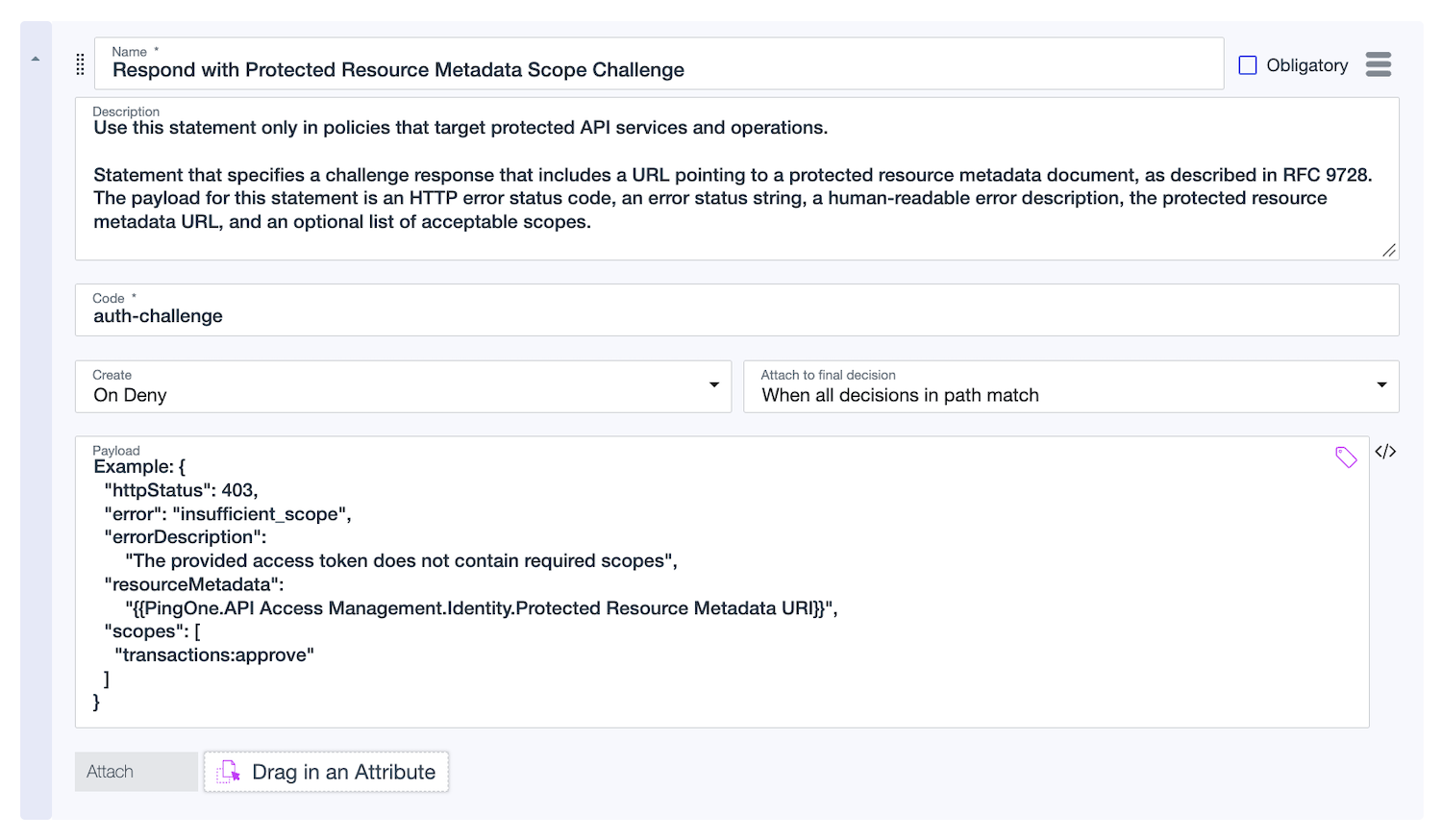
For example, to challenge MCP clients whose access token doesn’t include the scopes required for a tool call, add an auth-challenge statement from the Respond with Protected Resource Metadata Scope Challenge template. The challenge lists the required scopes and directs the client to the PRM document for the MCP server.
The following rule uses the built-in
PingOne.API Access Management.Identity.Access Token.Scopesattribute to deny requests that don’t include thetransactions:approvescope: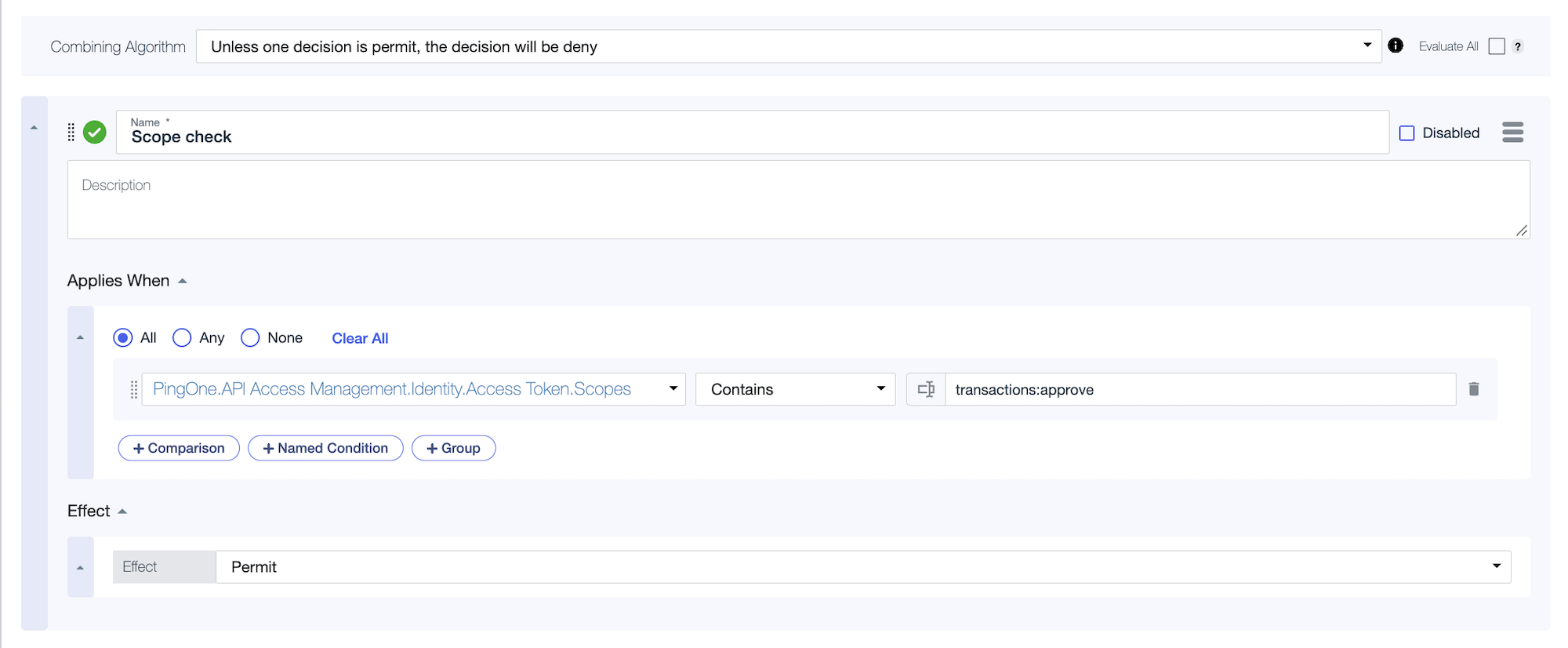
The following policy statement uses the Respond with Protected Resource Metadata Scope Challenge template to challenge clients with the required scope:
-
Click Save changes.
-
To deploy the policy, deploy the MCP server.