Creating a product connection
Create a product connection profile and credential in PingOne, then use the credential in other Ping Identity products to establish the connection.
Before you begin
To set up a connection between PingOne and PingFederate or a PingOne Advanced Identity Cloud tenant, you must have access to the administrator consoles for the applicable product.
Steps
-
In the PingOne admin console, go to Integrations > Products.
-
Click the icon.
-
On the Add Connection modal, do the following:
-
Select the Target Product:
-
PingOne Advanced Identity Cloud
-
PingFederate
-
-
Enter a unique Name for the connection.
-
(Optional) Enter a brief Description of the connection.
-
-
Click Save.
Result:
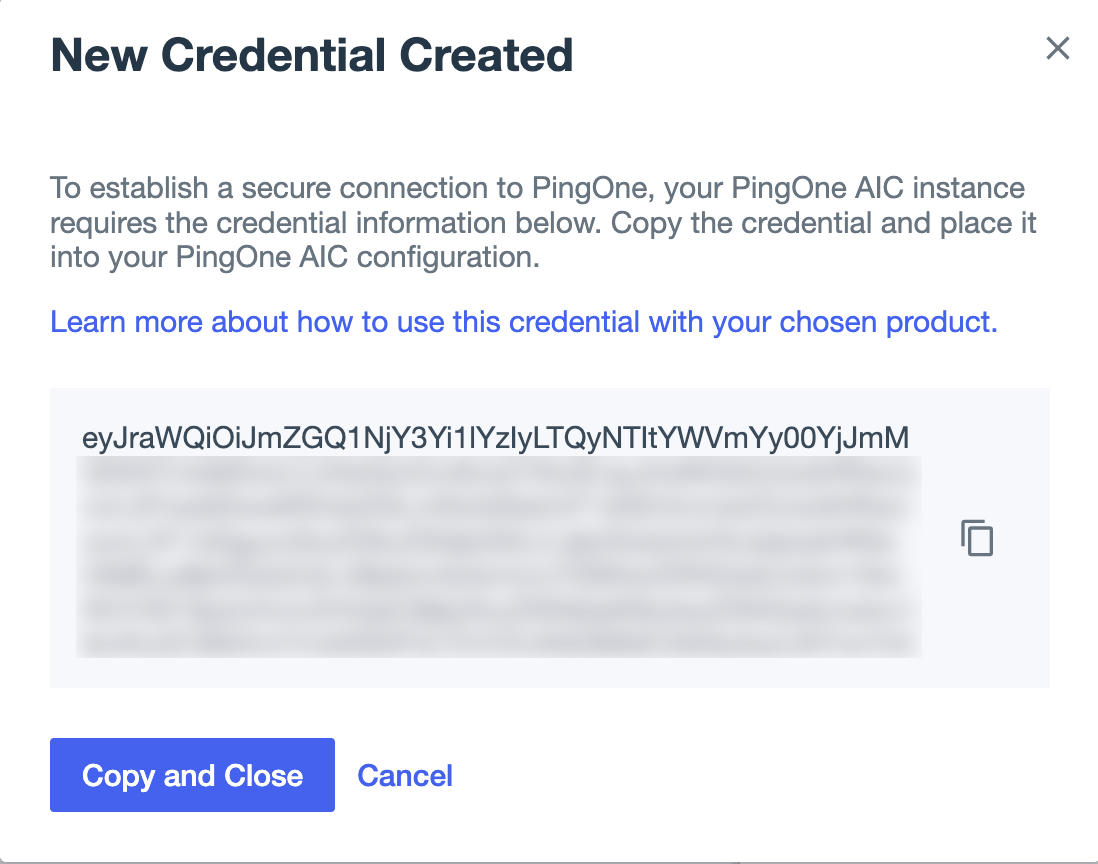
PingOne generates a new credential for the connection. The credential is a JSON Web Token (JWT) containing OpenID Connect (OIDC) credentials and a PingOne environment ID.
-
In the New Credential Created modal, click Copy and Close to copy the credentials and close the modal.
After you close the New Credential Created modal, you can’t go back and copy the credential. If you’re not going to complete the configuration now, paste the credential to a text file. You can also create a new credential later. Learn more in Editing a connection.
Result:
The new connection is added to the Products list.
Next steps
Add the connection in the applicable product: