PingOne Remote MCP Server (early access)
The PingOne Remote MCP Server is now available for early access (EA).
The PingOne Remote MCP Server lets artificial intelligence (AI) clients connect to PingOne through a single remote Model Context Protocol (MCP) endpoint. Because the server is remote, you don’t need to install, configure, or run a local MCP server.
After configuring a supported client, administrators authenticate through PingOne with OAuth 2.0. They can then securely use MCP tools to administer the PingOne platform.
All MCP tools adhere to the PingOne roles and permissions model. Administrators can only access and use tools supported by their existing roles.
MCP Server settings
To support the release of the PingOne Remote MCP Server, we’ve added a new MCP Server page in the Settings section of the PingOne admin console. Enable or disable the PingOne Remote MCP Server for the environment on this page (MCP server access is disabled by default).
To enable the PingOne Remote MCP Server, click Enable MCP Access.
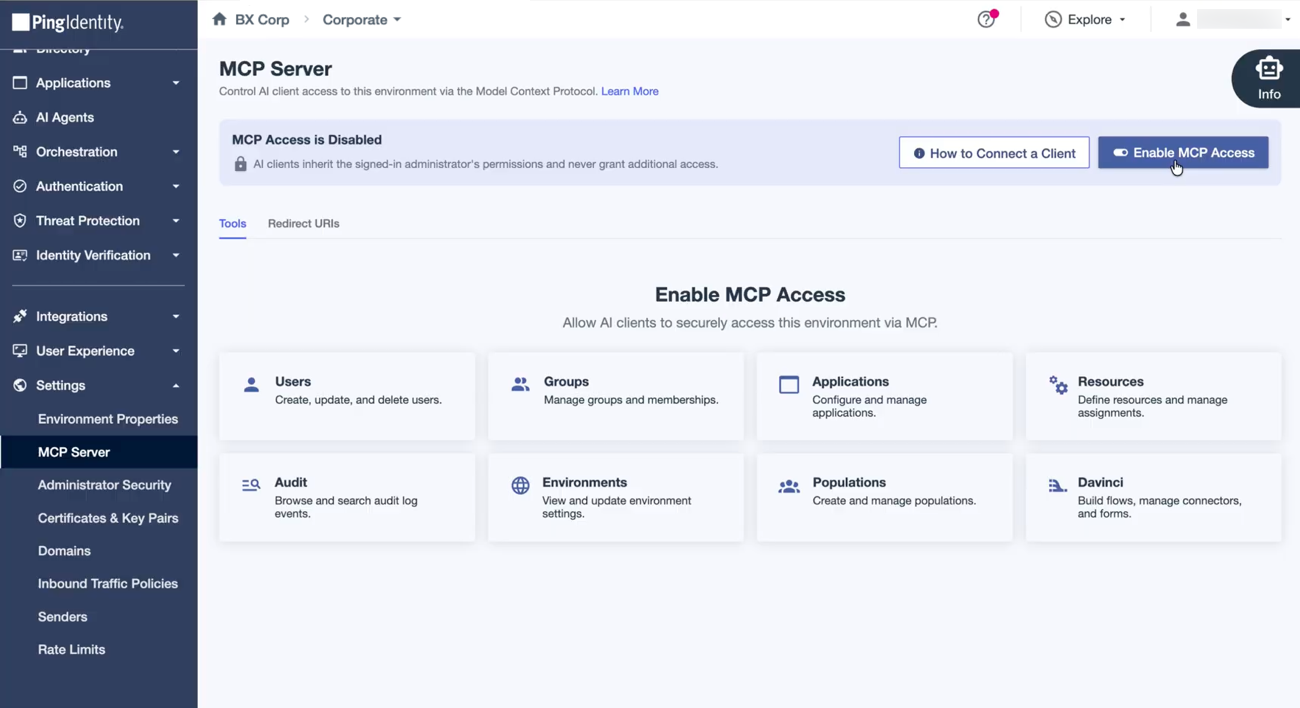
You must have the Environment Admin role or a custom role with equivalent permissions to enable or disable the PingOne Remote MCP Server.
|
For this EA release, enabling the PingOne Remote MCP Server provides access to all of the available PingOne MCP tools. During EA, you should enable the server in non-production environments only. More granular tool controls will be introduced in a future release. |
New system application
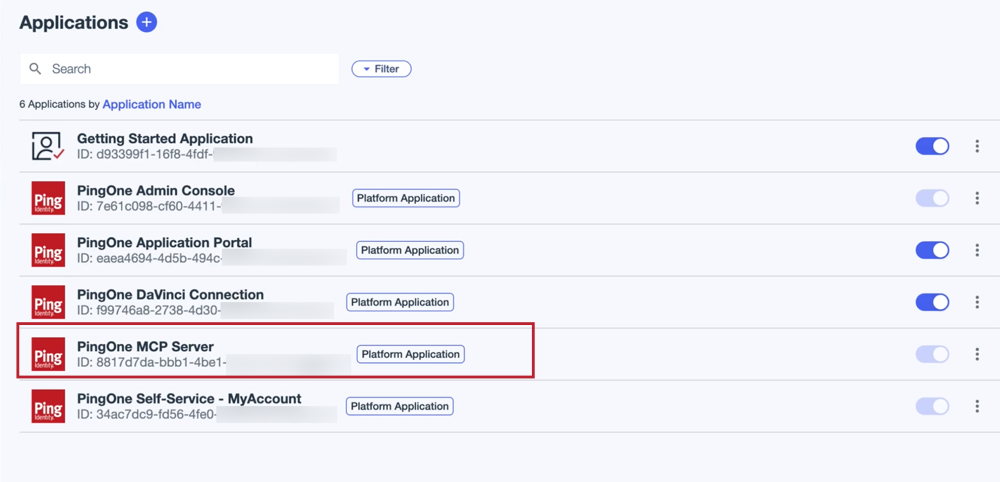
We’ve also added a new PingOne MCP Server system application. This application allows administrators to access and use the PingOne Remote MCP server to manage the environment’s configuration and data. It’s enabled by default and can’t be disabled.
|
The PingOne MCP Server application won’t appear in the PingOne admin console unless an administrator has opted in to the remote MCP feature for that specific environment. |
Configuring custom redirect URIs
By default, the PingOne MCP Server application uses two system-provided redirect URIs. Instead of using the default URIs, you can optionally add custom redirect URIs to which PingOne forwards the OIDC response after authentication. Learn more in Redirect URIs.
Steps
-
In the PingOne admin console, go to Applications > Applications and click the PingOne MCP Server application to open the details panel.
-
On the Overview tab, click the Pencil icon ().
-
Click Add Custom Redirect URI.
-
Enter the redirect URI your MCP client uses to receive the OIDC response.
Learn more about using a wildcard or loopback IP address in Redirect URIs.
-
To add additional URIs, click Add Custom Redirect URI.
-
(Optional) Select the Allow Redirect URI Patterns checkbox to use a wildcard for flexibility in managing redirect URIs.
-
Click Save.
|
To revert to using the default redirect URIs, click Restore Defaults. |
Learn more
Learn more about the PingOne Remote MCP Server in the Build with AI documentation.